What to Do If Software Update Is Not Working
A practical, urgent troubleshooting guide to diagnose and fix common software update failures across devices, with a clear flow, step-by-step actions, and prevention tips.


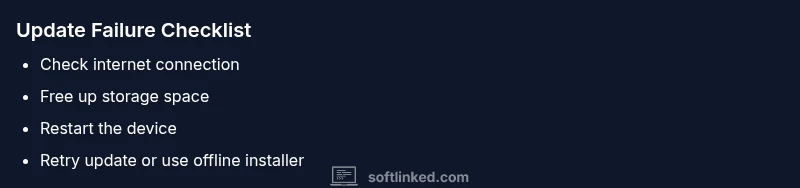
Update failures are usually caused by connectivity issues, insufficient storage, or conflicting apps. Start with quick checks: verify stable internet, free up space, and reboot. If the problem persists, try pausing background processes, attempting the update on a different network, or reinstalling the update package. For persistent problems, consult logs or reach out for support.
Why what to do if software update is not working happens
Updates fail for several reasons, from connectivity problems to conflicting apps. If you’re wondering what to do if software update is not working, you’re not alone. The SoftLinked team often sees failures rooted in unstable networks, limited storage, or temporary server-side hiccups. Recognizing these root causes helps you pick the right first steps and avoid endlessly retrying. This section lays the groundwork so you can approach the rest of the guide with a clear plan and calm. By understanding the common failure modes, you can triage quickly and reduce downtime for your development work or studies.
Quick checks you can perform right now
Start with the simplest, most reliable fixes first. These checks don’t require tools or deep technical knowledge, but they resolve a large share of update problems. Verify your internet connection is stable (switch to a wired connection if possible), ensure the device has adequate free storage, and confirm the system clock is accurate. Close or pause heavy background apps that could be consuming bandwidth or conflicting with the update service. If you’re on battery power, plug in the device to prevent power-related interruptions. Finally, check if another device on the same network can fetch updates, which helps determine whether the issue is device-specific or network-related.
Verify storage, battery, and permissions
Low storage is a common culprit for failed updates. If space is limited, delete unused apps, media, or cache files. For mobile devices, ensure there’s at least a healthy buffer of free space beyond the update package size. Battery level matters too: many OS updates require a minimum charge to proceed, and some devices won’t install while charging only. Permissions can also block updates; make sure the updater has the necessary rights to modify system files. If you’re managing a fleet or developer devices, verify any enterprise restrictions or profile configurations that could block installation.
Connectivity and server status considerations
Networking problems can silently derail updates. Check whether VPNs, proxies, or firewalls are filtering traffic to update servers. If you’re behind a corporate network, consult IT to see if traffic is being blocked or throttled. Sometimes the problem is on the server side—update servers may be temporarily down or overloaded. You can verify server status via official channels or status pages. When in doubt, switch to a different network (mobile hotspot, neighbor’s Wi‑Fi) to determine if the issue is network-related.
Platform-specific troubleshooting paths
Different platforms have distinct update mechanics. For Windows, run the Windows Update troubleshooter and reset Windows Update components if needed. macOS users can try Safe Boot, re-download the updater, or use macOS Recovery to reinstall system updates. Linux distributions vary; check package manager logs and repository configurations. Android devices often require clearing cache for the Google Play Services updater or the system update app, while iOS devices may benefit from a reset of network settings or a full restore if the update is corrupted. Follow platform-specific steps in order to avoid cross-platform missteps.
When to escalate and how to collect logs
If updates continue to fail after the above steps, gather logs and error messages before contacting support. On most systems you can export update logs, error codes, and timestamps. Include device model, OS version, update package version, network type, and any recently installed apps that could conflict with the updater. Escalate promptly if you see repeated failure codes or if security software interferes with the installer. Professional help is warranted when you encounter hardware-related blockers, corrupted system images, or back-end server issues beyond user control.
Preventing future update problems
Prevention is better than recovery. Regularly back up before major updates and maintain a clean storage environment. Keep device firmware and drivers up to date, but avoid installing multiple major updates simultaneously. Establish a standard routine for testing updates on a small subset of devices before full rollout, especially in a development or classroom setting. Finally, document your troubleshooting steps so you can rebuild a fresh plan quickly if problems recur.
Steps
Estimated time: 1-2 hours
- 1
Back up data and verify device readiness
Create a current backup of important files and ensure there is sufficient power or a plugged-in charger. This prevents data loss if something goes wrong during the update. Confirm the target OS version and minimum requirements are met.
Tip: Having a rollback plan reduces stress if the update encounters issues. - 2
Check internet connection and switch networks if needed
Connect to a stable network. If your current connection is flaky, try a wired connection or a different network. Disable VPNs temporarily to rule out interference.
Tip: A short, stable connection is often more important than speed. - 3
Free up storage and pause background apps
Review available disk space and delete or move large files. Pause or stop non-essential apps that may throttle resources or conflict with the updater.
Tip: Aim for at least 10–20% free space beyond the update size. - 4
Restart update service or device and retry
Restart the device if needed and initiate the update again. On some platforms, you may need to reset the updater components or services before retrying.
Tip: Avoid multitasking during the first retry. - 5
Clear updater cache and reseed the update package
Clear any cached updater data and re-download the update package. On some systems you may need to remove temporary files or reset the download cache.
Tip: Corrput cached data is a common, fixable cause. - 6
Check for platform-specific fixes
Apply platform-specific steps (e.g., Windows Update reset, macOS reinstall option, or Linux package manager checks).
Tip: Follow official docs to avoid unintended changes. - 7
Retry the update or install via an alternate method
If the standard update fails, try an offline installer or a clean reinstall if supported. Ensure you are using the correct version for your device.
Tip: Double-check the update package integrity before reinstall. - 8
Escalate if issues persist
If the update still won’t complete after all steps, collect logs and contact support with detailed information.
Tip: Provide exact error codes and timestamps to speed up diagnosis.
Diagnosis: Software update hangs, fails to install, or stops mid-process
Possible Causes
- highNetwork connectivity issues or unstable Wi-Fi
- highInsufficient free storage on the device
- mediumServer-side outage or update package corruption
- lowSoftware conflicts or misconfigured permissions
Fixes
- easyTest with a stable network (prefer wired or strong portable hotspot)
- easyFree up storage by deleting unused files and clear cache
- easyRestart device and retry update in a clean state
- mediumClear updater cache or reset update components (platform-specific)
- mediumDisable conflicting security software temporarily if safe to do so
- mediumRe-download update package or use alternate installation method
Your Questions Answered
Why does my software update keep failing on startup?
Startup failures are typically caused by insufficient storage, unstable network, or conflicting background processes. Start by checking storage space, then confirm network stability before retrying the update.
Update failures at startup are usually due to storage or network issues. Check space and your connection, then retry.
What should I do first when an update fails?
Begin with quick checks: ensure a stable network, adequate free space, and a recent backup. Then follow platform-specific troubleshooting steps and retry the update.
Start with network, space, and backup, then proceed with platform-specific steps.
Can a failed update harm my device?
A failed update can leave the device in an unstable state, but proper troubleshooting and recovery steps usually restore normal operation. Always back up before major updates.
A failed update can be a hiccup, but with backups and proper steps you can recover.
Is it safe to retry the update immediately after a failure?
Retrying after addressing common causes (space, network, and cache) is often safe. If it fails again, wait for server-side clarity or try alternative installation methods.
Often safe to retry after fixing the basics; if it fails again, try alternatives.
What network factors can block updates?
VPNs, proxies, and strict firewalls can block update traffic. Temporarily disabling them or using a direct connection can help determine if the network is the culprit.
VPNs or firewalls can block updates; test with a direct connection.
When should I contact support?
If you’ve exhausted basic fixes and logs still point to a problem beyond your control, contact support. Include device, OS version, error codes, and steps already taken.
If basic fixes fail and logs show persistent issues, seek support.
Watch Video
Top Takeaways
- Back up before updates and confirm device readiness
- Verify network stability and free storage first
- Follow a platform-specific, step-by-step flow
- Collect logs and escalate when necessary
- Use preventive practices to reduce future failures