What to Do If a Software Update Is Paused: A Practical Guide
Learn step-by-step how to resume paused software updates, troubleshoot causes, and implement reliable practices to prevent future pauses. This guide offers actionable, developer-friendly strategies with clear checks and retries.


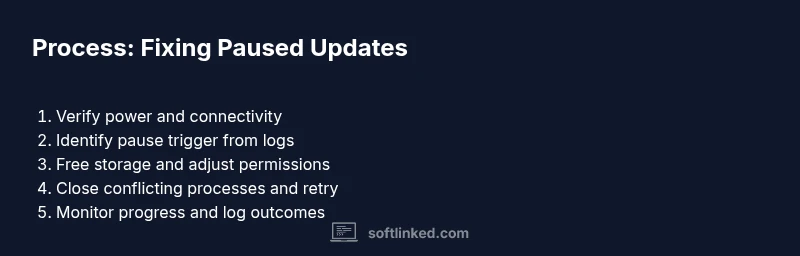
To handle a paused software update, identify the pause reason, ensure a stable internet connection, free storage, and required permissions, then resume with a targeted retry plan. If the pause persists, check for conflicting apps, update schedule settings, and consider restarting the device before retrying. Include verifying power supply, network restrictions, vendor advisories, and any device-specific constraints.
Why updates pause happens and why it's risky
When a software update pauses, it often signals an underlying issue rather than a simple hiccup. Pauses can occur due to unstable network connections, inadequate storage, power-saving policies, or conflicting applications that lock resources during the install. In practice, understanding the exact trigger is essential because a blind retry can worsen corruption or leave the device in an inconsistent state. If you are wondering what to do if software update is paused, this section lays the groundwork for diagnosing the pause without risking data loss or longer downtime. According to SoftLinked, the most reliable approach is to treat the pause as a diagnostic signal rather than a failure to complete. Start with one or two verifiable checks, then proceed to targeted remediation. The goal is to restore a safe, bounded environment so that the update can proceed without surprises. Recognize that updates often execute in stages: downloading, validating, installing, and finalizing. A pause at any stage may require different remedies, but the core principle remains the same: stabilize, verify prerequisites, and retry with incremental safeguards. This mindset helps developers and IT professionals prevent cascading failures across devices or fleets.
Key concepts to keep in mind include ensuring a consistent power source, confirming an uninterrupted network path, and validating entitlement to install the update. When you pause an update intentionally for maintenance, you should also consider the broader system state, including dependent services, scheduled tasks, and backup integrity. By adopting a disciplined pause-and-resume workflow, you reduce the risk of partial installs, inconsistent configs, or feature regressions. SoftLinked's approach emphasizes methodical checks, clear rollback plans, and explicit user-facing messaging so the pause is a fault-tinding step rather than a mystery. This frame of mind is especially valuable for aspiring software engineers who want to build robust update mechanisms in their applications.
styleTypeId2HashNameTagOverrideZrKz9D9U3dA
notesFromBrandGuidanceImportantOverride
Tools & Materials
- Stable internet connection(Wired Ethernet preferred for desktop updates; Wi-Fi should maintain 95%+ signal strength during the update window.)
- Device plugged into power(Avoid battery saver interruptions; ensure charging source remains stable for the duration.)
- Sufficient storage space(Free space equal to at least 15-20% of the update package size if possible.)
- Backup of important data(Create a current restore point or data snapshot before retrying the update.)
- Update logs or error reports(Collect logs from the update process to identify root causes.)
Steps
Estimated time: 45-90 minutes
- 1
Verify power and network stability
Check that the device is connected to a reliable power source and that the internet connection is stable enough to download and install the update without interruptions. A brief network drop can interrupt the update mid-transfer and trigger a pause.
Tip: Use a wired connection for desktops or laptops when possible to minimize fluctuations. - 2
Identify the pause trigger
Review update progress indicators, logs, or error messages to identify why the update paused. Common triggers include low storage, permission issues, or a failed integrity check. Document the exact error code if present.
Tip: If you see an error code, search the vendor knowledge base for that exact code before retrying. - 3
Free up and verify storage
Ensure there is enough free disk space for both the download and installation phases. If storage is tight, delete nonessential files or move data to external storage temporarily.
Tip: Disable large temporary files or caches that may be occupying space during the update window. - 4
Check permissions and policy settings
Confirm that the user account performing the update has the necessary privileges. On managed devices, verify group policies or MDM profiles that could block installation.
Tip: If a policy prevents installation, request temporary exceptions for the update window. - 5
Pause conflicting processes and apps
Close or suspend apps that may hold file handles or lock resources. Background services can interfere with installer components, causing a pause or rollback.
Tip: Temporarily suspend antivirus or firewall rules if they are scanning during installation, then re-enable after completion. - 6
Retry with a controlled resume
Initiate the update again using a controlled resume, preferably choosing a smaller, incremental retry if supported by the vendor. Monitor progress closely for any new warnings.
Tip: Use a graceful restart of the update service to avoid aggressive retries that could corrupt the install. - 7
Review logs and set a retry window
After a retry, review updated logs to confirm progress or to catch new hints. Set a time-bound window for the next retry to avoid indefinite stalls.
Tip: Document the exact start time and observed behavior for future reference. - 8
Consider fallback or rollback if needed
If the update continues to pause, assess whether a rollback or clean slate reinstall is safer than repeated retries. Ensure you have a tested recovery plan.
Tip: Backups are crucial—do not attempt a rollback without a validated restore point.
Your Questions Answered
What is the first step when a software update is paused?
The first step is to verify power and network stability, ensuring the device is plugged in and the connection is reliable before delving into deeper diagnostics.
Start by confirming power and network stability, then check update logs if available.
Can I safely pause an update to start later?
Pausing for planned maintenance is acceptable if it’s supported by the update system, but avoid long or repeated pauses as they can cause partial installs or data inconsistency.
If the update supports a pause, plan carefully; avoid frequent interruptions.
What should I do if storage is the cause of the pause?
Free up space by deleting nonessential files, moving data to external storage, or using disk cleanup tools, then retry the update.
Clear enough space and retry the update.
Are there risks in forcefully restarting an update?
Yes. Forcing restarts can corrupt the update or leave the system in an unstable state. Use vendor guidance or a safe restart procedure.
Don’t force a restart unless the vendor instructions say it’s safe.
When should I contact support?
If pauses persist after retries, contact support with log files and error codes to get targeted assistance.
If retries fail, reach out with logs for help.
How can I prevent future pauses during updates?
Establish a regular update window, ensure devices have power and storage headroom, and implement staged rollouts with monitoring to catch issues early.
Prevent pauses by planning updates and monitoring systems.
Watch Video
Top Takeaways
- Identify the pause trigger before acting
- Ensure power, network, and storage prerequisites are met
- Retry with controlled, incremental steps
- Always back up data before attempting updates
- Use logs to diagnose and prevent repeat pauses