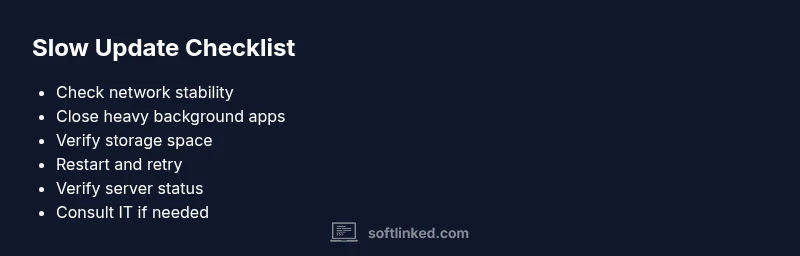
Why Is My Software Update Taking So Long? A Practical Troubleshooting Guide
A fast, practical troubleshooting guide to diagnose and fix slow software updates. Learn common causes, safe fixes, and prevention tips from SoftLinked, with a step-by-step flow and expert guidance.


Most slow updates stem from a weak network, server congestion, or limited device resources. Start by confirming network stability, then pause background activity and retry. If the issue persists, check storage, restart, and consult official status pages before escalating.
Why Updates Slow Down: Common Causes
If you’re asking, 'why is my software update taking so long', you’re not alone. According to SoftLinked, updates can stall due to a mix of network conditions, server-side queues, and device constraints. A slow update is rarely caused by a single issue; more often, it’s a combination of factors that compound over time. Understanding these root causes helps you apply targeted fixes quickly and avoid repeat delays in the future. This section lays out the most frequent culprits and why they matter, so you can prioritize your troubleshooting steps with confidence.
Network Bottlenecks and Server Load
A sluggish update often starts with the network. If your Wi‑Fi signal is weak, or you’re competing with other devices for bandwidth, the download and verification phases can drag on. Corporate networks may also throttle large downloads or push update traffic through proxies, increasing latency. On the server side, update farms can experience congestion or maintenance windows, causing delays even for normal users. In both cases, the practical fix is to optimize the connection and retry during off-peak hours when server load is lower.
Device Resources and Storage
Updates require available storage, CPU, and RAM to unpack and install new files. If your device is near capacity or running many background processes, the update can crawl or stall. Check for low disk space, highDisk I/O, or memory pressure, and close unneeded apps before attempting the update again. A restart can also clear transient system states that slow down installation. Keeping your device optimized ensures smoother, faster updates over time.
Update Packages and Version Compatibility
Sometimes the bottleneck lies in the update package itself — large downloads, partial installs, or compatibility checks between versions can extend the timeline. Ensure you’re applying the correct update for your device and that previous patches have completed cleanly. If a package is corrupted or partially installed, the update process may re-download large portions, prolonging the wait. In such cases, clearing cache and retrying with a fresh download can help.
System-Specific Considerations (Windows, macOS, Linux, Mobile)
Different platforms manage updates differently. Windows and macOS rely on centralized updater services, while Linux distributions may depend on package managers and repositories. Mobile devices balance energy usage with background tasks, which can slow updates if battery saver modes kick in. Tailor your troubleshooting to your platform: disable battery saver for mobile updates, verify repository health on Linux, or run the built-in repair tools on desktop OSes.
Safe, Step-by-Step Fixes You Can Try Now
If an update is stubborn, follow a safe, capped sequence of actions to regain progress without risking data loss. Start with the simplest checks and advance only as needed. Always back up important data before major updates and re-enable security features after you finish.
Long-Term Prevention: Keeping Updates Quick
Prevention is better than cure. Regular maintenance like clearing temporary files, ensuring sufficient storage, and scheduling updates during low-traffic periods reduces the likelihood of stalls. Keep software and drivers current so that future updates install more smoothly. Finally, document any environment quirks (networks, proxies, or VPNs) so you can replicate successful paths for future updates.
Steps
Estimated time: 30-60 minutes
- 1
Verify network stability
Run a quick speed test and ensure you have a reliable connection. If possible, switch to a wired Ethernet or move closer to the router to reduce interference. Retry the update after confirming the connection is stable.
Tip: Tip: Use a separate device to check if the network is generally slow, not just on this device. - 2
Pause background activity
Close all nonessential apps and pause cloud backups or large sync jobs that could be consuming bandwidth. This frees up bandwidth for the update and reduces contention.
Tip: Tip: On desktops, open Task Manager or Activity Monitor to quit heavy processes temporarily. - 3
Check storage and resources
Verify there is enough free disk space for the update package and unpacking. Exit unnecessary programs and clear temporary storage if needed. Free memory by closing tabs or apps.
Tip: Tip: A quick reboot can clear memory pressure and reset background tasks. - 4
Restart and retry
Restart the device to clear transient states and re-launch the update. If the update still stalls, try a manual check for updates from the OS or software vendor.
Tip: Tip: Ensure you’re using the official update channel to avoid corrupted installers. - 5
Check server status and channels
Consult official status pages or user forums for real-time reports of update issues. If available, switch to an alternate update channel or mirror.
Tip: Tip: Avoid multi-source downloads; pick the official source to minimize conflicts. - 6
If needed, seek professional help
If updates remain stuck after all steps, contact IT support or consult the vendor’s help desk. Document the steps you’ve tried to streamline troubleshooting.
Tip: Tip: Don’t attempt risky hacks like registry edits or forceful reinstalls without guidance.
Diagnosis: Update progress stalls or hangs at a certain percentage or never completes.
Possible Causes
- highSlow or unstable internet connection
- mediumServer-side update congestion or throttling
- lowInsufficient disk space or memory pressure
- lowBackground security scans or active antivirus delaying operations
Fixes
- easyTest network speed and stability; switch to wired or strong Wi‑Fi; pause other bandwidth-heavy activities
- easyCheck official update server status or retry during off-peak hours
- easyFree up storage, close unnecessary apps, and retry the update
- easyRestart the device and reinitiate the update; consider safe/recovery mode if persistent
- mediumIf in a corporate environment, verify VPN/proxy/firewall settings aren’t blocking updates
Your Questions Answered
What should I do first if an update is stuck on my device?
Begin by checking your network connection and restarting the update. If the issue persists, verify there’s enough storage and attempt the update again.
First, check your network, restart the update, and ensure you have storage space. If it still stalls, try again after a restart.
Why do updates sometimes stall at 50% or 75%?
Midpoint stalls can happen due to network hiccups, server congestion, or local resource pressure. The best approach is to pause, retry, and verify the server status.
It can stall mid-download due to network issues or server load. Pause, retry, and check server status.
Can antivirus software slow down updates?
Yes, active antivirus scans can add overhead during installation. Temporarily pausing real-time protection during the update (and re-enabling it afterward) can help, but do so only if you trust the source.
Antivirus scans can slow things down. You can pause real-time protection briefly during the update, then re-enable it.
Should I cancel and re-run an update?
Canceling and restarting is a common remedy, especially after clearing caches or ensuring a clean download. Always perform a proper shutdown or restart before reattempting.
Often restarting and retrying helps, but make sure you shut down properly first.
When should I seek professional help?
If updates repeatedly fail across multiple devices or you suspect hardware or corporate policy issues, contact support or IT. Document steps you’ve tried for faster resolution.
If updates keep failing across devices or you suspect policy blocks, get professional help and share your steps.
Watch Video
Top Takeaways
- Start with network and storage checks before deeper fixes.
- Retry updates after a clean restart to clear transient issues.
- Verify server status and official channels for guidance.
- If unresolved, escalate to IT or vendor support promptly.