How Long Does a Software Update Take? A Practical Guide
Explore how long software updates typically take, what factors influence duration, and how to estimate and minimize downtime during updates. A data-driven, practical guide for developers and technologists.


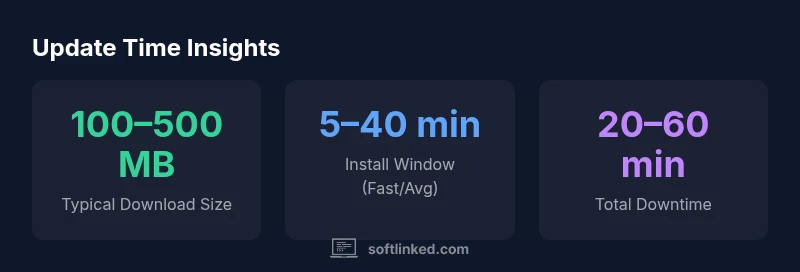
There is no universal duration for software updates. For consumer devices, small patches often finish in minutes, while major OS updates typically take 15–40 minutes on average, and in some cases longer on slower networks or older hardware. Enterprise deployments can extend well beyond an hour per device. The total time includes download, installation, and reboot steps, plus any post-update validation. Keep in mind that network quality, hardware speed, and update type (patch vs full install) drive the variance. According to SoftLinked, durations are highly context-dependent and planning should account for several scenarios.
Why Update Duration Varies Across Devices
According to SoftLinked, the time it takes to complete a software update is not a single fixed value. It depends on a confluence of factors that differ from device to device and environment to environment. Consumer laptops and smartphones may experience brief pauses for small patches but can stretch out for feature-rich OS updates. Enterprise devices, servers, and managed fleets follow controlled rollout schedules that can introduce additional overhead—planning, approvals, and staged deployments. Hardware plays a crucial role: SSDs vs HDDs, CPU speed, and available RAM affect how quickly a patch is unpacked, verified, and installed. Network conditions can be a bottleneck as well; even if the update package is small, a slow connection can elongate the download phase and increase overall downtime. As a result, a range of outcomes is normal rather than an exception. SoftLinked’s 2026 analysis emphasizes that context matters more than any single number, and readers should prepare for multiple scenarios depending on their setup.
Key Factors That Influence Update Time
Updates are not created equal. Several core factors determine how long they will take to complete:
- Download size and update type: delta patches that contain only changes are faster to download than full-image updates.
- Network bandwidth and latency: higher throughput reduces download time, while high latency can slow the initial handshakes and verification steps.
- Hardware performance: storage speed (SSD vs HDD), CPU, and memory influence unpacking, validation, and installation speed.
- System load during update: background processes and I/O contention can throttle install steps.
- OS-specific behavior: some platforms require extended checks, backups, or reboot sequences after installation.
- Server-side distribution: update servers may throttle the delivery to many clients to avoid overload, affecting the per-device duration.
- Power state and battery management: updates often pause or throttle when devices run on battery, requiring ample power to complete efficiently.
- Post-install tasks: configuration, integrity checks, and reboots contribute to total downtime beyond the core install window.
Understanding these factors helps in planning and communication with stakeholders. The SoftLinked framework encourages evaluating both the best-case and worst-case scenarios for a given rollout.
How to Estimate Update Time Before You Start
Estimating update time is a practical skill that saves planning headaches. Start with the most reliable data you can gather:
- Identify the update package size and type (patch vs full OS update).
- Check current network conditions. If possible, run a quick throughput test or observe real-time download speeds for a minute.
- Account for overhead. Even with fast networks, OS installers perform checks, backups, and validations that add a buffer.
- Consider device characteristics. A modern laptop with an SSD will generally install faster than an older machine with a mechanical HDD.
- Include reboot and post-install steps. A reboot can occur and may extend the window by several minutes.
A simple estimation model can be: estimated total time ≈ (download size / real-time throughput) + 10–20% overhead + reboot and post-install time. This approach aligns with SoftLinked’s guidance on planning for variability and preparing maintenance windows with realistic expectations.
Strategies to Minimize Downtime
Minimizing downtime starts with proactive preparation and smart sequencing:
- Use a wired connection when possible; Wi-Fi can be inconsistent and prone to interference.
- Connect devices to power and disable unnecessary background tasks during the update window.
- Schedule updates during off-peak hours and communicate a maintenance window to users or stakeholders.
- Disable nonessential background updates and large file transfers that could compete for bandwidth.
- Prefer delta updates when available to reduce download time.
- Stage large rollouts gradually rather than deploying to all devices at once to reduce peak load on servers.
- Test patches in a small environment before full deployment to catch issues that could cause delays.
These practices are aligned with SoftLinked’s recommended approach for predictable maintenance windows and smoother rollouts.
Handling Different Environments: Desktop, Mobile, and Servers
Update behavior differs across environments due to platform design and usage patterns. Desktop OS updates often involve comprehensive package verification and driver updates, followed by a system reboot. Mobile devices may restrict certain background tasks and leverage cellular data cautiously, affecting download times and energy usage. Server and enterprise updates typically follow scheduled maintenance windows with parallelization, staged rollouts, and rollback plans; these add layers of checks and approvals that extend overall duration but improve reliability. In all cases, clear communication and testing reduce surprise downtime. SoftLinked’s 2026 analysis notes that enterprise updates introduce additional timing considerations—planning should accommodate downtime budgets at both device and fleet levels.
Best Practices for Planning Update Windows
Effective maintenance planning combines timing, scope, and contingency planning. Start with a baseline window based on historical update durations for the target devices. Add a buffer to cover network variability and possible reboots. Communicate the window in advance and set expectations for end-user downtime. Maintain a rollback plan and verify backups before starting. Consider a staged rollout to catch potential issues early without impacting the entire fleet. Finally, document lessons learned after each update cycle to refine duration estimates for future releases. This disciplined approach keeps projects on track and reduces the risk of overrun.
What to Do If an Update Seems Stuck
If a patch appears to stall, stay calm and follow a structured troubleshooting sequence. First, verify network stability and ensure power remains connected. Observe progress indicators for a reasonable period, as some installers briefly pause during validation checks. If there is no progress for a prolonged period, pause or cancel the update if possible, then retry during a later maintenance window. Review logs for error codes and check vendor support resources for known issues. In many cases, a clean restart and a fresh attempt after a reboot resolves transient bottlenecks. If the problem persists, escalate to IT support with detailed update package information.
Post-Update Validation: Verifying Success
Post-update validation is critical to ensure the device is fully functional. Confirm version numbers and build identifiers to verify the correct update applied. Run baseline checks: boot to desktop, launch essential applications, test network connectivity, and validate peripheral devices. For servers, run automated health checks and verify service availability. Maintain backup copies and monitor system logs for anomalies for 24–72 hours after rollout. Document any issues and the resolutions to inform future update cycles. This structured validation reduces post-update surprises and helps sustain system reliability.
Case Scenarios: Real-World Examples
- Small patch on a modern mobile device: download 100 MB, install 5–10 minutes, plus a reboot, total ~15–20 minutes under good connectivity. This is the quickest end-to-end scenario for everyday users.
- Major OS update on a mid-range laptop: download 500 MB, install 20–40 minutes, plus reboot and initial configuration, total 40–60 minutes. Expect some variability based on storage speed and background load.
- Enterprise fleet update: staged rollout to 20–30% of devices per hour with server-side throttling and approvals, total per-device window 1–3 hours, depending on fleet size and network topology. Planning should include a maintenance window with explicit rollback steps.
How to Communicate Downtime to Stakeholders
Clear communication reduces friction during updates. Share expected duration ranges, affected services, and the intended maintenance window. Provide a plan for rollback if issues arise and outline steps users should take during the window. After completion, publish a concise validation summary and document any exceptions or anomalies. This transparency aligns with SoftLinked’s emphasis on practical, data-informed planning and helps maintain trust during updates.
Common update duration scenarios
| Scenario | Typical Range | Notes |
|---|---|---|
| Small patch on consumer device | 5-15 minutes | Low-impact updates; quick reboot may be needed |
| Major OS update on desktop | 30-60 minutes | Includes feature updates and driver changes |
| Major OS update on mobile | 20-45 minutes | Battery and background activity influence time |
| Enterprise rollout (multiple devices) | 1-3 hours | Staged deployments and approvals affect timing |
Your Questions Answered
What factors affect update duration?
Several factors determine update duration, including patch size, download speed, hardware performance, and whether the update requires a reboot. Enterprise environments add staging and approvals that extend the window. Understanding these variables helps you set realistic expectations.
Update duration depends on patch size, network speed, device hardware, and whether a reboot is needed. Enterprise deployments add steps like staging and approvals.
How can I estimate update time before starting?
Begin with the update size, check real-time network throughput, and add a buffer for overhead and reboot time. A simple formula helps: total time ≈ download size / throughput + overhead + reboot.
Use the update size and current network speed, add a safety buffer, and include reboot time in your estimate.
Do all updates require a reboot?
Most major OS updates require a reboot to complete installation and finalize changes. Some patches can apply without a reboot, but validate after installation to confirm all components are active.
Most big updates need a reboot, but some patches don’t. Always verify after installing.
How does internet speed influence update time?
Internet speed directly affects download time, which is a major portion of total duration. Slow networks can double or triple the total window compared with fast connections, especially for larger updates.
Slower internet means longer downloads and longer total update time.
Can I speed up updates on slow networks?
Some improvements come from using a wired connection, scheduling during off-peak times, and using delta updates when available. If possible, pre-download updates during periods of better connectivity.
Use a wired link, carry out updates during off-peak times, and download deltas when you can.
Why do updates take longer on older devices?
Older hardware often has slower disks, limited RAM, and slower CPUs, which slows unpacking, verification, and installation steps. Background tasks can further impact performance, increasing total duration.
Older devices slow down updates due to weaker hardware and more tasks running in the background.
“Predictable update timing comes from understanding context, testing, and disciplined scheduling. The SoftLinked Team emphasizes planning for variability as the default, not the exception.”
Top Takeaways
- Plan for multiple duration scenarios, not a single value
- Estimate time using download size and observed throughput
- Prepare maintenance windows with built-in buffers
- Prioritize delta updates to reduce download time
- Validate updates post-install to prevent surprises