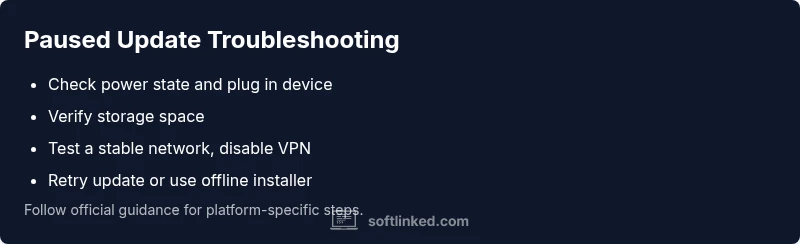
Why is My Software Update Paused? Immediate Troubleshooting Guide
Urgent, actionable steps to diagnose and fix a paused software update on Windows, macOS, Linux, or mobile devices. Learn quick checks, step-by-step fixes, and prevention tips.


Pauses during a software update usually mean the download or installation has stalled due to power settings, limited storage, a spotty network, or server-side controls. Start with the basics: plug in the device, confirm a stable connection, and free up space. Then attempt to resume the update or restart the process. If it stays paused, check for policy blocks, VPNs, or contact support for help.
Why 'why is my software update paused' matters
When an update stalls, your device risks missing critical security patches and feature improvements. The exact cause can vary by platform (Windows, macOS, Linux, mobile). According to SoftLinked, reliable updates hinge on power, storage, network stability, and server status. By identifying the most common culprits, you can minimize downtime and reduce the risk of failed installations. Stay calm, follow the steps, and document any error codes you see for support.
Key idea: a paused update is often a solvable hiccup rather than a fatal failure, but timely action matters for security and performance.
Common causes of paused updates across platforms
Paused updates can emerge from several overlapping factors:
- Power-saving modes or a low-battery threshold that blocks installations.
- Insufficient disk space or a nearly full drive.
- Unstable or restricted network connections, VPNs, or proxies.
- Server-side pause due to maintenance or policy controls.
- Corrupted download cache or stale update components.
Each platform (Windows, macOS, Linux, iOS/Android) has its own failure modes, but the core ideas remain the same: the update needs a clean environment to complete.
Quick checks to run before diving deeper
Start with fast, non-destructive checks:
- Plug the device into power and confirm battery saver is disabled for updates.
- Verify you have at least 15–20% free space (preferably more for larger updates).
- Ensure a stable Wi-Fi or wired connection; disable VPNs temporarily to test.
- Pause all other large transfers that could compete for bandwidth.
If the device still shows as paused, move to platform-specific steps to resume.
Platform-specific quirks: Windows, macOS, Linux, mobile
Windows updates may pause if "Delivery Optimization" is constraining bandwidth or if conflict with antivirus real-time scanning exists. macOS can require a clean reboot after a download completes; Linux updates depend on package manager settings. Mobile devices often pause due to battery constraints, data saver modes, or carrier-imposed limitations. Knowing your platform helps tailor the fix.
Safe fixes you can try right now
- Connect to power and ensure battery optimization is off for update apps.
- Clear space by removing unused apps or moving media to external storage.
- Restart the device, then explicitly retry the update rather than relying on auto-resume.
- Temporarily disable VPNs or proxies and retry from a stable network.
- If available, try an alternative update method (e.g., manual installer or offline download).
When to seek professional help and data safety considerations
If errors persist after basic fixes, consult official support channels. Have the exact error codes, the device model, OS version, and network details ready. Before proceeding with advanced remedies, back up important data to avoid loss during reinstallation or factory refresh. Power outages during an update can corrupt files, so avoid interrupting an update once it's started.
Prevention: keep updates flowing with best practices
- Schedule updates during off-peak hours and ensure sustained power and connectivity.
- Regularly monitor storage space and perform periodic maintenance.
- Maintain a clean, trusted network environment; avoid risky networks during updates.
- Review and adjust device policies that could unintentionally pause updates (parental controls, device management).
Steps
Estimated time: 45-60 minutes
- 1
Confirm power and network readiness
Plug the device into a reliable power source and ensure your Wi-Fi or wired connection is stable. If the device reports low power, connect it to mains power before retrying the update. This eliminates two of the most common pause causes.
Tip: Use a dedicated network, avoid public hotspots during updates. - 2
Free up space and clear caches
Check available storage and clear temporary files or caches that might block the download. Consider moving media or uninstalling unused apps temporarily. After freeing space, attempt to resume the update.
Tip: Keep a small buffer of free space (15–20% of disk capacity). - 3
Test network paths and disable VPNs
Temporarily disable VPNs or proxies to see if the update proceeds on a direct connection. If you must use a VPN, ensure it’s configured to allow update traffic. Retry the update.
Tip: Try a wired connection if Wi-Fi is unstable. - 4
Restart update services or device
Restart the device or the update manager/service to clear transient errors. After reboot, open the update utility and start the update again rather than relying on auto-resume.
Tip: Save any open work before rebooting. - 5
Check for policy blocks or server notices
If your device is managed (work/school), verify there are no policy blocks preventing the update. Check vendor status pages for maintenance announcements and follow recommended timelines.
Tip: Document any error codes to share with support. - 6
Try alternate installation path if available
Some platforms offer offline installers or alternative update channels. If recommended by official docs, use a separate installer package to complete the update.
Tip: Only download installers from official sources.
Diagnosis: Software update is paused on device
Possible Causes
- highPower-saving mode or low-battery settings
- highInsufficient storage space
- mediumNetwork restrictions or VPN/proxy interference
- lowServer-side pause or maintenance
Fixes
- easyConnect the device to power and disable battery saver for updates, then retry
- easyFree up disk space by removing unnecessary files or apps, then retry the update
- easyCheck network settings, disable VPN/proxy temporarily, and retry with a stable connection
- mediumCheck update server status or policy, wait for server resumption, or contact support if needed
Your Questions Answered
What causes a software update to pause?
Updates pause mainly due to power-saving modes, low storage, poor network, or server maintenance. Platform-specific quirks can amplify these issues. Identifying the root cause helps you apply the right fix quickly.
Updates pause primarily due to power, space, or network issues. Identify the cause to fix it quickly.
How can I resume a paused update?
First ensure power, storage, and network are stable. Then reopen the update tool and select Resume or restart the download. If it still pauses, try a clean install via official offline installer if available.
Make sure power, space, and network are solid, then resume or restart. If needed, use an official offline installer.
Can a paused update affect security?
Yes. Paused updates can delay critical security patches. If updates are stalled for too long, check vendor status pages and apply fixes promptly to maintain protection.
Paused updates can delay security patches, so resolve the pause quickly to stay protected.
What should I do if storage is full?
Free up space by moving media to external storage or cloud backups. Delete temporary files and unused apps, then retry the update.
Free up space and retry the update.
Is it safe to interrupt an update?
Interrupting a paused update is generally safe, but avoid force-stopping an active install. If an error occurs, restart the device and retry from a clean state.
If paused, you can retry safely after minor steps; avoid forcing an active install.
When should I contact support?
If the pause persists after all basic fixes, contact official support with device model, OS version, error codes, and steps you've tried.
If it won’t resume after trying fixes, reach out to support with details.
Watch Video
Top Takeaways
- Assess power and connectivity first
- Free space before troubleshooting deeper
- Restart services if stuck
- Check policy and server status
- Back up data before major updates