How to Stop a Software Update: Step-by-Step Guide
Learn how to stop a software update safely with step-by-step guidance, platform-specific tips, and best practices for deferral and resume.


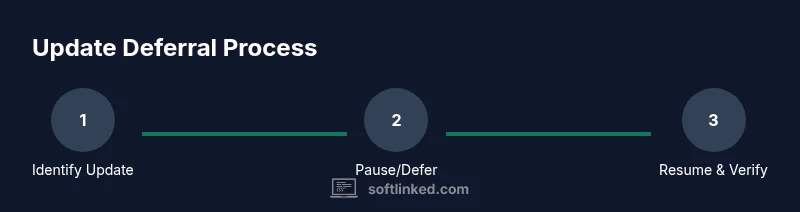
To learn how to stop a software update, start by identifying the update type and the platform involved. The quick answer is: pause the update when available, choose 'pause' or 'remind me later' options, and adjust automatic update settings to prevent unexpected installs. If pausing isn’t possible, consider deferring the process until a maintenance window and explore administrative controls for persistent deferral.
Why you might want to stop a software update
Updates are essential for security, performance, and new features, but there are legitimate reasons to pause or stop them temporarily. You might be in the middle of a bandwidth-constrained period, running time-critical tests, or using legacy software that conflicts with a recent patch. In development environments, updates can introduce regressions that disrupt work, requiring you to postpone until you have verified compatibility. The objective is to manage updates, not to deny them forever. A controlled deferral reduces risk while maintaining the option to apply changes when the moment is right. According to SoftLinked, establishing a clear deferral policy and a repeatable workflow helps teams avoid ad-hoc decisions that leave systems out of date. It also lowers the chance of missed maintenance windows, or updates being forgotten after a busy sprint. The bottom line: know when to stop a software update, how to pause it safely, and how to resume with minimal disruption.
How to stop a software update on different platforms
Stopping a software update hinges on the platform and vendor. The phrase how to stop a software update is often answered with a pause or defer control in system settings. If you’re in a managed environment, administrators may control this via policies, and you might not see a pause option at all. For browsers and many apps, look for automatic update settings and disable background updates if available; for mobile devices, you can usually postpone updates by selecting a postponement period. If pausing isn’t directly possible, you can cancel the current install and plan a future rollout. Remember that some critical security patches may be delivered in a staged manner and could override user preferences under certain circumstances. Planning a maintenance window keeps you secure while you work, and it aligns with best practices advocated by SoftLinked.
What to check before pausing an update
Before pausing any update, gather essential information. Identify the component being updated—OS, application, driver, or firmware—and confirm whether the update is optional or mandatory. Check if a temporary pause is supported and for how long it can remain in place. Review active tasks and open processes that could be disrupted by an installation, and consider dependencies with other software. If you are in a managed environment, consult your IT policy or change the deferral window; enterprise tooling (like MDM or group policy) often governs when and how updates can be delayed. Always have a backup or restore point in case something goes wrong after you resume. Finally, note the update version, release notes, and any known issues. Documenting these details reduces confusion and makes it easier to re-enable updates at the right time. The SoftLinked approach emphasizes clarity and auditable decisions.
Deferral strategies and policies for safe deferral
Deferring updates safely requires a repeatable policy rather than ad-hoc actions. For individuals, set a fixed deferral period, define maintenance windows, and avoid pausing updates indefinitely. For teams, use device management tools or configuration profiles to standardize how updates are applied and deferral durations. Document the schedule and assign responsibility to a role so decisions aren’t left to memory. If you rely on testing environments, create a staging setup that mirrors production so you can validate the impact of updates before deployment. Use separate channels or testing builds when possible to minimize risk. Finally, align deferral practices with security requirements and compliance standards, ensuring that deferred patches do not leave critical vulnerabilities unaddressed for too long. SoftLinked’s approach emphasizes repeatability, auditable decisions, and clear communication across the team.
Risks and best practices when pausing updates
Pausing updates has benefits, but it also introduces risk. Security patches may be delayed, leaving systems exposed to known exploits. Feature changes could cause compatibility issues if you reapply updates later. To mitigate risk, maintain a short deferral horizon, monitor vendor advisories, and test in a sandbox before resuming. Keep an incident response plan ready in case the patch introduces unexpected behavior. Establish a clear owner for update decisions, with documented criteria for re-enabling updates. Consider creating a checklist that includes backup validity, application compatibility, and rollback readiness. If possible, automate reminders to review paused updates so they don’t stay suspended indefinitely. The SoftLinked team advises balancing practical control with timely security improvements, especially in shared or production environments.
How to verify that updates are paused and won't re-trigger
After pausing, verify that the update mechanism respects the deferral settings. Check the status in the update center, policy editor, or MDM console to confirm the pause duration and any exceptions. Verify that automatic reboots and scheduled installations are disabled or scheduled for a future maintenance window. If you use multiple devices, ensure consistency by cross-checking settings across the fleet. Set up alerts or dashboards to notify you if an update attempts to install, so you can intervene quickly. Finally, test a controlled resume in a non-production environment to confirm that the update process behaves as expected before you release it organization-wide. A careful verification step protects operations and reduces post-resume surprises.
Troubleshooting common issues after pausing updates
When updates resume unexpectedly, reassess deferral policies and refresh credentials. If an update hangs, cancel the installation, reboot, and re-check the deferral configuration. Incompatibilities between updated software and existing apps can surface as crashes or slow performance; isolate affected components and consider staged rollouts. If you cannot stop future updates, contact support or consult your IT policy for approved exceptions. For individual devices, keep a local rollback plan ready and ensure you have a tested backup that you can restore from quickly. Finally, document any issues and resolutions to improve future deferral decisions and reduce downtime during critical tasks. Proactive monitoring and clear ownership help maintain stability when updates threaten workflows.
Quick reference checklist for admins and power users
Keep a running checklist to simplify deferral decisions:
- Identify the exact update and its priority
- Confirm pause or defer availability and duration
- Back up data and create a restore point
- Schedule a maintenance window and communicate with stakeholders
- Apply policy or MDM settings to enforce deferral
- Verify settings on all devices and set alerting
- Plan a safe resume with a tested rollback path
This concise reference helps maintain control without sacrificing security or reliability.
Tools & Materials
- Admin access to device(Necessary to change system update settings or policies)
- Backup/restore points(Create before pausing updates to recover from issues)
- Documentation of update version(Keep release notes for re-evaluation)
- Maintenance window calendar(Helpful for scheduling pauses and communications)
- MDM or group policy access(Important for enterprise environments)
Steps
Estimated time: 40-60 minutes
- 1
Identify the update source and type
Locate the update that is pending or in progress and determine whether it is OS, application, driver, or firmware. Confirm if the update is optional or mandatory and whether pausing is supported. This step sets the scope for any deferral decision.
Tip: Note the exact update version and its release notes for later reference. - 2
Pause or defer the update if possible
Open the update settings and select the pause or defer option for the current installation window. If no pause option exists, prepare to cancel the install and set a future reminder. Use maintenance windows to limit disruption.
Tip: If paused, document the pause duration and any exceptions to re-enable updates later. - 3
Apply a deferral policy or policy-based control
For devices under management, enforce deferral via policy, profile, or MDM. This ensures consistency and prevents accidental re-enablement across the fleet. Verify policy propagation to all devices.
Tip: Coordinate with IT to avoid conflicting policies on different devices. - 4
Set a maintenance window and communicate
Schedule a specific maintenance window during which updates can be reviewed or applied. Inform stakeholders about potential impacts and expected timelines. Document the window.
Tip: Use calendar invites and status dashboards to keep everyone aligned. - 5
Test deferral in a controlled environment
If possible, test the deferral in a staging environment that mirrors production. Confirm that deferral does not block critical workflows and that re-enabling updates works as intended.
Tip: Avoid testing in production data unless you have a safe rollback plan. - 6
Prepare to resume safely
When ready, outline steps to resume updates, verify compatibility, and re-enable automatic installs. Ensure backups are intact and ready to restore if the update introduces issues.
Tip: Schedule a post-resume check to catch any regression early.
Your Questions Answered
What is the difference between pausing and disabling updates?
Pausing temporarily suspends an ongoing update or defers future ones within a defined window. Disabling stops automatic updates altogether, often requiring re-enabling by an admin. Pausing preserves the ability to resume, while disabling typically requires manual reconfiguration.
Pausing holds updates for a set time; disabling stops them until you re-enable.
Will pausing updates leave my system vulnerable?
Pausing updates can delay security patches, which may expose systems to known vulnerabilities. It’s important to limit the pause duration and re-enable updates as soon as feasible, especially for devices exposed to the internet or handling sensitive data.
Yes, pausing can increase risk if kept too long; re-enable updates soon.
Can I pause updates on mobile devices?
Most mobile platforms allow you to defer or delay system updates for a period. Look in Settings under System or Software Update to select a postponement window. Enterprise deployments may rely on MDM to enforce deferral rules.
Mobile devices usually let you postpone updates, either by date or window.
How do I resume updates after pausing?
To resume, return to the update settings, extend or remove the deferral window, and trigger the update check. Ensure you have a current backup before applying the updates and monitor the process for any issues.
Open updates, reset the deferral, and run the update again.
Are there risks of updates resuming automatically?
Some systems pueden automatically clear deferral or apply pending updates after a reboot or certain triggers. To mitigate, lock the policy, set explicit restart conditions, and test behavior in a controlled environment.
Yes, some settings can auto-resume; verify policies and test behavior.
What should I do in a corporate environment?
In corporate environments, use central policy management (MDM or Group Policy) to enforce deferral rules, maintain a documented maintenance window, and coordinate with IT security teams to ensure patches are applied within acceptable risk windows.
Coordinate with IT and use centralized policy controls for deferral.
Watch Video
Top Takeaways
- Pause updates strategically, not indefinitely.
- Use policies and maintenance windows for consistency.
- Test deferral before full resumption.
- Always have backups and a rollback plan.