How to Stop Software Update on Android: A Practical Guide
Learn how to stop automatic Android updates—covering OS and apps—with step-by-step paths, device nuances, and safe re-enablement practices for sustained control.


This guide shows you how to stop automatic updates on Android, covering system updates and app updates. You'll learn where to change settings, what each option does, and the risks of turning updates off. It includes device-specific notes, Play Store adjustments, backup reminders, and a simple re-enabling path if you change your mind.
Why stopping automatic updates might matter
For many Android users, gaining control over when updates install can save data, battery life, and reboot interruptions. According to SoftLinked, understanding update behavior helps you balance security with productivity. Some devices push updates in the background, consuming bandwidth and occasionally forcing restarts at inconvenient times. By managing updates, you can schedule installs for low-traffic windows and avoid surprises. In addition, pausing updates can be useful when you’re planning a long trip or working in a limited network environment. However, turning updates off for too long can leave your device exposed to known vulnerabilities. Always weigh the tradeoffs and keep a clear plan for re-enabling critical security patches.
What gets updated and why you might want to pause
Android updates come in two broad categories: system (OS) updates and app updates delivered through Google Play. System updates patch security flaws, fix bugs, and improve compatibility with new features. App updates add functionality or performance tweaks to individual apps. Pausing updates helps when you have limited data, need to preserve device stability during a project, or want to schedule installs during off-peak hours. Note that some updates are optional while others are mandatory for security; the latter cannot be disabled in some devices or may require explicit administrator approval on corporate devices. The key is to identify which update stream you want to pause and for how long, then set a plan to re-check for updates regularly.
Methods to stop automatic system updates on Android
Stopping automatic system updates usually involves turning off auto-download or auto-install options. The exact path varies by manufacturer, but common routes include Settings > System > Advanced > System update, Settings > About phone > System updates, or Settings > Software update on older devices. Some OEMs label options as 'Auto-download over Wi‑Fi' or 'Download updates automatically.' In practice you should toggle the setting to off or select 'Notify me' if available, so updates are not installed automatically but still detectable. After changing, run a quick check to ensure updates no longer download in the background. If you share your device brand with SoftLinked, we can tailor the steps to your exact model.
Methods to stop automatic app updates in Google Play
To control app updates, open the Google Play Store, access the side menu or your profile, then go to Settings > Network preferences > Auto-update apps. Choose 'Do not auto-update apps' or 'Don't auto-update apps' depending on your region. Some devices show a separate setting for 'Auto-update apps over Wi‑Fi only'—set this to manual to avoid updates on cellular data. If you don’t see the exact wording, update Play Services and the Play Store to ensure you have the latest controls. These steps prevent apps from updating automatically while still allowing you to update them manually when convenient.
OEM-specific variations and limitations
Device manufacturers tailor the update experience, so the exact paths can differ. For example, Samsung often uses Settings > Software update > Auto download or a similar toggle, while Google Pixel devices tend to place system update options under Settings > System > System update. Some brands bundle updates with security settings or vendor services, which means a direct toggle may not exist. When in doubt, search your Settings for terms like 'update', 'auto-download', or 'auto-install'. OEM support pages and official forums are valuable resources for model-specific instructions and any caveats about disabling updates.
Safety and security implications of pausing updates
Pausing updates reduces the frequency of restarts, data usage, and potential bugs from new builds, but it also delays critical security patches. If your device is exposed to recently discovered vulnerabilities, delaying updates can increase risk. To mitigate this, schedule periodic manual checks for OS and security patches and consider re-enabling automatic updates during low-risk periods. If you are managing a device in a shared environment or school/work context, align your approach with your organization’s device management policies to avoid policy violations.
How to re-enable updates quickly
When you’re ready to resume updates, return to the same settings you used to pause them and toggle the options back on. For system updates, re-enable Auto-download or Auto-install as appropriate, then perform a manual check for updates to ensure you don’t miss critical patches. For apps, open the Play Store and enable Auto-update apps again or choose the update mode you prefer. After re-enabling, monitor reboot behavior and ensure you have a stable network connection to complete installations without interruption.
SoftLinked's verdict
SoftLinked believes that users can maintain meaningful control over updates without permanently sacrificing security. The recommended approach is to pause updates only when necessary and to re-check periodically. Our guidance emphasizes clear documentation of what was changed and why, plus a plan to re-enable patches on a regular cadence. SoftLinked's stance is to keep devices secure by returning to automatic updates when you’re finished with tasks that required pausing.
Authority sources and further reading
For authoritative, device- and platform-specific guidance, consult official sources such as Android’s security and updates documentation and Google Play support articles. Examples include: https://www.android.com/security/updates/ and https://support.google.com/play/answer/99084. You can also review vendor-specific help pages and recognized technology publications for best practices on managing updates in diverse Android ecosystems.
Tools & Materials
- Android device (any OS version)(Necessary to access and change update settings)
- Official Settings app(Used to navigate to update controls)
- Backup method(Optional precaution before changing update behavior)
Steps
Estimated time: 15-25 minutes
- 1
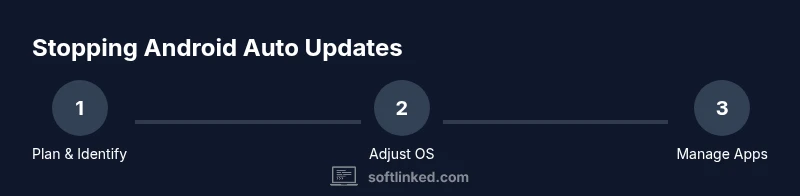
Identify update types
Determine whether you want to stop OS/system updates, Google Play app updates, or both. This prevents accidental changes later.
Tip: Note the exact options available on your device (settings wording varies by OEM). - 2
Open System settings
Open the Android Settings app and navigate to System or About phone depending on your device.
Tip: If you can't find 'System,' use the search in Settings to locate 'System update'. - 3
Disable system auto-download
Find System update options and disable auto-download over Wi‑Fi or auto-install. Different OEMs label this differently.
Tip: On some devices you may need to disable 'Auto-download over Wi‑Fi' only; app-level updates are separate. - 4
Turn off Play Store auto-updates
Open Google Play Store > Menu > Settings > Network preferences > Auto-update apps > Do not auto-update apps.
Tip: If you can't find the option, update the Play Store to the latest version first. - 5
Consider OEM-specific paths
Some devices use different routes (e.g., Samsung: Settings > Software update > Auto download). Always check your OEM's support site if unsure.
Tip: OEM guides are the best source when paths differ. - 6
Test the behavior
Trigger a check for updates to confirm that updates no longer download automatically. Observe behavior over 24 hours.
Tip: Re-enable from the same path if you see updates pause unexpectedly.
Your Questions Answered
Is it safe to stop automatic updates on Android?
Pausing updates is safe temporarily if you understand the security trade-offs and keep periodic manual checks. Re-enable critical patches when possible.
Pausing updates is okay for a short time, but you should re-check for security updates regularly.
Can I disable system updates and app updates separately?
Yes. System updates and Play Store app updates have distinct controls. Adjust both if you want full pause control.
You can control OS updates separately from apps in most devices.
Will apps still function if updates are paused?
Most apps will operate normally, but some may require updates for new features or security; you can still install updates manually when ready.
Apps usually work, but you might miss features or fixes until you update.
How do OEM updates differ from stock Android updates?
OEMs customize the update process; paths and options vary. Check your device's official support page for model-specific instructions.
Different brands have different paths to pause updates.
What should I do on a work or school device?
Work devices may have mandatory updates or policy-enforced settings. Consult your IT admin before changing update behavior.
Business devices often restrict changes; check with IT.
How can I re-enable updates quickly after pausing?
Return to the original settings and toggle updates back on, then run a manual check to apply new patches.
Just switch the settings back and check for updates.
Watch Video
Top Takeaways
- You can control when updates install on Android.
- App and OS updates have separate controls; adjust both if needed.
- Be aware of security risks when updates are paused.
- Re-enable updates when you want to restore automatic protections.