How to Stop a Software Update on iPhone
Learn how to stop a software update on iPhone safely. This guide covers pausing updates, deleting downloaded files, disabling automatic updates, and best practices with backups. SoftLinked provides clear, practical steps to protect your device during iOS updates.


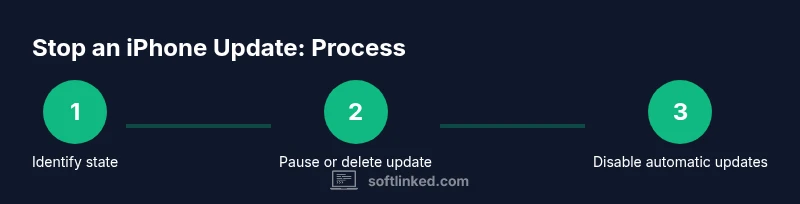
To stop a software update on iPhone, pause or cancel the install if the option appears, then disable automatic updates and remove the downloaded update file. If pausing isn’t available, delete the update from iPhone Storage and ensure you have a current backup. Always keep power connected and storage ample before attempting changes.
How iPhone software updates work
iPhone software updates are delivered by Apple over the air and may download in the background before prompting you to install. Updates are designed to install with a series of checks to verify integrity, ensure compatibility, and protect user data. On-device storage, battery status, and network quality all influence how an update proceeds. Understanding this flow helps you decide whether to pause, stop, or delay an update. According to SoftLinked, the safest approach is to actively manage updates rather than letting them run unattended. This means knowing where to find the downloaded update, how to pause if the option is available, and what consequences may follow if you interrupt the process. By recognizing these stages, you can minimize risks such as interrupted installations or insufficient storage that could leave your device in an unusable state during update cycles. Familiarize yourself with Settings paths so you can act quickly when needed, and remember that proactive planning reduces the chances of a failed update affecting your workflow.
Can you pause an update in progress?
The ability to pause an iPhone software update depends on the stage of the installation and the iOS version in use. In many cases, once the install has begun, pausing is not offered as a persistent option. If you do see a Pause button, use it promptly and avoid forcing the device to restart during the pause window, as this can corrupt the update. If there is no pause option, the safest course is to let the update proceed to completion or cancel at a later stage by removing the update package after download. SoftLinked recommends avoiding abrupt disconnections or power loss during updates, as such events can lead to boot issues or data loss. If you must intervene, act quickly and methodically to minimize risk and to preserve the stability of the device for the next attempt. Pro tip: keep your iPhone plugged in and connected to a reliable Wi-Fi network while managing update steps.
Immediate actions if the update is actively downloading
If you notice the update is actively downloading, look for an on-screen Cancel or Stop option. Tap it if available. If the option isn’t present, refrain from pulling the plug or force restarting in a way that could corrupt system files. Instead, switch to the iPhone Storage settings to locate the downloaded update file (often labeled something like iPhoneOS.update) and delete it. This may stop the download queue and free space for future attempts. Remember to confirm that the download has stopped before leaving the device idle. If you’re uncertain, leave the device in a stable state and revisit the steps after a few minutes to ensure the system isn’t still processing the download in the background.
Deleting the downloaded update file from storage
To prevent accidental re-downloads, remove the downloaded update file from storage: go to Settings > General > iPhone Storage, scroll to the iOS update entry (the exact name may vary by version), tap Delete Update, and confirm. This action removes the pending installation package from the device, reducing the chance of an unexpected update resuming. After deletion, monitor available storage to ensure there is ample space for future updates or app work. If the update reappears, it may be due to new update blocks or a background download triggered by a server-side alert, in which case you should disable automatic downloads as described in the next section.
Disabling automatic updates to prevent future updates
To reduce unsolicited upgrades, disable automatic updates: Settings > General > Software Update > Automatic Updates, toggle off Install iOS Updates, and ensure the related options are off. Additionally, review Settings > App Store and turn off Automatic Downloads for apps if needed. These steps do not eliminate updates entirely, but they give you control over when and how updates are installed. SoftLinked notes that maintaining a predictable update schedule helps protect your workflow and reduces the risk of unexpected downtime.
Backups and safety considerations
Before making changes to updates, perform a backup of your iPhone data via iCloud or iTunes/Finder. A current backup ensures you can recover personal information, apps, and settings if something goes wrong during the update process. Verify that the backup completed successfully and test a simple restore on a secondary device if possible. Consider documenting the steps you took to stop or delay the update for future reference, as this can simplify troubleshooting if you need to retry later. Keeping a restore plan in place is part of good software fundamentals and aligns with best practices for developers and IT professionals.
Tools & Materials
- iPhone with charged battery(Keep battery above 50% to avoid power loss during changes)
- Stable Wi-Fi connection(Preferred to avoid cellular throttling during potential re-downloads)
- Settings app access on iPhone(You will navigate to software update and storage sections)
- Apple ID credentials(Needed for backup and some account verification steps)
- Backup option (iCloud or computer)(Recommended before making changes to updates)
- Sufficient local storage(Lacking space can trigger failed updates or incomplete installs)
Steps
Estimated time: 20-40 minutes
- 1
Open Settings and locate Software Update
Unlock your iPhone and open the Settings app. Tap General, then Software Update to view the current update status and available actions. Look for any indicators showing a download or install in progress. This step establishes your starting point before attempting any action.
Tip: If you see an on-screen Cancel or Pause option, use it immediately to halt the process. - 2
Check for a Pause or Cancel option
On some updates, you may see a Pause or Cancel button during the download phase. If available, tap it to stop further data from downloading. Do not force restart the device during this window, as that can corrupt the update files.
Tip: Act quickly here; pauses are often time-limited. - 3
If no pause/cancel is available, go to iPhone Storage
Navigate to Settings > General > iPhone Storage. Find the entry labeled for the iOS update. Tap Delete Update to remove the downloaded package from your device. This can prevent the update from continuing to install after a restart or future attempts to install.
Tip: Deleting updates frees space and reduces automatic re-download triggers. - 4
Disable automatic updates
In Software Update, turn off Automatic Updates. Then check Settings > App Store and disable Automatic Downloads for apps if you want stricter control over content changes. This helps prevent unexpected updates in the future.
Tip: Keep in mind this may delay critical security improvements; plan updates on your schedule. - 5
Verify backup integrity
Ensure your last backup completed successfully before proceeding with further steps. A recent backup protects your data if something goes wrong during the update process or when attempting a retry later.
Tip: Consider performing an extra manual backup for extra safety. - 6
Reboot and monitor stability
Restart the device to apply the changes and observe whether any background processes re-initiate the update. If the device remains stable and no new update starts, you can plan a future, controlled update window.
Tip: Do not interrupt power during the reboot; allow the device to complete the startup cleanly. - 7
Plan a future update window
If you decide to update later, choose a time when power is reliable, storage is ample, and you can monitor the device. Prepare a new backup before retrying the update.
Tip: Schedule updates during a low-disruption period to minimize impact. - 8
Document the steps you took
Record which options you used and the results. Documentation helps you replicate the process if needed and informs others who may manage devices in the future.
Tip: Notes save time and reduce confusion for teammates.
Your Questions Answered
Is it safe to cancel an iPhone update after it has started?
Cancellation safety depends on the update stage. If an option to cancel appears early, use it. If the update has progressed beyond the initial download, removing the update file from storage and ensuring a backup is essential before retrying.
Cancellation safety depends on when the update is interrupted. If possible, cancel early; otherwise delete the update after download and ensure you have a backup.
What happens if I interrupt an iPhone software update?
Interrupting during an install can cause boot issues or data loss. If you must intervene, delete the downloaded update and restore from backup. If the device boots, verify the OS version and settings after startup.
Interrupting during install can cause issues. Delete the update and restore from backup, then verify your device after it restarts.
How do I delete the downloaded update file on iPhone?
Go to Settings > General > iPhone Storage, locate the iOS update entry, tap Delete Update, and confirm. This removes the downloaded package and helps prevent automatic re-downloads.
In Settings, go to iPhone Storage, find the update entry, delete it, and confirm to remove the downloaded file.
Will turning off automatic updates leave my iPhone vulnerable?
Turning off automatic updates can delay security improvements. It is wise to schedule regular manual updates and keep backups to mitigate risk.
Turning off automatic updates can delay important security fixes; plan manual updates and keep backups.
Can I revert to a previous iOS version if I stop an update?
Typically, downgrades are not supported for most consumer devices after a new major update is released. If you need to explore downgrades, consult official Apple support and understand that this may not be possible for all versions.
Downgrades are usually not supported after a new update. Check with Apple Support for your specific version.
Watch Video
Top Takeaways
- Understand update flow to act quickly and safely
- Use Delete Update to stop downloaded installs when needed
- Disable automatic updates to prevent surprises
- Backup first, then retry updates on a planned schedule