How to Software Update iPhone: A Step-by-Step Guide
Learn how to safely update your iPhone using OTA or computer methods. This comprehensive guide covers prerequisites, step-by-step actions, backups, and troubleshooting for a smooth software upgrade.


You can update your iPhone by installing the latest iOS either over the air or using a computer. Ensure your device is charged and connected to Wi‑Fi, then navigate to Settings > General > Software Update to install. For macOS, use Finder; for Windows, use iTunes. Back up first.
What to Expect When You Update Your iPhone
A software update brings new features, stability improvements, and security patches. When you ask how to software update iphone, you’ll typically encounter OTA (over-the-air) updates and occasional computer-based updates. OTA updates download directly to your iPhone and install in place, while computer updates use a connected device to manage the installation. These updates are designed to minimize downtime while enhancing performance and reliability.
Prerequisites Before Updating Your iPhone
Before you begin the process, ensure your device is charged or connected to power, has a stable Wi‑Fi connection, and has enough free storage for the new software. Back up your data to iCloud or a computer to prevent data loss. Check that you know your Apple ID credentials, and consider turning off some nonessential apps to free space. If you’re new to updates, this is the moment where we remind readers how to software update iphone safely and with confidence.
Over-the-Air Updates vs Computer Updates
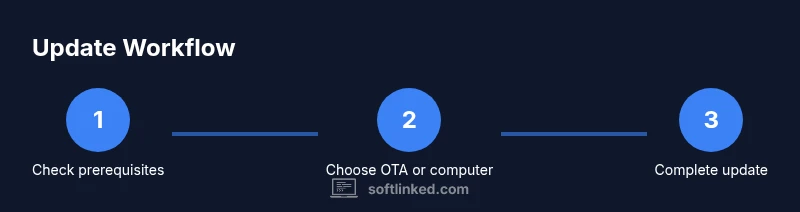
OTA updates are the quickest way to update your iPhone, typically taking less time and requiring no computer. A wired connection via Finder on macOS or iTunes on Windows can be preferable for larger updates or when OTA is slow or unstable. Both paths require a compatible device and a recent backup. If you’re unsure how to software update iphone, OTA is usually your first choice, with computer updates as a fallback.
Step-by-Step: Over-the-Air Update
- Connect your iPhone to power and a reliable Wi‑Fi network. 2) Open the Settings app and go to General > Software Update. 3) Tap Download and Install, then enter your passcode if prompted. 4) Agree to the Terms and wait for the update to download. 5) When prompted, tap Install Now and let the device restart. 6) After installation, verify the new version in Settings > General > About. This section provides a compact walkthrough for how to software update iphone using OTA.
Step-by-Step: Computer Update (macOS Finder/Windows iTunes)
- Connect your iPhone to your computer with a USB cable and unlock the device. 2) On macOS, open Finder; on Windows, open iTunes. 3) Select your device in the sidebar and click Check for Update. 4) Choose Download and Update, enter your passcode if required, and follow the prompts. 5) Allow the update to install and keep the device connected until completion. 6) Confirm the update by checking Settings > General > About on the iPhone.
Troubleshooting Updates and Storage Management
If the update stalls or fails, reboot the iPhone and try again. Ensure your Wi‑Fi is stable and that your device has enough free storage for the update. If issues persist, you can reset network settings or contact Apple Support. For space issues, delete unused apps or media, or offload photos and videos to iCloud. This section is essential for people facing common hiccups in the update process.
Tools & Materials
- iPhone with compatible iOS(Keep within the supported device list for the update)
- Power adapter and cable(Keep device charged to stay above 50%)
- Stable Wi-Fi connection(Prefer 5 GHz network if available)
- Optional computer (macOS Finder or Windows iTunes)(Helpful for large updates or troubleshooting)
- Backup method (iCloud or computer)(Back up before updating to prevent data loss)
Steps
Estimated time: 45-90 minutes (varies by device, network, and update size)
- 1
Prepare the device
Charge the iPhone and connect to a reliable Wi‑Fi network. Ensure you have a recent backup in place before starting the update.
Tip: Keep the device connected to power during the update to avoid interruptions. - 2
Check update availability
Open Settings > General > Software Update to see if a new version is available and read the update notes.
Tip: If the update is large, consider starting late in the day when you won’t need the phone immediately. - 3
Download and install OTA
Tap Download and Install, authenticate if prompted, and let the update download and install. The phone will restart automatically.
Tip: Do not unplug or interfere with the device during installation. - 4
Verify installation
After reboot, go to Settings > General > About to confirm the new iOS version is active.
Tip: Take a quick look at apps that might need updates too. - 5
If OTA fails, try a computer update
If OTA fails, connect to a computer and use Finder/iTunes to check for updates.
Tip: Ensure you trust the computer and use an original cable.
Your Questions Answered
What is the latest iPhone iOS version?
Apple releases new iOS versions regularly; you can check the exact version on Settings > General > About. The update notes outline new features and fixes.
The latest iPhone iOS version can be checked in your settings, and the notes explain new features.
Do I need a backup before updating?
Yes. Backing up ensures you can restore data if something goes wrong during the update.
It's best to back up before updating to protect your data.
What if the update takes too long?
If it slows, ensure a strong Wi‑Fi connection and keep the device plugged in. You can also start the update at a less busy time.
If it takes long, check the connection and battery, and try again later.
Can I use my iPhone while updating?
Avoid heavily using the device during an update; some tasks may pause or slow installation.
Try not to use the phone a lot while updating.
What if OTA fails but Finder works?
If OTA fails, try updating via Finder on macOS or iTunes on Windows with a stable connection and original cable.
If OTA fails, update from a computer.
Watch Video
Top Takeaways
- Back up before updating to protect data
- OTA is quickest; use a computer if OTA fails
- Check storage and power before starting
- Verify post-update version and app compatibility