Why Is My Software Update Failing? A Practical Troubleshooting Guide
Discover why software updates fail and how to fix them fast. Learn common causes, a step-by-step troubleshooting flow, and prevention tips to stay up to date.


Why is my software update failing? Start with a quick triage: check your internet connection, verify you have enough storage, and clear the download cache. The most common causes are connectivity issues, lack of space, or a corrupted download. If these steps don’t help, restart the device and retry, following the full troubleshooting flow below.
Why Update Failures Happen
According to SoftLinked, software update failures are rarely mysterious; they’re usually the result of three intertwined factors: connectivity reliability, storage capacity, and the integrity of the update package. When the network drops or the device runs low on space, installers abort with vague messages. Signatures and hashes must verify before installation, and any disruption can force a rollback. By recognizing these patterns, you can approach fixes methodically rather than guessing. As you read this guide, keep in mind that the goal is to restore a clean, verifiable update path, not just to complete a single install. With the right checklist and a calm approach, most update failures become repeatable and solvable tasks for any aspiring software professional.
Immediate Checks You Can Do
Start with fast, non-destructive checks that don’t require deleting data or changing settings. Confirm you have a stable internet connection (try a quick speed test and switch to a different network if needed). Check device storage, removing large files or apps you don’t use to free space. Ensure the device clock is accurate, as certificate validity depends on correct time. Clear the updater's cache if your OS supports it, and restart the device before attempting the update again. These steps solve the majority of update failures and set the stage for deeper troubleshooting if needed.
Platform-Specific Considerations
- Windows: Run Windows Update troubleshooter, disable VPNs, and ensure there are no pending restarts. If the cumulative update fails, try installing individual patches or using the Media Creation Tool for a clean install.
- macOS: Check for incompatible apps, disable third-party installers, reset the softwareupdate directory, and ensure enough free space.
- Linux: Confirm package manager configuration, refresh repositories, clear apt/yum caches, and verify signature verification options. Each platform has its quirks; a targeted approach saves time.
Reading Error Messages and What They Mean
Update failures usually present with a short error message or code. Look for clues like network errors, insufficient storage, or failed signature verification. Don’t ignore timestamps or recent environment changes (new VPNs, firewall rules, or proxy settings). Understanding the language of errors helps you pick the right fix first, rather than applying generic solutions. When you document the exact message, you also simplify escalation if you need to ask for help.
Diagnostic Flow Overview for Updates
The troubleshooting journey follows a predictable path: start with the symptom, identify the most probable causes, apply safe fixes, and verify success. If the problem persists, advance to more involved steps (such as reconfiguring the update channel or performing a clean install). This flow keeps you from chasing bells and whistles and instead targets the root cause with repeatable actions. As you practice the flow, you’ll gain speed and confidence in diagnosing update failures.
The Core Fixes You Should Try First
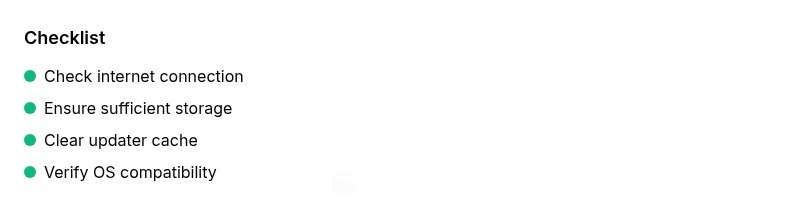
Begin with the simplest fixes and proceed in a logical order. 1) Stabilize the network — switch to a reliable connection. 2) Free up storage by removing unused files and apps. 3) Clear the updater cache and restart. 4) Check for pending restarts and OS compatibility. 5) If the update still fails, consider a clean install after backing up data. These steps handle most common scenarios and keep risk low.
Prevention: Keeping Updates Smooth
Maintenance matters. Regularly clear caches, monitor available storage, and keep your device clock synchronized. Install critical security updates promptly to avoid cascading compatibility issues. Establish a standard update window during low-usage hours and test updates in a controlled environment before broad deployment. By embedding these habits, you minimize repeat failures and improve long-term reliability.
Safety First: When to Seek Help
If you’ve exhausted the basic checks and platform-specific steps without success, it’s time to escalate. Collect the exact error messages, device model, OS version, and timestamps, then reach out to support or a knowledgeable colleague. Never rush a factory reset without backing up data. In enterprise settings, involve IT and document the steps you’ve taken so the next attempt can proceed faster.
Steps
Estimated time: 45-60 minutes
- 1
Validate prerequisites
Ensure the device is plugged in or has sufficient battery, connect to a stable network, and verify the system time is correct. These prerequisites prevent mid‑update interruptions and certificate errors.
Tip: Avoid updates over unstable mobile networks when possible. - 2
Free up storage
Check available disk space and remove large files, apps, or temporary files. Aim for several gigabytes of free space to accommodate the update package and temporary extraction needs.
Tip: Move media to cloud storage if feasible. - 3
Clear cache and restart
Clear the updater cache and restart the device to reset transient states. Then attempt the update again from a fresh start.
Tip: A clean boot can reduce interference from other apps. - 4
Check OS compatibility
Confirm the update supports your device model and current OS build. If necessary, install any prerequisite updates or adjust the update channel.
Tip: If you're on a beta channel, switch back to stable before retrying. - 5
Retry or perform a clean install
If updates continue to fail, back up data and consider a clean install or factory reset. This removes corrupted configs that block updates.
Tip: Always back up important data before major changes.
Diagnosis: Update fails to install or progress stops during the installation.
Possible Causes
- highPoor internet connectivity or unstable network
- highInsufficient storage space on the device
- highCorrupted or incomplete update download/cache
- mediumIncompatible OS version or pending restarts
- lowVendor server outage or signing mismatch
Fixes
- easyTest network stability and switch to a reliable Wi‑Fi or wired connection
- easyFree up storage space by removing unused files or apps
- easyClear update/cache and reboot the device before retrying
- mediumVerify OS compatibility and ensure no pending restarts or prerequisite updates
- mediumIf server issues persist, wait and retry or check the vendor status page
Your Questions Answered
What is the most common cause of update failures?
Most failures stem from poor connectivity, limited storage, or corrupted downloads. Start with those checks before deeper troubleshooting.
Connectivity, storage, and corrupted downloads are the top reasons updates fail.
Should I update over cellular data?
Wi‑Fi is generally more stable and faster for updates. If you must use cellular, ensure a strong signal and adequate battery life.
Wi‑Fi is usually best for updates; cellular can work but is less reliable.
What if the update freezes?
If it freezes, wait a few minutes, then restart the update. If persistent, try safe mode or a clean install.
If it freezes, reboot and retry; if it persists, try safe mode.
When should I contact support?
If updates keep failing after basic checks, contact support with device details and error messages.
If you can't resolve it, contact support with details.
Can server outages block updates?
Yes, vendor status pages may report outages that prevent updates from being delivered.
Server outages can block updates; check status pages.
Is it safe to reset network settings?
Resetting network settings is safe but will remove saved networks and passwords.
Resetting network settings can help, but you’ll need to reconnect to Wi‑Fi.
Watch Video
Top Takeaways
- Diagnose with a flow: connectivity, storage, and cache first
- Most failures are fixable with simple, repeatable steps
- Keep power and network stable during updates
- Prevent recurrence with regular maintenance