If Software Updates Are Not Available: A Troubleshooting Guide
Urgent, step-by-step guide to diagnose and fix missing software updates across platforms, covering connectivity, server status, channels, and device limitations.


If software updates are not available, the most common cause is a connectivity issue or a server outage. Start by checking your internet connection, device date/time, and update channel settings. If those are fine, try a manual update method or alternate server, then verify device compatibility and storage space. The SoftLinked team recommends documenting every step for future troubleshooting.
Why Updates Might Not Be Available
According to SoftLinked, updates can fail to appear for several reasons, from network hiccups to server-side outages. When software updates are not available, the first thing to check is basic connectivity and whether the update channel or branch is correctly configured. In enterprise environments, centralized management and regional settings can gate updates, delaying or hiding them. Understanding the difference between a device limitation and a systemic issue helps you triage effectively. This section breaks down the most common scenarios and how they manifest across Windows, macOS, Linux, iOS, and Android. By recognizing patterns, you can triage faster and reduce downtime for developers and end users alike.
Immediate Checks You Should Perform
Time is of the essence when updates vanish. Begin with quick, low-friction checks that can rule out the most common causes:
- Verify internet access on the device and, if possible, on another network to rule out local DNS or firewall blocks.
- Confirm the system clock is correct; many update services require synchronized time to prevent handshake failures.
- Check available storage space; low disk space can stall or block updates.
- Review the active update channel or repository settings to ensure you’re pulling from the correct source.
- Look for any known outages on the vendor’s status page or your organization’s IT status dashboard. If these basics pass, proceed to deeper checks rather than jumping to conclusions.
Common Causes Explained
If the above checks pass but updates still don’t arrive, the issue is often one of these factors. Networking problems can block download, while server-side issues can affect all users in a region. In some cases, devices reach end-of-life and no longer receive updates through standard channels. Platform-specific quirks—such as a Windows Update service stuck in a loop, a macOS software update requiring a-server certificate, or a Linux package manager repository misconfiguration—also play a role. Document the exact error messages and logs; they are gold for pinpointing the root cause.
Step-by-Step Troubleshooting Path (Overview)
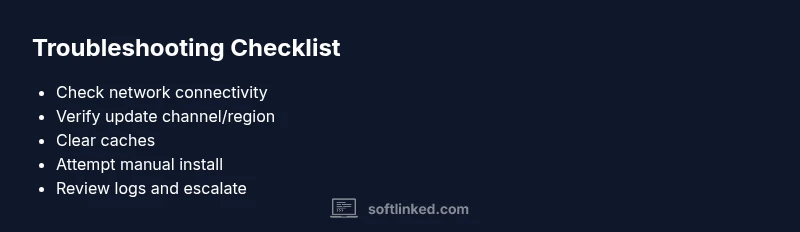
This section outlines a practical path for diagnosing and restoring update availability. It’s designed to be followed in sequence, with clear checkpoints after each step to determine whether further actions are needed. You’ll validate connectivity, verify the update source, clear caches, and attempt alternative installation methods before escalating.
Managing Channels and Regions
Many update problems stem from misconfigured channels, release tracks, or region locks. Ensure you’re enrolled in the correct program (stable, beta, or insider) and that regional mirrors are reachable. For controlled environments, confirm your MDM/ERP controls don’t enforce an outdated policy that blocks new updates. If you operate across geographies, keep a map of which regions have synchronized update rollouts to predict when a device will become eligible.
Handling Server Outages and Cached Data
Even when a device is healthy, you can be blocked by server outages or stale cached data. Start by checking vendor status pages for any reported incidents and refresh caches where appropriate. Clearing update caches can resolve stuck installations caused by partial downloads. If the outage is global, implement a temporary workaround such as manual install from a trusted installer, while monitoring for restored service.
Safety, Compliance, and When to Seek Help
Pushing updates manually can address symptoms but may introduce compliance risks if not managed under your organization’s change-control process. Always verify checksums, sign-off on deployments, and maintain logs for auditing. If you’re unsure about the legal or security implications of a workaround, contact your IT security lead or vendor support. When in doubt, don’t hesitate to involve a professional.
Proactive Maintenance to Prevent Future Issues
Preventing missing updates starts with proactive maintenance. Schedule regular checks of connectivity, storage, and channel settings. Implement automated health checks and a status dashboard so your team is alerted to potential issues before users report problems. Regularly review vendor notices and update policies to stay ahead of end-of-life announcements.
Steps
Estimated time: 60 minutes
- 1
Prepare the environment
Back up critical data and ensure devices are connected to power. Gather logs and note the exact error message to guide steps.
Tip: Keep a change log handy for traceability. - 2
Check network and basic accessibility
Verify internet connectivity on the target device, test on another network, and disable VPNs or proxies that might block traffic to update servers.
Tip: A quick ping test to the update server can reveal DNS issues. - 3
Validate update source settings
Confirm you are enrolled in the correct update channel and region. Re-synchronize or re-enroll devices if needed.
Tip: Document current channel settings before changing them. - 4
Clear caches and retry
Clear cached update data and restart the update service or device. Attempt the update again.
Tip: A fresh start often resolves partial downloads. - 5
Try a manual install
If supported, download and run the official offline installer or package. Verify checksums after download.
Tip: Always use official sources to avoid tampering. - 6
Review logs and escalate
Examine system and update logs for persistent errors. If unresolved, contact vendor or IT support with a concise issue summary.
Tip: Include dates, times, error codes, and environment details.
Diagnosis: User reports that software updates are not available or failing to install on multiple devices.
Possible Causes
- highNetwork connectivity issues (blocked ports, DNS problems, or proxy/firewall interference)
- highVendor server outage or regional service disruption
- mediumIncorrect update channel, repository, or region settings
- mediumInsufficient storage or device hardware end-of-life
- lowCorrupted cache or stale certificates/credentials
Fixes
- easyTest network connectivity with a different network; disable VPNs and check firewall rules
- easyCheck vendor status pages and your IT status dashboard for outages and maintenance windows
- easyVerify update channel/region settings and re-enroll devices if needed
- easyClear update caches and restart the update services, then retry the install
- mediumAttempt a manual update via official installer or offline package if supported
- mediumCollect logs and escalate to vendor or IT support if the issue persists
Your Questions Answered
Why are software updates not available on my device?
Updates can be unavailable due to connectivity issues, vendor outages, misconfigured channels, insufficient storage, or regional restrictions. Start with quick network checks and vendor status pages before deeper troubleshooting.
Updates may not be available due to network or server issues. Check connectivity, then view vendor status pages for outages.
What should I check first when updates fail to appear?
Start with network accessibility, correct date/time, and available storage. Then verify the update channel and region settings.
First check network, time, and storage, then confirm update channel settings.
How can I test if the problem is on the server side?
Consult the vendor's status page or IT status dashboard to see if there’s a reported outage. If outages exist, plan around the maintenance window.
Check the vendor status page to see if there’s a known outage.
Is it safe to install updates manually?
Manual installs from official sources can help when automatic updates fail, but ensure checksums match and follow your change-control process.
Manual updates from official sources can help, but verify integrity and follow protocol.
When should I contact professional support?
If multiple devices exhibit the same issue and the problem persists after standard checks, escalate to vendor support or IT professionals with logs.
If it persists after basic steps, contact professional support with your logs.
Watch Video
Top Takeaways
- Identify and rule out network or server outages first.
- Verify update channels and region settings before deeper troubleshooting.
- Clear caches and retry with official installers when possible.
- Document errors and escalate when needed to preserve security and compliance.
- Prevent future issues with automated health checks and change-control.