Why Is My Software Not Updating? A Troubleshooting Guide
Struggling with why is my software not updating? This urgent, step-by-step guide helps you diagnose update failures, fix common causes, and prevent future problems.


Most software update failures come from a blocked updater service or a stale cache. Start by checking that your internet is working, verify the date and time, and pause/resume updates. If the issue continues, restart the updater service or reinstall the updater. This quick check sequence helps you move fast toward a fix.
Why update failures happen
Why is my software not updating can often come down to a few predictable causes: a blocked updater service, a stale or corrupted cache, misconfigured system time, or insufficient disk space. According to SoftLinked, reliable software updates hinge on a healthy updater service, a clean cache, and correctly configured system clocks. When any of these elements falter, updates stall or fail with error codes. In practice, you’ll notice delayed progress bars, repeated retries, or abrupt pause prompts. The good news is that most failures are reversible with a few targeted checks. This section explains the what and why behind update failures and sets the stage for a fast fix. Expect to systematically verify connectivity, clock settings, permissions, and storage before moving to deeper troubleshooting. The goal is to restore a smooth update flow and prevent repeat issues.
Quick checks before you deep-dive
If you’re asking, why is my software not updating, start with fast, low-friction checks. Ensure you have an active internet connection and the device clock is accurate. Pause and resume the update to flush any stuck processes. Check that you’re running the updater with sufficient permissions, and verify there’s enough storage space for the update package. If a restart is possible, perform a clean reboot to clear transient glitches. These steps catch the majority of common failures and reduce the need for more invasive fixes. SoftLinked’s approach emphasizes safe restarts and confirming prerequisites before making changes. If any of these checks reveal a problem, address it now and reattempt the update. If the problem persists, proceed to the diagnostic flow and deeper fixes.
Diagnostic flow: from symptom to solution
Starting with symptoms like a stalled progress bar or recurring error codes, map the issue to likely causes. Is the updater service running? Is there a firewall or antivirus blocking the updater? Is the system clock off or is there insufficient disk space? Each symptom guides you toward a diagnosis and a prioritized fix. The aim is to identify the simplest fix first and escalate only if needed. Always document what you tried and the outcome to avoid repeating steps and to provide a clear trail if you seek professional help. The next sections provide a concrete flow you can follow step by step.
Step-by-step triage you can perform now
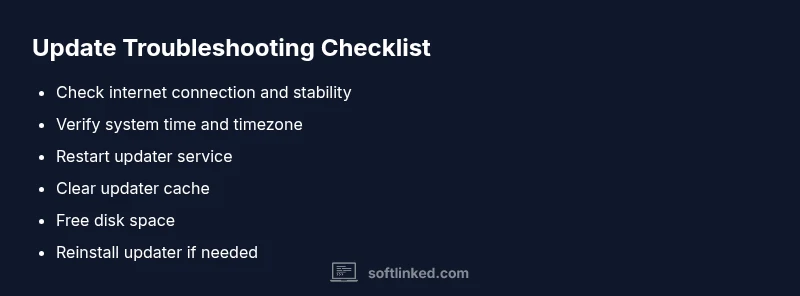
- Verify internet connectivity: Open a browser and load a page. If it fails, fix the network before retrying updates. 2. Check system time and date: Ensure the clock matches your time zone and enable automatic updates. Mismatched time can cause certificate and server validation failures. 3. Pause/Resume updates: If the updater is stuck, pause and then resume to flush the queue. 4. Restart updater service: On Windows, restart the updater from Services; on macOS or Linux, restart the corresponding daemon or agent. 5. Clear updater cache: Delete or reset cache directories used by the updater; relaunch the updater. 6. Free disk space: If space is low, free up space or relocate files to allow the update package to download and install. 7. Reinstall/update the updater: If none of the above work, reinstall the updater from the official source. 8. Try a manual install if available: Some software offers a standalone installer as an alternative path to update.
Deep dive into common culprits: network, permissions, and storage
Network quality and firewall rules often pose the biggest barriers. A flaky connection can cause partial downloads and corrupted packages. Check your router, switch to a wired connection if possible, and temporarily disable VPNs or proxies to test. Permissions matter too: ensure the updater has permission to write to its installation directory and that antivirus software isn’t sandboxing the updater. Disk space is deceptively easy to overlook; many updates require additional space for extraction and backups. Finally, verify that system prerequisites like a supported OS version, missing dependencies, or pending OS updates aren’t blocking the updater. By understanding these culprits you can triage with confidence and reduce the time to a fix.
How to safely fix updater services and caches
First, check if the updater service is running and configured to start automatically. If it’s disabled or blocked by a security tool, re-enable it and add an exclusion for the updater executable. Clear the updater cache to remove corrupt files, then re-run the update. If the updater logs show specific error codes, search for those codes in the official docs to identify targeted fixes. When performing these steps, avoid altering system-critical services beyond what’s needed. If the issue persists after these steps, proceed to a deeper repair approach or reinstall the updater from the official source. Always re-enable any security features you temporarily disabled after testing.
OS and compatibility considerations: when the clock isn’t the culprit
Some update failures are tied to OS compatibility or outdated system software. If your OS version no longer meets the minimum requirements for the update, you must perform an OS upgrade or apply the latest service packs. Check the software vendor’s release notes for minimum OS requirements and supported environments. Also verify that device drivers and runtime components are up to date, since missing dependencies can cause silent failures or cryptic error messages. If you’re on an older device, consider whether continuing to push updates is feasible or if upgrading the hardware would be more efficient in the long run. This perspective helps prioritize the right path when updates repeatedly stall due to OS constraints.
When to escalate: logs, support, and professional help
If you’ve exhausted basic and intermediate steps, gather logs and error messages, including timestamps, error codes, and recent changes. Provide these details when contacting support so the team can reproduce and diagnose the issue faster. Some organizations require logs to be submitted via a secure portal; others accept email attachments. If the update still won’t install after a clean reinstall and OS checks, it’s time to involve professional help. In enterprise contexts, engaging IT or vendor support early can reduce downtime and ensure compliance with security policies. The key is to document what you tried and keep a clear record of outcomes for any escalation.
Prevention: best practices for smooth updates
Adopt a proactive routine to minimize future update failures. Schedule regular maintenance windows to apply updates, keep backups, and enable automatic updates when possible. Maintain a consistent network environment, avoid ad-hoc changes to security software during update windows, and monitor storage health so space errors don’t block installations. Establish a recovery plan that includes rollback options for updates and a tested fallback launcher in case an update causes instability. By instituting these practices, you reduce the risk of repeated failures and maintain happier development or user environments.
Real-world quick wins: fast-path fixes that work
In practice, the majority of users find success with a handful of reliable moves: confirm internet access, fix the clock, restart the updater service, clean the cache, and reattempt. If you’re still stuck, a clean reinstall of the updater often resolves stubborn issues caused by corrupted install data. Keeping a log of attempted fixes helps you measure what works and speeds up future troubleshooting. Remember, the fastest path is usually the simplest: network, time, and a fresh start of the updater.
Steps
Estimated time: 30-45 minutes
- 1
Verify basic prerequisites
Confirm the device is powered on, the user is logged in with sufficient permissions, and there is a stable network connection. Check for any pending reboots that may block updates and ensure the update package is from an official source.
Tip: Document current state before making changes to avoid backtracking. - 2
Check network and time
Test the network by loading a few websites or running a speed test. Compare the system clock with an online time source and adjust if needed. Misconfigured time can cause certificate and server validation errors during updates.
Tip: If you use a VPN, temporarily disable it to test connectivity. - 3
Restart updater and services
Open the system services manager (or equivalent on your OS), locate the updater service, and restart it. If service startup is blocked by a firewall, temporarily loosen rules for testing, then restore them after completing the test.
Tip: Avoid leaving security rules disabled for long periods. - 4
Clear cache and retry
Navigate to the updater cache directory and clear its contents, or use the updater’s built-in clear cache option. Restart the updater and attempt the update again to ensure you're downloading fresh files.
Tip: Close other applications to prevent cache contention. - 5
Check disk space
Verify there is enough free space for the update package, temporary extraction, and backups. If space is scarce, move large files to external storage or delete unnecessary files.
Tip: Prefer moving media files rather than deleting important data. - 6
Reinstall the updater
If the updater remains unresponsive, uninstall the updater component and reinstall it from the official source. After reinstall, recheck permissions and try the update once more.
Tip: Verify the installer’s checksum to ensure integrity.
Diagnosis: Software won't update
Possible Causes
- highNo internet connection or unstable network
- highUpdater service disabled or blocked by antivirus/firewall
- mediumClock drift or incorrect system time
- lowInsufficient disk space
Fixes
- easyTest internet connectivity and try on a different network
- mediumRestart the updater service or enable it in services, and temporarily disable antivirus to test
- easySync system time and timezone; ensure automatic time update is enabled
- easyFree up disk space or relocate files to create space
- mediumReinstall the updater or perform a clean reinstall of the software package
Your Questions Answered
Why won't my software update start on my computer?
Updates may pause if the updater is blocked, your internet is down, or there isn’t enough disk space. Start by checking connectivity, time, and storage, then retry the updater. If it still fails, inspect permissions and security software settings.
If updates won't start, first check connectivity, time, and space, then retry the updater and review permissions.
My antivirus is blocking the updater. What should I do?
Antivirus software can block an updater from downloading or installing. Temporarily disable the antivirus or add an exception for the updater, then run the update again. Re-enable protection afterward to stay secure.
Your antivirus might block updates; disable or add an exception for the updater, then try again and re-enable protection.
What if there isn't enough disk space for the update?
Free up space by deleting or moving large files, clearing temporary files, or relocating the updater cache. After freeing space, retry the update to complete installation.
If you're low on disk space, free up space and try the update again.
Can an outdated operating system cause update failures?
Yes. Some updates require a minimum OS version or specific service packs. Check the vendor notes and perform an OS upgrade or install any missing updates before retrying.
An older OS can block updates; upgrade if necessary and retry.
When should I contact support for update issues?
If updates still fail after following recommended steps, gather logs and error details, and contact official support with your findings. They can reproduce the issue and guide you to a resolution.
If it still fails, reach out for help with your error details and logs.
Watch Video
Top Takeaways
- Identify the simplest fix first (network, time, cache).
- Restart the updater service to clear stuck processes.
- Ensure enough disk space and proper permissions.
- If persistent, reinstall the updater from official sources.
- Document steps and outcomes to prevent repeat issues.