How to Stop Software Update on iPad
Learn practical steps to stop automatic updates on your iPad, manage downloaded updates, and postpone prompts safely. This guide covers disabling automatic updates, deleting update files, and best practices for keeping your device stable without compromising security.


If you’re looking for how to stop software update on ipad, this guide gives you a clear, actionable path: disable automatic updates, handle downloaded update files, and pause prompts where possible. You’ll learn what can be controlled today and what cannot, with concrete steps you can follow right away.
Why someone might want to stop software updates on iPad
For many users, stopping updates is about maintaining stability, conserving storage, or avoiding sudden changes that disrupt a workflow. If you’re wondering how to stop software update on ipad, you’re not alone. The SoftLinked team has found that a practical approach to updates focuses on control over when and how updates install, rather than avoiding them entirely. This section explains the balance between staying secure and keeping a familiar app environment, with attention to how updates can affect performance on older devices without compromising essential security.
What automatic updates do on iPad and why you might want to pause them
iPads periodically receive iPadOS updates that introduce new features, security fixes, and bug patches. Automatic updates can ensure devices stay secure, but they can also interrupt work or introduce changes you’re not ready to adopt. Understanding what automatic updates do helps you decide when to allow or defer them. In short, automatic updates can download and install by themselves, but you can turn off or postpone many of these behaviors if you prefer a controlled update cadence.
How to disable Automatic Updates (step-by-step, practical and safe)
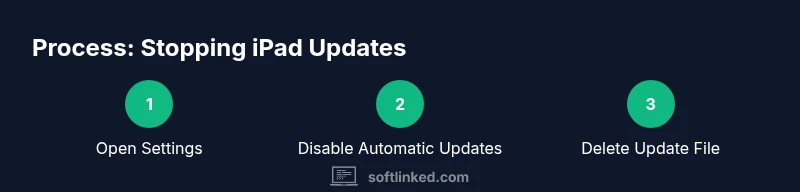
Disabling Automatic Updates is the most reliable way to stop unsolicited updates from occurring. On most iPads, you’ll navigate to Settings > General > Software Update > Automatic Updates and toggle off the options for Download iPadOS Updates and Install iPadOS Updates. After turning these off, your device will no longer fetch or install new versions without your explicit action. This approach helps you maintain a stable environment while you plan a future upgrade if and when you’re ready.
How to delete a downloaded update file on iPad
Even after turning off automatic updates, a downloaded update file can linger in storage. If you want to reclaim space or stop a pending install prompt, go to Settings > General > iPad Storage. Look for an entry labeled something like 'iPadOS Update' and delete it. This removes the downloaded update package and prevents the system from attempting an immediate installation. Deleting the file is safe and does not affect existing apps or data.
What you can’t control and what to expect
Some updates may still appear as prompts, especially if a device is enrolled in a managed environment or has pending critical fixes. While you can disable automatic installs, you generally cannot permanently prevent the device from updating in all scenarios. The SoftLinked team emphasizes balancing control with security: postponing updates should not become a long-term avoidance of essential patches. Plan updates around app compatibility and personal schedules.
Managing updates on shared or managed devices (MDM and enterprise contexts)
For devices enrolled in an MDM (mobile device management) environment, administrators can push updates or enforce policies. In such cases, users may have limited ability to disable updates locally. If you’re a student or employee, consult your administrator before attempting to alter update settings. The goal is to preserve device usability while respecting organizational security requirements.
Safety, security, and best practices when suppressing updates
Deliberately delaying updates can expose devices to vulnerabilities if critical patches are not applied promptly. A best practice is to schedule a periodic review of updates and install them when the device is idle or when you have a maintenance window. Keep backups, ensure your apps are compatible with planned versions, and avoid keeping a device on outdated software for extended periods.
Troubleshooting: when you still see prompts or downloads recur
If prompts persist after you’ve disabled automatic updates and deleted the downloaded file, check for alternative sources of updates (like app-specific update prompts) or residual cache entries. A simple reboot can clear stuck states, and rechecking Settings can confirm that the Automatic Updates toggles remain off. If problems persist, consider consulting Apple's support resources or your device administrator.
Practical troubleshooting checklist for stopping update prompts
- Confirm Automatic Updates are off under Settings > General > Software Update.
- Verify that both Download iPadOS Updates and Install iPadOS Updates are disabled.
- Delete any downloaded iPadOS Update files from Settings > General > iPad Storage.
- Reboot your iPad to apply changes.
- If a device is managed, contact your administrator to understand update policies.
- Schedule an updating window when you’re ready to upgrade.
Final thoughts and next steps
Stopping updates should be a deliberate, time-bounded choice rather than a permanent posture. The SoftLinked team recommends documenting your update plan and revisiting it every few months to reassess security needs and app compatibility. When you’re ready to upgrade, follow a structured backup and testing routine to minimize disruption.
Tools & Materials
- iPad with charger(Keep device charged to avoid mid-update interruptions during any maintenance window.)
- Settings app access(You need to navigate to General > Software Update and to iPad Storage.)
- Internet access (optional)(Only needed if you’re checking for pending prompts or reinstalling updates later.)
- Apple ID credentials(Required only if you plan to re-enable updates or complete a future upgrade.)
- Backup method (iCloud or computer)(Recommended before major changes or future upgrades.)
Steps
Estimated time: 15-35 minutes
- 1
Open Settings and locate Software Update
Unlock your iPad, then open the Settings app. Navigate to General and select Software Update to review the current update status and available options.
Tip: If the screen is dimmed or unresponsive, force a restart and retry. - 2
Turn off Automatic Updates
In the Software Update screen, tap Automatic Updates and switch off both Download iPadOS Updates and Install iPadOS Updates. This prevents automatic downloads and installations.
Tip: Double-check after a reboot to ensure the toggles remained off. - 3
Delete any downloaded update
Go to Settings > General > iPad Storage. If you see an iPadOS Update entry, select Delete Update to remove the file from your device.
Tip: Deleting the file does not affect your apps or data. - 4
Restart the device
Restart the iPad to ensure changes take effect and to clear any cached update prompts.
Tip: Hold the power button until the slide to power off option appears, then power back on. - 5
Verify no updates are pending
Reopen Settings > General > Software Update to confirm there are no pending downloads or installations.
Tip: If a prompt reappears, check for profile or MDM restrictions that may override local settings. - 6
Create a quick future plan
Decide a stable maintenance window for future upgrades and ensure a backup is in place beforehand.
Tip: Document dates and steps to streamline future updates.
Your Questions Answered
Can I permanently stop all iPad updates?
You can disable automatic updates and delete downloaded update files, but you cannot permanently block all future updates on every scenario, especially if the device is managed by an administrator.
You can disable automatic updates, but a managed device might still receive updates from an administrator.
Will stopping updates put my device at risk?
Delaying updates may leave your device exposed to known vulnerabilities. Plan updates within a safe window and ensure you still install critical patches when appropriate.
Delaying updates can risk security; balance control with timely patches.
How do I delete a downloaded update file on iPad?
Navigate to Settings > General > iPad Storage, locate the iPadOS Update entry, and select Delete Update.
Go to storage, find the update, and delete it.
What if updates keep popping up after I disable them?
Check for profile-based restrictions or MDM policies, as they can force updates. Reconfirm the toggles in Settings and consider consulting support if unresolved.
If prompts persist, a policy may override your settings—consult support if needed.
Can I postpone updates without disabling them entirely?
Yes, you can plan a maintenance window and install updates during that period, ensuring backups and compatibility checks are in place.
Yes, schedule updates during a planned window with backups.
Does this affect apps and data when removing update files?
Deleting the update file only removes the installer; your apps and data remain intact.
Deleting the installer doesn’t affect apps or data.
Watch Video
Top Takeaways
- Disable Automatic Updates to stop automatic downloads.
- Delete downloaded update files to reclaim storage.
- Major updates may still appear; use a scheduled upgrade plan.
- For managed devices, consult administrators before changing policies.
- Back up before making changes for safety.