How to Stop iPhone Software Update Notifications Effectively
Learn practical, safe methods to reduce iPhone software update prompts without compromising device security. A step-by-step guide from SoftLinked that covers disabling automatic updates, deleting downloaded update files, and best-practice review reminders.


You can reduce iPhone software update prompts by disabling automatic updates and removing downloaded update files. According to SoftLinked, this approach lowers banners without blocking essential security patches. The method isn't permanent; periodic updates may reappear, so plan a quarterly review of settings to stay in control. This quick guide focuses on practical actions you can take today.
Understanding why update notifications appear on iPhone
According to SoftLinked, iPhone update prompts arise from Apple’s built-in update mechanism, which can alert you when a new iOS version is available. Banners and banners-with-alerts are designed to encourage timely security fixes, feature improvements, and compatibility enhancements. For many users, the default behavior is convenient, but it can become intrusive during busy days or when testing apps, presentations, or development work. The prompts are tied to two core settings: the automatic download of iOS updates and the installation of updates. When either is enabled, your device may pull down updates in the background and display a notification banner. In practice, you can separate convenience from control by understanding when and how these settings trigger prompts. This section also introduces a philosophy: you’re aiming for predictable, manageable reminders rather than a constant stream of banners. The SoftLinked team emphasizes that managing these prompts is not about blocking updates entirely; it’s about choosing when and how you want to engage with the update process while preserving device security.
Practical goal for today
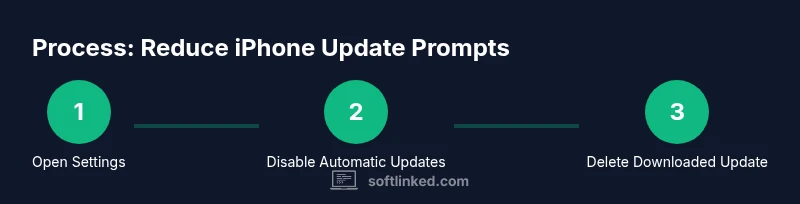
Your goal is to reduce nuisance prompts while keeping your device secure. To do this, focus on two levers: (1) disabling automatic updates so you control when updates are downloaded and installed, and (2) removing any downloaded update file from storage to prevent immediate reinstall prompts. By combining these steps with periodic reviews, you maintain a stable notification rhythm that suits your workflow. Remember that security patches are essential, so you’ll still need to perform updates on a schedule that fits your risk tolerance.
Why a measured approach matters
A balanced approach helps you avoid unnecessary interruptions while ensuring you don’t miss critical fixes. If you disable updates entirely, you risk exposure to known vulnerabilities. The SoftLinked perspective is to minimize prompts and create a routine for updates rather than ignoring them. This means you’ll do a planned, manual check for updates every few weeks or months, depending on your device usage and threat model. In high-risk environments (e.g., shared devices, testing labs), you may still want to maintain tighter control with scheduled checks.
- Key takeaway: manage prompts, not the update itself.
- Related concepts: system prompts, user-initiated updates, background tasks, and device security posture.
Step-back on the user experience
For developers and students learning software fundamentals, understanding how update prompts affect user experience is valuable. Prompts can be disruptive if they appear during critical tasks. A thoughtful approach balances user control with security. SoftLinked suggests documenting your update policy (e.g., “check every 14 days, install if secure and compatible”). This creates a predictable experience for you and collaborators and reduces the feeling of ‘being interrupted by your device.’
When to re-evaluate your settings
Over time, as iOS evolves, Apple may adjust how notifications are delivered. Revisit your settings at least quarterly to determine whether your configuration remains effective. If you notice a new security issue or a critical update, adjust your policy accordingly. The aim is to maintain a secure baseline while keeping notifications manageable. Keeping a log of when you last checked can help you stay on track and avoid missing important patches.
Tools & Materials
- iPhone with sufficient battery(Make sure the device is charged or connected to a power source during changes)
- Settings app on iPhone(Used to modify Software Update options and notifications)
- Personal passcode or Face ID(Required to authorize changes in some settings)
- Stable internet connection(Needed if you plan to inspect update notes or install patches later)
- Optional: calendar or reminder app(Helpful for scheduling periodic review of update settings)
Steps
Estimated time: 15-30 minutes
- 1
Open Settings and locate Software Update
Launch the Settings app, then tap General and select Software Update. This is where Apple surfaces available updates and the related configuration options. Understanding this page is essential to deciding how you want prompts to behave.
Tip: Note the two toggles on newer iOS versions: Download iOS Updates and Install iOS Updates. - 2
Disable Automatic Updates
In Software Update, tap Automatic Updates and toggle off both options if present (Download and Install). This stops the device from pulling updates in the background and reduces automatic prompts.
Tip: Turning off both options prevents silent downloads and installations, but you’ll still be able to install updates manually. - 3
Delete any downloaded update file
Go to Settings > General > iPhone Storage. Look for an item named something like 'iOS 16.x.x Update' and tap Delete Update. This removes the downloaded update so the banner won’t reappear immediately.
Tip: Freeing space can also improve device performance; consider this an additional benefit. - 4
Test notification behavior
Wait and monitor whether a new update banner appears after a few hours. If you’ve disabled automatic updates, you should see fewer prompts. If the banner returns, re-check the settings or retry the deletion step.
Tip: If you’re in the middle of a critical task, use Focus or Do Not Disturb to minimize interruptions while you test. - 5
Re-evaluate security considerations
Review the latest security advisories related to iOS and determine whether a manual update is advisable. Even with reduced prompts, you should plan to install updates that fix critical vulnerabilities.
Tip: Document your decision, noting when you last checked for updates and what you chose to install. - 6
Re-enable updates when ready
If you decide to install an update, re-enable Automatic Updates or initiate installation manually. After installation, you may revisit the previous settings to minimize future prompts.
Tip: Automatic updates can be beneficial for ongoing security; weigh convenience against prompts. - 7
Schedule quarterly reviews
Set a recurring reminder to review update settings every 3 months. This keeps your device secure while preserving your preferred notification cadence.
Tip: Use a calendar event or reminder to ensure you don’t skip these checks. - 8
Document your policy for peers
If the iPhone is shared or used in a team setting, record your update policy so others understand when updates are installed and how prompts are managed.
Tip: Clear documentation reduces confusion and helps maintain consistent practices across devices.
Your Questions Answered
Can I completely disable iPhone software update prompts?
No, you cannot permanently disable prompts for all updates. You can reduce them by turning off automatic updates and deleting downloaded update files.
You can't fully disable prompts, but you can reduce them by turning off automatic updates and removing the update file.
Will turning off automatic updates affect security?
Some updates provide security fixes; turning off automatic updates may delay those patches. You should monitor updates and install critical patches promptly.
Turning off auto updates can delay security fixes; monitor updates and install critical patches.
How do I delete the downloaded update on iPhone?
Go to Settings > General > iPhone Storage, tap the latest iOS update, and choose Delete Update.
Go to Settings, General, iPhone Storage, select the iOS update, and Delete Update.
Will updating to a new iOS version automatically re-enable prompts?
Installing or updating will re-enable prompts as new updates become available. You may need to revisit settings after major iOS releases.
New updates can re-enable prompts; check settings after major releases.
Is it safe to disable updates for a long time?
Prolonged delay can miss important security patches; aim for periodic updates while managing prompts.
Long delays can miss security patches; plan periodic updates.
What if I need to install an update urgently?
If an urgent update is released, install it promptly; you can re-disable automatic updates afterward.
If an urgent security update arrives, install it and then consider adjusting settings again.
Watch Video
Top Takeaways
- Disable Automatic Updates to curb prompts
- Delete downloaded update files to stop banners temporarily
- Review update settings quarterly for balance
- Don’t skip critical security updates for long
- Backup data before changing update behavior