Where Is Software Update on iPhone? A Practical Guide
Learn where to locate the iPhone software update in Settings, how to update safely, and common issues. This guide covers iOS updates, preparation steps, troubleshooting, and best practices to keep your device secure and performing well.


To locate and perform the iPhone software update, start in Settings. Navigate to General, then Software Update. If an update is available, you’ll see a notification with the version and size. Ensure your device is on a reliable Wi‑Fi network, plugged into power, and that you have a recent backup before tapping Download and Install. This quick path works across iPhone models running iOS.
Understanding iPhone Software Updates
According to SoftLinked, iPhone software updates are more than just new features. They include security patches, bug fixes, and performance improvements that help protect your data and keep apps running smoothly. Updates come in two flavors: major iOS releases that introduce big changes and smaller point updates that address specific issues. Staying current reduces vulnerability to exploits and improves compatibility with apps and accessories. In this guide, we break down where updates live on the device, what to expect during the process, and best practices for a safe, efficient update experience. Whether you’re a student learning fundamentals or a professional sharpening your software literacy, understanding the update flow helps you reason about system maintenance in practical terms.
Where to Find the Update on iPhone
The quickest way to check for updates is in Settings. Open Settings, then General, and tap Software Update. If an update is available, you’ll see the version number, a brief description, and the file size. Depending on your device and current iOS version, the screen may show Download and Install, or you may only see Install Now. For best results, keep your iPhone connected to Wi‑Fi and plugged into power during the update. You can also enable Automatic Updates in Settings > General > Software Update to let your device install future updates automatically when plugged in and connected to power.
Understanding iOS Versioning and Compatibility
iOS uses version numbers like 16.x, 17.x, etc., where higher numbers reflect newer features and security patches. Not every iPhone model supports every iOS version; older devices may stop receiving major updates after a certain year. Always verify compatibility before loading a new release to avoid performance issues. If your device isn’t compatible with the latest update, you’ll get a notification that no update is available or that your device is up to date. The SoftLinked team emphasizes learning the fundamentals: updates are both feature- and security-focused, and compatibility considerations influence the upgrade path.
Preparing Your Device Before Updating
Before you update, back up your data using iCloud or your computer, ensure at least 50% battery or keep the device plugged in, and connect to a stable Wi‑Fi network. If you’re on a metered connection, update over Wi‑Fi to avoid triggering data charges. Close background apps to speed up the process, and free up storage by removing unused apps or large media. Finally, review your installed apps for compatibility with the new iOS version and note any critical apps you rely on so you can test them after the update.
Step-By-Step Overview (What Happens During an Update)
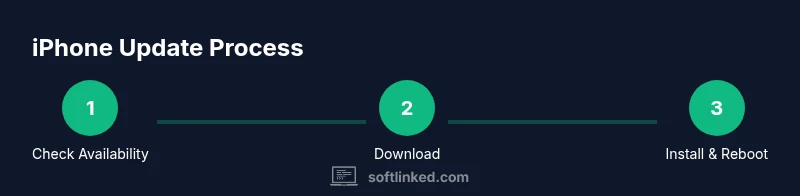
During an update, your iPhone verifies the update package, downloads the necessary files, and applies changes during a restart. The process may take longer on older devices or slower networks. Modern updates typically complete within 15–45 minutes, but longer windows are possible if the update is large or your device is busy. You’ll often see a progress bar and a brief status message during each phase. After completion, your iPhone reboots and you may be prompted to sign back in to some services.
Troubleshooting Common Update Issues
If an update stalls, check your network connection, restart the device, and ensure sufficient free storage. If verification fails, delete the downloaded update and try again. Low battery is a frequent blocker, so keep the device plugged in. In rare cases, you may need to reset network settings or contact Apple Support if the problem persists. Always avoid interrupting the update once it begins, as this can corrupt the installation.
Best Practices for Regular Updates
Set up automatic updates when you’re comfortable with them, but review each release notes for compatibility and feature impact. Maintain a current backup before any major update, and keep a spare charging source during updates. Periodically review installed apps for compatibility and update essential apps to their latest versions to minimize post-update issues. Regular updates help sustain security and performance over time.
How SoftLinked Helps You Understand Updates
SoftLinked’s clear explanations help learners grasp why updates matter and how they affect software maintenance fundamentals. By outlining where to find updates, what to expect during installation, and common pitfalls, SoftLinked empowers aspiring software engineers to reason about system maintenance with confidence.
Security and Privacy Considerations with Updates
Software updates often include security patches that fix vulnerabilities and improve privacy protections. Installing updates promptly reduces exposure to exploits and ensures new security features are available. If you manage a device on behalf of others, keep an eye on update rollout schedules and communicate planned downtime to users.
Tools & Materials
- iPhone with sufficient battery(Keep battery above 50% or connect to a charger during update)
- Stable Wi‑Fi connection(Avoid updates over cellular data if possible)
- Apple ID credentials(Needed to sign in if prompted during the update)
- Backup method(iCloud or computer backup before updating)
- Optional: Computer with iTunes/Finder(Useful for offline backups or recovery scenarios)
Steps
Estimated time: 15-45 minutes
- 1
Check prerequisites
Confirm you have a stable internet connection, sufficient storage, and a recent backup. This reduces the risk of data loss during the update and helps ensure a smooth installation.
Tip: If storage is tight, temporarily remove large files or apps you don’t use. - 2
Open Settings and check for updates
Navigate to Settings > General > Software Update to see if an update is available. If prompted, read the release notes to understand new features and any known issues.
Tip: If you don’t see an update, you’re likely on the latest version for your device. - 3
Prepare device for installation
Charge the device or connect to power, connect to a reliable Wi‑Fi network, and close non-essential apps to speed up the update.
Tip: Turn on Automatic Updates after the current update completes for future convenience. - 4
Download and install the update
Tap Download and Install or Install Now. The device will verify, download, and apply the update during a reboot. This may take several minutes depending on size and network speed.
Tip: Avoid using the device heavily during installation to prevent interruptions. - 5
Verify update and sign back in
After reboot, go to Settings > General > Software Update to confirm the installed version. Sign back in to apps and services that require authentication.
Tip: Check essential apps for compatibility with the new iOS. - 6
Test core functionality
Open Mail, Messages, and any critical apps to ensure they run correctly and data sync is intact after the update.
Tip: If issues appear, review app updates or restart the device.
Your Questions Answered
Where is the software update option on iPhone?
The Software Update option is in Settings > General > Software Update. If an update is available, you’ll see details about the version and size, plus an option to download and install.
Go to Settings, General, then Software Update to check for updates and install them.
What should I do if the update isn’t showing?
First, verify your internet connection and storage space. If needed, restart the device and try again. If no update appears after a while, you may already be on the latest version for your device.
Check your connection, storage, and retry later if updates aren’t appearing.
Can I update over cellular data?
Updates are typically downloaded over Wi‑Fi. If you must use cellular data, ensure you have a stable connection and check your carrier settings. In some cases, updates require Wi‑Fi, so plan accordingly.
Usually updates require Wi‑Fi; if you must, check settings and carrier limitations first.
How long does an iPhone update take?
Time varies by update size and device model. Most updates take 10–30 minutes, with longer durations possible on older devices or slower networks.
Most updates take about 10 to 30 minutes, depending on size and speed.
Will updating erase my data?
Updates should not erase data. Still, always back up before updating to protect against unexpected issues.
No, updates typically don’t erase data, but back up first just in case.
What should I test after updating?
Verify essential apps open correctly, data sync is working, and settings like notifications and battery usage are functioning as expected.
Test key apps and settings to confirm everything runs smoothly after the update.
Watch Video
Top Takeaways
- Identify the correct path: Settings > General > Software Update
- Back up before updating to protect data
- Ensure power and Wi‑Fi during installation
- Verify the newly installed iOS version after reboot