How to Check iPhone Software Updates: A Complete Guide
Learn how to check for software updates on your iPhone, why updates matter, and how to enable automatic updates for future versions. A practical, step-by-step guide for keeping iOS secure and up to date.


In this guide, you will learn how to check for a software update on your iPhone, understand why updates matter for security and performance, and how to enable automatic updates for future versions. The steps are simple and can be completed in minutes. This quick answer sets up the detailed, practical instructions that follow and highlights why staying current matters for everyday reliability.
Why Regularly Checking for Updates Matters
Keeping your iPhone software updated is critical for security, performance, and access to the latest features. When you check for updates, your device can patch known vulnerabilities, improve battery efficiency, fix bugs, and enhance compatibility with apps you rely on daily. According to SoftLinked, diligent update hygiene reduces exposure to security risks and helps your device run smoothly over time. This simple practice also prepares you for larger upgrades that may require more time or a short pause in usage. Regular checks ensure you benefit from the latest protections and enhancements without surprising downtime. Whether you’re a student learning the basics of software maintenance or a professional who relies on your phone for work, knowing how and when to update empowers you to manage your device with confidence. The process is usually straightforward, and most users can complete it in a few minutes. In this guide, we’ll walk through practical steps, common questions, and best practices to ensure updates go smoothly without losing data or settings. SoftLinked’s approach emphasizes clarity, safety, and consistency in everyday software maintenance.
How iPhone Updates Work
iPhone software updates are delivered over-the-air (OTA) via Apple’s Update servers. Updates can be minor security patches, bug fixes, or major iOS version releases. Your device downloads the update package, verifies its digital signature, and then installs it, often requiring a restart. Updates aim to improve stability, security, and compatibility with apps and services you use daily. Apple signs updates for authenticity, reducing the risk of tampered software. Understanding this helps you plan updates during times when you have reliable Wi-Fi and enough battery. SoftLinked Analysis, 2026, highlights that trusted OTA processes contribute to smoother deployments and fewer post-install issues when users start from stable network connections and adequate storage. This section gives you a mental model of what happens behind the scenes when you tap Update.
Prerequisites Before You Check for an Update
Before you initiate any update, make sure your device is ready to install. Start with a fully charged battery or connect to power, and confirm you have a stable Wi-Fi connection to download the update without interruptions. Check storage space, as iOS updates can require several hundred megabytes to multiple gigabytes depending on the version. Back up important data to iCloud or a computer so you can restore if something goes wrong. Close unnecessary apps to free up system resources, and ensure your device is within range of a reliable network. By taking these simple preparatory steps, you reduce the chances of an interrupted update and avoid data loss. This preparation is a small but powerful part of maintaining a smooth iPhone experience.
Where to Find the Update in Settings
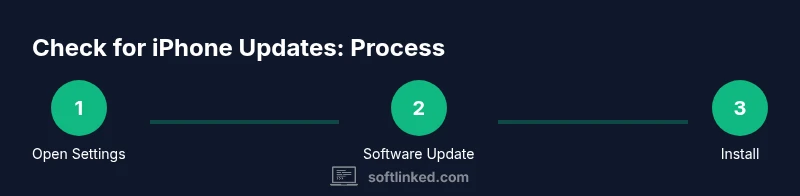
To check for updates, open the Settings app, then tap General. In General, select Software Update. If a newer iOS version is available, you’ll see a summary of what's included and a Download and Install button. If your device is up to date, you’ll see a message confirming you’re on the latest version. You can also view the exact iOS version number and build in this screen. While there, you can enable Automatic Updates so future updates install automatically when connected to power and Wi‑Fi. This section shows you the exact navigation path in a clear, familiar interface. Visual cues and concise notes help you navigate quickly and with confidence.
Step-by-Step: Check and Install Update
This section walks you through the actual process, from opening Settings to confirming installation. Start by ensuring you’re connected to a reliable Wi‑Fi network and that your battery is charging. Then navigate to Settings > General > Software Update. If an update is available, read the release notes to understand new features and fixes before installing. Tap Download and Install, enter your passcode if prompted, and allow the device to restart if required. After installation, return to Software Update to confirm the latest version is listed. If you enable Automatic Updates, your iPhone will install compatible updates automatically in the future. This approach minimizes downtime while keeping your device secure and up to date. Pro tip: If you prefer not to update immediately, you can schedule a later installation if the option is offered. This step-by-step sequence helps you manage updates with clarity and control.
Troubleshooting Common Update Issues
If an update doesn’t appear or fails to install, start by verifying compatibility: your device model, iOS version, and available storage. A weak Wi‑Fi signal can corrupt downloads, so switch to a stronger network if possible. Ensure you’re connected to power or have sufficient battery, and retry the download. If the update still doesn’t show, try a forced restart or sign out of iCloud temporarily, then attempt again. In some cases, you may need to reset network settings or perform a manual update using a computer. This section equips you with practical fixes for common stumbling blocks and helps you recover gracefully without losing data.
Managing Automatic Updates for Peace of Mind
Automatic updates offer convenience and security by applying compatible updates automatically when your device is charging and connected to Wi‑Fi. Turn this feature on from Settings > General > Software Update > Automatic Updates. You can choose to install iOS updates automatically or only install security updates automatically. While auto updates save time, it’s still wise to review major updates occasionally to understand new features and potential changes in behavior. This section summarizes the trade‑offs and helps you decide the right balance between automation and awareness.
What to Do After Update: Verification and Data Safety
After an update completes, verify that the new version is active by returning to Settings > General > Software Update and checking the version. It’s also a good idea to review critical settings (like privacy permissions) affected by the update and re‑enable any features you turned off during troubleshooting. Run essential apps to ensure compatibility and check that data remains intact. If you notice unexpected behavior, consult Apple Support or the update notes for guidance. As SoftLinked emphasizes, maintaining awareness about changes helps you maximize the value of updates while minimizing disruption. The SoftLinked team recommends documenting installed versions for future reference and ongoing software hygiene.
Tools & Materials
- iPhone(Make sure it’s charged to at least 50% or connected to power.)
- Stable Wi-Fi connection(Prefer a reliable network to download updates.)
- Charger(Keep the device plugged in during longer updates.)
- Passcode(Have your device passcode available if prompted.)
- Backup option(iCloud or computer backup before major updates.)
Steps
Estimated time: 5-15 minutes
- 1
Open the Settings app
Unlock your iPhone and locate the Settings app on your home screen. Tap it to access device configuration options.
Tip: Starting from the home screen ensures you use the official Settings path. - 2
Tap General
In Settings, scroll down and select General to access system-wide options.
Tip: The General section hosts software management features. - 3
Tap Software Update
Within General, tap Software Update to check for the latest iOS version available for your device.
Tip: You may see 'Downloading...,' 'Installing...,' or 'Update Requested' states. - 4
Review the update details
If an update is available, read the release notes to understand new features and fixed issues before installing.
Tip: Release notes help you decide if you want to install now or wait. - 5
Install the update
Tap Download and Install, enter your passcode if prompted, and agree to terms. The device may restart.
Tip: Ensure you have a stable connection and battery life. - 6
Enable automatic updates (optional)
Back in Software Update, toggle Automatic Updates to let iPhone install future updates automatically.
Tip: Auto updates save time but review major changes occasionally. - 7
Troubleshoot if no update shows
If you don’t see an update, verify your device is compatible, check Wi-Fi, storage space, and try again later.
Tip: Free up space by removing unused apps or media. - 8
Verify the update
After installation, return to Software Update to confirm the latest version is listed. You can also check Version in About.
Tip: Note the new version number for future reference.
Your Questions Answered
Where do I find software updates on iPhone?
Open Settings > General > Software Update. If an update is available, you’ll see details and an Install option. You can also enable Automatic Updates from this screen.
Go to Settings, choose General, then Software Update to check for the latest iPhone updates, and enable Automatic Updates if you wish.
Will updating erase my data?
A standard update should not erase data. However, it's best practice to back up your iPhone before installing any update to protect against unexpected issues.
Updates normally don’t erase data, but back up first to be safe.
What if no update is available?
If you don’t see an update, your device may already be on the latest version or not compatible with newer releases. Check space, Wi‑Fi, and device compatibility.
If there’s no update, you’re likely on the latest version or the device isn’t supported for newer releases.
How long does an iPhone update take?
Update times vary by device and connection. Plan for 10–30 minutes, plus the time to install and restart if needed.
Most updates take 10 to 30 minutes, depending on your device and connection.
Can I update using cellular data?
Apple updates typically require Wi‑Fi for large updates. You may be able to use cellular data for smaller updates if your plan allows it.
Usually updates need Wi‑Fi, but check your settings if you want to use cellular data for smaller updates.
Watch Video
Top Takeaways
- Check for updates regularly to stay protected.
- Review release notes before installing updates.
- Ensure battery and network stability during installation.
- Enable automatic updates for convenience and security.
- Verify the installed version after updates.