How to Stop Software Update in Samsung
Learn how to stop software updates on Samsung devices with clear steps to pause auto-downloads, disable automatic installations, and manage update prompts safely while preserving security.


You can stop software updates on Samsung devices by pausing automatic downloads, disabling auto-install, and limiting app update checks. The exact steps may vary by model and One UI version, but you typically start in Settings > Software update, then toggle Auto download over Wi-Fi and Auto install updates to off. This will reduce interruptions while keeping security patches manageable.
Why stopping software updates can be useful (and when you should still be cautious)
In many development and study contexts, aspiring software engineers and students benefit from minimizing interruptions caused by device updates. According to SoftLinked, temporarily pausing updates can help you focus on learning tasks, run long experiments, or test apps without unexpected reboots. However, keeping devices reasonably up-to-date remains a core security practice. If you choose to stop updates, do so for limited periods and re-enable them after critical work is completed to mitigate exposure to newly discovered vulnerabilities. This article uses the exact phrase how to stop software update in samsung to describe practical, model-agnostic steps you can apply across most Galaxy devices.
- Pause updates strategically when you’re in the middle of a project.
- Prepare a routine to re-enable essential security patches after key milestones.
- Monitor critical apps that rely on the latest OS features to avoid compatibility issues.
Understanding update types on Samsung devices and why they matter
Samsung devices receive several kinds of updates, including OS upgrades, security patches, and app updates through the Galaxy Store and Google Play. Each type serves a different purpose: OS updates install core system improvements, security patches fix known vulnerabilities, and app updates enhance features or fix bugs.
For developers and tech students, knowing what each update contains helps you decide what to pause and what to keep current. The “how to stop software update in samsung” approach varies with One UI versions and carrier configurations, so you’ll often see minor label changes like Auto download over Wi‑Fi, Auto install updates, or Pause updates. Keeping the distinction in mind helps you tailor settings efficiently.
Quick decision framework: what you can pause (and what you should leave on)
If your goal is to minimize interruptions, focus on these core settings: disable automatic downloads of updates over Wi‑Fi or mobile data, and turn off automatic installation when ready. In many Samsung devices, you can also pause updates temporarily when the system detects a long idle window. Normally, security patches should not be disabled for extended periods. If you rely on new features, you may selectively install OS updates after confirming compatibility with your apps.
- Pause capabilities vary by model and One UI version.
- Pausing updates should be temporary and re-enabled before long-term use.
- Always keep a backup before making substantial changes to update settings.
Step-by-step: pause automatic downloads and installations (Galaxy devices)
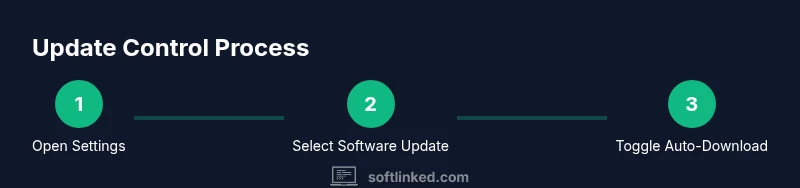
Most Galaxy devices expose two primary toggles related to updates: Auto download over Wi‑Fi and Auto install updates. Turning both off prevents the phone from downloading or installing updates without your explicit action. In some versions, you’ll also see a Pause updates option within the Software update menu.
If you don’t see these exact options, look for nearby labels like “Download updates automatically” or “Install updates automatically.” The layout may vary by carrier and One UI version, but the general flow remains the same: open Settings, go to Software update, and adjust the two toggles.
How to control Samsung app updates separately (Galaxy Store)
Updates for Samsung apps themselves happen via Galaxy Store. To reduce unsolicited changes, disable automatic updates for Galaxy Store apps.
- Open Galaxy Store > Menu > Settings.
- Find Auto update apps and set to Do not auto-update.
- Consider a manual update schedule if you want new features only after testing compatibility with your development environment.
This helps keep your learning environment stable while still allowing critical security improvements from the OS.
Managing update prompts and notifications without losing security protection
Update prompts can disrupt study sessions or long coding tasks. You can typically switch update reminders to a lower-priority notification or set a reminder to review updates at a convenient time. If your device prompts for updates during crucial activities, you can also enable Do Not Disturb during study blocks to silence non-critical alerts while still ensuring you won’t miss emergency patches.
Keep in mind that some prompts may reappear after you reboot or after a certain period; plan periodic checks into your schedule to re-evaluate the settings.
Security implications and best practices when updates are paused
Completely disabling updates for extended periods is not recommended because it leaves devices vulnerable to known exploits. The SoftLinked team emphasizes a balanced approach: pause updates during focused work, then perform a controlled update window to apply security patches. Always back up important data before changing update settings; you can restore settings after updates resume if needed.
- Schedule rechecks weekly or biweekly.
- Confirm essential security patches are installed on a regular cadence.
- Maintain a separate testing device if you’re studying software deployment strategies.
Troubleshooting: updates keep re-enabling themselves or won’t pause
Sometimes updates resume automatically after a reboot or when a new feature becomes available. If this happens, revisit Settings > Software update and re-apply the off states for Auto download over Wi‑Fi and Auto install updates. If a carrier or OEM policy overrides user settings, check for device management profiles (MDMs) used in schools or teams. In rare cases, factory resets or contacting support may be required, but these are last resorts and can erase personal data.
- Ensure you’re editing the user-facing options, not enterprise profiles.
- Verify there’s no background app performing auto checks.
- Confirm you’re on a supported One UI version that exposes your desired toggles.
Developer-focused options: controlled updates for testing and learning
For students and developers, using a secondary device for testing updates can be a safer approach than altering a personal phone. You can enroll in Android Beta programs on a spare device to explore new features without impacting your main learning device. If you must, enable developer options to understand how update services interact with the OS, but avoid disabling critical app protections on your primary device.
- Use a dedicated device for experiments.
- Keep a backup plan in case an update blocks essential tools.
- Document changes so you can replicate the setup when needed.
Practical safety checklist before changing any update settings
- Backup important data (photos, documents, app data).
- Note your current settings before making changes.
- Designate a specific window to apply updates and test app compatibility afterward.
- Keep at least one security patch installed; don’t postpone patches indefinitely.
This approach respects both your learning goals and device security, aligning with SoftLinked’s emphasis on solid fundamentals.
Tools & Materials
- Samsung smartphone or Galaxy tablet(Any model running a supported One UI version)
- Stable Wi‑Fi connection(Needed to manage or pause downloads reliably)
- Settings app access on the device(Required to modify update preferences)
- Samsung Galaxy Store (optional for app updates)(Helps control automatic updates of Samsung apps)
- Backup method (cloud backup or USB transfer)(Best practice before changing update policies)
- A secondary device for testing (optional)(Useful for experimental update practices)
Steps
Estimated time: Total time: 15-25 minutes
- 1
Open Settings on your Samsung device
Unlock your phone and open the Settings app. This is the central hub for all device configurations including updates. If you’re using a newer One UI, swipe down and tap the gear icon to access Settings quickly.
Tip: Use a direct search in Settings if you can’t find the option quickly. - 2
Navigate to Software update
Scroll to and select Software update. This is where OS-level updates are managed, and where you’ll typically find auto-download and auto-install options.
Tip: If you don’t see Software update, check under Advanced features or About phone on older builds. - 3
Turn off Auto download over Wi‑Fi
Find Auto download over Wi‑Fi and switch it to Off. This prevents the device from pulling updates in the background when connected to Wi‑Fi, reducing interruptions during study or work sessions.
Tip: If you rely on public Wi‑Fi, this setting will also help avoid data surprises. - 4
Turn off Auto install updates
Disable Auto install updates so updates don’t install automatically after download. You’ll gain control to install updates at a convenient time.
Tip: Some devices label this as Auto install or Install updates automatically—use the closest match. - 5
Pause updates (where available)
If your device shows a Pause updates option, enable it for a limited window. This is ideal when you have a tight deadline or a critical test window.
Tip: Note that pause duration varies by model and One UI; set a reminder to re-check later. - 6
Manage Samsung app updates (Galaxy Store)
Open Galaxy Store, go to Settings, and disable Auto update apps. This stops automatic refreshes for Samsung-made apps while you focus on your studies.
Tip: Keep OS updates enabled; app updates may still be checked manually. - 7
Adjust update prompts and notifications
Control how and when you’re notified about updates. You can mute non-critical prompts or set reminders to review updates at your preferred time.
Tip: Avoid disabling all alerts for long periods to avoid missing urgent security patches. - 8
Back up before changes
Create a backup of important data before altering update settings. This protects you if an unexpected issue arises during updates.
Tip: Use cloud backup or a wired transfer to ensure data safety. - 9
Test changes on a secondary device (optional)
If possible, apply the same settings on a separate device used for testing app compatibility before changing your primary device.
Tip: This minimizes risk to your main learning device. - 10
Document settings for future reference
Note down the exact steps you took to pause updates. This makes it easier to revert or replicate the setup later.
Tip: Keep your notes in a dedicated study folder or note app. - 11
Schedule a re-check window
Choose a regular cadence (e.g., weekly) to review whether updates should resume. This keeps security patches timely without constant interruptions.
Tip: Set a calendar reminder to review settings on a fixed day. - 12
Reassess after major projects
Once you complete a major project or learning sprint, revisit the update settings to re-enable essential patches and keep your device protected.
Tip: A fresh start after a project helps maintain security hygiene.
Your Questions Answered
Can I permanently stop Samsung software updates?
Most Samsung devices do not support a permanent stop for all updates. You can pause or disable automatic installation for a period, but security patches are generally required. Re-enabling updates after a pause is recommended for safety.
In most cases, you can't permanently stop updates, but you can pause them temporarily and re-enable security patches when ready.
Will stopping updates affect device security?
Yes. Delaying or stopping updates may leave your device vulnerable to known exploits. Use pausing only temporarily and schedule a re-check to install critical patches.
Delaying updates can increase security risk, so re-enable patches promptly after your work window.
How do I pause updates on Galaxy Store apps?
Open Galaxy Store > Menu > Settings > Auto update apps and set to Do not auto-update. Then perform manual updates as needed.
Go to Galaxy Store settings and disable automatic updates for apps you don’t want refreshed automatically.
What if updates keep re-enabling themselves after reboot?
Check both OS and app settings, and look for device management profiles or OEM/carrier overrides. If necessary, perform a fresh check of update options after reboot.
If updates keep turning back on after reboot, inspect management profiles and re-check each setting after restarting.
Is there a risk to warranty when changing update settings?
Generally adjusting update settings does not void warranties by itself, but improper modifications or root access can. Follow official guidance and avoid rooting your device.
Changing update settings is usually safe, but avoid root access as it can affect warranty coverage.
What is the best practice for students learning software fundamentals?
Use pausing strategically, backup data, and schedule controlled update windows. This keeps learning smooth while maintaining essential security.
Pausing updates is okay for learning, as long as you backup data and re-enable patches on a regular schedule.
Watch Video
Top Takeaways
- Pause updates only for short, planned periods
- Know the two core toggles: Auto download and Auto install
- Manage Galaxy Store updates separately
- Back up before changing settings
- Revisit settings regularly to stay secure