How to Check Software Update on Samsung
Learn how to check and install Samsung software updates on Galaxy devices with a clear, step-by-step approach, PC options, and troubleshooting tips for a secure, up-to-date experience.


You will learn how to check and install the latest Samsung software updates on Galaxy devices. This quick guide covers OTA checks in Settings, PC-based methods with Samsung Smart Switch, and common troubleshooting. You’ll need a charged phone, a stable Wi‑Fi connection, and access to your Samsung account if needed.
Why checking for updates matters on Samsung devices
Keeping Samsung devices up to date is essential for security, performance, and new features. According to SoftLinked, timely updates help patch vulnerabilities and improve app compatibility across Galaxy devices. In this section we explore why software updates matter, what kinds of updates you might see (security patches, feature updates, carrier updates), and how updates influence daily use. Regular checks reduce the risk of outdated software, protect sensitive data, and ensure you have the latest bug fixes for smooth operation across apps and services.
Where updates come from and how they are delivered
Samsung distributes software updates through multiple channels: OTA (over the air) through Samsung's servers, carrier-specific updates, and region-based releases. The exact timing depends on your device model, region, and network provider. SoftLinked's analysis highlights that not all devices receive updates at the same time, especially in older devices or markets with carrier testing. Understanding these channels helps you set expectations and plan backups before updating.
How to check for updates directly on your Samsung phone
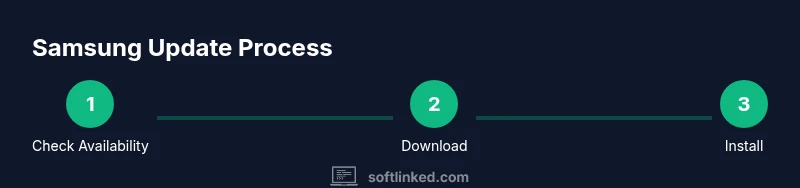
To check for updates on a Samsung Galaxy device, start in Settings. Navigate to Software update, then tap Download and install if an update is available. You may see a message indicating your device is up to date; in that case, no action is needed. Ensure you are connected to Wi‑Fi and that your battery is sufficiently charged before starting the download. This path works across most recent Galaxy models, including S, Note, Galaxy A, and Z series.
Update via Samsung Smart Switch or PC (if OTA isn’t available)
If an OTA update isn't available for your device, you can use Samsung Smart Switch on a Windows or Mac computer to check for updates and perform a firmware install. Start by installing Smart Switch on your computer, then connect your device with a USB cable. Follow the on-screen prompts to check for updates and install the latest firmware. This method is a useful fallback for carriers that pause OTA releases or in cases where the device can't complete the update wirelessly.
Understanding update types and their impact
Software updates come in several forms, including security patches, feature updates, performance improvements, and bug fixes. Some updates are large, requiring more time and data; others are small patches. In general, security patches fix vulnerabilities, while feature updates add new capabilities or improve user experience. Always review the update notes before installing to understand what changes you’ll experience on your device.
Verifying the update and enabling auto-updates
After installation, verify that the new software version is active by checking Settings > About phone > Software information. Compare the version number and security patch level with the update notes. Enabling Auto download over Wi‑Fi ensures future updates are downloaded automatically when you’re on a stable network, reducing the chance you’ll miss important protections. Keep in mind that auto-updates may require time to complete during idle periods.
Troubleshooting common update issues
If an update stalls or fails, begin by checking your internet connection and battery level. Ensure you have enough storage space, then retry the update. If problems persist, try a forced restart, clear cache for the software update app, or perform the update via Smart Switch on a PC. In rare cases, you may need to reset settings (without erasing data) or seek official support from Samsung.
Best practices for keeping Samsung devices up to date
- Back up data before major updates to avoid potential data loss.
- Use Wi‑Fi to download updates to save mobile data and improve speed.
- Regularly check for updates, especially after major Android or One UI releases.
- Review update notes and compatibility warnings, especially for critical apps.
- Enable auto-update over Wi‑Fi to ensure timely protection and new features.
Tools & Materials
- Samsung device (phone or tablet)(Any model running a recent Samsung Android with current firmware)
- Charged battery or power source(Aim for 50-80% before updating)
- Stable Wi‑Fi network(Wi‑Fi preferred; updates can be large)
- USB-C cable and computer (optional)(Needed if using Smart Switch PC method)
- Samsung Smart Switch software (Windows/Mac)(Used for PC-based updates or recovery)
Steps
Estimated time: 30-60 minutes
- 1
Open Settings on your Samsung device
From the home screen or-app drawer, swipe down and tap the gear icon to open Settings. This is your entry point to manage software on your Galaxy device.
Tip: If you can't find Settings, use the search bar at the top of the Settings app. - 2
Navigate to Software update
In Settings, locate and tap Software update to access update options. This section shows available updates and installation details.
Tip: Use the search within Settings to jump directly to Software update. - 3
Check for updates manually
Tap Download and install if an update is listed. The device will download, verify, and prepare the installation.
Tip: Ensure you’re connected to Wi‑Fi and have sufficient battery before starting. - 4
Install and reboot
If the update is ready, tap Install now and let the device reboot. Do not interrupt the process.
Tip: Back up important data before installing major updates. - 5
Update via PC with Smart Switch (optional)
If OTA isn’t available, connect your phone to a computer and use Smart Switch to check for updates and install firmware.
Tip: Use the latest Smart Switch version and a reliable USB cable. - 6
Verify and enable auto-update
After updating, go to Settings > About phone to confirm the version. Turn on Auto download over Wi‑Fi for future updates.
Tip: Auto-update helps keep devices protected without manual checks.
Your Questions Answered
Where do I find Software Update on Samsung devices?
Open Settings > Software update. If you can't find 'Software update', use Settings search to locate it quickly.
Open Settings, then search for Software update to locate the right page.
What if there is no update available for my device?
If no update is shown, your device may already be up to date or the update isn’t released in your region yet. Check again later and ensure you're connected to Wi‑Fi with adequate battery.
If you don't see an update, it might not be released in your region yet; try again later.
Can I update my Samsung device using a computer?
Yes, using Samsung Smart Switch on Windows or Mac. This method can install updates when OTA is unavailable, but not all models support every update.
Yes, with Samsung Smart Switch on a computer, if OTA isn’t available.
Will updates erase my data?
Updates are designed to preserve data, but it’s best practice to back up important information before starting.
Usually updates don’t erase data, but backing up is smart precaution.
How long does an update typically take?
Duration varies with update size and network speed. Plan for about 20–60 minutes and avoid using the device during installation.
It varies, but most updates take from a few minutes up to an hour.
How do I enable automatic updates for Samsung?
Go to Settings > Software update > Auto download over Wi‑Fi, and enable Auto update if offered in your region.
Enable auto-download over Wi‑Fi to keep your device current automatically.
Watch Video
Top Takeaways
- Check for updates regularly to stay secure and get new features.
- Prefer Wi‑Fi for downloads to save data and improve speed.
- Back up data before updating and ensure the device has power during installation.
- If OTA fails, try PC-based update with Samsung Smart Switch.