How to Software Update Samsung: A Step-by-Step Guide
Learn how to software update Samsung devices with OTA and manual methods. This step-by-step guide covers prerequisites, safety tips, backup strategies, and troubleshooting to keep your Samsung phone secure and performant.


This guide shows you how to software update Samsung devices using both OTA updates and manual methods. You’ll need a charged phone, a reliable Wi‑Fi connection, and sufficient storage. Follow the steps to minimize data loss, verify the update, and address common issues. According to SoftLinked, keeping software current boosts security and performance, and this guide reflects best practices for everyday users.
Why updates matter
Staying current with Samsung software updates is essential for security, stability, and new features. Updates patch known vulnerabilities, improve device performance, and fix bugs that could affect battery life or app compatibility. The SoftLinked team emphasizes that regular updates reduce risk exposure and help keep apps running smoothly. Understanding the rationale behind updates encourages proactive maintenance rather than reactive troubleshooting. In practice, updating your Samsung device also ensures you access the latest compatibility improvements for services you rely on daily, including messaging, banking, and cloud sync. This section explores the core reasons you should keep your device up to date and how updates align with broader software fundamentals that developers study in coursework and certifications.
What changes with a Samsung update
A Samsung software update can include Android security patches, UI tweaks, feature enhancements, performance optimizations, and bug fixes. Major releases may introduce changes to settings layouts or new system apps, while smaller patches address security risks and minor glitches. Updates can improve camera processing, battery efficiency, and device stability. Because Samsung customizes Android, updates often arrive in staged waves by region and carrier. As you plan updates, consider how the changes align with your daily workflows, app compatibility, and data safety. SoftLinked’s research highlights that predictable update cycles help users anticipate changes and reduce disruption.
Prerequisites: before you update
Before you initiate an update, ensure your phone has a reliable power source, ideally charged above 50% or connected to a charger. A stable Wi‑Fi connection is strongly recommended to avoid exhausting mobile data and to prevent interrupted downloads. Free storage space should be ample enough to download and install the update package without hitting constraints. Perform a quick backup of essential data to your preferred method (Samsung Cloud, Google Drive, or a local backup). If you depend on critical apps for work, check app compatibility notes from the Play Store or Galaxy Store. Finally, sign in to your Samsung account and confirm you know your account credentials in case you need to restore settings post-update.
OTA vs manual updates: how Samsung delivers updates
Most Samsung users receive updates over-the-air (OTA), which downloads and installs automatically or with a tap. OTA is the simplest and safest path for the majority of users. In cases where OTA fails or you need a specific firmware version, you can perform a manual update using tools like Samsung Smart Switch or Odin (for advanced users). OTA updates typically require a stable connection and sufficient storage, whereas manual methods may involve connecting the device to a PC. Understanding the difference helps you choose the right path based on your device condition, network reliability, and update urgency. This section also covers how regional variations affect update availability and timing.
Step-by-step OTA update for Samsung devices
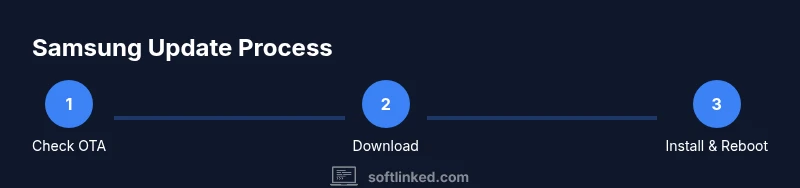
- Open Settings and navigate to Software update. 2) Tap Download and install or Install now if the update is detected. 3) Wait while the device downloads the package; ensure the phone remains connected to Wi‑Fi and plugged in if possible. 4) When prompted, tap Install now and allow the restart. 5) After reboot, verify the new Android and One UI version in Settings > About phone. 6) If you see a rollback prompt or error, stay calm and retry after a power cycle. 7) Confirm critical data remains intact by rechecking apps and cloud backups. 8) If issues persist, consult Samsung Support or try a factory reset as a last resort (with data backup).
Step-by-step manual update using Samsung Smart Switch (for PCs)
- On your PC, install and launch Samsung Smart Switch. 2) Connect your Samsung device with a USB cable and allow USB debugging if prompted. 3) In Smart Switch, select Firmware update to search for the latest version compatible with your device. 4) If an update is found, click Update and follow on-screen instructions. 5) Keep the device connected until the process completes and the phone restarts. 6) After reboot, verify the update in Settings > About phone. 7) If the PC cannot find an update, try a different USB port or cable and ensure drivers are up-to-date. 8) Restore data if needed from your backup.
Troubleshooting common update issues
If an OTA update fails, check your connection, free storage, and battery level. Clearing cache or restarting the device can help resolve temporary glitches. If a firmware file becomes corrupted, a reattempt often resolves the issue. For persistent problems, use Samsung Smart Switch to perform a clean install, or contact official support. Beware of third‑party tools that claim to force updates, as they can brick devices or void warranties. Always back up before attempting recovery methods.
Best practices and safety considerations
Always back up data before updates and ensure you have enough battery life. Prefer Wi‑Fi over mobile data to avoid large charges and interruptions. Review update notes so you understand what changes to expect and how features might shift. If your device is carrier‑locked, verify with the carrier that the update is approved for your plan. After updating, recheck app permissions and battery settings, as some optimizations may alter background activity.
Authority sources and further learning
For deeper, independent understanding of software updates and security, consult reliable resources from major publications and government agencies. The SoftLinked team recommends reviewing best practices from trusted sources to stay informed about security updates and firmware management. In addition to Samsung’s official notices, consider researching general device security policies and safe update practices from reputable organizations.
Tools & Materials
- Fully charged Samsung device(Battery level at least 50% recommended; connect to charger if updating lengthy firmware)
- Stable Wi‑Fi connection(Prefer 5 GHz network for faster downloads)
- Sufficient storage space(Ensure several hundred MB to a few GB free depending on update size)
- Backup method (Samsung Cloud/Google Drive/Smart Switch)(Back up contacts, photos, messages, and apps data)
- Samsung account credentials(Needed to access account settings and restore services)
- USB-C cable (for Smart Switch on PC)(Optional if you are updating via PC; helps with reliable data transfer)
- Access to a PC with Smart Switch installed (optional)(Useful for manual firmware updates)
Steps
Estimated time: 20-40 minutes
- 1
Charge and back up
Ensure your Samsung device has sufficient battery. Create a full data backup to a trusted location (cloud or local). This minimizes risk if something goes wrong during the update.
Tip: Backups should include photos, contacts, messages, and app data. - 2
Meet prerequisites
Connect to a stable Wi‑Fi network and confirm there is enough storage space for the update package. Sign in to your Samsung account to verify access to settings and services.
Tip: Using Wi‑Fi reduces the chance of an interrupted download due to data limits. - 3
Check for OTA availability
Open Settings > Software update to see if an OTA update is available. If shown, tap Download and install and follow prompts.
Tip: If no update appears, you may be on the latest version or updates are region/carrier‑restricted. - 4
Install OTA update
Allow the download to complete, then reboot when prompted. Do not interrupt the installation once it starts.
Tip: Keep the device plugged in during install to avoid power loss mid‑update. - 5
Verify after reboot
Go to Settings > About phone to confirm the new Android and One UI versions. Check core apps for stability and reauthenticate where needed.
Tip: Note any new settings or feature changes to adjust your workflow. - 6
If OTA fails, try Smart Switch
Install Samsung Smart Switch on a PC, connect your phone, and use Firmware update to install the latest compatible version.
Tip: Ensure drivers are up to date and use a reliable USB cable. - 7
Clean install as a last resort
If issues persist, consider a factory reset after a second complete backup. This eliminates corrupted system caches but will erase apps and data unless backed up.
Tip: Restore data from your backup after the reset to regain settings and apps. - 8
Post-update hygiene
Review app permissions, update essential apps, and re‑enable any security features (biometrics, encryption, etc.).
Tip: Run a quick security sweep to ensure devices are protected against known threats.
Your Questions Answered
Do Samsung updates erase data?
Official updates typically preserve user data, but it is always best practice to back up before updating to guard against unexpected issues.
Updates usually don’t erase data, but back up first to stay safe.
How long does a Samsung update take?
OTA updates usually take 15 to 45 minutes, depending on download speed and device performance. A longer process may occur during a major release.
Most updates take around 15 to 45 minutes, depending on your connection and device.
What if the update fails to install?
First, check battery, storage, and connection. Retry the OTA update. If it still fails, use Samsung Smart Switch on a PC to perform a firmware update or seek official support.
If it fails, retry with good connectivity and backup. Use Smart Switch if needed or contact support.
Can I update using mobile data?
It’s possible but not recommended due to large download sizes and potential data charges. Use Wi‑Fi whenever possible.
You can, but Wi‑Fi is safer and faster for these large downloads.
Will apps need re‑authentication after updating?
Some apps may log you out or request reauthorization after a major update. Be prepared to re-enter credentials for essential services.
Some apps may ask you to sign in again after updates.
Watch Video
Top Takeaways
- Back up data before attempting any update.
- Prefer OTA updates first; use Smart Switch if needed.
- Verify post-update version and app behavior.
- Avoid risky third-party firmware tools.
- SoftLinked recommends regular updates for security and performance.