How to Update Tesla Software: A Step-by-Step Guide
Learn how to safely update Tesla software with OTA methods. This guide covers prerequisites, in-car and app-based update steps, troubleshooting, and best practices for reliable, secure updates. Based on SoftLinked Analysis, 2026.


This guide shows how to software update tesla, including prerequisites, where to check for updates, and how to install them safely. You will learn how to verify installation, schedule updates, and monitor progress using the car’s display and the Tesla mobile app. Follow official steps to keep your vehicle current and secure.
What is Tesla OTA software updating
Tesla relies on over the air OTA software updates to deliver new features, performance improvements, and security fixes directly to vehicles. Updates are downloaded when the car is connected to the internet, and owners can choose when to install them. OTA updates can modify firmware, infotainment, drive assist, battery management, and other critical systems without a dealer visit. According to SoftLinked, OTA updates are designed to minimize downtime and risk by validating changes before they’re deployed. This approach helps keep your vehicle current without lengthy service appointments. To prepare, ensure your vehicle is connected, parked, and adequately charged, and that you have reliable access to the vehicle’s touchscreen or your Tesla account. This foundation makes the update experience smoother and reduces the chance of interruptions that can complicate a install.
What to expect from OTA updates
OTA updates typically arrive in stages. A notification on the center display indicates that a new version is ready. The exact content varies by region, vehicle model, and current software baseline. In most cases, you can postpone installation to a time when the car is parked and charging. During the update, you may notice brief restarts or changes to the user interface. It is important to avoid driving during the installation window, as interruptions can corrupt the update and require a retry. The SoftLinked team emphasizes following the official flow to minimize risk and ensure the update installs correctly.
Why updates matter for safety and performance
Software updates can improve braking assist, steering response, energy management, navigation accuracy, and infotainment reliability. They can also include security patches that close vulnerabilities and improve privacy controls. Keeping the software current helps ensure compatibility with access points, apps, and features that rely on up-to-date code. While many updates are incremental, occasionally a larger release may introduce new features or reworked menus. The best practice is to review release notes when available and decide whether to install now or schedule for a more convenient time.
How SoftLinked frames the update process
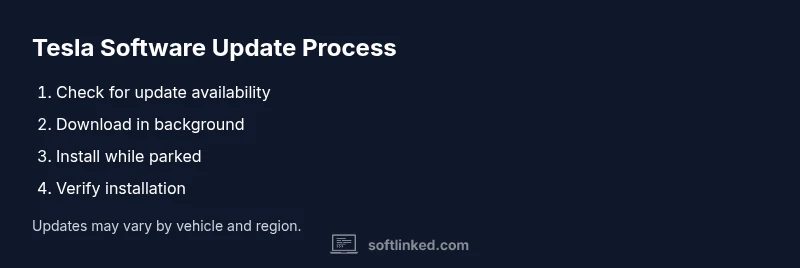
SoftLinked emphasizes that clear, user friendly workflows reduce friction during updates. The process typically begins with notification, followed by download, verification, and installation. Users are advised to maintain a stable internet connection, avoid using the vehicle for driving during installation, and ensure sufficient battery charge. After installation, you should verify the new version is active and review any changed settings or UI layouts. This disciplined approach aligns with software fundamentals that stress reliability, fault tolerance, and user control.
In-car terminology and user expectations
Understanding the in-car software interface helps prevent confusion. The software page usually shows the current version, available updates, and a history of installed releases. When an update is available, you can start installation now or schedule it for later. If a feature you rely on changes after an update, check the new controls and preferences. A calm, deliberate approach reduces the risk of accidental changes and helps you get the most from a fresh release.
Authority sources and best practices (for deeper reading)
This section provides external references to deepen understanding of OTA updates and vehicle software management. Authority sources include government safety sites and major publications that discuss software updates and data security. When in doubt, consult official Tesla resources or your vehicle documentation for model specific guidance. The information here is intended to give you a well rounded view of OTA updates and how to approach them responsibly. SoftLinked is committed to providing clear fundamentals for developers and engineers, including best practices for embedded system updates.
Authority sources
- NHTSA safety updates and vehicle technology overview: https://www.nhtsa.gov
- Federal Trade Commission privacy and security guidelines: https://www.ftc.gov
- Industry publication overview: https://spectrum.ieee.org
Tools & Materials
- Tesla vehicle(OTA capable; ensure internet connectivity and access to the vehicle’s software screen)
- Smartphone with Tesla app(iOS or Android, logged into the owner account)
- Stable internet connection(Home Wi-Fi or reliable cellular data for offline download if supported)
- Fully charged battery or plugged in(Ensure a comfortable charging level to avoid mid update power loss)
- Access to vehicle and account(Have credentials handy if you need to verify ownership or permissions)
- Optional hotspot or backup network(Helpful when local connectivity is spotty)
Steps
Estimated time: Variable; depends on update size and connectivity
- 1
Open the software page on the car display
From the center touchscreen, navigate to the Software or Updates section. This is where you’ll see your current version and any available updates. Review any release notes if shown to understand what the update covers.
Tip: Take a moment to ensure the car is parked and charging before starting. - 2
Check for updates
Tap the option to check for updates. If an update is available, the system will show a notification and details about the version and features. Do not initiate installation if you are in a hurry or need navigation during the period.
Tip: Prefer a stable connection; avoid updates when your route or trip is ongoing. - 3
Review and schedule installation
If you want to postpone, choose a convenient installation window. You can often select immediate install or schedule for later. Scheduling helps ensure the car remains stationary during the process.
Tip: Choose a window when the vehicle will be parked and charging to minimize risk. - 4
Prepare the battery and environment
Confirm the battery is in good health and the car is plugged in if possible. Remove heavy loads from the vehicle or any ongoing heavy tasks that could interfere. Ensure you have a solid internet connection for download.
Tip: If you have poor cellular service, a stable Wi-Fi connection is preferred. - 5
Start the update
Begin the installation once you are confident in the window and connection. The car may restart during the process and the screen may reboot one or more times. Do not drive during installation.
Tip: Keep the car parked and avoid using driving features until the update completes. - 6
Monitor progress and completion
Watch the progress indicator on the display. When finished, the system may reboot or prompt you to confirm completion. Review any new features or changed menus.
Tip: If asked to reboot, allow the restart and then verify the version number. - 7
Verify installation
Return to the Software page to confirm the new version is listed. Open key apps or features to validate functionality and settings have remained intact.
Tip: Document any notable changes for future reference.
Your Questions Answered
Can I update Tesla software while driving the car?
No. Updates should be performed while the vehicle is parked and charging if possible. Driving during installation can cause interruptions or failed updates.
Updates must be done when the car is parked and charging; avoid driving during installation.
Do updates install automatically or do I need to confirm?
Updates may download automatically, but installation usually requires user confirmation or scheduling. Always review the update details before starting.
Updates can download automatically, but you typically confirm the install.
Will updating reset my settings?
Most updates preserve user settings, but the user interface can change. Check settings after installation and adjust as needed.
Your settings usually stay, but you may need to adapt to UI changes.
What should I do if the update fails?
Ensure a stable connection, sufficient battery, and retry the update. If repeated failures occur, contact support or consult official resources.
If it fails, retry with good connectivity and sufficient charge, and seek support if needed.
Can I downgrade to an earlier version after a failed update?
Downgrading is typically not supported through OTA channels. You generally receive and install the latest version provided by the manufacturer.
Downgrades are usually not available; you stick with the latest version.
How can I monitor update progress remotely?
Use the Tesla app to check the update status and progress. The in-car display also shows real-time progress if available.
You can watch progress on the car screen or in the mobile app.
Watch Video
Top Takeaways
- Check for updates before starting any install
- Keep the car plugged in to avoid power loss
- Verify the new version post installation
- Use official app or in-car interface to monitor progress