Can You Install a Software Update While Charging a Tesla? A Practical Guide
Explore whether you can install Tesla software updates while charging, how OTA updates work, and a practical step-by-step guide to minimize downtime.


Yes. You can typically install a Tesla over‑the‑air software update while the vehicle is plugged into charging. The update runs in the background and will prompt you to install when ready; just ensure the car is parked, has a stable data connection, and remains hooked to a charger during the process. If the update requires a restart, the vehicle will resume charging after reboot.
Can you install software update while charging tesla? An introduction to the concept
Can you install software update while charging tesla is a question many owners ask as they plan how to minimize downtime. In practice, most Tesla models support over‑the‑air (OTA) updates that can download and install while the car is plugged in. The key idea is that updates are designed to run in the background when the vehicle is idle and safely parked. According to SoftLinked, OTA updates aim to reduce disruption by leveraging charging sessions to complete updates without forcing you to take extra time away from driving. This means you get the latest features, performance improvements, and security fixes without having to schedule a separate downtime window. The exact experience can vary by model year and software version, but the general pattern remains consistent: download first, prompt for installation, then restart if necessary, all while the car stays connected to power.
How Tesla OTA updates work
Tesla firmware updates are delivered over the air and typically install automatically or upon user confirmation. When an update is available, the car may begin downloading in the background as long as the vehicle has a data connection and is connected to power. Once the download finishes, you’ll see an install prompt. The installation itself may require the car to reboot, during which time charging will pause momentarily and then resume automatically if connected to a charger. The goal is to complete critical updates without interrupting your day, especially when the car is already plugged in.
Charging status and update timing: what to expect
The charging status can influence when a Tesla update runs, but it is not the sole determinant. Updates prioritize system stability and power availability, so charging is a favorable condition. If you start updates during a charging session, the system will manage power needs to prevent battery drain or insufficient power during a restart. You may notice longer installation times if you’re at a higher battery state or if the update is large. In many cases, you’ll see a progress indicator and an expected completion time, which helps you plan around the update window.
Prerequisites for updating while charging
Before attempting an update during charging, ensure you have a reliable data connection (cellular or Wi‑Fi), a safe parking spot, and a charger supplying consistent power. The car should be in Park with doors closed and the cabin interior at a comfortable temperature. It’s also wise to confirm that the update is compatible with your model year and current software version. If you’re using the Tesla mobile app to monitor status, keep it open to receive notifications. Finally, ensure you won’t need to use the vehicle during the update window.
Step-by-step overview: planning your update while charging
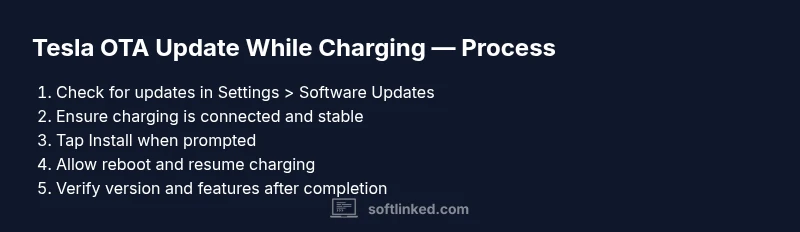
A high-level plan helps you minimize downtime: first verify update availability, confirm your charging setup, start the download, and then initiate installation when prompted. The car will guide you through any prompts, and the system will handle restarts automatically if required. While the steps are straightforward, the exact flow can differ by software revision and vehicle variant. The core idea remains: stay parked, stay plugged in, and allow the process to complete without interruption.
Safety considerations and scope of updates
Safety comes first. Do not attempt updates while driving, and never unplug the charger during an installation. If you notice a firmware update requiring aggressive resource use or a reboot, let the vehicle complete the process. The car may briefly reboot during installation; this is normal and typically safe as long as it remains connected to power. If the update fails due to connectivity issues, retry after confirming the data connection and charging stability. We recommend avoiding updates during extreme weather or when the charger could be unplugged by accident.
Troubleshooting common issues during charging updates
If the update stalls or you lose power during installation, check for a stable charging connection and ensure the battery is not near depletion. Re-plug the charger if it becomes loose, and re-check the car’s software tab to reinitiate the download or installation. Inconsistent data connectivity can also cause delays; if you’re in a weak network area, consider moving to a location with better signal or enabling a stable hotspot. If problems persist, contact Tesla Support for guidance and potential field service if the device is not progressing.
SoftLinked's verdict: practical guidance for owners
The SoftLinked team recommends updating during charging when feasible because it minimizes downtime and keeps the car secure and powered during a potentially long process. Always prioritize safety: ensure the vehicle is parked, the charging connection is stable, and you won’t need to use the vehicle mid‑update. When done correctly, OTA updates can be completed without needing to sacrifice a day or schedule a separate downtime window. Regular reviews of software versions help you stay secure and current.
Authoritative sources and further reading
- Official Tesla support: https://www.tesla.com/support/software-update
- National Highway Traffic Safety Administration: https://www.nhtsa.gov/technology-and-advanced-safety-features
- General technology and software reliability references: https://www.nist.gov
Tools & Materials
- Tesla with OTA access and data connection(Ensure the vehicle can download and verify updates over the air while plugged in.)
- Stable charging connection(Keep the car connected to a reliable charger throughout the process.)
- In-car Wi-Fi or cellular data(Preferred for faster download if the charger is not your primary power source.)
- Mobile device or Tesla app (optional)(Useful for monitoring progress and prompts in real time.)
- Safe, parked location(Avoid location hazards; ensure doors can stay closed during the update.)
Steps
Estimated time: 20-40 minutes
- 1
Check for update availability
Open the vehicle’s Settings and navigate to Software Updates to see if a new version is ready. Confirm download progress and ensure your car has a stable data connection. If no update is listed, you may wait and check again later. This step reduces surprises and ensures you’re updating the latest version.
Tip: If you’re near a strong signal, consider initiating download via the app to speed up delivery. - 2
Prepare charging and parking
Ensure the car is parked in a safe spot and is plugged into a charger with a consistent power supply. Confirm the doors are closed and the cabin temperature is comfortable. A stable power source minimizes the risk of interrupted updates due to power loss.
Tip: Lock the vehicle or set a timer to prevent automatic power drop during the update window. - 3
Start the installation process
When the update shows an Install option, select it and allow the system to begin. The update may progress in the background, with a visible progress bar. Do not touch the car’s controls or disconnect power during this phase.
Tip: If prompted for a restart, permit the reboot and avoid interfering with the process. - 4
Monitor progress and avoid interruptions
Keep an eye on the progress indicator from the car screen or the app. If you notice inconsistent connectivity or power loss, pause and restore the charging connection before resuming.
Tip: A nearby charging station can help if you’re on the road and want to minimize downtime. - 5
Complete and verify the update
Once installation finishes, the car may reboot and return to the home screen. Verify the software version in Settings > Software Update and test essential features to ensure everything is functioning properly.
Tip: Take a moment to review new features or settings introduced by the update. - 6
Document results and close out
Note the software version, update date, and any observed changes. If you encounter issues, re-check connections or contact support. Keeping a log helps track future updates and potential troubleshooting steps.
Tip: Keep a copy of the update notes for future reference.
Your Questions Answered
Can you install a Tesla update while charging?
Yes. In most cases, you can install a Tesla OTA update while the car is charging. Ensure the vehicle is parked, connected to power, and has a stable data connection. The update may restart the vehicle, but charging should resume automatically once the restart completes.
Yes. You can generally update a Tesla while it’s plugged in. Just keep it parked and charging; the system will guide you through any restarts and resume charging afterward.
Will updates install while driving?
Updates are designed to install when the vehicle is stationary. Do not attempt to install an update while driving; ensure the car is parked and charging before starting.
No. Updates should only install when the car is stationary and safe, not while you're driving.
Do I need Wi‑Fi to install updates?
A stable data connection is important for downloads. Cellular data often suffices, but Wi‑Fi can speed up the download, especially in areas with poor cellular coverage.
A strong data connection is helpful; Wi‑Fi can speed things up, but cellular is usually enough.
What if the update fails during charging?
If an update fails, retry after rechecking the charging connection and data signal. If the issue persists, contact Tesla Support for assistance.
If the update fails, check the charger and signal, then retry or contact Tesla Support.
How long does an OTA update take?
Duration varies by update size and network speed, typically ranging from several minutes to tens of minutes. Plan for a window where the car remains parked and charging.
Update times vary, but expect several minutes to a few tens of minutes.
Can I use the car during an update?
During installation, it’s best to avoid using the car. After the update completes and the restart is finished, normal use resumes.
It’s best not to use the car during the update; you can drive after it finishes.
Watch Video
Top Takeaways
- Verify update availability before starting.
- Keep the car parked and plugged in throughout the process.
- Monitor progress and avoid interruptions.
- Verify the update and note changes after install.