Can You Download Tesla Software While Driving? A Practical Guide
Learn whether Tesla software updates can be downloaded while you drive, what to expect, and the safest way to handle OTA updates. Practical tips, step-by-step guidance, and what SoftLinked recommends for reliable, safe updates.


You generally cannot and should not download or install Tesla software updates while driving. OTA updates typically download in the background while the car is parked, connected to Wi-Fi, and the vehicle is in Park. For safety, complete updates while stationary; if an update starts while you’re driving, the system will delay installation until you park. SoftLinked emphasizes stationary updates for reliability.
How Tesla Software Updates Work
Tesla OTA (over-the-air) software updates are designed to bring new features, performance improvements, and bug fixes without a service visit. Updates download in the background, verify integrity, and then install when the vehicle is parked and in a safe state. The car may require you to acknowledge release notes and grant permission before installation begins. The SoftLinked team highlights that updates are delivered in staged releases, with some regions or models receiving features earlier or later depending on compatibility and regulatory approvals. The goal is to minimize downtime while keeping the vehicle secure and up-to-date. Users should routinely check for updates in the car’s software menu or via the Tesla mobile app to understand what’s changing and when.
From a software fundamentals perspective, OTA updates are a form of remote software provisioning. They rely on secure channels, digital signatures, and rollback mechanisms to protect the vehicle’s control systems. While the updates themselves can download in the background, installation often requires the vehicle to be stationary for safety-critical components like drive control, battery management, and Autopilot features. Practically, drivers should think of OTA as a maintenance task that happens mostly when parked rather than while in motion.
Can You Download While Driving? Safety and Policy
The core safety principle for automotive software updates is to minimize distraction and ensure the vehicle remains in full control during critical moments. Depending on the update, the download may proceed while the car is moving, but installation is typically gated behind a parked state. If you are traveling and a large update lands, the car may begin downloading data in the background, but the installer will pause if a safety state is detected (e.g., driver engagement, corner cases during heavy acceleration, or abrupt lane changes). In practice, SoftLinked’s guidance is to treat OTA updates like a planned maintenance window: park, prepare, and install. Attempting to drive while an update is downloading or installing introduces risk of mid-process interruptions and potential feature rollbacks or partial installations. In short, prioritize safety: let the car update when you’re parked and use the vehicle’s notifications to know when it is safe to proceed.
From a human factors perspective, the update workflow minimizes driver workload and keeps critical systems uncompromised. The telematics and infotainment subsystems can download content while moving, but the heavier tasks—especially those affecting autonomous features—prefer a stationary environment. If you absolutely must travel while updates are ongoing, ensure you have a reliable data connection and monitor for any prompts asking you to park and complete the installation.
When Updates Happen: Park vs. Drive
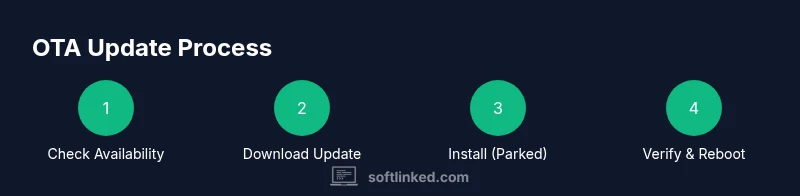
Updates are typically split into two phases: download and installation. Downloading can occur in the background while you drive, depending on connectivity and data usage constraints. Installation, however, is almost always restricted to a parked state to protect safety-critical vehicle systems. You’ll usually see a notification in the vehicle’s display indicating that an update is ready to install, and you can choose to start the installation once you are parked. If you’re in motion and the update is ready, the system may remind you to stop in a safe location to begin installation. The time window for installation varies with the size of the update and the vehicle’s hardware. SoftLinked notes that planning for a 20–60 minute parked window is common, but always rely on the displayed ETA and status indicators.
Practical takeaway: treat OTA as a scheduled maintenance task rather than an on-the-fly operation. Planning a parked window ensures the process completes properly and that new features are fully activated without driving distractions.
Step-by-Step: How to Prepare for an Update
- Confirm the update is available in the car or app. 2) Ensure the car is in Park and the parking brake is applied. 3) Connect to a reliable data source (prefer Wi‑Fi when available) to speed up download. 4) Check battery level and aim for a healthy charge (not strictly a number-free guideline; keep it comfortably above half). 5) Review release notes in a safe, stationary state to understand what changes are coming. 6) Initiate installation only when you’re parked in a safe environment. 7) Do not drive while the update is installing; wait for completion and a system reboot if required. 8) After installation, verify feature availability and test basic controls in a controlled setting. 9) If you must leave the vehicle unattended, ensure it remains in Park and follows lock procedures. 10) Keep a record of the update version for future reference. Tip: having a secondary charger or plug-in during longer updates can prevent unexpected shutdowns. The key is to stay stationary during the install phase.
Why this matters: OTA patch files can be sizable and involve changes to safety-related code. A failed or interrupted installation may leave the vehicle in an inconsistent state. By following these steps, you reduce risk and ensure the update completes cleanly.
Data Usage, Battery, and Connectivity Considerations
Updates consume data and power. If you’re relying on cellular data, be mindful of data caps and roaming; if you’re on Wi‑Fi, ensure the connection is stable. Battery health matters: an update in progress may fail if the battery is too low, and a parked, plugged-in state reduces the risk of mid-update power loss. In Tesla vehicles, the onboard systems manage power budgets during updates, reallocating energy to critical subsystems as needed. SoftLinked recommends connecting to Wi‑Fi when available, which can help accelerate download speeds and reduce mobile data usage. If you frequently drive long distances, plan updates during stops or at home where a reliable power source is available. Remember that battery management and network connectivity can influence both download speed and installation reliability.
Common Pitfalls and Quick Fixes
- Pitfall: Trying to drive while an update is downloading or installing. Fix: Stop in a safe location and allow the process to complete.
- Pitfall: Low battery during an update. Fix: Park, plug in, and resume once charging is adequate.
- Pitfall: Weak cellular connectivity. Fix: Switch to Wi‑Fi or move to a stable location with better coverage.
- Pitfall: Skipping release notes. Fix: Read the notes to understand what changes to expect and any potential feature limitations.
- Pitfall: Canceling an update mid-install. Fix: Do not unplug or forcibly stop; allow the system to roll back safely if needed. SoftLinked emphasizes patience during this phase to avoid half-installed features or unstable software.
What to Do If an Update Fails
If an update fails, first check that the vehicle is parked, has sufficient battery, and has stable connectivity. Retry the installation from the software menu after a short pause. If issues persist, consult official support resources or contact Tesla support through the app. It’s important to log the error message or code, as this can help technicians diagnose the problem faster. In many cases, a failed update can require a subsequent attempt during a dedicated parked window. SoftLinked advises keeping a record of the failed attempt for reference when seeking help.
Real-World Scenarios and Best Practices
Scenario A: You’re on a road trip and a major OTA becomes available. Best practice: Find a safe, legal stopping point to download and install. Do not drive while updating; plan an extended stop if necessary. Scenario B: You’re home and connected to Wi‑Fi. Best practice: Initiate the update before bedtime or during a long resting period to let the system complete unobtrusively. Scenario C: You notice slower-than-expected download speeds. Best practice: Switch to Wi‑Fi, pause other bandwidth-heavy devices on your network, and recheck the update status after a short interval. Across all scenarios, the core principle is safety and reliability. SoftLinked’s guidance remains consistent: schedule updates for when the vehicle is parked and ready for installation.
References and additional reading:
- Distracted Driving Safety (NHTSA): https://www.nhtsa.gov/risky-driving/distracted-driving
- General OTA and vehicle safety concepts (major publications): https://www.theverge.com/
- Vehicle software reliability and updates (major publication): https://www.caranddriver.com/
Note: Always refer to your vehicle’s official release notes for model-specific information and requirements. The steps above reflect general guidance intended to promote safe, reliable updating practices.
References and Additional Reading
- Distracted Driving Safety (NHTSA): https://www.nhtsa.gov/risky-driving/distracted-driving
- Software Updates and Vehicle Maintenance (Car and Driver): https://www.caranddriver.com/ (general reference)
- OTA and Automotive Updates Overview (The Verge): https://www.theverge.com/ (industry coverage)
By understanding the update lifecycle and prioritizing parked, connected installations, you maximize reliability and safety during Tesla OTA processes.
Tools & Materials
- Tesla vehicle with adequate battery level(Prefer battery above half for comfort during updates)
- Stable internet connection (Wi-Fi preferred)(Wi-Fi often speeds up downloads; cellular is acceptable if stable)
- Tesla mobile app and a compatible smartphone(For notifications and remote update checks)
- Charger or power source(Keep the car plugged in during long updates)
- Access to official release notes(Review changes before installation)
Steps
Estimated time: 30-90 minutes
- 1
Check update availability
Open the car’s software menu or the Tesla app to confirm there is a new update. Review the release notes to understand what features or fixes are included and whether the update requires parked installation.
Tip: If you’re on a data plan with limits, consider using Wi‑Fi to download the update. - 2
Prepare the vehicle and environment
Park in a safe location, engage parking brake, and ensure there is adequate space around the vehicle. Confirm the battery level and connect to a reliable power source if possible.
Tip: Avoid updates when driving or in unstable driving conditions. - 3
Choose download method
Opt for Wi‑Fi if available to speed up the download. If relying on cellular, ensure stable coverage to prevent partial downloads or timeouts.
Tip: A stable connection helps prevent interrupted downloads. - 4
Initiate download and monitor progress
Start the download from the software settings and monitor the progress indicator. Do not drive while the update is in the download phase if you intend to install it soon.
Tip: Keep the car plugged in to avoid power loss mid-download. - 5
Begin installation when parked
When the device indicates readiness to install, confirm you are parked. The installer will typically require a safe state and may reboot the system after completion.
Tip: If prompted, follow on-screen instructions to align with the new features. - 6
Complete installation and verify
Allow the installation to finish without interruption. After reboot, verify that the software version and release notes reflect the new update and run a quick feature check.
Tip: Test essential controls in a safe, controlled environment. - 7
Documentation and follow-up
Document the update version and any notable changes for future reference. If issues arise, consult official support through the app or Tesla Support.
Tip: Keep a simple notes log for troubleshooting later. - 8
Plan for longer updates
Some updates are larger and may take longer. Plan for a longer parked window or overnight installation if necessary.
Tip: Do not unplug or exit the vehicle mid-install.
Your Questions Answered
Can I download Tesla software while driving?
In general, downloading is allowed in the background, but installation should only occur while parked. Driving during installation is not recommended for safety and reliability.
Downloading can happen while you drive, but installation should be done when parked for safety.
Will updates download in the background if I’m driving?
Downloads may occur in the background while you drive, but installation typically requires a parked state. Always park to install and verify completion.
Downloads may happen in the background, but you must park to install.
What should I do to ensure a safe update?
Ensure the car is parked, connected to a reliable power source, and on a stable network. Review release notes and let the installer finish before resuming driving.
Park the car, check power and network, read the notes, and let the install finish.
How long does an OTA update take?
Duration varies based on file size and connection quality. Expect a parked window and avoid interrupting the process.
Duration varies; plan for a parked window and avoid interruptions.
Can I cancel an update once it starts?
Cancellation is generally not recommended mid-install; allow the system to complete the process or consult support if issues arise.
Don’t cancel mid-install; let it finish or contact support if needed.
Will updates affect driving features?
Some updates may modify or add features related to driving and safety. Check the release notes for specifics and test changes in a safe environment after installation.
Updates may change driving features; review notes and test safely after installation.
Watch Video
Top Takeaways
- Park before updating to ensure a safe installation.
- Use Wi-Fi when possible to speed downloads and reduce data use.
- Read release notes to understand changes and new features.
- Keep the vehicle plugged in during updates to avoid power loss.
- If an update starts while you're driving, wait until parked to continue.