How to Stop Samsung Software Update Notifications on Galaxy
Learn practical steps to disable Samsung software update notifications on Galaxy devices, including settings changes, app options, risks, and when to update.


Goal: Learn how to stop Samsung software update notifications on Galaxy devices. According to SoftLinked, you can quiet update alerts by identifying the notification source, disabling that app’s alerts, and turning off auto-download prompts. Prerequisites: a Samsung Galaxy phone, access to Settings, and a basic comfort with toggling apps today.
Why Samsung updates bother some users
In a world where devices constantly evolve, software updates bring security patches, new features, and bug fixes. However, not every update notification aligns with every user’s needs. Some Galaxy users find the prompts disruptive during work, study, or focus sessions. This article from SoftLinked helps aspiring engineers and tech professionals understand why these alerts appear and how to manage them responsibly without compromising device security or stability. The aim is to empower you with clear, actionable steps that respect system integrity while reducing notification clutter. By understanding the balance between staying secure and avoiding constant prompts, you can tailor your device experience to fit your learning and coding workflows.
Understanding the sources of notifications on Samsung devices
Not all prompts originate from the same place. Galaxy devices can show update reminders from the system software component, carrier-specific firmware, or OEM apps that manage updates. Some prompts are straightforward system alerts, while others are banners that appear after a background check for updates. Distinguishing the source matters because the method to disable or modify notifications varies. On many devices, the core causes are the System Update service or the Software Update app, but carriers or IT admins can inject their own prompts as well. Clear separation of sources helps you apply the right settings without unintended side effects.
Preparation: what you need before starting
Before making changes, assemble a small toolkit of steps and checks. You’ll need a Samsung Galaxy device with Android, access to Settings, and an active account in case you need to adjust profiles or permissions. If this is a work or school device, recognize that some prompts may be controlled by an administrator through a management profile, which can limit what you can disable. It’s also wise to have a brief plan for when you will accept updates to keep security current. This section outlines the practical prerequisites and sets expectations for the changes you’re about to implement.
How to disable notifications for the Software Update app
Disabling notifications specifically for the Software Update source is a precise way to reduce prompts without interfering with the actual update process. Start by locating the update source in Settings, then adjust notification permissions for that app. The exact path can vary by model, but typically you go to Settings > Apps > Show system apps > Software update (or System update) > Notifications and toggle off. If the option is unavailable due to policy, skip to the next steps. Remember, turning off notifications does not uninstall updates; it simply stops the alerts.
How to stop auto-download prompts for updates
Auto-download prompts can trigger even when notifications are disabled, especially if the device checks for updates in the background. To stop these prompts, open Settings > Software update > Auto download over Wi-Fi (and over mobile data, if applicable) and set to Off or Never auto-download. Also check for any 'Check for updates' frequency settings and switch to manual checking if available. This reduces unsolicited download and installation attempts, particularly on metered connections or during focused work sessions.
Using Do Not Disturb as a safe, non-destructive alternative
If you’d rather silence alerts without changing notification permissions, Do Not Disturb (DND) is a safe, reversible option. Configure DND to silence notifications during your study blocks or coding sessions while allowing critical calls or messages to come through if needed. This approach keeps your device secure in the background by still allowing updates to be installed but removes the visual and audible disruptions. It’s a practical compromise for students and professionals who need focus.
What to do on carrier- or workplace‑managed devices
On carrier- or enterprise-managed devices, update prompts and notifications may be controlled by your mobile device management (MDM) profile. In these cases, you may not have permission to disable certain update prompts. If you consistently need fewer prompts, discuss with your IT admin about scheduling maintenance windows or enabling a policy that allows manual checks for updates. Working within the policy protects device security while maintaining a workflow that suits your needs.
Security considerations and when to re‑enable updates safely
Disabling or delaying updates can reduce distractions, but it may expose your device to security risks if critical patches are missed. Develop a routine to monitor for updates and re-enable automatic checks or notifications at least every few weeks, or during a dedicated maintenance time. This keeps you aligned with best practices for software hygiene while preserving your study or development flow. Always prioritize updates essential for protection and compatibility with your development tools and libraries.
How SoftLinked helps developers master software fundamentals
SoftLinked emphasizes clear explanations of software concepts and practical steps you can implement with confidence. By focusing on user-centered guidance and defensive configurations, developers can understand notification management without compromising their learning or project timelines. The goal is to translate platform-specific settings into transferable skills you can apply across devices and ecosystems, reinforcing a strong foundation in software fundamentals.
Tools & Materials
- Galaxy smartphone (Android 8.0+ or newer)(Ensure device is not in a restricted work profile that blocks changes to system apps)
- Stable internet connection(Needed for any background checks or updates to occur during testing)
- Access to Settings(You’ll navigate system apps and notification settings)
- Do Not Disturb configuration(Optional, useful to silence alerts during focused work)
- Documentation of device policy (if in managed environment)(Helps determine if updates can be controlled by IT)
Steps
Estimated time: 10-20 minutes
- 1
Identify source
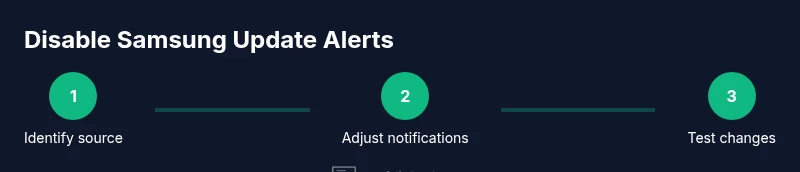
Observe the notification to determine whether it originates from System Update, Software Update, or a carrier app. If unclear, long-press the notification to view the source and use the source name to guide the next steps.
Tip: Tip: If you can't tell from the banner, pull down the notification shade and inspect the app icon. - 2
Open source settings
Navigate to Settings, then Apps, and locate the specific update source. If you don’t see it, enable Show system apps to reveal hidden entries. This step identifies the exact source you will adjust.
Tip: Tip: Use the search bar in Settings to quickly find 'Software update' or 'System update'. - 3
Disable notifications for the source
Open the source’s App info and turn off Notifications. If options are split, you may need to toggle specific notification channels off rather than the entire app.
Tip: Tip: If the disable option is greyed out due to admin policy, proceed with non-destructive alternatives like DND or manual checks. - 4
Turn off auto-download prompts
Go to Settings > Software update and disable Auto download over Wi‑Fi (and mobile data if present). This prevents automatic downloads that trigger prompts.
Tip: Tip: Also check for a 'Check for updates' frequency setting and set it to manual if available. - 5
Configure Do Not Disturb (optional)
Set Do Not Disturb or a focus mode during study or coding windows. This silences prompts without altering core update behavior.
Tip: Tip: Create a schedule aligned with your study blocks for consistent results. - 6
Test changes
Restart the device or trigger a mock update check to confirm notifications are suppressed. If a banner still appears, revisit step 3 or 4 to adjust channels or options.
Tip: Tip: Ensure you test under typical conditions, such as Wi‑Fi and mobile data. - 7
Check device policy and re-enable if needed
If you’re on a managed device, verify whether IT policies constrain changes. If updates must be handled by admins, seek a scheduled maintenance window.
Tip: Tip: Document the policy and your setup so you can explain it during reviews or audits.
Your Questions Answered
Can I permanently stop Samsung update notifications?
No method is truly permanent across all devices, especially if updates are required by a policy. You can suppress alerts temporarily by adjusting app notifications and auto-download settings, and use Do Not Disturb as a reversible workaround.
You can't permanently stop all Samsung update alerts on every device, but you can suppress them and review updates on a schedule.
Will disabling updates affect device security?
Disabling notifications does not stop updates themselves, but delaying or avoiding updates can leave the device exposed to known vulnerabilities. Plan periodic checks to install critical patches.
Delaying updates can reduce security if critical patches are missed.
Does this work on all Galaxy models?
The general approach works on most modern Galaxy devices, but exact menu paths can vary by model and Android version. Some steps may be restricted on enterprise devices.
Most Galaxy phones support these steps, but paths may differ by model.
What if the notification reappears after a software update?
If alerts come back after an update, re-check the update source settings and re-evaluate Do Not Disturb schedules. You may need to re-disable the notification channel post-update.
If it reappears after updating, revisit the notification settings and adjust again.
Is it safe to disable system apps?
Disabling system apps can have unintended effects. Prefer disabling notifications or auto-download settings first, and only disable a system component if you are sure it won’t impact device stability.
Only disable what you’re sure won’t affect device stability; otherwise stick to non-destructive options.
What should I do on a work device?
Consult your IT policy. Work devices may restrict changes to update settings. Ask for a maintenance window or a policy that allows manual checks when needed.
Check with IT before changing update settings on a work device.
Watch Video
Top Takeaways
- Identify the exact update source before changing settings
- Disable notifications only for the update source, not the entire device
- Prefer manual update checks over always-on auto-download
- Use Do Not Disturb as a reversible workaround
- Reassess updates regularly to maintain security