What to Do When Software Update Fails: A Troubleshooting Guide
An urgent, practical troubleshooting guide for when software update fails, offering a clear diagnostic flow, step-by-step fixes, safety tips, and prevention strategies.


Most update failures come from a weak connection, insufficient storage, or a corrupted download. To act now, verify your internet stability, free space, and power, then retry the update. If it still fails, note the error code, check the device time, and pause security software if safe. This quick path helps you decide whether to retry, adjust settings, or seek help.
Why Software Update Fails: Typical Triggers
When software update fails, the cause is rarely mysterious. In many cases the issue stems from a weak network, insufficient device storage, or a corrupted download package. According to SoftLinked, the SoftLinked team finds that most failures occur during download or verification steps, leaving users staring at error codes instead of progress bars. Common triggers include an unstable internet connection, low disk space, mismatched system clocks, security software interfering with the updater, or a temporary server outage on the vendor side. Understanding these triggers helps you respond quickly and avoid repeating the same mistakes. By recognizing the pattern—download problems, storage checks, or verification errors—you can tailor your steps and save time. Throughout this guide we’ll refer to the scenario “what to do when software update failed,” and map practical fixes to each root cause.
Prepare Your Environment Before Trying Again
Before you reattempt an update, set the stage for success. Ensure the device is plugged into power or has a full battery to prevent mid-update shutdowns. Free up storage by deleting unnecessary apps or media, and perform a quick reboot to clear temporary glitches. If you’re on Wi‑Fi, switch to a stable wired or higher-bandwidth connection if possible. Pause background tasks that could throttle bandwidth or interfere with the updater. Verify the device clock is correct or set to automatic time, as incorrect time can cause verification failures. Finally, temporarily disable any security software only if you are confident in the source and remember to re-enable after the update.
Diagnostic Flow Overview
A structured diagnostic approach keeps you from chasing random fixes. Start with the simplest checks: confirm you have a reliable network and enough storage. Next, look for time/date mismatches that could block verification. If an error code appears, search its meaning in the official update logs or vendor documentation. Record the exact error message and any codes; this makes it easier to search for a targeted fix and helps when asking for support. If issues persist, consider whether recent system changes (apps, VPNs, antivirus) might be conflicting with the updater. This flow helps you move from generic troubleshooting to specific actions quickly.
Common Fixes You Can Try Today
Many failures are addressable with a short sequence of checks and retries. First, stabilize your connection: switch networks or restart your router, then retry the update. Second, free space: remove large files or uninstall unused apps to create ample room for the update package. Third, reboot the device and clear any queued background processes that could block the updater. Fourth, verify the correct date/time settings and set automatic synchronization. Fifth, briefly disable non-essential security software if it’s suspected to interfere, then re-enable after the update finishes. Sixth, use the official updater tool or app store to perform the installation, rather than third-party methods. If you receive a specific error code, consult the vendor’s guidance for that code and apply the recommended steps.
When to Escalate and Seek Help
If the update still fails after completing the common fixes, escalation is prudent. Gather precise details: device model, OS version, update version, error codes, and the timestamps of each failed attempt. Share these with official support or an IT professional who can examine logs and system health more deeply. Do not continue forcing updates indefinitely; repeated failures can indicate deeper issues like corrupted system files or hardware faults. In urgent environments, consider rolling back the current state if a safe rollback path exists and staging the update for a later time with expert guidance.
Preventing Future Update Failures
Prevention beats reaction. Maintain regular backups so you can recover quickly if an update fails. Keep free storage above a comfortable threshold, monitor battery health, and keep your OS and apps up to date to reduce compatibility issues. Schedule updates during off-peak hours and avoid performing updates while the device is on battery saver modes or VPN connections that could interrupt traffic. Finally, read release notes before updating to anticipate potential conflicts with installed software or hardware. Regular maintenance reduces the likelihood of repeated failures and speeds up recovery when problems occur.
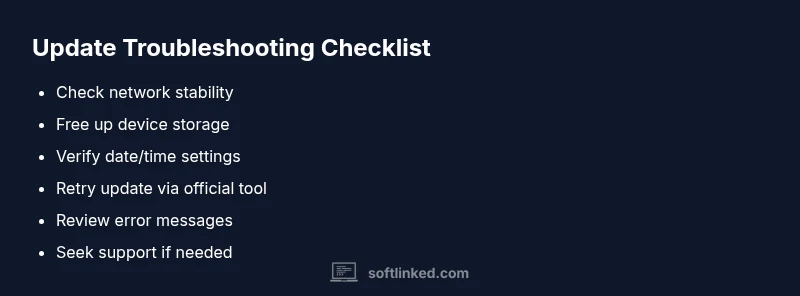
Quick Checklist Before You Retry
- Confirm a stable power source or charger is connected
- Check available storage space and clear as needed
- Verify network stability or switch to a faster connection
- Ensure date and time are correct (auto-sync enabled)
- Pause conflicting software (VPNs, antivirus) if safe
- Use official updater tools or app stores
- Note any error codes for reference when retrying
Steps
Estimated time: 30-60 minutes
- 1
Prepare your device for update
Plug in power, back up important data, and close unnecessary applications. Ensure you have a stable network or a wired connection if available.
Tip: A fresh restart before updating can clear transient issues. - 2
Check storage and network
Verify there is sufficient free space for the update package and confirm the network is stable enough for a download. If needed, switch networks or pause other bandwidth-heavy tasks.
Tip: Aim for at least 15-20% free space beyond the update size. - 3
Retry the update
Initiate the update again from the official updater or app store after ensuring conditions are optimal. If the update is interrupted, wait a few minutes and retry.
Tip: Avoid canceling the process mid-way to prevent partial installs. - 4
Review error messages and logs
If the update fails again, note the exact error codes and timestamps. Check official documentation for meanings and recommended fixes.
Tip: Error codes are your fastest path to a targeted solution. - 5
Escalate if needed
If the update still fails, contact support with your collected data or consult an IT professional for deeper diagnostics.
Tip: Provide device model, OS version, update version, and error codes.
Diagnosis: Software update failed
Possible Causes
- highPoor or unstable internet connection
- highInsufficient device storage
- highCorrupted downloaded update package
- mediumDate/time mismatch
- mediumSecurity software interfering with updater
Fixes
- easyCheck outlet and ensure device is plugged in; verify network stability
- easyFree up storage by deleting unnecessary files/apps
- easyRestart device and retry the update on a stable connection
- easyCheck and correct system time and date settings
- easyTemporarily disable antivirus/firewall if safe and retry
Your Questions Answered
What should I do first when a software update fails?
Begin with the basics: check your network, free up storage, and ensure the device is adequately powered. If a specific error code appears, note it for targeted guidance.
First, check your network and storage, make sure the device is powered, and note any error codes for targeted help.
How can I tell if storage is causing the failure?
Check the system storage menu to see available space. If space is low, delete unused apps or media to free up room before retrying the update.
Check your storage in settings; free up space if it's low and try the update again.
Why do updates fail after changing date/time settings?
Update validation often depends on correct clock settings. Set the date and time to automatic and retry the update.
Make sure your device time is correct and set to automatic, then try again.
Is it safe to disable antivirus during an update?
Temporarily disabling antivirus can help if it blocks the updater, but only do so if you trust the source and re-enable afterward.
Only disable protection if you’re sure it won’t expose you to risks, and turn it back on after the update.
Can I install updates manually?
Some platforms offer manual download and installation through official sources. Follow the official instructions to avoid installing a corrupted package.
You might be able to install the update manually from the official site or store.
When should I contact support?
If updates keep failing after trying the steps, gather error codes and logs and contact official support for deeper diagnostics.
If it still won’t update, reach out with the error codes and logs for help.
Watch Video
Top Takeaways
- Verify network and storage first
- Capture and interpret error messages
- Do not interrupt updates once started
- Back up data before updates
- Escalate with precise details if needed