Troubleshooting a Stuck Software Update Screen
Urgent, practical troubleshooting steps to fix a stuck 'software is updating screen' and prevent future freezes. Learn safe recovery, rollback options, and best practices from SoftLinked.


Most likely, the update progress screen is stuck due to a stalled download or insufficient disk space. The quick fix is to pause or cancel the update, free disk space, then restart with a stable internet connection. If it remains stuck, boot into safe mode or use the vendor recovery tool to resume or revert.
What the phrase software is updating screen means in practice
When you see the message "software is updating screen" your device is applying changes to the operating system or an application, often after a download completes or a major patch downloads in the background. In many cases the progress bar pauses because the system is waiting for extra data, verification, or a safe moment to reboot. The term itself can cover firmware updates, driver patches, and app updates that require a restart. According to SoftLinked, update stalls are usually reproducible across devices when there is a typical pattern: a large download, a lack of free storage, or a fragile network connection. While this feels urgent, you can approach it with a plan rather than a panic. The key is to treat the stuck update as a stateful task that can be resumed or rolled back without data loss if you follow safe recovery steps and avoid risky improvisations. Review your current update status, confirm that no other download or backup is competing for resources, and prepare a backup plan before any aggressive actions. This approach reduces risk and keeps the disruption to a minimum for developers and students learning software fundamentals.
Common causes of update-screen stalls
Stuck update screens can stem from several common issues. The most frequent are interrupted downloads due to unstable internet or a temporary server problem, and insufficient disk space to unpack and install the update. Other frequent culprits include corrupted update packages, conflicting background processes, or a complete power interruption during installation. Software compatibility issues can also trigger a stall if the update requires certain prerequisites that aren’t present. In some cases, the device’s clock or system time being incorrect can cause security checks to fail and stall the process. Finally, user-initiated actions like force-quitting an update or interrupting a reboot can leave the system in a mid-update state. SoftLinked analysis shows that these causes are often interrelated, so you should verify several factors rather than focusing on a single fix. A careful diagnosis helps you apply the right step first and avoid creating new problems.
Safe, user-friendly first steps you can take now
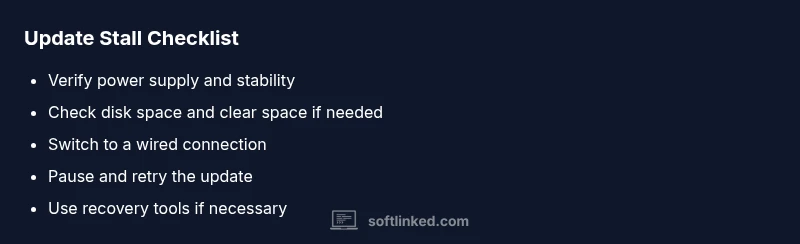
Begin with non-destructive checks that do not risk your data. Ensure the device is plugged into power and that your internet connection is stable; a wired connection is preferable for large updates. Free up disk space by removing unnecessary files, caches, or old installers. Pause or cancel the current update if possible, then restart the device to trigger a clean start. Check for any pending reboots required by the OS or the app store and complete them before retrying. If the update is still queued, consider pausing all non-essential apps, disabling VPNs or firewall rules that might block the download, and confirming the system clock is correct. After these steps, retry the update from a known-good network, and monitor the progress closely. If the screen advances but slows, give it ample time; some updates show gradual progress as they verify and configure components. Keep a log of the time you started and any error messages to help future troubleshooting.
Deeper fixes if the basics don’t resolve the issue
When basic checks fail, you can use more advanced recovery options without risking personal data. Boot into Safe Mode to isolate software conflicts and attempt a clean boot of the update process. On many devices, you can run a system repair or vendor-recommended recovery tool that validates the update package and applies it in a controlled environment. If your device offers a rollback feature, you can revert to the previous stable state before attempting the update again. In enterprise environments, IT administrators can review update logs to identify corrupted packages, failed verifications, or prerequisites that were skipped. If possible, perform updates in smaller, incremental chunks rather than a single large patch. In all cases, ensure you have a verified backup of important files before attempting deeper repairs.
When to seek professional help
If you cannot safely restart the update process, or if the device fails to boot after an attempted recovery, professional support is recommended. A technician can review firmware versions, verify package integrity, and restore recovery options without data loss. In corporate or educational settings, your IT department can pull logs from deployment tools and reissue the update in a controlled rollout. When contacting support, provide the exact update name, version, any error codes, and the time window when the issue started. This information speeds up diagnosis and reduces the need for abortive measures that could risk data integrity.
Prevention: keeping future updates smooth
Prevention beats cure for stuck update screens. Regularly free up disk space, maintain a reliable internet connection, and keep a consistent power supply during updates. Schedule updates during low-usage periods and avoid performing major updates on battery power alone. Enable automatic backups and verify that backup completes before updates begin. If you have multiple devices, use a centralized management system to standardize update behavior and monitor progress. Finally, review update logs after each installation to identify recurring bottlenecks or recurring failure points, so you can pre-empt them next time.
Steps
Estimated time: 60-120 minutes
- 1
Prepare and back up data
Ensure important files are backed up to an external drive or cloud storage before performing updates or recovery actions. This guarantees you won’t lose critical data if something goes wrong.
Tip: Verify backup integrity by restoring a small file before proceeding. - 2
Pause the update and check power
If the device is mid-update, pause if possible. Connect to power and avoid power fluctuations during the process to prevent mid-update interruptions.
Tip: Use a surge-protected power strip for devices performing updates. - 3
Free up disk space
Delete unnecessary files and clear cache to create room for the update to unpack and install. Aim for several gigabytes of free space where possible.
Tip: Move large media files to external storage temporarily. - 4
Test the network connection
Switch to a wired connection if feasible. Run a speed test to ensure download speed is sufficient for large updates, and pause other bandwidth-heavy activities.
Tip: Disable VPNs during the update if they interfere. - 5
Restart and retry the update
Reboot the device to clear transient issues, then start the update again and monitor progress closely.
Tip: If the update stalls again, note any error messages. - 6
Use recovery or rollback if necessary
If the update continues to fail, boot into recovery mode or use the rollback option to return to a stable state before retrying later.
Tip: Document exact update version and error codes for support.
Diagnosis: Machine shows 'software is updating screen' with progress frozen for an extended period
Possible Causes
- highInterrupted download or unstable network
- highInsufficient free disk space
- mediumCorrupted update package
- lowBackground processes interfering with the update
Fixes
- easyPause/cancel the update, then restart with a wired/stable connection
- easyFree up disk space and retry the update
- mediumBoot into Safe Mode or use the official recovery tool to verify/repair the update
- mediumRollback to the previous version if available and reattempt the update later
Your Questions Answered
Why is my update screen stuck and not progressing?
Stuck updates are often caused by a failed download, insufficient disk space, or a corrupted update package. Verify network stability, free space, and retry, using recovery tools if needed.
Update screens stall mainly due to download failures or not enough space, so start by checking your connection and freeing space before retrying.
Can I cancel an update that is stuck?
Yes, if the device allows it, canceling and restarting the update or performing a rollback to the previous version can prevent further issues. Always back up data first.
If possible, cancel the stuck update and consider rolling back to the previous version after backing up.
What should I do if the device won’t boot after an update attempt?
Enter recovery mode and use the built-in repair tools or vendor recovery options to restore a stable state. If necessary, restore from a backup and retry later.
If it won’t boot, use recovery tools to repair or revert the update, then restore from backup if needed.
Is it safe to keep retrying the same update?
Retrying after preparing backups, stable power, and space is generally safe. If it repeatedly fails, consider waiting for a patch or contacting support.
Retry with proper backups and stable conditions; if it keeps failing, wait for a patch or get support.
When should I contact support?
Contact support when you cannot safely recover the device, when error codes persist, or if the update affects critical functions. Provide version numbers and exact steps you took.
If recovery isn’t possible or errors persist, contact support with details and your update version.
Can prevention eliminate update stalls altogether?
Prevention reduces frequency of stalls but cannot guarantee they never occur. Regular backups, space management, and staged updates help a lot.
Prevention cuts down stalls a lot, but occasional issues can still occur; keep backups and monitor updates.
Watch Video
Top Takeaways
- Back up data before updates
- Prioritize stable power and connection
- Try safe-mode recovery before advanced fixes
- If needed, rollback to a previous state