Software Adobe Reader Free Download: A Safe, Step-by-Step Guide
Learn how to download Adobe Reader for free safely from official sources. This step-by-step guide covers verification, installation, safety tips, and common issues. Learn with SoftLinked's expert guidance.


Downloading Adobe Reader for free is safe when you use the official Adobe site and avoid third‑party installers. This quick answer defines what qualifies as a legitimate free download, why source verification matters, and how to install and verify the software on Windows and macOS for secure PDF viewing. This overview avoids piracy risks and explains optional settings.
What is software adobe reader free download?
The phrase software adobe reader free download refers to obtaining Adobe Acrobat Reader DC—the current free PDF viewer from Adobe—via official channels. It is designed to let you open, view, annotate, and print PDF documents without a paid license. While the product family includes paid tools like Acrobat Pro, the reader itself remains a no-cost option for everyday PDF tasks. For aspiring software engineers and students, understanding this distinction helps prevent confusion when you encounter terms like “Reader” and “Acrobat” in documentation and tutorials. The SoftLinked team highlights that the free download is legitimate only when sourced directly from Adobe or trusted affiliates, not from random third-party sites.
Why official sources matter for software adobe reader free download
Official sources reduce the risk of bundled malware, adware, or altered installers. When you download from Adobe’s site, you receive a genuine installer, timely security patches, and clear privacy options. SoftLinked’s analysis emphasizes safety as a core principle for developers and learners who rely on PDFs for code samples, documentation, and course materials. Using official pages also ensures you get the correct language pack, system compatibility, and post-install updates. Avoiding third-party mirrors minimizes exposure to counterfeit software and reduces the chance of inadvertently installing unwanted software alongside the reader.
How to verify you’re downloading from the official site
Verification is a three-step process: confirm the URL, ensure a secure connection, and validate the installer’s authenticity. First, type the official Adobe domain (for example, adobe.com or get.adobe.com/reader) directly into the address bar rather than following links from untrusted emails. Second, look for HTTPS with a valid certificate (lock icon in the browser). Third, after download, check the digital signature or hash provided by Adobe’s site if available. These checks help guarantee you’re not installing a counterfeit or tampered file. SoftLinked recommends bookmarking the official page and keeping browser security features up to date to reduce risk.
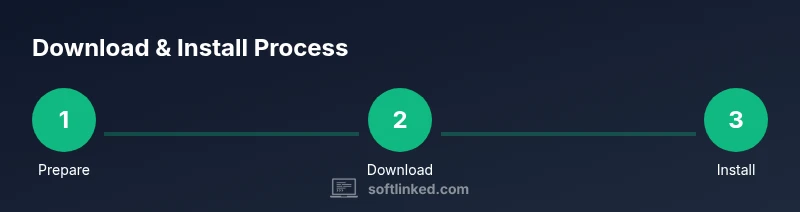
Step-by-step download and install (Windows)
Downloading on Windows follows a predictable sequence, but minor variations can occur between browsers. Start on the official page, choose the correct language, and click the download button. Once the installer file is saved, run it and follow the on-screen prompts. If Windows prompts for permission, approve to proceed. After installation, launch the program and sign in only if you plan to access additional services. Ensure you keep the option to install optional offers unchecked unless you specifically want them. SoftLinked advises closing other apps during installation to avoid conflicts and ensure a smooth setup.
Step-by-step download and install (macOS)
On macOS, the process resembles Windows but with a DMG installer. Open the official download page, select your language, and download the DMG. Open the downloaded file and drag the Adobe Reader icon to the Applications folder as instructed. You may be prompted to enter your macOS administrator password. After installation, open Reader from the Launchpad or Applications folder. If Gatekeeper blocks the app, follow the on-screen prompts to allow apps from Adobe. Always ensure you’re running macOS approved versions that meet the software’s minimum requirements.
Security and privacy considerations when using Adobe Reader free download
Even though Adobe Reader is free for basic viewing, security settings matter. Disable unnecessary cloud features if you are concerned about data synchronization, and review the privacy settings during setup. Keep the software updated to benefit from vulnerability patches. If you plan to work with sensitive documents, consider using a local PDF viewer with strong sandboxing options and ensure that you do not grant excessive file access permissions to the reader. The SoftLinked guidance emphasizes maintaining a principle of least privilege to reduce exposure in case of a security flaw.
Troubleshooting common issues during the download or install
If the installer fails to start, re-download from the official site and check your network connection. If you encounter a mismatch error, verify the URL and the digital signature. On Windows, you may need to update your system components or install missing Visual C++ redistributables. On macOS, Gatekeeper warnings can block the installer; you can override these warnings from System Preferences temporarily for a trusted installer. If the reader opens but won’t display PDFs, try repairing the installation or rechecking the document’s integrity. Persistent issues may require removing older installations and restarting the setup.
Alternatives to Adobe Reader and why you might choose them
Some users prefer lightweight alternatives such as SumatraPDF, Foxit Reader, or browser-based PDF viewing. These options can be faster or offer different annotation features. When choosing an alternative, ensure it supports essential features like text selection, form filling, and secure printing. SoftLinked notes that while alternatives exist, the official Adobe Reader remains a dependable choice for interoperability across Adobe PDF standards and signed documents. If you rely on enterprise workflows, confirm compatibility with your organization’s document management system before switching.
Best practices for maintaining Adobe Reader free download on your devices
Schedule regular checks to install updates, review security settings, and back up important documents. Keep your OS and browser up to date to preserve compatibility with the latest Reader releases. Consider setting automatic updates on your device so you don’t miss critical security patches. Maintain a minimal set of browser extensions during downloads to reduce the chance of interference. Finally, create a small, recurring reminder to verify the software version and security settings during your routine software maintenance.
Tools & Materials
- Computer or device with internet access(Desktop, laptop, or mobile device; ensure enough storage for installer and PDFs)
- Web browser (latest version)(Chrome, Edge, Firefox, or Safari; enable JavaScript for the download page)
- Official Adobe download URL(Use get.adobe.com/reader or adobe.com/reader; bookmark the page)
- Administrative privileges(Needed to install software on Windows/macOS when prompted)
- Antivirus or malware protection(Keep it active to scan the installer after download)
- Backup of important PDFs(Recommended before major installations or updates)
Steps
Estimated time: Total time: 25-40 minutes
- 1
Prepare your device
Close unused applications, verify you have sufficient disk space, and confirm you have administrative access. This reduces the chance of installer conflicts and ensures a clean install.
Tip: Check for pending OS updates before starting to minimize compatibility issues. - 2
Visit the official download page
Open your preferred browser and navigate to the official Adobe Reader download page. Avoid clicking unknown links in emails or chat messages. This step protects you from counterfeit installers.
Tip: Bookmark the official page and disable any browser extensions that redirect downloads. - 3
Choose language and download
Select your language and click the download button. Make sure you are downloading the correct version for your operating system. Save the installer to a known folder.
Tip: If multiple versions appear, pick the one labeled for your OS (Windows or macOS). - 4
Run the installer
Open the downloaded file and follow prompts to install. If Windows prompts for permission, approve. On macOS, adjust Gatekeeper settings if required.
Tip: Do not install extra software offered on installers unless you recognize and want it. - 5
Complete setup and launch
Finish the setup wizard and launch Adobe Reader. Check that the program starts normally and that you can open a sample PDF.
Tip: If prompted to sign in for extra services, you can skip for basic viewing. - 6
Verify security settings and updates
Open Preferences, review privacy and security options, and enable automatic updates if desired. Confirm that your device’s antivirus scans the installer.
Tip: Set updates to automatic to stay protected against new threats.
Your Questions Answered
Is Adobe Reader free to download and use?
Yes, Adobe Acrobat Reader DC is free to download and use for basic PDF viewing, printing, and simple annotations. Some advanced features require a paid plan for additional services.
Yes, Adobe Reader DC is free for basic PDF viewing. Some features may require a paid plan.
Can I download Adobe Reader from third-party sites safely?
Downloading from third-party sites is generally discouraged because installers may be modified with malware. Always prefer the official Adobe site or trusted app stores when available.
Avoid third-party sites; stick to the official Adobe site to stay safe.
Do I need to pay for updates to Adobe Reader?
No, updates to Adobe Reader DC for basic viewing are typically free when obtained from the official site. Some advanced features require a subscription to Acrobat DC.
Updates for the free Reader are usually free when from Adobe's official site.
Which operating systems are supported by Adobe Reader free download?
Adobe Reader supports major Windows and macOS versions. Check the official page for the minimum system requirements and ensure your device meets them before installation.
It supports Windows and macOS; check the official page for requirements.
What should I do if the installer is blocked by my browser or OS?
If blocked, verify you downloaded from the official site, ensure the file is complete, and adjust browser or security settings to allow the installer. Re-download if needed.
If blocked, confirm the file is official and re-download if needed.
Are there alternatives to Adobe Reader worth considering?
Yes. Lightweight viewers like SumatraPDF or Foxit Reader can be suitable for quick viewing, but ensure they meet your feature needs and security standards.
There are good alternatives, but verify features and security.
Watch Video
Top Takeaways
- Download only from official sources to avoid malware.
- Verify URL, certificate, and installer integrity before installing.
- Follow OS-specific steps to install safely on Windows and macOS.
- Review privacy and security options during setup.
- Keep Reader up to date for security patches and compatibility.