Adobe Acrobat Reader DC Software Download: Safe & Complete Guide
Learn how to safely download Adobe Acrobat Reader DC from the official site, verify compatibility, install, update, and troubleshoot. AClear, practical guide for Windows and macOS.


You will learn how to safely download and install Adobe Acrobat Reader DC from the official site, verify system compatibility, and complete a clean setup for Windows or macOS. This guide also helps you spot legitimate installers and avoid bundled software. No paid licenses are required for the basic reader.
What is Adobe Acrobat Reader DC?
Adobe Acrobat Reader DC is the free desktop application used to view, print, sign, and annotate PDF documents. It serves as the baseline tool for most PDF workflows, including opening scans, forms, and eBooks. The “DC” in the name stands for Document Cloud, which highlights its integration with online services and syncing across devices. While Adobe offers paid pro features in Acrobat Pro, the Reader version remains free for everyday tasks. For students, professionals, and developers, understanding the difference between reader-only capabilities and premium features helps manage expectations and avoid unnecessary subscriptions.
In this article, we focus on the official Adobe Acrobat Reader DC software download path, safety checks to avoid counterfeit installers, and a practical, step-by-step setup that works on both Windows and macOS. The goal is to empower you to access PDFs quickly while maintaining device security and data privacy.
Why you should download from the official Adobe Acrobat Reader DC software download page
Downloading software from the official source minimizes the risk of bundled malware, altered installers, and unwanted adware. Official pages provide genuine installers, verified digital signatures, and the latest security patches. This reduces the likelihood of corrupted files and compatibility issues with future PDF standards. For students and developers, sticking to the official page also ensures you receive legitimate updates and support channels. Additionally, official sources typically offer straightforward de-installation options if you need to start fresh. By prioritizing the official Adobe download page, you protect your device, your data, and your time.
System compatibility: Windows, macOS, and browser considerations
Adobe maintains compatibility with modern Windows and macOS versions, along with common browser environments used to access the installer. In practice, you’ll want a current 64-bit operating system, a supported web browser, and sufficient storage to hold the installer and the derived PDF files. While precise version numbers change with releases, the general rule is to use the latest security updates for your OS and browser to ensure a smooth installation and reliable PDF rendering. If you manage devices in a classroom or lab, standardize on a single supported OS configuration to simplify maintenance.
Always verify that your device has an active internet connection and that security software isn’t blocking the installer. These checks help prevent partial downloads or blocked installations which can be frustrating for new users.
Where to download safely: avoiding scams and third-party installers
Avoid third-party download sites that repack or modify installers. Even reputable sites can host counterfeit packages that look legitimate. The safest path is the official Adobe site, which hosts the official installer with secure download links and digital signatures. If you must browse elsewhere, verify the URL carefully, watch for HTTPS and a valid certificate, and scan downloaded files with your antivirus software before opening. When in doubt, bookmark the official Adobe Acrobat Reader DC download page and return there directly instead of clicking links from search results.
A security-first mindset reduces risk: never disable essential browser protections or antivirus features permanently just to complete a download. After you install, enable automatic updates to keep Acrobat Reader DC secure over time.
Step-by-step download and installation overview
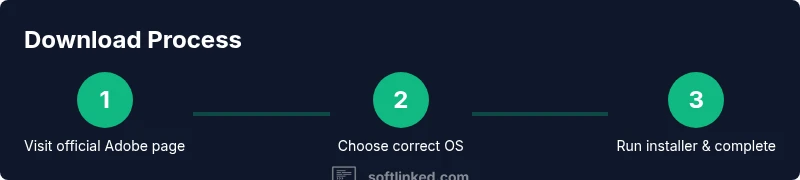
The download and installation flow is straightforward but benefits from a calm, deliberate approach. Start on the official page, select the correct operating system, choose language preferences, download the installer, run it, and follow the on-screen prompts. The installer will typically offer to install optional components or browser integrations; deselect those if you do not want them.
During installation, you may be prompted to allow changes to your device. Confirm when you trust the source and want to proceed. After the process finishes, launch Acrobat Reader DC to confirm it starts correctly and can open sample PDFs. If you notice any errors, take note of the error message and plan to troubleshoot using the official Adobe support resources.
Post-installation checks: updates and first-run configuration
Once installed, run a quick check for updates to ensure you have the latest security patches and features. In most cases, Acrobat Reader DC will prompt you to update automatically. If not, open the application, navigate to Help > Check for Updates, and install any available updates. Configure basic preferences such as default zoom level, rendering quality, and whether to enable online services. You can also enable digital signatures and form filling features as needed. Finally, test opening a few PDFs from different sources to confirm consistent rendering and form handling across documents.
Troubleshooting common download or install issues
If the download stalls or the installer won’t launch, first confirm you are on the official Adobe page and your browser isn’t blocking downloads. Try a different browser or temporarily disable extensions that may interfere with downloads. Ensure you have sufficient disk space and that your security software isn’t blocking the installer. If you encounter a signature error, re-download the installer from the official page and verify your internet connection. For persistent problems, consult Adobe’s official help articles or user forums for platform-specific guidance.
Practical tips for using Acrobat Reader DC efficiently
Leverage keyboard shortcuts for faster navigation (e.g., Ctrl/Cmd + F to search, Ctrl/Cmd + P to print). Use the comment and mark-up tools for review workflows, and enable the “Fill & Sign” feature for form-based PDFs when needed. Regularly check for updates to stay current with PDF standards and security patches. For developers integrating PDFs into apps, remember that Reader focuses on viewing and basic interactions, while Pro features are separate and may require a subscription.
Security and privacy considerations: keep your PDFs safe
Keep your reader up to date to mitigate vulnerabilities. Only download from official sources and avoid installers that come from untrusted domains. If you use the cloud-connected features, review permission scopes and understand how your documents are stored or shared. Consider enabling two-factor authentication on your Adobe account if you choose to sign in to sync settings. Regularly review the privacy settings in the app to control data sharing and telemetry options.
Alternatives and licensing: when to upgrade beyond Reader
For advanced editing, redaction, or form creation, Acrobat Pro offers a broader feature set. If your work involves heavy PDF manipulation, cost-benefit analysis may justify a subscription. Some educational or enterprise scenarios benefit from bundled software agreements that include Acrobat Pro or other PDF tools. Compare features, pricing, and trial options on the official site to choose the best fit for your needs.
Authoritative sources and best practices
For reliability, refer to official Adobe documentation and trusted security guidance. Always verify download integrity by checking digital signatures when available, and review security advisories from trusted authorities. As a general rule, favor official portals for software downloads and updates to maintain system integrity and data protection.
Tools & Materials
- Device with internet access(Windows or macOS computer, or a supported mobile device)
- Web browser(Chrome/Edge/Safari recommended for downloads)
- Administrative privileges(Needed to install software on Windows/macOS)
- Official Adobe download URL(Use https://www.adobe.com/acrobat/pdf-reader.html or equivalent official page)
- Optional backup of installer(Keep a copy until updates are confirmed)
Steps
Estimated time: 25-40 minutes
- 1
Prepare your device
Ensure you have internet access and sufficient disk space. Close unrelated programs to avoid conflicts during installation. Verify you have admin rights on the machine to install new software.
Tip: Having admin rights speeds up installation and reduces permission prompts. - 2
Open the official download page
Navigate to the official Adobe Acrobat Reader DC download page. Verify the URL starts with https://www.adobe.com and ensure you are on the legitimate site before downloading.
Tip: Bookmark the official page to prevent accidental redirection to third-party sites. - 3
Choose the correct OS and language
Select Windows or macOS as your platform, and choose your preferred language. This ensures the installer matches your system expectations and user interface language.
Tip: If you manage a lab, standardize on a single language to simplify support. - 4
Download the installer
Click the download button to start fetching the installer. Save the file to a known location and avoid moving it during the download to prevent corruption.
Tip: If a download fails, try a different browser and retry from the official page. - 5
Run the installer
Open the downloaded file and follow the on-screen prompts. Accept the license terms and allow the installer to modify your device if prompted.
Tip: Do not install optional browser integrations unless you need them. - 6
Complete setup and verify
Finish the setup wizard, launch Acrobat Reader DC, and open a sample PDF to verify rendering and basic features like search and zoom.
Tip: Run a quick update check to ensure you have the latest security patches.
Your Questions Answered
Is Adobe Acrobat Reader DC free to download and use?
Yes, Acrobat Reader DC is free to download and use for viewing, printing, and basic annotation. Some advanced features may require a paid subscription.
Yes, the basic reader is free; advanced features may require a subscription.
Do I need an Adobe account to download or use it?
You can download and install Reader DC without an account, but signing in allows cloud-based features and preference syncing.
You can download without an account, but signing in gives you extra features.
Can I install Acrobat Reader DC on both Windows and macOS?
Yes, Acrobat Reader DC supports both Windows and macOS with separate installers on the official site.
Yes, it works on Windows and macOS.
Is there a mobile version of Acrobat Reader DC?
Adobe offers mobile PDF viewers for iOS and Android; Acrobat Reader DC is the desktop product, while mobile apps provide similar viewing features.
There are mobile apps, but Reader DC is desktop-focused.
How do I verify that I downloaded the official installer?
Check that the download URL starts with the official Adobe domain and, if available, verify the digital signature of the installer.
Make sure the URL is official and check for a valid signature.
What should I do if the download fails or the installer won’t run?
Try another browser, disable extensions temporarily, ensure admin rights, and download again from the official page. If issues persist, consult Adobe support.
Try a different browser and check permissions; contact support if it continues.
Watch Video
Top Takeaways
- Download from official pages first.
- Verify OS and language before downloading.
- Run updates after installation.
- Test a few PDFs to confirm proper functionality.
- Keep installer copies until you confirm success.