Adobe Download: Safe, Step-by-Step Guide
Learn how to safely download Adobe apps from official sources, verify installers, and activate software with best practices for security and proper licensing. A comprehensive 2026 guide by SoftLinked.


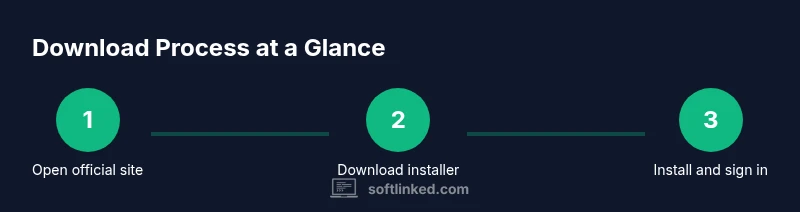
According to SoftLinked, you can safely download Adobe apps by using the official site, verifying the installer, and avoiding third-party mirrors. This quick guide covers locating the official download, selecting a plan, signing in, and activating your software securely, keeping your system protected and up to date.
Understanding Adobe Download: What It Means and Why It Matters
In the digital software landscape, an Adobe download refers to obtaining official installers or setup wizards from Adobe's distribution channels and authenticated partners. For learners and professionals, understanding this process is foundational to software fundamentals. The SoftLinked team emphasizes starting from the official Adobe domain to minimize risk and ensure you receive a legitimate, up-to-date product. When you download, you are not just copying a file; you are acquiring a license-elevated toolset that will integrate with your account, cloud storage, and ongoing updates. Before you begin, it's helpful to distinguish between two main download pathways: the Creative Cloud desktop app, which manages most Adobe products, and direct installers for individual apps — though in practice, the Creative Cloud route remains the hub for most users. The difference matters for activation, updates, and license management, so choose the path that aligns with your goals, whether studying Photoshop for graphic design or Premiere for video work.
Preparing Your System for Adobe Downloads
A smooth download starts with a prepared system. Ensure your operating system is up to date, your storage has ample space, and your device meets the minimum requirements for the version you intend to install. Use a stable internet connection; Wi‑Fi is fine, but a wired Ethernet connection reduces dropouts during large installers. Disable or pause any aggressive antivirus during the initial download only if you trust the source, then re-enable protection after installation. Clear browser cache to avoid stale redirects and habitually download from the official adobe.com domains. If you work behind a corporate proxy or firewall, verify that the installer is allowed through the network, and consider temporarily whitelisting Adobe domains. Finally, sign in to your existing Adobe account or prepare to create a new one, as licensing becomes tied to the account you use during installation.
Selecting the Right Installer and Plan
Adobe offers several download pathways, most notably through the Creative Cloud desktop app, which acts as a hub for installing and updating multiple products. If you’re starting fresh, consider a trial of the All Apps plan to explore what you need, then adjust to a single-app or subset plan if your workflow is focused on one domain (such as Photoshop or InDesign). The installer you choose should align with your intended use, storage capacity, and hardware capabilities. For students and educators, verify eligibility requirements and any official licensing options provided by your institution. Remember that licensing is tied to your Adobe account, so sign in during installation to activate and manage devices accordingly.
Safe Download Practices to Avoid Malware
Protect yourself by using only official Adobe domains (adobe.com) and trusted partners. Before starting the download, verify the URL starts with https and shows a valid certificate. Avoid links received in unsolicited emails or shared on unfamiliar sites. When the installer file finishes downloading, check its digital signature or certificate details if your OS provides it, and compare the file size with the official download page’s guidance. If you’re unsure about a launcher’s origin, abort and restart from the official site. These checks dramatically reduce exposure to counterfeit installers and malware.
Installing and Verifying Adobe Apps
Run the installer with administrative rights when prompted. Follow the on-screen prompts to accept license terms and choose installation options. After installation, sign in with your Adobe account to activate subscriptions and unlock cloud features. Launch the application to verify the version and ensure core features are accessible. If prompted, enable updates to keep the software secure and compatible with your operating system. Post-install, check that file associations and default apps are set according to your workflow preferences.
Managing Licenses and Subscriptions
Adobe licensing is tied to your account, not a single machine. Use your account dashboard to manage devices, sign out remotely if needed, and review active plans. If you’re in a shared environment, consider setting up separate accounts for each user or using organizational licenses where available. Regularly review storage quotas and sync settings for Creative Cloud to avoid hitting limits. Keeping track of subscription status, renewal dates, and available updates helps prevent surprises and keeps your tools ready for production workloads.
Troubleshooting Common Download Issues
If a download stalls, pause and resume, or try a different network. Clear the browser cache and restart the installer if you encounter a corrupted file. Disable VPNs or proxies temporarily if they interfere with the download, then re-enable them after installation. If the installer fails to launch, confirm admin rights, OS compatibility, and that there’s enough disk space. In persistent cases, use the official support channels to retrieve a fresh copy or verify account status. Always avoid downloading from questionable sources, as this significantly increases risk of compromised software.
Updates, Security, and Privacy Considerations
Enable automatic updates when available to receive security patches and feature improvements. Review privacy and data-sharing settings in your Adobe account to balance customization with data controls. Regularly audit connected devices and applications to ensure they’re authorized and up to date. Consider enabling two‑factor authentication to guard against account compromise. By keeping security practices aligned with official channels, you protect your work and reduce the likelihood of license or activation issues.
Best Practices for Long-Term Software Hygiene
Establish a routine for checking product updates and renewing licenses before expiration. Maintain a clean installation history by removing unused apps, freeing up disk space, and organizing your Creative Cloud library for easy access. Keep backup copies of installers or offline installation media where policy allows, and document any custom configurations you use with pipelines or templates. Finally, foster a habit of verifying every new Adobe update against system compatibility notes to minimize disruption to critical workflows.
Tools & Materials
- Computer or mobile device(Ensure OS is supported for the target Adobe version)
- Stable internet connection(Prefer wired Ethernet for large installers)
- Admin privileges(Needed to install software and modify system settings)
- Official Adobe account(Used for activation, licensing, and cloud access)
- Supported web browser(Chrome, Edge, Firefox, or Safari are commonly supported)
- External storage (optional)(Useful for offline installers or backups)
Steps
Estimated time: 60-90 minutes
- 1
Open the official Adobe site
Navigate to adobe.com and access the Downloads or Products area. Confirm you are on the official domain to avoid phishing sites. This initial check ensures you are starting from a trustworthy source.
Tip: Bookmark adobe.com to speed up future downloads and reduce misnavigation. - 2
Choose your product and plan
Decide between Creative Cloud All Apps, a single app, or a trial if you’re evaluating features. Plans determine access to updates and cloud services, so choose based on your current needs.
Tip: If uncertain, start with a trial to assess workflow fit before committing. - 3
Download the installer
Click the official download button to start the installer. Save the file to a known location and verify the download completes without interruption.
Tip: Avoid using download managers from untrusted sources that modify installers. - 4
Run as administrator
Launch the installer with admin rights. Accept the license terms and select the components you need. A clean install reduces post‑install issues.
Tip: Close other heavy applications to ensure enough system resources. - 5
Sign in to your Adobe account
During or after installation, sign in to activate your plan and enable cloud features. This step links the software to your license and migration settings.
Tip: Use a strong password and enable two‑factor authentication. - 6
Configure install location and options
Choose where to install and which components to include. Default options usually work for most users, but you can tailor installs for performance or disk space.
Tip: If on a shared device, set per‑user installations where possible. - 7
Verify activation and launch
Open the installed app to verify it launches correctly and check the version. Confirm cloud services connect and auto‑update is enabled if desired.
Tip: Run a quick test project to confirm all essential features work. - 8
Update and maintain
Check for updates after installation and enable automatic updates to stay current with security patches and feature improvements.
Tip: Schedule periodic reviews of installed components to prevent bloat.
Your Questions Answered
Can I download Adobe apps for free?
Adobe offers free trials for many products, but ongoing use requires a subscription or license. Ensure you read trial terms before installing.
Adobe offers free trials for many products; ongoing use needs payment. Review terms before installing.
Do I need Creative Cloud to use Adobe apps?
Many Adobe apps require a Creative Cloud account for activation and updates, though some stand-alone installers may exist. Check the product page.
Most apps use Creative Cloud for activation and updates; some standalone installers exist.
Why is my download slow?
Download speed can be affected by network congestion, ISP throttling, or firewall settings. Try a wired connection or different time of day.
Slow downloads can be caused by network issues; try a wired connection or time shift.
What if the installer fails to run?
Ensure you have admin rights, correct OS version, and that no antivirus is blocking the installer. Re-download from Adobe if the file is corrupted.
If the installer fails, check admin rights, OS compatibility, and re-download from Adobe.
Is Adobe download secure?
Yes, when downloaded from adobe.com and signed installers. Beware of phishing sites and counterfeit installers.
Adobe downloads from official sites are secure; avoid untrusted sources.
Can I install on multiple devices with one license?
Most Adobe licenses allow installation on multiple devices, but activation limits apply. Check your plan details in the Adobe account dashboard.
Licenses typically permit multiple devices; verify activation limits in your account.
Watch Video
Top Takeaways
- Download only from official sources.
- Verify installer authenticity before running.
- Sign in to your Adobe account during setup.
- Enable updates to stay secure and compatible.