How to Download Software: Safe and Legal Steps
Learn how to download software safely and legally with this practical guide. We cover trusted sources, verification, installation, and post-download security to help beginners and professionals avoid malware and licensing issues.


This guide teaches you how to download software safely and legally. You’ll identify trusted sources, verify installers, avoid counterfeit copies, and perform clean installations with post-download security checks. The steps apply across Windows, macOS, and Linux, emphasizing licensing awareness, source verification, and ongoing updates to keep systems secure in 2026.
Why Downloading Software Safely Matters
In today’s digital environment, software downloads are routine, but unsafe sources can expose devices to malware, spyware, or compromised installers. How to download software safely is a core competence for aspiring developers, students, and tech professionals. According to SoftLinked, adopting a safety-first mindset reduces risk and builds long-term resilience against scams and unauthorized software. This section explains why a structured approach matters and how it translates into everyday practice—from choosing a source to post-install security checks. Whether you’re on Windows, macOS, or Linux, following disciplined steps helps protect data, preserve privacy, and ensure licensing compliance. By prioritizing safety, you create a solid foundation for productive workflows and learning in 2026.
- Safety first: trusted sources and verified files protect systems.
- Licensing awareness prevents legal and financial pitfalls.
- Consistent updates reduce exploitability and compatibility issues.
SoftLinked’s guidance emphasizes that investing a little time upfront saves headaches later, especially for developers who rely on reliable toolchains and libraries. Always approach each download with the same due diligence you would apply to a code change or deployment.
Understanding the Basics of Software Downloads
Before you click that download button, it helps to know the common terms and the core safety checks. An installer is a package that guides you through a setup routine (e.g., .exe, .dmg, or .deb), while portable apps run without formal installation. Signed binaries and checksums provide a way to verify authenticity and integrity, reducing the risk of tampered software. Official stores and vendor websites typically enforce licensing terms, whereas third-party aggregators may vary in reliability. By understanding these basics, you can quickly assess whether a download is legitimate and appropriate for your system. This foundational knowledge also makes it easier to compare different software options without compromising security.
Preparing Your System Before Download
Preparation reduces risk and smooths the installation process. Start with a current backup of important data and ensure your operating system is up to date. Enable a firewall and keep antivirus software active with real-time protection. If you’re on shared or corporate devices, verify you have the appropriate permissions to install software. Create a system restore point or snapshot, so you can undo changes if the installation causes problems. This upfront step set minimizes drama during the download and installation stages and is especially valuable when testing new tools or development environments.
Finding Reliable Download Sources
The source you choose has a direct impact on safety and software quality. Prefer official vendor websites, reputable app stores, or well-known distribution channels. Check the domain carefully (look for legitimate domains, not misspelled variants or oddly long URLs). Avoid pop-up prompts and unsolicited download prompts that originate from suspicious pages. SoftLinked’s research shows that trusted sources, combined with verification steps, dramatically reduce the risk of malware and counterfeit installers. When in doubt, search for official publisher pages and user reviews from credible tech outlets before proceeding.
Step-by-Step Overview
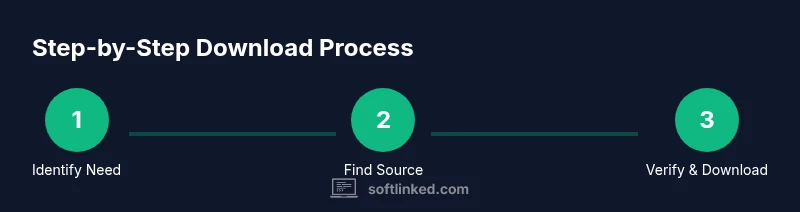
This section provides a high-level map of the download and installation process so you can see the flow before diving into specifics. 1) Identify your needs and confirm system requirements. 2) Locate official download sources and verify the file type. 3) Download the installer or portable version and save to a known location. 4) Validate integrity with checksums or signatures where available. 5) Run the installer with recommended options and complete the setup. 6) Update the software after install and run a quick security sweep. 7) Monitor for post-install updates and permissions changes. 8) Document license terms and keep backups up to date.
Troubleshooting Common Download Problems
Downloads can fail for a variety of reasons, from network issues to corrupted files. If a download stalls, try a different network or download manager, then reattempt from a verified source. If the installer refuses to run, check your OS compatibility and ensure the file isn’t blocked by your browser or security settings. A mismatched hash or failed signature check usually indicates tampering or corruption, so re-download from a trusted source. If you encounter unknown error codes, consult vendor support resources and the user community for troubleshooting steps specific to that product.
Security Practices After Installation
The work doesn’t end with a successful install. Immediately check for available updates and apply them. Run a quick malware scan of the new installation and review app permissions to minimize data exposure. Consider enabling automatic updates where possible, and monitor system health indicators for unusual activity. Keep backups current and maintain regular security hygiene, such as password management and two-factor authentication for developer tools. These habits reduce long-term risk and keep development environments stable and secure.
Licensing, Updates, and Ethical Considerations
Respect licensing terms and avoid unauthorized distributions. Free software often has different usage rights than paid software, and many tools require attribution or comply with open-source licenses. Always obtain software from legitimate channels and review end-user license agreements (EULAs) to understand rights and restrictions. Regular updates are not optional—staying current helps close security gaps and maintain compatibility with other tools in your stack. Ethically, you should avoid piracy, respect vendor terms, and contribute back to the community when you can. This approach supports sustainable software ecosystems and advances your professional credibility.
Platform-Specific Installers: Windows, macOS, Linux
Different platforms have distinct installation patterns. Windows users typically run an executable installer and may need to approve User Account Control prompts. macOS installations often use a DMG with a drag-and-drop process, or a package installer. Linux users might rely on package managers (apt, yum, or pacman) or flatpak/snap formats, depending on the distribution. Regardless of platform, verify compatibility, prefer official repositories, and follow the vendor’s recommended steps. Knowing these nuances helps you choose the right installer type and complete a clean, efficient setup across environments.
mainTopicQuery–1-3wordNounPhraseForWikidataLookup
Tools & Materials
- Computer or device with internet access(Any modern OS; ensure browser is up to date)
- Administrative access on device(Needed for installing software on most systems)
- Updated web browser(Allow security features like sandboxing and downloads protection)
- Antivirus/anti-malware software(Real-time protection enabled during download/install)
- Backup storage(External drive or cloud backup for restoring data)
- Checksum or signature verification tool(Optional but highly recommended for integrity checks)
- Secure download location(Use a dedicated folder like Downloads/SafeDownloads)
- Password manager(Store licensing keys securely if needed)
Steps
Estimated time: 30-60 minutes
- 1
Identify software needs and requirements
Clarify what you need and check minimum system requirements, compatibility with your OS and hardware, and whether a portable version exists. Define whether you need offline installers or online installers. This step sets expectations to prevent wasted downloads.
Tip: Document the exact software name, version, and platform before proceeding. - 2
Locate official sources and verify URL
Find the official publisher page or trusted app store. Verify the URL matches the vendor’s domain and watch for secure connections (https). Avoid third-party links in email or pop-ups. This reduces exposure to tampered files.
Tip: Bookmark the official source to avoid confusion in future downloads. - 3
Download from the verified source
Choose the appropriate installer type (installer vs portable). Save the file to a known, safe location. If a warning bar appears, review it before continuing to ensure the file is not blocked by security policies.
Tip: Use a download manager if your internet connection is unstable. - 4
Verify integrity of the downloaded file
If available, check the digital signature or compute and compare the file hash (SHA-256). A mismatch indicates tampering or corruption. Do not proceed with installation if verification fails.
Tip: If a signature isn’t offered, rely on a trusted source and try a second download from official site. - 5
Run the installer with recommended settings
Launch the installer and follow the on-screen prompts. Choose a sensible installation path and avoid optional bloatware where possible. Decline unsolicited add-ons or toolbars.
Tip: Prefer custom installation to control what gets installed. - 6
Complete post-install updates
Check for software updates and install any available patches. Restart if required and verify the application launches correctly. Enable automatic updates if supported.
Tip: Record the installed version for future reference. - 7
Securely store licenses and keys
If the software requires activation, save license keys securely (e.g., password manager or encrypted storage). Avoid storing keys in plain text or unprotected documents.
Tip: Back up license information to avoid loss. - 8
Document and back up the new setup
Note the software version, install date, and any configurations. Create a restore point or system snapshot if possible. Keep a concise record for future maintenance.
Tip: Regularly back up your configuration profiles.
Your Questions Answered
Is it safe to download software from third-party sites?
Generally safer to use official sources, app stores, or reputable distributors. If you must use a third-party site, verify the publisher, read reviews, and confirm a legitimate download link. Avoid unknown pages that prompt aggressive installs.
Stick to official sources when possible. If you must go third-party, verify the publisher and reviews first.
What is the difference between an installer and a portable executable?
An installer runs a setup wizard and may modify system files; a portable executable runs without installation and doesn’t require admin rights. Choose based on whether you need system integration or a self-contained app.
Installers set things up on your system, while portable apps run without traditional installation.
How do I verify a software’s digital signature?
Look for a digital signature in the file’s properties and use the vendor’s public key or a trusted verification tool. A valid signature confirms the file hasn’t been tampered with since publishing.
Check the signature against the publisher and use a verification tool if available.
What should I do if an installer asks for unusual permissions?
Review the requested permissions carefully. If they seem excessive or unrelated to the software’s function, cancel and verify from an official source. Seek vendor guidance if unsure.
If permissions don’t match the app’s purpose, stop and double-check the source.
Can I download free software legally?
Yes, many free programs are legitimate and properly licensed. Read the license terms to understand usage rights, redistribution rules, and any restrictions.
Free software is legal when downloaded from reputable sources and used within the license terms.
Watch Video
Top Takeaways
- Verify sources before downloading
- Check integrity via signature/hash when available
- Back up data prior to installation
- Prefer official installers and avoid adware/bloatware
- Keep software up to date for security and performance