Install Software Without Admin Rights: A Practical How-To
Learn safe, compliant methods to install software without admin rights on Windows and Linux, including portable apps, user-level installers, and IT-friendly alternatives. This guide offers step-by-step strategies, safety checks, and governance considerations for aspiring developers and students.


Install software without admin rights means adding programs or tools to your user account without elevated permissions. You’ll rely on portable apps, user-space installers, and policy-approved methods such as IT-approved alternatives. This guide shows safe, compliant ways to expand your toolkit while avoiding security risks and policy violations.
Understanding the landscape of software installation without admin
For many developers, students, and IT workers, installing software without administrator privileges is a common necessity when working on borrowed machines, lab computers, or company systems with strict access controls. The core idea is to add or run software in your own user space rather than altering system-wide locations or settings. This approach helps you stay productive while respecting security policies and change-management processes. In practice, you’ll rely on portable applications that run without a traditional install, per-user installers that place files only under your profile, or vendor-provided options designed for administrator-free deployment. While not every app supports these methods, knowing what to look for—such as portable ZIP packages or user-local installers—can save time and reduce risk. According to SoftLinked, when you plan installations this way, you also lower the chance of breaking system configurations and avoid creating new attack vectors. This article walks you through practical paths, safety checks, and governance considerations.
Portable applications: your first choice when admin rights are restricted
Portable apps are self-contained packages that run without a formal OS-wide installation. They save settings in their own folder and don’t modify system directories. This makes them ideal for environments with strict admin controls. When evaluating portable options, prioritize sources from official vendor pages or trusted aggregators and check for checksums or digital signatures to verify integrity. Always test portability by running the application directly from a user-level location before keeping it long-term. SoftLinked’s guidance suggests starting with well-known portable offerings before attempting complex software stacks, reducing risk and keeping your workflow flexible.
Using per-user installers and local installations
Some software offers per-user installers designed to place all files within the user profile, avoiding system directories and elevated rights. On Windows, you can target folders under your user profile (for example, a dedicated AppData directory) and on Linux, you can install to your home directory or ~/.local. The key is to keep all components within your user space and avoid touching Program Files or /usr unless you have explicit permission. Always choose the option that does not require administrator prompts and document where files live for future maintenance. This approach preserves security boundaries while still enabling productive work.
When admin rights are required: safe alternatives and policy requests
If the software you need does not have a portable version or a per-user installer, don’t bypass policy or hack permissions. Instead, review your organization’s IT policy and approach the appropriate channel: request a temporary elevation, submit a formal installation request, or propose an approved alternative from the IT catalog. Documenting the business need, the security impact, and the expected benefits makes it easier for IT to approve or guide you toward sanctioned options. Building a collaborative relationship with your IT team reduces friction and accelerates access to the tools you need while staying compliant.
Security considerations: keeping the system safe
Even when installing without admin rights, security remains paramount. Always download software from official sources, verify digital signatures or checksums, and run scanners before executing anything new. Avoid dubious installers or cracked software, which often carry malware. Maintain a clean workspace by keeping a dedicated folder for user-space apps, and separate it from system directories. Regularly update your security tools and review permissions granted to any newly added software to minimize risk.
How to verify the software works without admin
After you’ve placed the software in your user space, run a quick validation: confirm launch, check basic functionality, and ensure no system-wide configurations were altered. If the app makes changes to your shell profile or environment variables, document them and revert if necessary. Test compatibility with your current OS, other installed applications, and any organizational security tools. A successful verification gives you confidence that you can rely on the tool without admin intervention.
Common mistakes and how to avoid them
- Assuming every app has a portable version. Always confirm before attempting to install. - Overlooking security checks. Never run downloads without antivirus scans. - Ignoring IT policy. If in doubt, seek guidance rather than improvising. - Storing portable apps in system folders. Use a dedicated user-space directory to keep things tidy and reversible.
By avoiding these missteps, you’ll maintain security, reduce risk, and stay aligned with organizational rules.
A practical playbook for students and developers
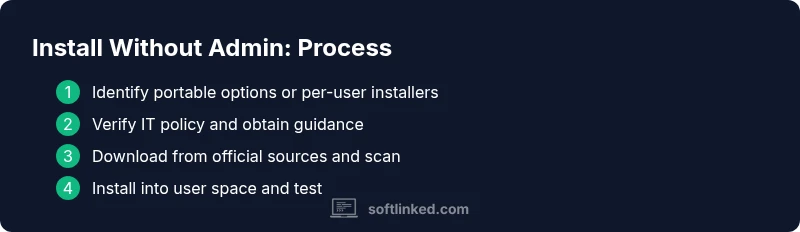
Create a simple, repeatable process: (1) identify portable options, (2) verify policy and obtain guidance if needed, (3) download from trusted sources and scan, (4) install to a user-space directory, (5) test functionality, and (6) document locations and versions. This playbook helps you stay organized, scalable, and compliant as you switch between machines or environments. In parallel, build a small reference sheet listing trusted sources, typical locations for user-space installs, and whom to contact in IT for escalations.
Tools & Materials
- Computer with a standard user account(No admin credentials are available or required.)
- Reliable internet connection(Needed to download portable apps and verify integrity.)
- Portable app packages or per-user installers(Choose vendor-provided portable versions when possible.)
- USB drive or local storage for portable apps(Useful for offline installs or sharing between devices.)
- Antivirus and malware scanner(Scan all downloads before running.)
- Documentation or IT contact info(Know how to request elevated access if needed.)
- Backup/restore option(Optional safety net if changes cause issues.)
Steps
Estimated time: 60-120 minutes
- 1
Identify software and method
Clarify whether a portable version exists or if there is a per-user installer available. This initial check saves time and minimizes risk by avoiding full-system installs. Confirm that the method does not require administrator privileges.
Tip: Look for official portable ZIP packages or vendor-provided per-user installers first. - 2
Review policy and obtain clarity
Read your organization’s IT policy or speak with a supervisor to understand permissible install methods. If admin is required, prepare a formal request with business justification. Document the outcome for future reference.
Tip: Prepare a short justification and a list of required tools before contacting IT. - 3
Download from trusted sources
Download only from official vendor pages or trusted repositories. Avoid third-party aggregators. Verify that the package is portable or suitable for a user-space installation, and check for checksums or signatures.
Tip: Always verify the download URL and certificate trust chain. - 4
Scan before executing
Run a malware scan on the downloaded package before extracting or running it. Confirm the file integrity with digital signatures where available to reduce risk of tampering.
Tip: Enable real-time scanning during the first run for extra protection. - 5
Install into user space
Extract or install the software into a dedicated user-space directory (for example, a personal Apps folder). Do not modify system directories or registry hives. Keep all components within the user profile.
Tip: Avoid touching Program Files or /usr unless you have explicit authorization. - 6
Run and configure safely
Launch the application with minimal privileges. Disable auto-updates temporarily if possible, and configure only user-level preferences to avoid unintended system changes.
Tip: Document any changes to PATH or environment variables made during setup. - 7
Test functionality and compatibility
Ensure the app runs correctly, integrates with your workflow, and doesn’t interfere with other software. If issues arise, revert to a known-good state and re-evaluate the installation method.
Tip: Keep a simple test script to verify core features. - 8
Escalation path if admin is needed
If admin is required, follow the formal escalation process: submit a ticket, obtain tracking, and communicate the expected outcome and timeline to your team.
Tip: Always use the official escalation path rather than improvised workarounds. - 9
Document and maintain
Record the tool name, version, source, and installation path. Update your notes when the software is updated or moved, and schedule periodic reviews of portable options.
Tip: Maintain a running inventory to simplify future updates.
Your Questions Answered
What does it mean to install software without admin rights?
It means using portable versions or per-user installers that do not require administrator privileges, keeping changes within your user profile and avoiding system-wide modifications.
Installing without admin rights means using portable apps or user-space installers that don’t need administrator privileges.
Can I always avoid admin rights?
Not always. Some software requires admin access to modify system components or install drivers. Look for portable alternatives or request sanctioned IT options.
Not always; some apps need admin rights. Check for portable options or ask IT for approved methods.
What is a portable app?
A portable app runs directly from a folder without installation into system directories, keeping its data and settings in the same folder.
A portable app runs from a folder and doesn’t install into system directories.
Is it safe to bypass admin rights?
Bypassing admin rights can violate policy and introduce risk. Use sanctioned methods, verify sources, and consult IT when in doubt.
It can be risky; follow policy, verify sources, and consult IT if unsure.
What if the software isn’t available portably?
Request IT assistance for a temporary elevation or inquire about an approved alternative from the software catalog.
If no portable version exists, ask IT for approved options or temporary access.
Watch Video
Top Takeaways
- Identify portable or per-user options first
- Never bypass IT policy or security controls
- Verify sources and scan files before use
- Install to user space to avoid system-wide changes
- Document installations for future maintenance