Install Software Without Admin Rights: Safe Methods
Learn safe, policy-compliant ways to install software when you are not an administrator. Portable apps, IT-approved options, and practical workarounds explained.


Install software without admin rights by using portable versions, IT-approved methods, and request-based workflows. This quick answer highlights practical paths, safety considerations, and when to escalate to your IT team. You’ll understand common limits, how to verify legitimacy, and what documentation you may need.
Why admin rights complicate software installation
If you’re new to corporate devices or personal machines managed by an organization, admin rights are usually restricted for security and policy reasons. When you are not administrator, you can’t run installers, modify system folders, or apply policy changes. This can slow your work, but it’s not a failure—it’s a deliberate safeguard. According to SoftLinked, many vendors now offer portable or user-level options that do not require elevated permissions, which can empower you to run essential tools while staying compliant. By understanding what you can do in your user context and how to align with IT guidelines, you reduce risk and maintain security. The SoftLinked team emphasizes documenting your need and following approved channels to avoid conflicts with security controls. In this section, we’ll outline practical paths, constraints, and best practices you can use today.
Understanding permissions, environments, and policy scope
Permissions determine what you can install, where you can place files, and how software interacts with the operating system. On Windows, macOS, or Linux, standard user accounts typically cannot alter system files or install software in protected directories. Group policies, endpoint protection, and device enrollment can block installers by design. It’s important to distinguish between a personal device with local admin rights and a work device with centralized controls. While the details vary by organization, the principle is the same: act within your policy framework, justify the need, and seek sanctioned alternatives when possible. SoftLinked’s analysis shows that many teams prefer portable applications or web-based substitutes to reduce risk while preserving productivity.
Safe alternatives and portable options you can use without admin rights
There are several pathways that often work without admin elevation:
- Portable apps: Look for official portable versions that run from user folders or USB drives without touching system folders. These may provide the same functionality as the installed app.
- Web-based substitutes: If a desktop install isn’t allowed, many tasks can be completed with browser-based tools or SaaS equivalents that require no local installation.
- User-writable locations: Some vendors offer installers that place files in a user profile directory (for example, AppData on Windows) rather than Program Files. This approach minimizes the need for admin access.
- Virtual environments: Running software inside a sandbox or virtual environment (Windows Sandbox, VirtualBox, or a lightweight VM) can isolate changes and avoid changes to the host system.
- Official channels: In enterprise settings, IT often provides a sanctioned installer, a software center, or a cloud-based launcher. When available, these channels ensure compliance and support.
- Caution against risky shortcuts: Avoid unverified installers or modified packages that bypass prompts, as these can introduce malware or policy violations. SoftLinked emphasizes sticking to trusted sources and documented processes.
How to prepare a proactive IT request for temporary access or a sanctioned install
If portable options don’t meet your needs, the next best option is a formal request to IT for temporary elevation or a sanctioned installer. Preparing a clear, concise request increases the likelihood of a quick, positive outcome. Start by identifying the exact tool, its purpose, and how it will be used. Include the business impact, the risk assessment you performed, and the security controls you’ll follow (such as a dedicated user account, code signing verification, and post-install cleanup). Mention any required features, dependencies, and expected usage patterns. Providing vendor documentation, support contacts, and a rollback plan helps IT evaluate quickly. In many organizations, a lightweight approval (time-bound or scoped to a specific machine) is sufficient. The SoftLinked team recommends pairing your request with a short risk statement and a test plan to demonstrate responsible usage.
Troubleshooting common failures when not admin
Common blockers include policy blocks, missing prerequisites, or conflicts with existing software. Start by checking error messages for references to blocked actions, insufficient permissions, or conflicting processes. If the issue is a missing prerequisite (like a runtime or library), verify whether a user-level install is available or whether a portable version solves the gap. When a blocker is policy-driven, reach out to IT with a concise summary of the failure, your requested exception, and a proposed remediation (such as a temporary permission grant). Finally, validate network restrictions or antivirus scans that might interfere with installation. Document steps taken and outcomes to help future requests and avoid repeated back-and-forth.
Best practices for security and compliance
Always operate within your organization’s security policy. Prefer sanctioned methods, verify sources, and avoid installing software from unknown channels. Keep the system clean by limiting non-essential testers to portable apps or sandbox environments. Maintain an auditable trail of requests, approvals, and versions used. Regularly review installed software for licensing compliance and security updates. The SoftLinked team reminds readers that compliance and caution are not barriers to productivity—they are ongoing practices that protect you and the organization.
Tools & Materials
- Portable application package (official portable version)(Download only from the vendor’s official site and verify integrity if possible)
- Authorized USB drive or a user-writable folder(Use a location you have write access to without admin rights)
- Standard user account on the machine(This is the baseline restriction; do not attempt to bypass it)
- Reliable web browser(For downloading portable tools or accessing web-based alternatives)
- Draft IT request template(Helpful for formal requests; customize with your justification)
- Documentation of software needs(Include business justification, usage scenario, and risk mitigations)
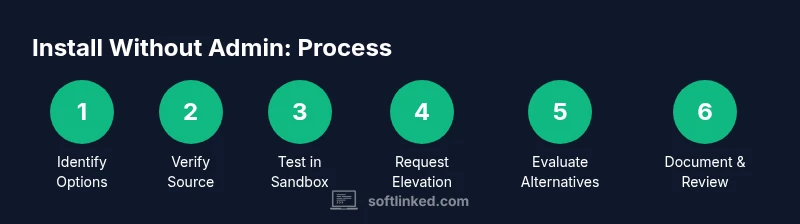
Steps
Estimated time: 60-120 minutes
- 1
Identify portable options or web substitutes
Search the vendor’s site or trusted software repositories for portable editions or browser-based equivalents. Portable apps run without system-wide installation, reducing the need for admin rights. If a portable version doesn’t exist, proceed to step two.
Tip: Always download portable apps from the official site to avoid tampered builds. - 2
Verify source and integrity
If you find a portable version, confirm its source is legitimate and, if available, verify checksums or digital signatures. This reduces risk of malware.
Tip: Avoid third-party download sites; use official vendor pages whenever possible. - 3
Run in a user-writable location
Extract or install the portable app into a user directory (e.g., your profile folder) rather than a system-wide path. This minimizes the need for elevated permissions.
Tip: Keep a clean folder structure to simplify updates and removal. - 4
Test in a sandbox if available
If your device supports a sandbox or VM, test the portable app there first to avoid impacting the host environment.
Tip: Sandbox testing helps you verify behavior without risking the main system. - 5
Request temporary elevation or a sanctioned install
If portable options don’t meet requirements, prepare a concise IT request (purpose, impact, risk controls) and ask for time-bound elevation or a managed installer.
Tip: Include a rollback plan and version details to expedite IT review. - 6
Evaluate alternatives and fallback options
If you still cannot install, identify browser-based or cloud-based alternatives that fulfill the same task with minimal risk.
Tip: Document trade-offs so stakeholders understand the choice. - 7
Document outcomes and maintain compliance
After deployment or testing, record what was installed, who approved it, and when it was removed or updated. Keep records for audits.
Tip: Set reminders for updates or re-certification when necessary. - 8
Review security posture with IT
Periodically discuss any non-standard installations with IT to ensure ongoing alignment with security policies and to refine processes.
Tip: Regular dialogue with IT reduces future friction and accelerates approvals.
Your Questions Answered
Can I install software without admin rights?
Yes, through portable versions, web-based substitutes, or sanctioned IT processes. If not available, you can request temporary elevation or a managed installer with proper documentation.
Yes. You can use portable versions or sanctioned IT processes, or request temporary access if needed.
What is a portable app and does it bypass admin rights?
A portable app runs from a user directory or USB without a full installation. It usually doesn’t require admin rights, but not all software offers a portable option.
A portable app runs from your user space and often doesn’t need admin rights, but not every program provides one.
What should I include in an IT request for elevation?
Include the tool name, business justification, usage scenario, risk controls, and a rollback plan. Attach vendor docs or support contacts when possible.
Explain what you need, why you need it, and how you’ll keep things secure.
Are there risks to using portable apps?
Risks include outdated versions and limited support. Always download from official sources and verify integrity before use.
Portable apps can be handy, but ensure they’re up-to-date and trusted.
What if IT denies my request?
Ask for alternatives (cloud-based or browser-based tools) and a documented timeline for reassessment. Keep records for future requests.
If denied, ask for an alternative and document the timeline for review.
Watch Video
Top Takeaways
- Identify portable or web-based alternatives first
- Always verify sources and integrity before downloading
- Use user-writable locations to avoid admin prompts
- Document requests, approvals, and outcomes for compliance