How to Install Software Without a CD Drive
Learn practical steps to install software without a CD drive using downloads, USB installers, and network methods. This SoftLinked guide covers Windows and cross‑platform tips for safe, efficient setup.


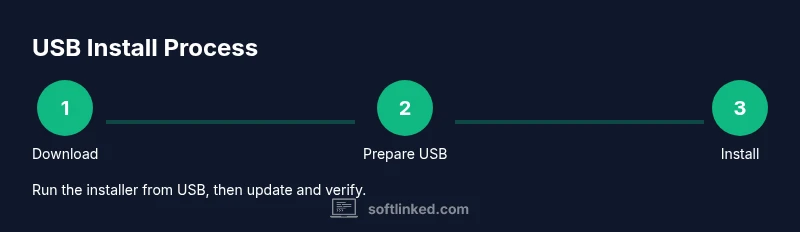
How to install software without a CD drive is straightforward: download the official installer, create a bootable USB installer when needed, and run the setup from the USB or a secured network share. Ensure you have the correct license keys and administrator access, and use a trusted source before proceeding. This approach works across Windows, macOS, and Linux with vendor-approved installers. Always verify checksums when available.
Why You Might Need to Install Software Without a CD Drive
Many computers no longer come with optical drives. In workplaces, software is distributed through downloads or network shares. Laptops may lack optical discs entirely. Even when you have a physical installer, CDs degrade or go missing, and many software vendors no longer ship physical media. Understanding why this method matters helps you plan better: you can install quickly on multiple machines, preserve the original disc for licensing, and avoid buying hardware just to access the installer. In this section we cover typical scenarios and constraints, such as the need for internet access, admin rights, and license validation. We'll also discuss differences across platforms—Windows, macOS, and Linux—so you can pick the right workflow for your environment. Finally, we outline the core prerequisites and safety steps to minimize risk during installation, like scanning downloaded files and verifying official sources. By the end of this section, you'll have a mental map of the routes to software installation without physical media.
Understanding Installation Methods
There are several reliable routes to install software without using a CD. The most common are direct downloads from the vendor, creating a USB installer, or using an official app store or enterprise deployment tool. For individual users, downloading from the official site and running the installer locally is simplest. In corporate environments, IT teams may deploy software across many machines via a shared network location or mobile device management (MDM). Portable apps offer a way to run software without a formal install in some cases, though they may lack full integration with the system. Across all options, confirm you are using trusted sources and that the installer matches your operating system and edition. Finally, consider offline installers if you anticipate limited connectivity, but validate them with vendor-supported channels.
Preparation: Prerequisites and Safety Considerations
Before starting, gather your prerequisites: an internet-enabled computer, a USB drive or external disk, admin rights or root access, and a valid license or account for activation. Always verify the installer from the official source and, when available, check cryptographic hashes or digital signatures. Back up any existing data or create a system restore point in case the installation affects current configurations. Installations can also impact security settings; plan to re-enable any disabled protections after completion. Make sure your antivirus software is up to date and temporarily disable features like built-in malware scanning if the vendor recommends it during setup. Finally, prepare to document the exact software version and any activation steps for future maintenance.
Option 1: Download Installers from the Official Source
Downloading the installer directly from the vendor’s official site is the safest route. Navigate to the software’s product page, select the correct edition and language, and download the installer file. If the vendor provides checksums or a digital signature, verify them to confirm integrity. Save the installer to a known folder and keep a copy for future reinstallations. Avoid third‑party mirrors or peer-to-peer sources, which may host tampered files. If the download is large, ensure your connection is stable and consider downloading over a wired connection to reduce interruptions. After download, scan the file with your antivirus software and prepare to start the installation when you’re ready.
Option 2: Create a USB Installer on Windows
A USB installer lets you run or install software without needing a CD. First, format a USB drive with FAT32 or exFAT, then use a tool like Rufus to create a bootable USB from the downloaded installer. Select the correct target system (bios/UEFI) and ensure the USB drive is large enough for the installer and any needed updates. This process is especially useful for multi‑machine deployments or when working on older hardware lacking optical drives. Label the drive clearly and eject it only after the process completes. If your software requires network access during setup, ensure the installer can reach the vendor’s activation servers once installed.
Option 3: Use a USB Installer on macOS or Linux
On macOS, you can use Disk Utility or the command line to prepare a bootable USB, then copy the installer to the drive and set the startup disk accordingly. On Linux, dd or a dedicated USB creator tool can write the installer image to the USB. In both cases, verify the installer’s integrity with a checksum before copying it to the USB. After creating the USB, boot the target machine from USB (adjust BIOS/UEFI settings if necessary) and proceed with the vendor’s installation prompts. For Mac users, opt for a macOS‑specific installer to ensure proper system integration and licensing management.
Option 4: Use a Network or Enterprise Deployment
In corporate settings, software may be deployed via a centralized network share or an admin console. This approach reduces the need for physical media and ensures consistent configurations across devices. Ensure each machine has network access to the deployment share, and verify that licenses and activation methods are suitable for multiple installations. Network deployments typically require IT permissions and may involve preinstall scripts or configuration profiles. Always coordinate with your IT team to align with security policies and licensing terms.
Troubleshooting Common Issues
Installation without a CD can encounter issues like missing dependencies, incompatible system architecture, or blocked network activity. If the installer fails to start, check that you downloaded the correct edition and that your OS version meets the minimum requirements. If a dependency is missing, install it from the vendor’s site or use package managers when appropriate. For network deployments, verify firewall settings and DNS resolution. If activation fails, double‑check your license key and time synchronization on the host. In all cases, consult the vendor’s support resources for known issues and recommended workarounds.
Best Practices and Security Tips
Security should guide every non‑CD installation. Always download from official sources and verify hashes/signatures. Keep your system fully patched, use a modern web browser, and enable versioned backups. Disable auto‑run features where possible to reduce the risk of malware spreading via removable media. After installation, run a full system update, restart, and test essential features. Maintain a log of installers and activation details for auditing purposes.
What to Do After Installation
Once installation completes, verify the software version and update status. Run the built‑in checks for plugins or extensions and ensure all components function correctly. Register or activate the license as required, and restore any security settings you modified during installation. Create a system restore point or backup of the newly installed environment. Finally, document the steps you took and the exact installer version for future reference.
Tools & Materials
- Official software installer download(Download from the vendor’s official site; verify edition and language.)
- USB flash drive (8 GB+ recommended)(Format to FAT32/exFAT; used to host a bootable installer.)
- Computer with internet access(Source installer and verify checksums if offered.)
- Administrator or root access(Needed to install software and modify boot options.)
- Approved license key or account(Keep activation details handy for post‑install steps.)
- Optional: USB‑C adapter or external drive(Useful for devices with limited USB compatibility.)
Steps
Estimated time: 60-90 minutes
- 1
Identify software and system requirements
Confirm the operating system version, hardware requirements, and any dependencies. This ensures the installer will run smoothly and helps avoid wasted time on incompatible systems. Document your target configuration for easier troubleshooting if needed.
Tip: Record baseline system specs (CPU, RAM, disk space) before starting. - 2
Download the official installer
Visit the vendor’s official site, select the correct edition and language, and download the installer file. If checksums are provided, verify them to confirm file integrity. Save the file in a known folder and keep a copy for future reinstalls.
Tip: Avoid third‑party mirrors to reduce risk of tampered files. - 3
Prepare a USB installer
Format a USB drive to FAT32 or exFAT, then use a tool to create a bootable USB from the downloaded installer. Ensure the USB drive has enough space for the installer and updates. Label the drive clearly to prevent confusion during deployment.
Tip: Eject other USB devices to prevent accidental selection during setup. - 4
Configure BIOS/UEFI to boot from USB
Enter the BIOS/UEFI settings and set the USB as the primary boot device. Save changes and reboot. This step is essential to run the installer from the USB and starts the standard setup flow.
Tip: If you don’t see USB boot options, disable Fast Boot in BIOS/UEFI. - 5
Boot from USB and start the installer
Restart the computer and choose the USB boot option. Follow the on‑screen prompts to begin installation. Select the correct installation path and options as recommended by the vendor.
Tip: Stay connected to the internet if updates or activations occur during install. - 6
Enter license information and complete installation
Input the license key or sign in to activate the software. Complete any required configuration options and let the installer finish. Reboot if prompted to ensure all components are properly integrated.
Tip: Keep activation details documented for audits or reinstallation. - 7
Update and verify the installation
Run available updates, reboot if needed, and verify the software version matches the expected build. Test core features to confirm the install is functional and secure. Create a restore point for future safety.
Tip: Schedule future updates and record the final version in your notes.
Your Questions Answered
Do I need an internet connection to install software without a CD?
Yes for most installations you’ll need internet to download the installer or updates, unless you already have a local copy from the vendor. Some offline installers exist, but they’re provided by the vendor for planned offline use.
Yes, internet access is usually required to download the installer or updates, unless you have an offline package from the vendor.
Can I install from an external hard drive?
Yes, you can copy the installer to an external drive and run it from there, provided the drive remains connected and accessible during setup. This is convenient for multi‑machine deployments.
Yes, you can install from an external drive as long as it’s connected during installation.
What if the installer requires a CD or DVD?
Some legacy software still requires a disc for validation or installation. Check with the vendor for a digital or offline installer option, licensing workflow, or a workaround compliant with their terms.
Some older programs need a disc; contact the vendor for a digital installer or offline option.
Is it safe to download installers from the internet?
Only download from official sources. Avoid torrents or shady mirrors to prevent malware or tampered installers. Verify vendor signatures when available.
Only download from official sources to avoid malware; verify signatures when possible.
Do I need admin rights to install software?
Most installations require administrator or root access to modify system files and registry settings. If you don’t have rights, you may need to request elevated privileges or install per‑user where supported.
Administrator access is usually required to install software.
How do I ensure license compliance during non‑CD installs?
Keep your license key, activation data, and proof of purchase. Use vendor tools for activation and maintain records for audits. Do not use unauthorized copies.
Keep your license information and activate legally.
Watch Video
Top Takeaways
- Download installers only from official sources.
- Prepare a USB installer for offline or multi‑machine installs.
- Verify checksums or signatures before running the installer.
- Activate licenses legally and retain activation details.
- Test and update software after installation.