How to Install Software on a Computer: A Practical Guide
Learn how to install software on a computer across Windows, macOS, and Linux. This step-by-step guide covers prerequisites, safe sources, verification, and post-install checks for reliable, malware-free software.


This guide explains how to software install in computer across Windows, macOS, and Linux. It highlights prerequisites, safety best practices, and a clear, repeatable process you can follow. By the end, you’ll understand how to install software safely, verify integrity, and perform basic post-install checks.
Why Proper Software Installation Matters
According to SoftLinked, a clear, repeatable installation process reduces the risk of security breaches, system instability, and compatibility issues. Learning how to software install in computer correctly helps developers, students, and professionals avoid common pitfalls like unsafe sources, partial installations, and missing prerequisites. A proper install ensures that the application is registered with the OS, receives necessary updates, and integrates with your existing environment. By following a structured approach, you reduce the chance of malware slipping in, keep your machine performing well, and simplify troubleshooting if something goes wrong later. In short, thoughtful installation sets the foundation for reliable software usage and productive workflows.
Key ideas to keep in mind include checking system requirements, using official sources, verifying signatures or checksums when offered, and choosing installation options aligned with your needs. This approach also applies across Windows, macOS, and Linux, with small variations in how installers are delivered and how permissions are granted. The SoftLinked team emphasizes consistency: treat every installation as a repeatable process rather than a one-off task. This mindset makes it easier to audit, migrate, or roll back software later if needed.
Prerequisites and Safety Essentials
Before you begin any install, ensure your computer is prepared for a smooth experience. Start with a full backup of important data and create a system restore point if your OS supports it. Confirm that your operating system is up to date, because vendor installers often depend on libraries or runtime environments that are newer than your current setup. Have your admin credentials handy, because most software installs require elevated privileges to modify system directories or registry settings. Use a reliable internet connection to fetch installers, and keep security software enabled (without interfering with the installation process). Finally, verify that you’re downloading from an official publisher site or trusted app store. This reduces the risk of bundled adware, malware, or tampered installers. By establishing these prerequisites, you set the stage for a safe, effective installation across platforms.
From a security perspective, rely on trusted sources and avoid third-party mirrors unless you absolutely must. If you’re in a managed environment (school or workplace), follow IT policies for compatibility and licensing. SoftLinked’s guidance here is simple: prepare, verify, and proceed with caution. If anything looks suspicious or unfamiliar, pause and double-check with official help pages before continuing.
Installing on Windows: A Practical Walkthrough
Windows remains a common platform for many software packages, and the installation flow typically involves an executable installer or a Microsoft Store package. Start by navigating to the official product page and downloading the installer from the publisher’s site or a reputable store. If an installer is provided as a ZIP, extract it first and examine the contents. When you run the installer, choose installation options that match your needs (for example, Typical vs. Custom) and deselect any bundled toolbars or nonessential add-ons that aren’t necessary. Use the installer’s default settings unless you have a specific reason to customize. After installation completes, launch the program to confirm it starts correctly and check for prompts to install updates or additional components.
Windows installers often require a system restart. If asked, save your work and reboot to finish the setup. During or after installation, you can verify integrity by checking the digital signature (if provided) and ensuring the version matches the published one. If you encounter errors, consult the publisher’s troubleshooting guide and Windows Event Viewer for clues. This Windows-specific flow represents a reliable approach to how to software install in computer on a popular desktop OS while minimizing risk.
Installing on macOS: A Practical Walkthrough
macOS installations frequently use .dmg or .pkg files. Begin by downloading the installer from the developer’s official site or Apple’s App Store. For .dmg, open the disk image, then drag the application to the Applications folder. For .pkg, run the installer and follow the on-screen prompts, selecting options that fit your needs. macOS may prompt you to allow the installation in System Preferences > Security & Privacy if the app isn’t from an identified developer; approve this after verifying the source. After installation, you should launch the app and confirm that it operates as expected. Consider running any bundled first-time setup wizards and enabling automatic updates if available.
A core macOS nuance is gatekeeping at the system level, so you should expect occasional prompts to authorize changes. Keep your system’s Gatekeeper settings aligned with your security policy, and only install software from trusted publishers. This approach helps you master how to software install in computer on macOS while maintaining a balance between convenience and safety.
Installing on Linux: A Practical Walkthrough
Linux distributions vary in how they deliver software, but package managers are the most common and reliable method. Depending on your distribution, you can use APT (Debian/Ubuntu), DNF (Fedora), or YUM (older RHEL variants). Start by identifying the exact package name or repository. Update your package index (for example, sudo apt update) and then install the package (sudo apt install package-name). Alternatives include Snap or Flatpak when the software isn’t available in the distribution’s repositories. These tools allow you to install distribution-agnostic packages. After installation, you may need to configure environment variables, permissions, or desktop shortcuts, depending on the software.
Linux users can often verify installation by checking the version (e.g., software --version) and ensuring the program runs from the terminal or application menu. If you prefer offline installations, you can download the package files on another machine, transfer them via USB, and install locally. This shows a practical approach to how to software install in computer on Linux, particularly when managing multiple machines or a custom setup.
Post-Install Verification and First Run
Regardless of the platform, the post-install phase ensures the software behaves as expected. Start by checking the version number and applying the latest updates. Review any first-run wizards or configuration prompts; configure defaults that align with your workflow, such as UI language, theme, or integration with other tools. Run a couple of core features to identify early issues: license activation, essential data import, or plugin compatibility. If the product requires credentials or licenses, enter them carefully and store them securely. Finally, document the installation path and any custom settings you made so future updates or uninstalls are straightforward. A disciplined verification process helps confirm that how to software install in computer results in a stable, usable environment across platforms.
Choosing Install Methods: Online vs Offline, and Package Managers
Sometimes you’ll encounter situations where you must choose between online and offline installation, or decide which package manager to use. Online installers pull the latest version and updates automatically; offline installers are essential in air-gapped environments or slow networks. When using Linux, package managers (APT, DNF, Zypper) streamline dependency resolution and updates, while Snap/Flatpak offer cross-distro packaging. The central idea remains: prefer official, signed installers, verify integrity when possible, and avoid third-party bundles. By aligning installation methods with your environment (network constraints, security policies, licensing), you improve reliability and maintainability over time. This section reinforces how to software install in computer in a way that scales from a single PC to a fleet of machines.
Tools & Materials
- Official installer or trusted app store access(Only download from publisher site or official store.)
- Administrative access(Be ready to authenticate during installation.)
- Backup solution(Create a restore point or backup critical data.)
- Checksum/digital signature verification(Use SHA-256 or code-signing signatures when available.)
- Stable internet connection(Prefer wired connections for larger downloads.)
- Disk space assessment(Ensure enough space for installer and dependencies.)
Steps
Estimated time: 20-40 minutes
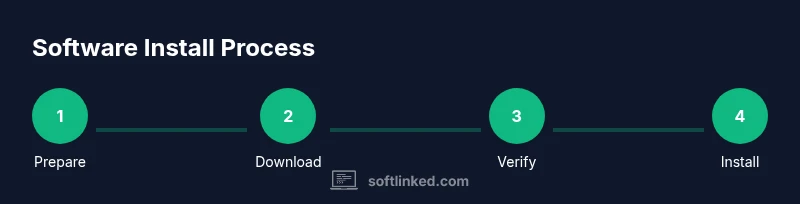
- 1
Prepare your system
Back up important data, ensure OS is up to date, close other applications, and confirm you have admin rights. This prevents data loss and reduces conflicts during installation.
Tip: Create a system restore point where available. - 2
Download the official installer
Navigate to the publisher’s site or official store and download the installer package. Avoid third-party mirrors to minimize risk of tampered software.
Tip: Verify the download source before saving the file. - 3
Verify integrity
Check the installer’s checksum or digital signature if provided to ensure file authenticity and integrity.
Tip: Use the official checksum file and a trusted hashing tool. - 4
Run the installer
Launch the installer and choose appropriate options (Typical vs Custom). Be alert for optional adware or bundled software and deselect them.
Tip: If prompted for permissions, grant them only to trusted installers. - 5
Complete post-install setup
Finish any first-run setup, configure essential preferences, and check for available updates. Create shortcuts or launchers if needed.
Tip: Enable auto-update if offered. - 6
Verify your installation
Open the application and run a basic feature test to ensure correct operation. If issues appear, consult the publisher’s help resources or reinstall using official steps.
Tip: Record the version number for future reference.
Your Questions Answered
What are the safest sources to download software from?
Always download from the publisher’s official site or trusted app stores. Verify signatures or checksums when provided and avoid shady mirrors. If in doubt, consult the publisher’s help pages or IT support.
Always use official sources and verify integrity before installing.
Do I need administrator rights to install software?
Most installers require elevated privileges to modify system files or settings. If you don’t have admin rights, contact the device owner or IT support to proceed.
Yes, admin rights are usually required.
Can I install software without internet access?
Yes, with offline installers or portable packages provided by the publisher. Ensure you have all necessary dependencies and licenses available offline.
Offline installs are possible with the right offline packages.
Why do installers sometimes need internet access?
Installers may download additional components or check for updates during setup. In air-gapped environments, offline installers are preferred to avoid network activity.
Some installers require internet for dependencies or updates.
What should I do if an installer warns about security risks?
Don’t ignore warnings. Verify the source, check digital signatures, and consider postponing installation if the source isn’t trusted.
Don’t ignore warnings; verify the source first.
Is there a risk of malware when installing software?
Yes, malware risk exists if you download from untrusted sources. Always use official sources and scan files with reputable antivirus software.
There is malware risk if you go off official sources.
How do I uninstall software if something goes wrong?
Use the program’s uninstaller or the OS’s built-in removal tool. Keep notes on changes to revert configurations if needed.
Use the built-in uninstall options to remove software.
Watch Video
Top Takeaways
- Install from official sources to avoid tampering.
- Verify integrity before running installers.
- Choose installation options that fit your needs.
- Post-install testing confirms a clean setup.