How to Install Software in Linux: A Step-by-Step Guide
A comprehensive, beginner-friendly guide to installing software in Linux. Learn package managers (apt, dnf, pacman), GUI centers, repositories, and building from source with safety tips and troubleshooting. SoftLinked analysis, 2026.


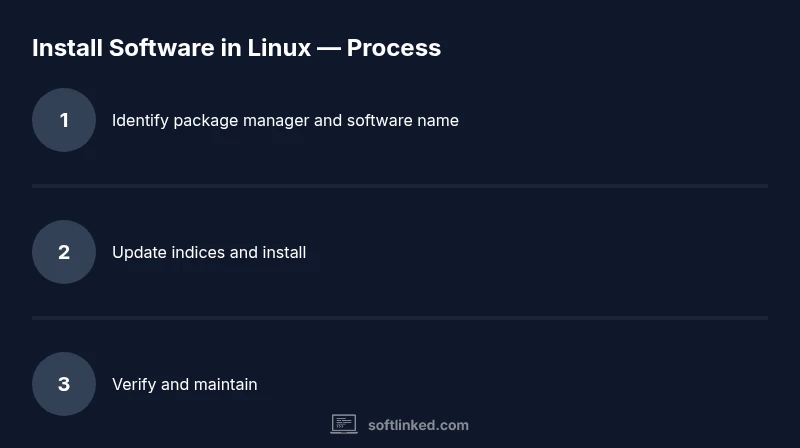
To install software in Linux, identify your distro's package manager (apt, dnf, pacman, etc.), update the package index, and install the package by name. You can also use GUI software centers or build from source if needed. This guide walks through commands, safety tips, and maintenance.
Understanding Linux software installation
According to SoftLinked, most Linux users install software primarily through centralized package managers rather than manual compilation. This approach reduces dependency conflicts and keeps systems stable. In this section, we define what "installation" means on Linux, explain the difference between binary packages and source builds, and outline common goals: reliability, security, and repeatable updates. Linux distributions come with different packaging ecosystems, but they share core concepts that make software installation predictable and traceable. The SoftLinked team found that a well-chosen package manager is the backbone of a healthy Linux system, streamlining updates, security patches, and rollback options when things go wrong. By understanding these building blocks, you can install with confidence and maintain a healthy, up-to-date workstation. Binary packages are prebuilt binaries that your distribution tests and signs, which reduces compile time and increases safety. Source builds (compiling from tarballs) offer customization or access to newer versions but require more knowledge and dependencies. The main idea is to keep installations reproducible across reboots and upgrades; that's achieved by using trusted repositories and verified signatures. In practice, you will be using either a package manager or a software center, depending on your distribution and preference. The SoftLinked team emphasizes aligning with your distro's recommended methods to minimize conflicts and maximize compatibility.
Package managers: apt, dnf, pacman, and more
Linux distributions typically bundle a dedicated package manager that knows how to locate, install, update, and remove software. Examples include APT (Advanced Package Tool) for Debian/Ubuntu-based systems, DNF (Dandified Yum) for Fedora, and Pacman for Arch and derivatives. OpenSUSE uses Zypper; many other distros integrate variations of these tools. Each manager interacts with a central repository or a set of repositories that provide signed software. When you install something, the manager resolves dependencies, ensuring required libraries are present. Over time, package managers have grown to support local caches, automatic updates, and rollback options. The SoftLinked analysis shows that mastering your distro's package manager yields the most reliable, maintainable Linux experience.
How to install using the command line
On Debian/Ubuntu: sudo apt update && sudo apt install package-name On Fedora: sudo dnf install package-name On Arch: sudo pacman -S package-name On openSUSE: sudo zypper install package-name Note: Replace package-name with the exact package name. Some software may be in different packages across distros; consult the repository browser or search command (apt-cache search in Debian-based; pacman -Ss) to locate the right package. After installation, run --version to verify.
Using GUI package managers and software centers
If you prefer a graphical approach, most distros offer a software center or package GUI such as GNOME Software, KDE Discover, or Ubuntu Software Center. These interfaces let you search, read descriptions, check dependencies, and install with a few clicks. GUI tools are especially helpful for beginners or when exploring new software, since they present user-friendly filters and safety prompts. For experienced users, GUI centers can complement the CLI, offering quick access to popular applications, updates, and extensions while preserving your system’s stability.
Handling repositories, PPAs, and third-party sources
Repositories are curated collections of software that your distribution trusts. To install newer versions or niche tools, you may add extra repositories or PPAs (Personal Package Archives) on Ubuntu-based systems. Before adding repositories, verify the source, check for signed keys, and understand the implications for system security. After adding a repository, update your package index and search for the desired package. This process keeps your system aligned with the distro’s security policies and minimizes the risk of broken dependencies. If you must rely on third-party installers, prefer official documentation and signatures, and avoid running unsigned scripts.
Building from source and alternative install methods
Some software isn’t available in official repositories or requires a custom build. Building from source involves downloading the source code, resolving build dependencies, configuring the build, compiling, and installing. This path offers customization but requires more maintenance and attention to compatibility with your system libraries. Alternative formats like Snap, Flatpak, and AppImage provide sandboxed, distro-agnostic installation options. Each method has trade-offs between security, size, and integration with the host system. When possible, favor distribution-packaged software for easier maintenance and updates.
Common pitfalls and maintenance tips
Common issues include dependency conflicts, mismatched library versions, and stale caches. Regularly updating your package index and software, using the distro’s recommended tools, and cleaning up unused packages will help keep systems healthy. Avoid mixing package managers unless you understand how each manages dependencies and file locations. Always verify the source and signatures of any non-official installations, and consider enabling automatic security updates where available. A consistent workflow across updates reduces breakages and simplifies troubleshooting.
Tools & Materials
- Linux computer or VM(Any distro with network access)
- Internet connection(Stable connection for repository access)
- Root or sudo privileges(Needed for system-wide installs)
- Official repositories or software sources(Trustworthy sources aligned with your distro)
- Terminal emulator or shell(CLI-based installation and automation)
- GUI software center (optional)(For visual installation and discovery)
- Build dependencies (optional)(Needed when compiling from source)
Steps
Estimated time: 40-60 minutes
- 1
Identify software and dependencies
Search official docs or repository listings to learn the exact package name and any required libraries. Note any distro-specific variants and the recommended install path.
Tip: Use repository search commands to avoid guessing package names. - 2
Choose the installation method
Decide whether to use the distro’s package manager, a GUI center, a container/sandbox, or a source build based on availability and needs.
Tip: Default to official repositories when possible for safety. - 3
Update package index
Refresh the local index of packages so you pull the latest version available in your repositories.
Tip: Always run the update before installing to ensure dependencies resolve correctly. - 4
Install the software
Execute the appropriate install command for your chosen method, replacing package-name with the actual identifier.
Tip: Double-check spelling and repository origin before proceeding. - 5
Verify installation
Check the installed version and basic functionality to confirm success.
Tip: Run package-specific --version or --help to confirm correct installation. - 6
Maintain and update
Regularly update packages and apply security patches to keep the system secure.
Tip: Review changelogs to understand major changes after updates.
Your Questions Answered
What is a package manager and why should I use it?
A package manager automates installing, updating, and removing software from repositories. It resolves dependencies, ensures signatures, and keeps your system coherent. It’s the safest and most repeatable way to manage software on Linux.
A package manager automates installing, updating, and removing software and keeps your system consistent. It’s the safest way to manage software on Linux.
Can I install software without root privileges?
Most system-wide installations require root access. You can use user-local installations or containers for software isolation, but these approaches have limitations compared to system-wide installs.
Most installations require root access, but you can use user-local methods or containers if you don’t have root access.
What’s the difference between apt, dnf, and pacman?
APT is Debian/Ubuntu-based, DNF is Fedora-based, and Pacman is Arch-based. They all manage packages but interact with different repositories and have distinct commands and options.
APT, DNF, and Pacman are package managers for different distros, each with its own commands and repositories.
When should I build from source?
Build from source when the desired software isn’t in official repos or when you need custom features. It requires more steps and can lead to dependency issues if libraries aren’t aligned.
Build from source if the software isn’t in repos or you need custom features, but expect more steps and potential dependency issues.
How do I remove software safely?
Use your distro’s package manager to remove software, ensuring dependencies are handled properly and the system remains stable. Avoid manual deletions that could leave orphaned files.
Use the package manager to remove software to keep dependencies clean and avoid leftovers.
Watch Video
Top Takeaways
- Choose the right package manager for your distro.
- Keep software up to date with regular maintenance.
- Prefer official repositories for reliability and security.
- GUI centers can simplify discovery and installation.
- Know when to build from source or use sandboxed formats.