How to fix software glitch on samsung: A step-by-step guide
SoftLinked's complete guide explains how to fix software glitch on samsung devices with safe, step-by-step fixes. Learn common causes, essential backups, and when to seek professional help.


This guide helps you fix a software glitch on Samsung devices by isolating causes, applying proven resets, updating software, and avoiding data loss. You’ll start with quick checks, then move to step-by-step fixes for common Samsung glitches, including stuck animations, lag, and app crashes. Follow the steps in order for reliable results.
Understanding Samsung software glitches
Software glitches on Samsung devices refer to temporary malfunctions that affect the device's responsiveness, app stability, or OS behavior without obvious hardware failure. These can show up as freezing screens, apps crashing, laggy performance, battery drain, or boot animations stuck on a logo. According to SoftLinked, most glitches are software-related and solvable with guided steps. The goal is to isolate whether the issue is global (OS) or app-specific, and to restore normal operation without data loss. Start by noting when the problem occurs, which apps are involved, and whether it happens after an update or after installing a new app. This context helps you choose the right fixes quickly.
Common causes of glitches on Samsung devices
Multiple factors can produce the symptoms described above. Outdated system software or security patches can leave known bugs unfixed. Corrupted cache or data from apps can trigger random freezes. Inconsistent storage space or a failing SD card can cause app hiccups and slowdowns. Third-party apps or widgets may conflict with the OS after updates. In some cases, lingering background processes keep resources busy, making the UI feel unresponsive. SoftLinked analysis shows that while hardware problems exist, the majority of user-reported glitches originate in software layers that are fixable with guided steps.
Immediate troubleshooting steps you can try
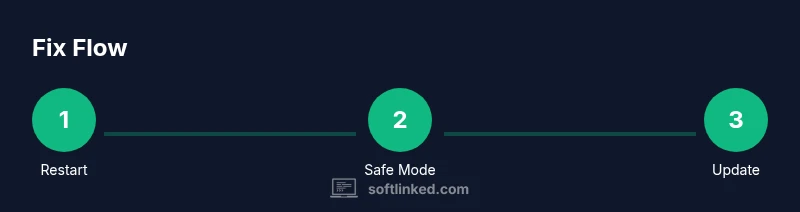
Before diving into advanced fixes, perform a quick triage to see if the issue is isolated to one app or affects the whole device. Reboot the phone to clear temporary memory and stop stuck processes. Test in Safe Mode to disable third-party apps; if the glitch disappears, an installed app is likely at fault. Clear cache and data for suspect apps, ensure you have an active backup, then check for a system update. Ensure at least 20% free storage and a stable network connection. If you notice the problem after a recent update, revert the update if possible and recheck.
Advanced fixes and when to consider a factory reset
If the device still misbehaves after the quick triage, try deeper steps in sequence: wipe the cache partition from the recovery menu to remove corrupted temporary files; reset app preferences to restore default settings; reset network settings to fix misconfigured connections; free up storage and factory reset only if issues persist and a data backup exists. Factory data reset is a last resort and will erase personal data; restore from your backup afterward and reinstall essential apps.
Preventing future glitches: best practices
Keep software up to date, install apps only from trusted sources, and monitor battery vs. performance to detect anomalies early. Regularly clear cache for problematic apps, manage storage to maintain free space, and limit the number of active background processes. Enable automatic updates where appropriate and back up data regularly so you can recover quickly after a glitch.
When to seek professional help
If the phone won’t boot, shows a persistent boot loop, or displays corrupt OS files after troubleshooting, it’s time to contact Samsung support or an authorized service provider. Gather error codes, recent app changes, and a backup to speed up diagnosis. SoftLinked Team recommends seeking professional help when you’re unsure or when data integrity could be at risk.
Tools & Materials
- Samsung smartphone with charged battery(Ensure at least 50-60% battery before starting major fixes)
- Stable Wi‑Fi connection(Needed for downloads and software updates)
- Backup method (Google Drive, Samsung Cloud, or local backup)(Back up photos, apps, and settings before major fixes)
- USB cable and computer (optional)(Only if you plan to back up via computer)
- Model-specific recovery instructions(Consult Samsung support if needed)
Steps
Estimated time: 60-90 minutes
- 1
Restart the phone
Press and hold the power button, then tap Restart. A quick reboot clears transient memory and stops stuck processes. If the screen is unresponsive, perform a forced restart by pressing and holding Power + Volume Down for about 10-15 seconds until the device restarts.
Tip: A simple restart fixes many glitches without risking data. - 2
Enter Safe Mode to test isolation
Power off the device, then power it on and release when the Samsung logo appears. If you reach the home screen, safely hold Vol Down (or follow your model’s steps) until you see Safe Mode. Use the device for a few minutes to see if the glitch recurs; if not, a third-party app is likely the culprit.
Tip: Note which apps were recently installed or updated. - 3
Wipe cache partition (temporary files)
Boot into recovery: press and hold Volume Up + Power (and Bixby if present) until the recovery menu appears. Use the volume keys to highlight 'Wipe cache partition' and press Power to confirm. After it finishes, select Reboot system now.
Tip: This does not erase personal data but can remove corrupted cache. - 4
Check for OS updates
Go to Settings > Software update > Download and install. If an update is available, install it and reboot. Updates fix known bugs and improve stability, which may resolve the glitch.
Tip: Back up first in case the update requires a reset of app data. - 5
Evaluate suspect apps
In Settings > Apps, inspect recently updated or suspicious apps. Clear cache, Force stop, or Uninstall updates if needed. If the glitch disappears after removing one app, you’ve found the culprit.
Tip: Test after each change to isolate the exact app. - 6
Free up storage and optimize settings
Check Storage usage and remove unused apps or media. Move photos and videos to cloud or a computer, then ensure at least 15-20% free space remains. Reduce widgets and background activity where possible.
Tip: Low storage commonly causes slowdowns and app crashes. - 7
Reset network settings
In Settings > General management > Reset > Reset network settings, confirm to reset saved Wi‑Fi networks and Bluetooth connections. Reconnect to Wi‑Fi and test for the glitch again.
Tip: This step clears misconfigured networks without affecting personal data. - 8
Factory reset as a last resort
If none of the above steps resolve the issue, back up all data and perform a factory data reset under Settings > General management > Reset > Factory data reset. After reset, restore essential data from your backup and reinstall needed apps.
Tip: Only use when necessary to avoid data loss. - 9
Reinstall essentials and validate
After reset and restore, monitor the device for a few days. Reinstall apps one by one and test behavior to ensure stability.
Tip: Maintain regular backups to recover quickly if issues return.
Your Questions Answered
My Samsung phone is stuck in a boot loop. What should I do?
A boot loop often stems from a corrupted update or software conflict. Start with a force restart, then try Safe Mode to isolate apps. If needed, wipe cache partition or perform a factory reset after backing up data.
If your Samsung is stuck in a boot loop, try a force restart, then use Safe Mode to isolate apps. If the issue continues, wipe the cache or perform a factory reset after backing up your data.
Will factory reset erase my data?
Yes. A factory reset reverts the device to its original software state and erases apps, settings, and files not backed up. Always back up before proceeding.
A factory reset erases data. Back up first before you proceed.
How do I tell if the glitch is OS vs an app?
If the issue occurs in Safe Mode or across all apps and the home screen, it’s more likely OS-related. If the problem vanishes in Safe Mode, a third-party app is likely the culprit.
If Safe Mode fixes it, a third-party app is the likely cause; otherwise, the OS is implicated.
Should I wipe cache partition even if there’s no issue?
Wiping cache can remove corrupted temporary files and improve performance, but it’s optional if the device is already stable. It’s a low-risk step to try before more drastic measures.
Wiping cache is optional if you’re not seeing issues, but it’s a safe, low-risk step to try first.
Is Safe Mode safe for all Samsung devices?
Safe Mode is a built-in diagnostic mode that disables third-party apps, helping identify problems. It is safe for most Samsung devices and is a good next step when troubleshooting.
Yes. Safe Mode is a safe diagnostic mode to use when troubleshooting.
What should I prepare before professional help?
Note the symptoms, when they started, and any updates or apps installed recently. Collect error messages and back up critical data to speed up diagnosis.
Write down symptoms, start time, recent changes, and back up data before service.
Watch Video
Top Takeaways
- Start with a soft restart to clear memory.
- Safe Mode helps identify app-related glitches.
- Keep software updated to fix known issues.
- Back up data before major changes.
- Factory reset is a last resort.