How to Fix iPhone Software Glitches: A Step-by-Step Guide
SoftLinked's practical, safe guide to diagnosing and fixing iPhone software glitches. Learn proven steps from backup and updates to full restores, with tips to protect data and keep your device running smoothly.


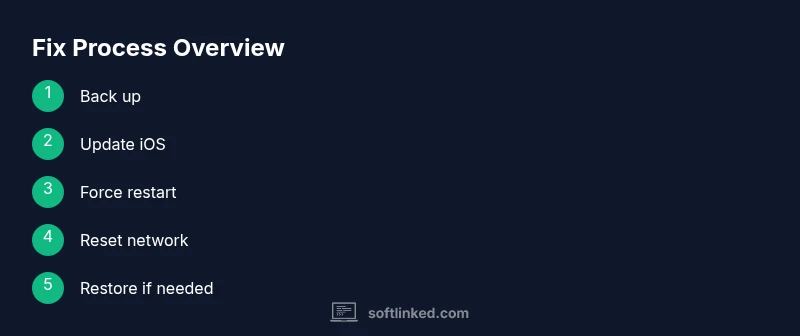
If your iPhone is glitching, start with safe, proven fixes: back up your data, update iOS, perform a force restart, and reset network settings. If problems persist, offload or uninstall troublesome apps, then reset all settings or erase all content as a last resort. This approach keeps data safe while addressing most issues. According to SoftLinked, these steps cover the majority of common glitches.
Understanding iPhone Software Glitches
iPhone software glitches come in many forms: random freezes, apps crashing, erratic touch response, or unexpected reboots. Most glitches originate from software conflicts, outdated code, or cached data that interferes with normal operation. The SoftLinked team emphasizes that many issues are not hardware-related and can be resolved with a careful sequence of safe, reversible fixes. By learning the common causes and a repeatable troubleshooting process, you can reduce frustration and protect your data. This guide helps you distinguish between a minor hiccup and a signal that a deeper fix is needed, so you can act confidently rather than guess blindly.
Key idea: start with non-destructive steps, keep a recent backup, and advance to more involved fixes only if necessary. Being systematic minimizes data loss and downtime while restoring stability to your device.
Quick Pre-Flight Checks
Before making changes, perform a quick audit of the basics. Check battery level and storage space; low storage can cause performance issues that masquerade as glitches. Confirm your Wi-Fi or cellular connection is stable, as network hiccups can affect app behavior and background processes. Review recent updates or app installations that occurred before the glitches started. If you’re using a lot of apps at once, try closing them or rebooting to clear temporary caches. Finally, ensure you have a complete backup available in iCloud or Finder; this protects you if you need to revert changes or perform a full restore.
Practical takeaway: a clean slate and a confirmed backup reduce risk as you proceed through fixes.
Core Fixes That Stabilize Performance
Many glitches resolve with a small, deliberate set of steps. Start by updating iOS to the latest version, as new builds fix known bugs and improve compatibility. Then perform a force restart to clear transient states that may be causing instability. If the issue persists, reset network settings to repair misconfigured connections that can affect apps and services. Offloading or uninstalling apps that crash frequently can isolate problem sources; reinstalling them later sometimes resolves corruption. Finally, review app updates in the App Store and install any available fixes.
Executed in order, these steps fix most glitches without risking data loss.
Troubleshooting App-Specific Issues
Some glitches are app-specific rather than system-wide. Start by updating the problematic apps to the latest version, as developers often patch compatibility issues. If the app remains unstable, offload it (to preserve documents and data) to test whether the issue is app-related. If the app continues to misbehave, uninstall and reinstall it to remove any corrupted files. Check for in-app permissions or settings that might be contributing to the problem. If many apps are glitchy, the root cause may be a system-level problem rather than a single application.
System-Level Troubleshooting: Network, Settings, and Storage
Glitches can stem from system-level misconfigurations. Resetting network settings clears saved Wi‑Fi passwords and VPNs, which can fix connectivity-induced problems while preserving overall data. If performance remains inconsistent, reset all settings (without erasing data) to rebuild preferences and system defaults. Check iPhone storage; if space is critically low, performance degrades and apps may crash. Consider offloading unused media and apps to free room, or move photos and videos to iCloud or a computer backup. These actions tend to restore baseline stability without touching personal content.
When to Consider a Full Restore
If glitches persist after all non-destructive options, a full restore becomes a viable path. Back up your iPhone, then erase all content and settings to return to factory conditions. This step eliminates deeply corrupted system files but requires restoring data carefully from a clean backup. Use Finder on macOS or iTunes on Windows to reinstall iOS and restore your data. If you choose this route, proceed incrementally: set up the device as new first to confirm that the problem is not your backup, then selectively restore apps and data.
Preventive Habits for Long-Term Stability
Prevention beats cure. Enable automatic iOS updates so you receive bug fixes promptly. Regular backups guard against data loss when glitches force restoration. Maintain free storage above a healthy threshold to keep the system responsive. Periodically review app permissions and disable unnecessary background refresh for rarely used apps. Finally, keep a simple diagnostic habit: if a new behavior starts after an update or install, retrace steps and test one variable at a time to identify the trigger.
Documenting Glitches for Better Support
Keeping a short log of when glitches occur helps you and any support team identify patterns. Note the time, what you were doing, which apps were active, and whether a reboot or update preceded the issue. Screenshots or screen recordings of the glitch can be invaluable for diagnosing UI freezes or performance drops. If you escalate to support, attach your notes along with your backup and iOS version. A structured report speeds up diagnostics and increases the chance of a precise solution.
The SoftLinked Approach: Safe, Reversible Fixes
SoftLinked advocates a cautious, reversible workflow: start with backups and non-destructive fixes, verify results after each step, and only escalate when necessary. This minimizes data loss and downtime while building confidence in your device’s reliability. For recurring glitches, keep a documented sequence of steps that consistently resolves the issue, then apply updates and app patches as they become available. A disciplined approach lowers frustration and keeps your iPhone ready for daily work and study.
Tools & Materials
- iPhone with latest iOS installed(Charge to at least 50% before major fixes)
- Official backups (iCloud or Finder)(Ensure a recent backup exists before drastic fixes)
- Lightning or USB-C charging cable(Needed for computer-based restores)
- Mac or Windows computer with Finder/iTunes(Used for re-installation or restoring from backup)
- Stable Wi‑Fi network(Important during updates and backups)
- Apple ID credentials(Needed for iCloud sign-in and App Store access)
Steps
Estimated time: 60-120 minutes
- 1
Back up your data
Initiate a recent backup to iCloud or Finder before making changes. A good backup protects photos, messages, and app data in case you need to restore. Verify the backup completed successfully.
Tip: Keep multiple restore points if possible to cover different time windows. - 2
Update iOS to the latest version
Go to Settings > General > Software Update and install any available updates. Updates often fix bugs that cause glitches and improve device stability.
Tip: Connect to a stable Wi‑Fi network and keep the device plugged in. - 3
Force restart your iPhone
Perform a force restart appropriate for your model to clear transient states. This step does not erase data and can resolve many frozen or unresponsive behaviors.
Tip: Do not release the buttons until the Apple logo appears. - 4
Reset network settings
If glitches seem network-related, reset network settings to repair Wi‑Fi and cellular issues. You will need to re-enter Wi‑Fi passwords afterward.
Tip: Have your Wi‑Fi passwords handy before you begin. - 5
Offload or uninstall problematic apps
If a specific app is unstable, offload it to keep its documents or uninstall it to test for improvement. Reinstall later to confirm stability.
Tip: Offloading preserves data tied to the app, which helps testing. - 6
Update or reinstall apps
Review app updates in the App Store and install any available fixes. If problems persist, delete and reinstall the suspect apps to clear corruption.
Tip: Ensure you have app data backups if needed. - 7
Reset all settings
If behavior remains inconsistent, reset all settings to restore defaults without erasing content. This can fix misconfigured preferences that affect performance.
Tip: You’ll need to reconfigure preferences like wallpapers and wallpapers and accessibility options afterward. - 8
Erase all content and settings (last resort)
If the device still gltches after all non-destructive fixes, perform a factory reset. This erases all data, apps, and settings, so only do this after a solid backup.
Tip: Disable Find My iPhone and sign out of iCloud before proceeding. - 9
Restore from a clean backup or set up as new
After a reset, restore from a known-good backup or set up the device as new to confirm whether glitches originate from the backup data.
Tip: If restoring from backup, test stability before re-adding apps or data. - 10
Test thoroughly and document results
Use core apps and features to verify normal behavior. Create a brief record of fixes that worked and those that didn’t for future reference.
Tip: Consistency matters: test across a few days to confirm stability.
Your Questions Answered
What should I do first when my iPhone glitches?
Start with backing up data, update iOS, and perform a force restart. These steps address most glitches without data loss.
Back up, update, and force restart to begin.
Is resetting network settings safe?
Resetting network settings can fix connectivity glitches and is generally safe. You will need to rejoin Wi‑Fi networks afterward.
Yes, it's generally safe and often helpful.
When should I factory reset my iPhone?
Only as a last resort after backing up your data. A factory reset erases all content and settings.
Factory reset is a last resort.
Can I fix glitches without a computer?
Yes. Many fixes can be applied on-device, including updates, restarts, and on-device resets. A computer is mainly for restores.
Most fixes can be done on the iPhone itself.
Why do glitches keep returning after updates?
Glitches can be caused by apps or corrupted backups. Try updating affected apps, offloading problem apps, or performing a clean install.
If glitches recur after updates, you may need a clean install or app-specific fixes.
Watch Video
Top Takeaways
- Back up before attempting fixes
- Prioritize non-destructive steps first
- Keep iOS and apps updated
- Use a full restore only as a last resort
- Document patterns for faster future troubleshooting