How to Software Reset iPhone: Step-by-Step Guide
Learn how to safely reset an iPhone via software, including soft resets, backups, and recovery options. A practical, brand-backed guide from SoftLinked for 2026.


According to SoftLinked, a software reset on an iPhone can fix common glitches without erasing data; this guide shows when to reset, how to back up, and how to perform a soft vs hard reset. In practice, a restart is often enough and avoids lengthy restores. The SoftLinked team also notes model-specific steps for iPhone variations and iOS versions.
Understanding Why a Software Reset Helps
A software reset, often called a restart, refresh, or reboot, clears temporary system states and restarts core processes. On iPhone models, a software reset can fix unresponsive apps, frozen screens, and sluggish behavior without touching personal data. It's different from a factory reset, which erases all content, or a DFU restore, which reinstalls iOS at a deeper level. According to SoftLinked, most everyday issues resolve with a simple restart, but underlying problems may require more robust recovery steps. Before you reset, ensure you have a recent backup in case something goes wrong, and verify your Apple ID credentials. If your iPhone is enrolled in Find My iPhone, be prepared to enter your Apple ID after the reset to reactivate services. By understanding these distinctions, you can choose the safest option for your situation.
Preparation: Backups, Safety, and Prerequisites
Before any software reset, back up your data. You can use iCloud, iTunes/Finder, or Finder on macOS to safeguard photos, messages, settings, and app data. SoftLinked recommends a backup even when performing a routine restart, to protect against unexpected data loss during more aggressive recoveries. Ensure your device has at least 50% battery, or keep it plugged in during the process. Update to the latest iOS version if possible, since bug fixes may address the issues without needing a reset. Gather your essential credentials: Apple ID and password, device passcode, and a Lightning cable and a computer if you plan a DFU or recovery-mode restore. If you rely on two-factor authentication, have access to your trusted device or phone number. Finally, check for any on-device profiles (enterprise or carrier) that could influence resets, and understand that certain settings may reset to defaults after a factory restore.
Step-by-Step Overview of Options
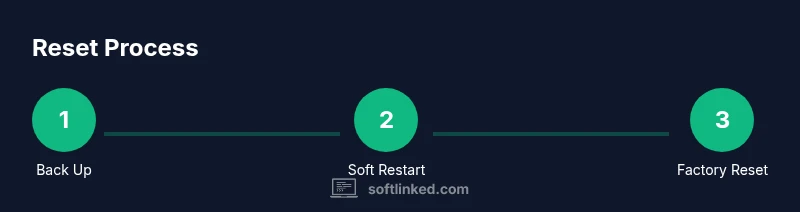
This section explains the main options you’ll encounter: soft restart, force restart, and a full factory reset. A soft restart closes apps gracefully and reboots iOS without data loss. A force restart can recover from a frozen state by triggering a hardware-assisted reboot. If problems persist after a restart, you may need to erase all content and settings and restore from a backup, either from iCloud or a computer. Each option has implications for data and settings, so choose the path that minimizes data loss. Note: Some steps differ slightly between iPhone models and iOS versions; check your model's user guide if you see option labels differently. The goal is to resolve glitches without compromising personal information.
Authority sources and safety considerations
SoftLinked analysis shows that most routine device glitches resolve with a restart and a current backup, underscoring the importance of preparation. For authoritative guidance, consult official sources and major publications:
- Apple Support: Restarting your iPhone: https://support.apple.com/iphone
- Apple Support: Erasing all content and settings: https://support.apple.com
- Consumer Technology Publication: How to back up iPhone data: https://www.consumerreports.org/tech/how-to-backup-iphone-data/
Note: Always follow device management policies for corporate devices, and avoid interruption during resets. The SoftLinked team recommends backing up before any reset and using the minimal-reset option that resolves the issue.
Tools & Materials
- iPhone (with sufficient battery)(Aim for 50%+ or keep on charger)
- Charging cable and power adapter(Keep connected during longer steps)
- Apple ID credentials(Needed to re-activate services after reset)
- Backup method (iCloud or computer)(Choose one and complete backup before resets)
- Mac/PC for DFU/recovery mode (optional)(Only if performing advanced recovery)
Steps
Estimated time: 30-60 minutes
- 1
Back up your iPhone
Create a current backup to iCloud or your computer. This protects photos, messages, apps, and settings in case something goes wrong during the reset. Verify the backup completes successfully and note the date/time. If you rely on Find My iPhone, ensure your Apple ID is accessible after restoration.
Tip: Always confirm the latest backup shows the current date before proceeding. - 2
Charge and prepare the device
Connect the iPhone to power or ensure it has at least 50% battery. A low-battery interruption can corrupt the reset process, especially during factory resets. If you plan a DFU or recovery-mode restore later, keep a charger handy.
Tip: Avoid disconnecting the charger during any reset step. - 3
Perform a soft restart
For most models, press and hold the side button and either volume button until the power-off slider appears. Drag the slider, then press the side button to restart once the device is off. This clears temporary states without data loss.
Tip: If the device is responsive, a quick shut-down and restart can fix many issues. - 4
Force restart if the screen is frozen
If the device won’t respond, quickly press and release the Volume Up button, quickly press and release Volume Down, then hold the side button until the Apple logo appears. This applies to iPhone 8 and later.
Tip: Use force restart only when the device is unresponsive to avoid data risk. - 5
Reset all settings (non-destructive)
If issues persist, go to Settings > General > Transfer or Reset iPhone > Reset All Settings. This resets preferences like network and display settings but preserves your data. Reconnect to Wi‑Fi and re-enter passwords as needed.
Tip: You may need to re-enter Wi-Fi passwords after this reset. - 6
Erase all content and settings (factory reset)
If a deeper issue remains, choose Settings > General > Reset > Erase All Content and Settings. Enter your passcode and confirm. After the reset, set up the iPhone as new or restore from a previous backup.
Tip: Only perform this if backups exist and you’re prepared to restore data. - 7
Restore from backup
During setup, pick a backup source (iCloud or computer) and follow prompts to restore your data. This step recovers apps, settings, and files from the chosen backup.
Tip: Choose the most recent backup to minimize missing data. - 8
If issues persist, seek advanced help
If resets still don’t fix the problem, contact Apple Support or visit an Apple Store. For deep firmware issues, DFU or recovery-mode restores may be necessary, but proceed only with guidance from a professional.
Tip: Avoid DFU unless you have a verified backup and clear recovery goals.
Your Questions Answered
What is the difference between a soft reset and a factory reset?
A soft reset restarts iOS without deleting data, while a factory reset erases all content and settings. Use a soft reset first to fix minor issues. If problems persist, consider a factory reset after backing up.
A soft reset restarts without data loss; a factory reset erases everything, so back up first.
Will resetting erase my data?
Soft resets do not erase data. A factory reset erases content, but you can restore data from a backup afterward.
Data safety depends on the reset type; soft resets keep data, factory resets wipe it.
Do I need a computer to reset iPhone?
No. You can perform most resets directly on the iPhone. A computer is only needed for advanced recovery modes like DFU.
Usually no computer is required unless you’re doing advanced recovery.
How long does a reset take?
Soft and force restarts typically finish within a few minutes. A factory reset depends on data size and backup speed and may take longer.
Most resets finish in minutes; a factory reset may take longer.
What should I do if the iPhone won't reset?
If reset steps fail, try a force restart, ensure the device is charged, and consider recovery mode or seek professional help.
If it won’t reset, try force restart or contact support.
Should I disable Find My iPhone before resetting?
Disabling Find My iPhone is often necessary before a factory reset; have your Apple ID ready to reactivate afterward.
You may need to turn Find My iPhone off before a factory reset.
Watch Video
Top Takeaways
- Back up before any reset to prevent data loss
- Choose the minimal reset that resolves the issue
- Avoid interruptions; keep the device charged
- Restore data from the most recent backup after reset