How to Get Rid of Software Bugs on iPhone
Practical, developer-friendly methods to diagnose, fix, and prevent iPhone software bugs with safe, data-preserving steps.


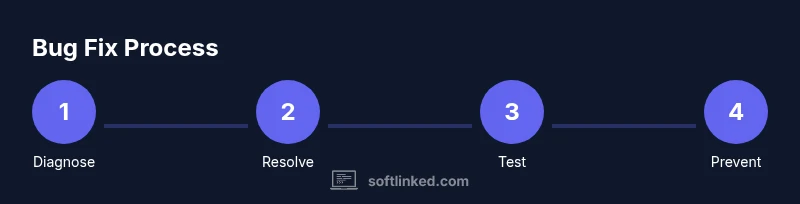
Goal: learn how to get rid of software bugs on iphone by diagnosing, isolating, and applying fixes. Start with a quick triage: restart the device, update iOS and apps, and check for repeat issues. Then isolate the bug by testing in a clean state, clearing caches, resetting network settings if needed, and reinstalling affected apps. Follow the steps below for a steady workflow.
Why software bugs happen on iPhone
Software bugs on iPhone arise from conflicts between apps, iOS updates, and storage pressure. According to SoftLinked, device firmware bugs often stem from outdated apps, insufficient free space, or residual caches that conflict with new code. Understanding common patterns helps you triage quickly: performance lag, unexpected restarts, screen freezes, and apps crashing. This section explains the core causes and why a systematic approach matters.
Key factors include: operating system compatibility, third-party extensions, background processes, and refreshed content caches. When you see a recurring issue across multiple apps, the root cause is likely systemic rather than isolated to a single app. In practice, you’ll look for clues in crash reports, notification behavior, and abnormal battery drain. By recognizing these signals early, you can prioritize fixes that address the underlying problem rather than chasing symptoms.
Common bug patterns on iOS and what they mean
Bugs often present as: apps crashing on launch, UI lag, unexpected reboots, or battery drain spikes after updates. These patterns help you narrow down causes such as memory pressure, incompatible app versions, or corrupted user data. When multiple apps exhibit the same issue after an iOS update, the root cause is more likely a system-level problem. Conversely, isolated crashes may indicate a problematic third-party extension or a single app conflict. Recognizing the pattern is the first actionable step toward effective fixes.
Quick triage you can do right now
Begin with a rapid triage to reduce the field of possible causes. Restart the iPhone to clear temporary states. Check for available iOS and app updates and install them. If the issue persists, test with a minimal state by temporarily removing recently installed apps and observing whether the bug recurs. Clear residual caches by deleting and reinstalling affected apps. These steps help distinguish systemic issues from app-specific ones and require no data risk.
Diagnostic tools and logs you should use
iPhone diagnostics can be lightweight yet informative. Use Settings > Privacy & Security > Analytics & Improvements to view crash reports and event data that can point to faulty code paths. Modern iPhones store analytics data locally; syncing to iCloud or a computer can help you share logs with support. Free up storage to ensure log data isn’t truncated by space constraints. If you have access to a Mac, you can also use Console to inspect connected device logs for persistent errors that occur during app use.
Targeted fixes that resolve most iPhone bugs
Most bugs resolve with a disciplined sequence: update iOS and all apps, restart, clean caches by reinstalling apps, free up storage, and reset network settings if connectivity behaves oddly. If a particular app is the culprit, uninstall and reinstall it. Ensure you have backups before performing major changes. This reduces risk and keeps data safe while you verify fixes across scenarios.
Safe modes and reinstall strategies without data loss
iPhone does not have a traditional Safe Mode like some platforms, so emulate safety by performing non-destructive steps first: back up your data, then use Reset All Settings to reset preferences without erasing content. If the bug persists, consider Erase All Content and Settings as a last resort, followed by a clean restore from backup. Always confirm app data integrity after reinstalls and avoid drastic actions unless you’ve secured a recent backup.
When to escalate: hardware vs software and professional help
If issues persist after all software fixes, consider device-level problems such as faulty storage or battery issues. Hardware problems often masquerade as software bugs. In this case, contact Apple Support or visit an Apple Store for a professional assessment. Document the steps you’ve taken so the support team can reproduce the issue quickly. Neutral third-party diagnostics can also be valuable when deciding on next steps.
Proactive habits to minimize future bugs
Prevention beats cure. Keep iOS and apps updated, maintain ample free storage, and limit unnecessary background processes. Regularly review which apps have access to sensitive data and monitor battery usage to catch rogue processes early. Create a routine: back up monthly, test after major updates, and use a staging environment for critical apps before releasing updates. These habits reduce recurrence and improve device reliability.
Tools & Materials
- iPhone with latest iOS installed(Check for the latest iOS update (Settings > General > Software Update).)
- A stable internet connection(Wi‑Fi is preferred for downloading updates and backups.)
- Backups (iCloud or computer)(Back up before major fixes to prevent data loss.)
- Updated apps from App Store(Ensure all installed apps are up to date.)
- Computer with Finder/iTunes (optional)(Useful for offline backups and restores on macOS/Windows.)
Steps
Estimated time: 60-90 minutes
- 1
Back up your data
Create a current backup of your iPhone to iCloud or a computer. This safeguards photos, messages, and app data before you perform fixes that could alter or erase information.
Tip: Verify your backup completed successfully before proceeding. - 2
Update iOS and apps
Check Settings > General > Software Update for the latest iOS version. Open the App Store and update all installed apps. Updates fix known bugs and compatibility issues.
Tip: Turn on automatic updates after finishing this step to reduce future risk. - 3
Restart the device
Do a full restart to clear memory and reset temporary states. This simple step resolves many transient bugs and performance glitches.
Tip: If the device is unresponsive, force restart following Apple's official guidance. - 4
Clear app caches by reinstalling apps
For apps showing issues, delete them and reinstall from the App Store. This eliminates corrupted cache/data without affecting other apps.
Tip: Note which apps you remove so you can reinstall them later. - 5
Test after each change
After each fix, use the app or feature to confirm whether the bug persists. Isolating the fix speeds up root-cause identification.
Tip: Keep a short log of observed effects after each step. - 6
Reset network settings if connectivity is faulty
If network-related bugs occur, reset Settings > General > Transfer or Reset iPhone > Reset > Reset Network Settings. This clears saved networks and passwords.
Tip: Have Wi‑Fi passwords handy; you’ll need to rejoin networks. - 7
Consider non-destructive resets
If issues persist, use Reset All Settings first. This resets preferences but keeps data. Reserve Erase All Content and Settings for last resort.
Tip: Backups are essential before any deeper reset. - 8
Escalate if needed
If bugs remain after all steps, contact Apple Support or visit an Apple Store. Provide a clear sequence of steps you took and the observed results.
Tip: Bring your device, a recent backup, and a record of steps you tried.
Your Questions Answered
What causes iPhone software bugs?
Bugs arise from conflicts between apps, iOS updates, background processes, and storage pressures. Inconsistent data or corrupted caches can also trigger issues.
Bugs come from software conflicts, updates, and cache problems.
Should I reset my iPhone to fix bugs?
Reset options range from 'Reset All Settings' to 'Erase All Content and Settings', with data loss risk. Try non-destructive steps first.
Resetting can fix issues, but back up first and start with non-destructive resets.
Can I fix bugs without erasing data?
Yes. Many issues resolve with updates, cache clearing, restarts, and app reinstalls without deleting user data.
Most fixes avoid data loss.
Why do bugs sometimes reappear after updates?
Reappearance can occur due to compatibility changes, residual caches, or corrupted backups from prior updates.
Bugs can return until the update is fully compatible.
Is there a Safe Mode on iPhone?
iPhone does not have a traditional Safe Mode. You can simulate a safe test by removing new apps and testing in a clean state.
There isn't a true Safe Mode on iPhone.
When should I contact Apple Support?
If issues persist after basic fixes, Apple Support can evaluate for device-level problems or hardware faults.
If problems persist, seek Apple Support.
Watch Video
Top Takeaways
- Back up before attempting fixes.
- Update software and apps first.
- Isolate the bug by removing recent changes.
- Use non-destructive resets before erasing data.
- Escalate to Apple Support if issues persist.