How to Clean Software on a MacBook: A Practical Guide
Learn how to clean software on your MacBook with a safe, step-by-step approach. Audit apps, clear caches, manage startup processes, and keep macOS healthy for peak performance.


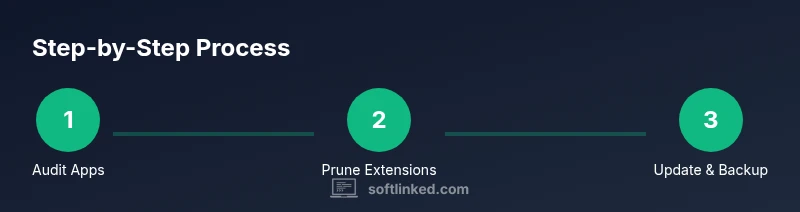
By the end of this guide, you will know how to clean software on a MacBook: audit apps, clear caches, manage startup items, and keep macOS healthy. The process emphasizes backups, safety, and minimal risk to data. Follow the step-by-step instructions to improve performance without harming essential software.
What 'clean software' means on macOS
A clean software environment on a MacBook means fewer redundant programs, clutter-free storage, and a responsive system that runs essential apps smoothly. It emphasizes safety, backups, and preserving user data while removing obstacles to performance. According to SoftLinked, a clean baseline on macOS reduces clutter and speeds up workflows. The SoftLinked team found that many Mac users accumulate idle apps, stale caches, duplicate login items, and browser extensions that drain resources and slow down the user experience. By establishing a repeatable cleaning routine, you can maintain a healthier system without risking data loss or feature breakage.
This section clarifies the boundaries: we are cleaning software, not deleting critical system components or personal files. The goal is to identify and remove unwanted software, reset misbehaving configurations modestly, and keep maintenance simple and predictable. We will rely on built-in macOS features and safe practices rather than exotic tools. The result is a Mac that boots faster, apps launch quicker, and you experience fewer freezes.
Start with a quick audit of installed apps
Begin with a baseline: open Finder > Applications; sort by size and last used; identify apps you haven't used in months; if uncertain, check Activity Monitor to see usage. Create a short list of candidates for removal and always test removing one application at a time to avoid accidentally removing something essential. Use a simple heuristic: keep only apps you use weekly, and move others to a temporary folder before deciding. This audit reduces clutter and frees disk space, establishing a healthier starting point for the rest of the cleanup.
Tip: when in doubt, search the vendor’s support site or user forums for whether an app is essential for macOS or your workflow. A cautious approach minimizes risk while maximizing gains in performance.
Remove unused browser extensions and plugins
Browser extensions can accumulate quickly, consuming memory and slowing page loads. Start by listing installed extensions in your primary browser (for example, Chrome, Firefox, or Safari) and disable anything you haven’t used in the last few months. Remove extensions bit by bit, checking after each removal to ensure your favorite sites still work as expected. After pruning, clear cached data from the browser and consider enabling a “block third-party trackers” feature for ongoing privacy and speed improvements.
Keep a short, essential set of extensions that you actually rely on, and periodically review them to avoid future bloat.
Manage startup items and background processes
Startup items automatically launch when you log in. Disable nonessential items to improve boot times and initial responsiveness. On macOS, go to System Settings (or System Preferences) > Users & Groups > Login Items and remove items you don’t need to start at login. For background processes, use Activity Monitor to spot long-running processes that consume CPU or memory, and quit or constrain those that aren’t critical. This step helps your Mac land a clean, fast desktop sooner after startup.
Tip: document any changes you make to startup items so you can revert if something breaks.
Clear caches, logs, and temporary files safely
Caches and logs help apps run faster, but old files can accumulate and waste space. Target user and system caches with care: focus on Safe, non-destructive cleanups such as browser caches, app caches you recognize, and log files you can safely remove. Avoid deleting core system caches or folders you don’t recognize. Use Finder or a reputable disk utility to locate large caches, and remove only items you understand to minimize risk. After cleanup, restart your Mac to ensure apps recreate needed caches cleanly.
Note: always back up before touching system folders; some caches are essential for stability.
Reclaim disk space and optimize performance without deleting essential apps
Storage pressure slows Macs more than most users realize. Move large, rarely used files (movies, archives) to an external drive or cloud storage, and consider enabling macOS’s built-in storage optimization features. Prioritize removing duplicate files, old documents, and large downloads that no longer serve a purpose. After freeing space, run a quick health check with Disk Utility (First Aid) to verify the drive’s integrity and fix minor issues.
Pro tip: periodically review your Downloads and Desktop folders for items that can be archived or removed.
Keep software up to date and maintain health
Regular macOS and app updates close security gaps and improve performance. Enable automatic updates where possible, and set a monthly reminder to review available updates. Before updating, ensure you have a recent backup and a stable internet connection. Post-update, verify that essential apps still function and re-check startup items and caches if you notice any regression in performance. This habit keeps your MacBook resilient against new software bloat and security threats.
Tools and best practices for ongoing maintenance
Adopt a simple, repeatable maintenance cadence: quarterly audits, monthly quick-cleanups, and weekly checks of disk space and startup items. Use built-in macOS tools such as Storage Management to identify large files and optimize storage. Maintain a backup schedule (Time Machine or another solution) so you can recover quickly if something goes wrong. Document a clean baseline of installed apps, settings, and preferences to help you reproduce improvements over time.
Safety reminders and when to seek help
Never rush a cleanup if you rely on niche software for work or studies. If you’re unsure about an app’s importance, pause before deleting it and consult official support resources. Always have a verified backup before removing apps, caches, or logs. If cleaning reveals systemic issues such as frequent crashes, kernel panics, or failing storage, consider consulting a professional technician or the official Apple Support team to prevent data loss or further damage.
Tools & Materials
- Backup plan(Create a full backup of your MacBook before cleaning)
- External storage or USB drive(Sufficient space for a Time Machine backup or manual copy)
- macOS utility suite (built-in)(Use Disk Utility, Storage Management, and Finder for safe cleanup)
- Internet connection(Needed for updates and some online help resources)
Steps
Estimated time: 60-90 minutes
- 1
Audit Applications
Open Finder > Applications and review the list. Identify apps you no longer use or need. Create a short removal plan and test removing one app at a time to avoid missing dependencies.
Tip: If unsure, move candidate apps to a temporary folder before permanent deletion. - 2
Uninstall Redundant Apps
Uninstall apps using their built‑in uninstaller if available, or drag to Trash from the Applications folder. Empty Trash and confirm core system apps remain intact.
Tip: Check for vendor-provided uninstallers to ensure all related components are removed. - 3
Prune Browser Extensions
Review extensions in each browser and disable or remove nonessential ones. Clear browser caches to reclaim space and improve load times.
Tip: Limit extensions to a core set you actively use. - 4
Review Startup Items
Navigate to System Settings > Users & Groups > Login Items and remove nonessential entries. Reboot to confirm faster startup and check for regressions.
Tip: Keep a log of changes so you can rollback if needed. - 5
Clear Caches Safely
Target user and app caches you recognize; avoid system caches. Restart after cleanup so apps recreate necessary data safely.
Tip: Always back up before touching system folders. - 6
Verify Disk Health
Run Disk Utility to verify and repair disk errors if needed. This ensures storage health after cleanup activities.
Tip: If First Aid reports irreparable issues, consult a professional before continuing. - 7
Update Software
Check for macOS and app updates; enable automatic updates if possible. Ensure backups exist before applying major updates.
Tip: Test critical workflows after updates to catch regressions early. - 8
Optimize Storage
Use Storage Management to identify large files and enable room-saving options. Move large, rarely used files to an external drive or cloud storage.
Tip: Archive older files that you don’t need every day. - 9
Document Maintenance
Create a simple maintenance log: actions taken, dates, results, and any follow-up tasks. This helps you reproduce improvements later.
Tip: Review the log quarterly to refine your process.
Your Questions Answered
Is it safe to delete caches on macOS?
Yes, you can safely delete nonessential caches to free up space. Focus on user and app caches, not core system cache folders. Always ensure you have a backup before removing caches, and monitor system behavior after cleaning.
Yes, you can safely delete many nonessential caches to free space, but back up first and watch for any changes in performance.
Can I use third-party tools to clean Mac software?
Third-party cleanup tools can help, but choose reputable options and avoid tools that claim to fix everything in one click. Rely primarily on built‑in macOS features and manual cleanup to minimize risk.
Third-party tools can help, but pick reputable ones and don’t trust gimmicky one-click solutions.
How often should I run maintenance on my MacBook?
Aim for a quarterly deep clean (apps, caches, startup items) and a monthly quick check of storage. Regular upkeep prevents slowdowns and helps you spot issues early.
Do a deeper clean every few months, and a quick check monthly to stay on top of things.
Will cleaning software affect personal data?
Cleaning software should not erase personal data. However, removing apps or caches may affect settings or preferences. Always back up and proceed with caution.
Generally, it won’t delete your personal files, but back up and review what each action affects.
Is there a way to automate routine maintenance?
MacOS offers built-in tools and schedules for regular checks, but fully automated cleanup should be approached with caution to avoid data loss. Combine automation with periodic human review.
Automation helps, but you should still review results to avoid surprises.
Should I use Terminal commands for cleanup?
Terminal can perform powerful tasks, but misuse can cause data loss. Use Terminal only if you’re confident and stick to well-documented commands.
Terminal can help, but only use it if you’re comfortable with the commands and risks.
Watch Video
Top Takeaways
- Audit apps regularly to maintain an uncluttered MacBook.
- Back up before making any changes to software or caches.
- Disable startup items that aren’t essential to improve boot times.
- Keep macOS and apps updated for optimal performance.