How to Clean Software from Your Computer: Uninstall Apps
A comprehensive, step-by-step guide to safely uninstall software from Windows, macOS, and Linux, then remove leftovers, caches, and registry entries to reclaim disk space and improve performance.


This guide helps you safely remove software from your computer across Windows, macOS, and Linux, then clean leftovers such as caches, logs, and registry entries. By following a structured uninstall process, you reclaim disk space, speed up your system, and protect privacy. You’ll need admin rights and reliable uninstall tools, plus a backup plan before you begin.
Why removing software properly matters
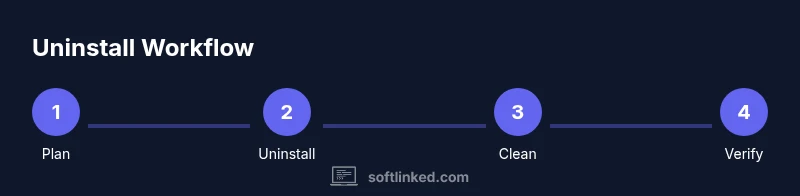
Removing software isn't just about freeing disk space. Incomplete uninstallations can leave behind registry entries, orphaned files, and startup items that slow your computer and pose privacy risks. According to SoftLinked, a deliberate cleanup routine yields more predictable system behavior than ad-hoc removals. In this guide, you'll learn to plan, execute, and verify software removal across major operating systems, using safe methods and reputable tools. We'll cover Windows, macOS, and Linux, plus best practices for leftovers such as caches, logs, and config directories. By following a structured approach, you minimize the risk of accidentally deleting critical system files and preserve the ability to revert changes if something goes wrong. A clean uninstall also reduces software conflicts that can arise when multiple programs share dependencies or runtime libraries. The goal is to remove nonessential software without harming the rest of the system. This requires patience, consistent steps, and a little planning.
Tools & Materials
- Administrative privileges(You may need admin/root access to uninstall software and make system changes.)
- Official uninstaller(Use the built-in uninstaller provided by the software when available.)
- Disk cleanup tool(Use your OS tool or a reputable utility to remove temporary files and caches.)
- Backup solution(Back up important data before removing software or making system changes.)
- System restore point / snapshot(Create a restore point (Windows) or a system snapshot (Linux/macOS) if available.)
- Disk space monitor(Optional tool to ensure you’ve reclaimed space after cleanup.)
Steps
Estimated time: 45-90 minutes
- 1
Back up and prepare
Begin with a full backup of important data and create a system restore point if available. This creates a safety net in case uninstalling software or deleting leftovers causes unintended issues.
Tip: Having a restore point lets you revert changes quickly without data loss. - 2
Inventory installed software
List all installed applications, noting which are essential for daily tasks and which are rarely used. This helps you decide which programs to target first and reduces the risk of removing something critical.
Tip: Consider dependencies that other software relies on before removal. - 3
Choose candidates for removal
Mark nonessential apps for uninstall. Prioritize programs you haven’t used in months, trial software, toolbars, and bloatware that came preinstalled.
Tip: Don’t rush; double-check that you’re not removing security or driver software. - 4
Uninstall on Windows
Open Settings > Apps > Apps & features, select a program, and click Uninstall. If the program lacks a standard uninstaller, use an official uninstaller from the vendor or a trusted third-party tool.
Tip: If prompted to restart, do so before trying another uninstall to avoid partial removal. - 5
Uninstall on macOS
In Finder, go to Applications, drag the app to Trash, then empty Trash. Check ~/Library and /Library for associated files and folders to remove leftovers.
Tip: Search for startup items or launch agents that may launch the app on login and disable them first. - 6
Uninstall on Linux
Use your package manager (e.g., apt, dnf, or pacman) to remove the package: apt remove --purge <package>, or equivalent for your distro. Clean caches afterwards to reclaim space.
Tip: For distro-specific apps, consult the package manager’s documentation to avoid removing system-critical packages. - 7
Clean leftovers
Delete leftover files and folders in user and system directories, including caches, logs, and config files. Be cautious not to delete shared resources used by other software.
Tip: Use search commands to locate residual directories like ~/.config or /usr/local that include the app name. - 8
Verify, document, and schedule
After uninstalling, recheck disk space, reboot if needed, and update your software inventory. Document what was removed and plan regular cleanups.
Tip: Keep a simple changelog for future reference and compliance.
Your Questions Answered
What is the best way to start uninstalling software?
Begin with a backup and a clear inventory. Use the OS’s built-in uninstaller first, then vendor tools if needed. Avoid deleting critical system components.
Start with a backup and use the built-in uninstallers to avoid removing essential system parts.
How do I remove leftover files after uninstalling?
Search typical leftover directories and caches related to the uninstalled program, then delete unnecessary files. Be cautious to avoid deleting shared resources used by other apps.
Look for leftover folders and caches in your user and system directories, and delete what’s safe to remove.
Is it safe to edit the registry or system files to clean up?
Editing the registry can be risky. Only modify registry entries if you’re confident, or rely on reputable cleanup tools and vendor uninstaller guidance.
Editing registry is risky; proceed with caution or use trusted tools and official guidance.
Can I automate software cleanup?
Automation can help but should be used carefully. Schedule regular cleanups and test automation on non-critical systems first.
Automation helps, but test it first and monitor for unintended consequences.
What if an uninstaller fails to remove a program?
Try Safe Mode, use an official uninstaller, or reinstall then uninstall again. If issues persist, check vendor support or forums for guidance.
If uninstall fails, retry in Safe Mode or consult vendor support for a clean removal path.
Watch Video
Top Takeaways
- Back up before uninstalling software.
- Use OS-native uninstallers first, then vendor tools if needed.
- Search for and remove leftovers to reclaim space.
- Verify changes and document for future maintenance.
- Schedule periodic cleanups to maintain performance.