How to Remove Software from Mac
Learn to remove software from Mac safely using built-in tools, reclaim disk space, and tidy leftovers. This beginner-friendly guide covers Finder, Launchpad, App Library, and optional uninstallers for stubborn apps.


You're about to master how to remove software from mac using built-in tools and safe cleanup practices. This quick guide covers uninstalling apps, removing leftovers, and preventing reinstallation of stubborn programs. You’ll learn practical methods using Finder, Launchpad, and the App Library, plus when to consider third‑party uninstallers. No advanced software is required, and the steps are suitable for beginners and seasoned users alike.
Why removing software from mac matters
According to SoftLinked, keeping your Mac free of unused software is a key step in maintaining performance, battery life, and storage. Every unused app that's left installed can quietly shadow disk space, background processes, and even security risk if it has outdated components. In this section we'll explore why removal matters, and lay out a philosophy: uninstall only what you no longer need, and do so cleanly to avoid leftover files. You’ll also learn how simple habits, like regularly auditing your Applications folder, can prevent clutter from creeping back. For students, developers, and busy professionals, the takeaway is simple: fewer active applications means fewer background processes, less disk fragmentation over time, and easier troubleshooting when issues arise. We’ll cover built-in macOS tools and practical steps you can apply today, with checks to verify that you haven’t removed something essential. SoftLinked's guidance emphasizes safety and reversibility; always have a backup before substantial changes. By the end of this section you’ll have a clear strategy for deciding what to remove, and a plan to do it safely.
Built-in macOS tools for uninstalling apps
MacOS provides several built-in, no-cost options to remove software without extra software. The Finder offers a straightforward drag-to-Trash method for most applications that live in the /Applications folder. Launchpad provides a way to delete apps installed from the Mac App Store, though not every app supports this deletion method. The App Library, introduced in newer macOS versions, groups apps by category and can simplify discovery when you’re trying to remove older programs. Each tool has strengths: Finder is universal, Launchpad is App Store-oriented, and App Library helps organize apps across macOS versions. Using these tools keeps uninstalling simple and minimizes the risk of leaving behind stray files. In practice, combine strategies: quit the app, remove the main application bundle, then use a quick search to find related files in Library directories. This reduces the chance that caches, preferences, or support files remain, taking up space and sometimes causing odd behavior after removal. Remember to re-check your startup items and permissions after uninstalling to ensure macOS remains stable.
Manual removal via Finder and the Trash (with cleanup tips)
Manual removal is the most common method for apps that don’t offer an uninstaller. Start by quitting the app if it’s running. Open a Finder window and go to the Applications folder, then locate the target app and drag its icon to the Trash. Do not forget to empty the Trash to complete the process. After removing the application bundle, search your user Library and the system Library for related files. Common locations include ~/Library/Preferences, ~/Library/Application Support, and /Library/Preferences. Use the Finder search with the app name to identify leftovers, then delete the matching folders or files. If you’re unsure whether a file is essential, move it to a temporary folder first and review for a day or two. For sensitive apps or those that store data in hidden locations, consider using a terminal command or a spectator tool to verify before removal. Finally, reboot or sign out and back in to ensure the changes take effect and that macOS handles the new absence cleanly.
Uninstalling via Launchpad and App Library (best for App Store apps)
Launchpad is ideal for apps installed from the Mac App Store. Open Launchpad, locate the app, click and hold its icon, and press the small delete (X) button if the app supports it. Note that many traditional apps don’t expose a deletion option here, so you’ll rely on Finder or the app’s own uninstaller. In macOS Ventura and newer, App Library can help you locate and remove apps that are hard to find, by listing all installed apps in one place. If an app lacks a built-in uninstaller, use the Finder method and then sweep for leftovers in Library folders to ensure a clean removal. For developers and power users, it’s often useful to inspect the app’s container or sandbox location to verify what’s being removed. Always restart your Mac after a substantial uninstall to ensure system services refresh correctly.
Cleaning up leftovers: caches, preferences, logs, and support files
Even after the main app is removed, residual files can linger in Library folders. These leftovers can accumulate and consume gigabytes of disk space over time. A careful cleanup focuses on the common culprits: Application Support folders, caches, preferences, and logs. On macOS, many leftovers live under ~/Library and /Library. Use Finder or Terminal to locate folders like ~/Library/Caches/com.company.app, ~/Library/Preferences/com.company.app.plist, and /Library/Application Support/appname. Delete or archive duplicates you don’t need. Some apps install additional helper tools or daemon processes that hide in System/Library. If you’re unsure, search for the app’s bundle identifier or known folder names using Spotlight or a terminal search command like mdfind or find. Avoid removing core system files or something you’re not sure about. The goal is to reclaim space without destabilizing the system. After cleanup, restart your Mac and verify that the app’s remnants no longer appear in Activity Monitor or storage metrics.
When to use third-party uninstallers (and what to look for)
Some apps leave behind stubborn traces that are hard to locate with manual cleanup alone. In such cases, a reputable third‑party uninstaller can simplify the process by scanning Library folders and recommending files to remove. Look for uninstallers that offer a safe scan, reversible actions, and clear backup options. Avoid tools that force-delete without confirmation, as they can remove essential system files or user data. If you choose a third‑party tool, first create a Time Machine backup and run the tool on a test user profile or a separate drive if possible. Always review the list of proposed deletions and deselect anything that isn’t clearly linked to the target app. After using any uninstaller, restart the Mac to refresh system caches and services. Remember, the built-in macOS tools are powerful enough for most apps; third‑party tools are best reserved for stubborn cases.
Best practices for safe uninstallation and ongoing maintenance
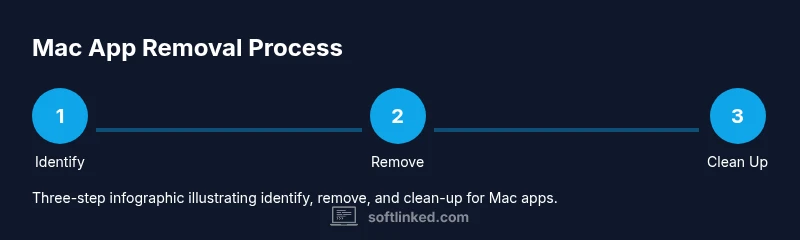
Develop a repeatable workflow for uninstalls to minimize mistakes: backup first, verify the app’s identity, remove the main bundle, clean up leftovers, and verify that macOS runs normally afterward. Use a consistent location for app data so you can locate it later if you need to audit. Schedule periodic audits of your Applications folder to identify apps you no longer need, especially after big projects or software refresh cycles. Consider using a lightweight cleanup routine monthly that targets cache and log files that accumulate quickly. Document your steps so you can repeat them in the future or share them with team members. Finally, keep macOS updated because system updates can change where apps store data or how uninstallation behaves, which affects both manual and automated removal processes.
Quick-start checklist (one-page)
- Quit the app to avoid file locks.
- Move the app from /Applications to Trash using Finder or Launchpad.
- Empty Trash carefully; verify no essential files were removed.
- Search Library folders for leftovers and delete cautiously.
- Restart your Mac and recheck storage usage.
- If leftovers persist, consider a reputable uninstaller and backup first.
- Schedule periodic cleanups to prevent clutter and performance degradation.
Tools & Materials
- Finder (Move to Trash method)(Drag the app from /Applications to Trash; then Empty Trash.)
- Trash Bin(Right-click the Trash icon and select Empty Trash.)
- Launchpad(If the app supports it, delete from Launchpad.)
- App Library (macOS 11+)(Use App Library to locate and manage apps across versions.)
- Terminal (advanced)(Advanced cleanup of hidden files using command-line tools.)
- Third-party uninstaller tool(Select reputable uninstaller for stubborn leftovers.)
- Backup solution (recommended)(Time Machine or equivalent before major cleanup.)
Steps
Estimated time: 20-40 minutes
- 1
Decide what to remove
Identify apps you no longer use or need. Check dependencies and ensure removal won’t break workflows. If unsure, mark as candidates and review later.
Tip: If you’re unsure, move the app to a temporary folder first rather than deleting immediately. - 2
Quit the app
If the app is running, quit it to avoid locked files or partial deletions. Use Command-Q or the app’s Quit option from the menu.
Tip: Quitting prevents active processes from blocking removal. - 3
Remove the main app bundle
In Finder, go to /Applications, locate the app, and drag its icon to the Trash. For App Store apps, check Launchpad if deletion is supported.
Tip: If you can’t delete, try selecting the app and using the File > Move to Trash option. - 4
Empty the Trash
Empty Trash to permanently remove the main bundle. Optionally, use Secure Empty Trash if your macOS supports it (older versions).
Tip: Verify you aren’t deleting anything you still need before emptying. - 5
Search for leftovers in Library folders
Search ~/Library and /Library for folders named after the app. Common targets include Preferences, Caches, and Application Support.
Tip: Use Finder’s search or Spotlight; filter results by name to locate related files. - 6
Delete or archive leftovers
Delete confirmed leftovers or move them to an archive folder if you want a reversible clean-up.
Tip: Be cautious with system folders and avoid deleting core system files. - 7
Restart and verify
Restart your Mac to ensure system caches refresh and the removal is fully integrated.
Tip: Check storage usage again and ensure the app no longer appears in Activity Monitor. - 8
Consider a backup or uninstaller for stubborn cases
If leftovers persist, use a reputable uninstaller and back up before proceeding.
Tip: Backups provide a safety net in case you remove something essential by mistake.
Your Questions Answered
Can I uninstall macOS built-in apps?
Many built-in macOS apps are protected and cannot be removed. You can-hide them or disable them, but permanent deletion is usually not supported for system components.
Built-in macOS apps are often protected; you can hide or disable them, but removal isn’t typically allowed.
Is it safe to delete apps from /Applications?
Yes, for apps you installed yourself, removing the main bundle via Finder or Launchpad is standard. Always back up first and verify there are no essential dependencies before deletion.
Deleting user-installed apps from /Applications is generally safe, but back up first and check dependencies.
How do I know if leftovers are safe to delete?
Leftovers are usually safe if they clearly belong to the uninstalled app (e.g., related Preferences or Cache folders). Avoid deleting items whose purpose isn’t clear and avoid system files.
Leftovers are usually safe when clearly tied to the app; avoid random system files.
What about apps installed from the Mac App Store?
App Store apps often install via Launchpad. If the app supports deletion there, use Launchpad; otherwise use Finder and check for related leftovers.
For App Store apps, try Launchpad; if not supported, use Finder and clean up leftovers.
Should I use Terminal for uninstallation?
Only use Terminal if you’re comfortable with command-line operations and understand what you’re removing. It’s powerful but risky if misused.
Use Terminal only if you’re comfortable; it’s powerful but can remove critical data if used incorrectly.
How can I reclaim space after uninstallation?
After removing the app, check Storage in About This Mac and clear caches and logs related to the app. A restart often helps the system refresh.
Check storage, clear related caches and logs, and reboot to refresh the system.
Watch Video
Top Takeaways
- Identify unused apps before removing them
- Use built-in tools first for safety
- Clean up leftovers in Library folders
- Back up before major uninstallations
- Restart to finalize changes