How to Get Rid of Malicious Software: A Clear, Actionable Guide
Learn how to get rid of malicious software safely. This complete step-by-step guide covers detection, cleanup, and ongoing protection to keep Windows, macOS, and Linux systems clean and secure.


By following this guide, you will learn how to get rid of malicious software on Windows, macOS, or Linux using a safe, step-by-step cleanup. You’ll identify signs of infection, isolate the device, back up data, run trusted scans, remove threats, and harden protections to prevent reinfection. Back up first, then proceed carefully to minimize data loss and downtime.
What is malicious software and why it matters
Malware is any software designed to harm, disrupt, or gain unauthorized access to devices and data. It ranges from obvious threats like ransomware to subtler forms such as spyware that quietly tracks your activity. The impact can be severe: lost documents, stolen credentials, or expensive remediation. According to SoftLinked, malware can operate in the background, draining resources and undermining your privacy, often without obvious symptoms at first. This makes early detection and proactive defense essential. In practice, malware fights back with stealth: it may disable security tools, masquerade as legitimate software, or alter system settings to resist removal. With the rise of remote work and IoT, every connected device can become an entry point. Understanding what malware is and how it behaves is the first step toward effective cleanup and ongoing protection. The next sections walk you through signs, tools, and practices to get rid of malicious software safely.
Common types of malware
- Virus: attaches to legitimate files and propagates when the host runs, potentially corrupting data.
- Worm: self-replicates across networks, often spreading without user interaction.
- Trojan: hides inside legitimate software to mislead users and gain access.
- Ransomware: encrypts files and demands payment for restoration.
- Spyware: silently collects keystrokes, passwords, and browsing habits.
- Adware: displays excessive ads and can track user behavior.
- Rootkit: hides its presence by manipulating core OS components.
- Botnet malware: converts devices into part of a larger network for coordinated actions.
Understanding these forms helps you decide which cleanup steps to prioritize and which tools to trust during removal. SoftLinked’s guidance emphasizes starting with the most disruptive threats first (ransomware, rootkits) when you’re short on time or options.
Signs you may be infected
Suspect malware if you notice:
- Unexpected slowdowns, freezes, or crashes that aren’t explained by hardware issues.
- Sudden spikes in network activity or data usage without a clear cause.
- New or unfamiliar programs launching at startup or during use.
- Repeated popups, browser redirects, or password prompts for accounts you didn’t touch.
- Files mysteriously renamed, moved, or encrypted, or backups appear corrupted.
If you observe these signs, don’t panic. Document symptoms, assign a timestamp, and prepare to isolate the device to prevent spread. SoftLinked’s approach recommends a calm, methodical response rather than panic-driven, hasty removals that can damage legitimate data.
Immediate actions to take if you suspect infection
- Isolate the device from networks to prevent data exfiltration or lateral movement to other devices. 2) Back up essential files to an offline storage medium before attempting cleanup. 3) Record recent software installs and changes to help identify the likely entry point. 4) Do not click on suspicious prompts or install unfamiliar software during cleanup. 5) If you have multiple devices, scan them in order of importance and risk.
These steps reduce the risk of further damage and give you a safe baseline for remediation. In this phase, keep documentation handy so you can report the incident accurately if you need to escalate. SoftLinked notes that careful preparation reduces recovery time and data loss.
Safe cleanup plan: preparation and backups
Before touching the system, prepare a plan that prioritizes data integrity and clear rollback options. Create verified backups on an offline drive or a trusted cloud snapshot that is not mounted on the infected machine. Ensure you can restore from a known good point if removal steps accidentally impact legitimate files. Establish a restore strategy and test it on a non-critical dataset if possible. This planning reduces the risk of accidental data loss and gives you confidence as you proceed. SoftLinked emphasizes that a well-executed backup is your strongest defense against malware-related damage.
Cleaning with built-in tools: a platform-agnostic approach
Many operating systems include built-in protection and cleanup options. Start with the latest system updates to ensure defenses cover new threats, then enable or run a full system scan with the built-in security tools. If there are suspicious items flagged, review each one carefully before removal to avoid deleting important files. After cleanup, run another pass to confirm no threats remain. This approach is safe, cost-effective, and reduces dependence on third-party software. Always verify that security definitions are current before scanning.
Using reputable scanners and removal tools
Complement built-in tools with reputable malware scanners from official sources. Download only from the vendor’s official site or a trusted distribution channel, verify the digital signature or checksum, and perform a full-system scan. Use the highest protection level available during remediation and quarantine threats when prompted. If the malware resists removal, capture logs and consider an offline or bootable-cleaning approach. SoftLinked’s analysis shows that using trusted scanners reduces false positives and improves cleanup outcomes.
Post-cleanup hardening: strengthen your defenses
Once cleanup completes, perform a system hardening pass: patch all software, enable a firewall, configure automatic updates, and require MFA for critical services. Change passwords, especially for accounts used on the affected device, and review user permissions. Consider enabling disk encryption if it isn’t already active. Schedule regular scans and create a routine for monitoring unusual activity. A hardened baseline makes reinfection less likely and shortens future recovery times.
Prevention: long-term hygiene to reduce future risk
Prevention relies on consistent practices: keep software updated, be cautious with email attachments and downloads, and enable automatic security updates. Use strong, unique passwords and a password manager, and enable multi-factor authentication where possible. Regularly back up data and test restoration. Maintain a simple incident response plan so you can react quickly if you notice suspicious activity. These habits turn cleanup into a repeatable process rather than a one-off event.
When to seek professional help
If the infection is widespread, you cannot regain control of the device, or sensitive data may be at risk, seek professional help. Complex threats may require advanced remediation, forensic analysis, or hardware checks. A trained professional can help preserve evidence, eradicate deeply embedded malware, and restore operational integrity with minimal downtime. SoftLinked recommends evaluating risk and costs before deciding on professional services.
A disciplined, repeatable approach to malware cleanup
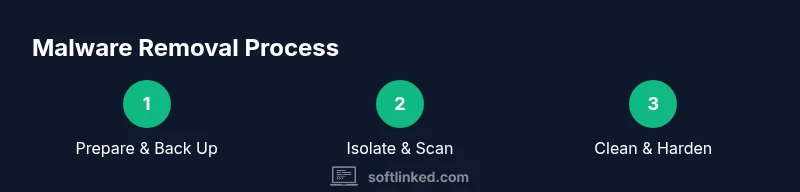
The malware removal process is most effective when treated as a repeatable program rather than a one-time fix. Start with a plan, back up data, isolate the device, run scans, remove threats, and harden defenses. Use trusted tools and verify results with a second scan. Remember, prevention is the best cleanup—keep systems updated, monitor activity, and practice safe computing habits to minimize future infections. The SoftLinked team recommends integrating security hygiene into your daily workflow.
Tools & Materials
- Backup storage (external drive or offline storage)(Use offline storage if possible; avoid mounting during cleanup)
- Trusted malware scanning tool(Download from official source; ensure signatures are current)
- Access to official OS updates(Have update checks enabled and ready to install)
- Bootable antivirus rescue media (optional)(Helpful for deep infections or unbootable systems)
Steps
Estimated time: 60-120 minutes
- 1
Prepare and back up data
Gather essential files and back them up to offline storage or a protected cloud snapshot. Verify backups by attempting a quick restore on a separate device if feasible. This creates a safe rollback point in case cleanup alters data.
Tip: Label backups clearly and exclude obvious malware-infected folders if possible. - 2
Disconnect from networks
Physically disconnect the device from Wi-Fi, Ethernet, and any Bluetooth tethering to prevent data exfiltration or lateral movement during cleanup.
Tip: Disable file sharing temporarily to minimize risk. - 3
Enter a safe or minimal-boot state
Restart the device in Safe Mode (or a minimal-boot environment) to limit startup programs and active processes that could hide malware.
Tip: If Safe Mode isn’t available, use a recovery environment or bootable rescue media. - 4
Update defenses and definitions
Apply the latest OS updates and ensure malware definitions or security databases are current before scanning.
Tip: A quick check ensures you’re addressing the newest threat techniques. - 5
Run a full system scan
Execute a comprehensive scan with your built-in tools first, then a second pass with a trusted external scanner to confirm findings.
Tip: Do not interrupt scans; larger drives may take longer but are more thorough. - 6
Quarantine or remove detected threats
Quarantine threats when possible and remove confirmed malware only after reviewing each item to avoid deleting legitimate files.
Tip: If unsure about a file, search for it and verify its legitimacy before removal. - 7
Reboot and re-scan
Restart normally and run a second full scan to ensure no remnants remain after the initial cleanup.
Tip: Watch for any persistence mechanisms that reappear after a reboot. - 8
Hardening after cleanup
Apply patches, enable a firewall, and enforce MFA. Change critical passwords and review access rights.
Tip: Enable automatic updates and consider disk encryption for extra protection. - 9
Verify data integrity
Check backups and ensure important files are intact. If files were encrypted by ransomware, consult recovery options and professional help if needed.
Tip: Keep a copy of the recovery plan in a safe place.
Your Questions Answered
What counts as malware?
Malware includes software designed to harm or gain unauthorized access, such as viruses, ransomware, spyware, trojans, and rootkits. It can steal data, disrupt operations, or take control of your device.
Malware is software intended to cause harm or take control of your device. It includes things like viruses and ransomware that can steal data or disrupt your computer.
How can I tell if my computer is infected?
Look for unusual slow performance, unexpected popups, new programs at startup, strange network activity, or files that won’t open. If you notice several signs, start a cleanup plan following a trusted guide.
If your computer is slow, shows strange popups, or you see unfamiliar programs, it could be infected. Run a cleanup guide to be sure.
Should I pay for anti-malware software?
Many reputable free tools provide strong protection. Paid options offer extra features like real-time protection and technical support. Choose based on your needs, but avoid low-quality products from unknown sources.
Free tools can be effective, but paid options give extra protection and support. Pick a trusted product from a reputable vendor.
Will cleaning malware delete my files?
Removing malware should not delete personal files. However, some remediation steps or resets may affect data. Always back up first and review actions before deletion.
Cleaning malware should not erase your files, but sometimes you need to reset settings or reinstall programs. Back up first.
How often should I run malware scans?
Run a full system scan at least weekly, and after any major software installation or suspected exposure. Schedule automatic scans where possible.
Run a full scan weekly and after any big software install. Schedule automatic scans if you can.
What if I still see malware after cleanup?
If symptoms persist, consider advanced remediation like offline scanning or professional help. Some infections can hide deep in the system and require specialized tools.
If you still see issues after cleanup, you may need advanced tools or professional help.
Watch Video
Top Takeaways
- Back up data before cleanup.
- Isolate devices to prevent spread.
- Use trusted scanners for thorough cleanup.
- Harden defenses after cleanup to prevent reinfection.