How to clean my mac: A Comprehensive Maintenance Guide
Learn how to clean my mac safely with a practical, step-by-step approach. This SoftLinked guide covers backup, storage cleanup, caches, apps, and automation to restore speed and reliability on macOS in 2026.


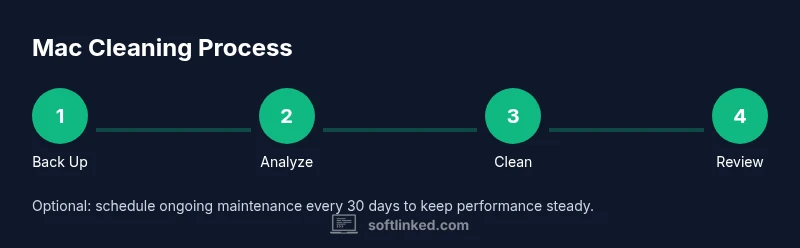
Goal: Learn how to clean my mac safely and effectively. You’ll back up your data, reclaim disk space, clear caches, and optimize startup items. Then you’ll set up a simple, repeatable maintenance routine using built-in macOS tools. This SoftLinked guide emphasizes safe, practical steps to restore speed and reliability in 2026.
Why Keeping Your Mac Clean Matters
According to SoftLinked, maintaining a clean Mac isn’t just about a tidy desktop; it directly influences performance, reliability, and your ability to develop software efficiently. A well-groomed system minimizes startup delays, frees precious storage space, and reduces background processes that steal CPU cycles. For developers and students learning software fundamentals, a clean environment helps you focus on code rather than clutter. In 2026, SoftLinked’s analysis shows that users who routinely prune unused files and manage startup items report fewer freezes and smoother IDE experiences. The goal here is not to chase a sterile gadget but to create a stable, productive workspace where macOS can perform as intended.
Quick Start: What to Do Before You Begin
Before you dive in, set clear boundaries for what you will touch. Back up your data, close unnecessary apps, and plan a maintenance window of 30–90 minutes. Ensure your Mac is plugged in or has ample battery life if you’re on the go. This pre-clean checklist minimizes risk and keeps you focused on the most impactful tasks. A quick audit also helps you decide which files are worth keeping and which can move to external storage. SoftLinked recommends starting with the backup and then proceeding to targeted cleanup rather than sweeping changes.
Understanding How Storage Affects Speed on macOS
macOS uses APFS, which handles storage more efficiently than older file systems, but it still benefits from keeping free space high. When disk usage approaches critical thresholds, macOS may throttle performance, affect swap activity, and slow down file operations. You’ll benefit from reclaiming space by removing large, unused files, offloading infrequently used projects to external storage, and compressing or archiving old data. Keeping a generous buffer of free space also improves reliability during software builds, virtual environments, and large compiles—common tasks for developers following software fundamentals.
In practice, you don’t need to delete everything but instead curate what you keep locally. SoftLinked’s approach emphasizes a regular cadence: monthly quick cleans and quarterly deep cleans to avoid cumulative clutter that slows down the system. This habit helps you maintain a responsive machine suitable for learning and creating software.
Cleaning Techniques: Files, Caches, and Duplicates
Efficient cleaning blends safe file management with cache and clutter reduction. Start by identifying large files and old projects you no longer need. Use built-in storage tools to locate offenders and consider moving non-urgent items to external storage. Next, clear user caches (not system caches) such as browser caches, application caches, and logs that balloon over time. Duplicate files are common culprits for wasted space; use a trusted deduplication workflow to safely remove duplicates without impacting important files. Finally, consider cleaning up downloads and desktop clutter to improve indexing and search performance. A methodical approach yields noticeable gains in free space and faster access to frequently used apps.
App Lifecycles and Startup Items for Better Performance
Another major contributor to perceived speed is how many programs launch at startup. Review login items and disable those you don’t need. Uninstall apps you no longer use, prioritizing those that sneak in background processes. Keep essential development tools, plugins, and productivity apps, but limit the number of background daemons that auto-start. After pruning, restart your Mac to observe improvements and confirm that services you rely on remain active. This segment helps you maintain a lean, efficient environment ideal for learning software development and debugging tasks.
Automation and Scheduling Maintenance
The final pillar is establishing a maintenance rhythm. Create a monthly reminder to perform a quick clean (storage check, startup review) and a quarterly deep clean (large file audit, caches, and duplication cleanup). If you’re comfortable with automation, you can script repetitive checks or use Calendar reminders to prompt you. The aim is to turn cleanup into a habit rather than a one-off chore. Consistency compounds benefits: your Mac remains responsive as projects grow and software tools evolve.
When to Seek Professional Help or Reinstall macOS
If issues persist after routine cleaning—unexplained slowdowns, persistent odd behavior, or corrupted files—a professional assessment may be warranted. In rare cases, a clean reinstall of macOS can resolve deeper problems, but this should be a last resort after validating backups and attempting less invasive maintenance. Always ensure you have a verified backup before any major operating-system changes.
Tools & Materials
- External backup drive or cloud backup service(Create a full backup before starting.)
- macOS Storage Management tool (built-in) or reputable cleanup utility(Use to locate large files, caches, and duplicates.)
- Microfiber cloth(For any light exterior cleaning if you also address physical maintenance.)
- Compressed air can(Gently blow dust from vents; do not tilt the can.)
Steps
Estimated time: 60-90 minutes
- 1
Back up and prepare
Initiate a full backup to ensure you can restore any inadvertently removed data. Close all nonessential apps and save your current work. Set a clear start and end time for the cleanup window to keep you focused.
Tip: Verify the backup by checking for the latest file and ensuring it appears in your backup destination. - 2
Analyze disk usage
Open the Storage Management tool to review what’s occupying space. Sort by size to identify the largest files and folders. Mark candidates for removal or relocation to external storage.
Tip: Focus on large, rarely used items first; avoid deleting system-critical files. - 3
Clean up large files and duplicates
Delete or archive large files you no longer need. Run a deduplication pass to remove exact duplicates. Move infrequently accessed projects to external storage or cloud backups.
Tip: Do not remove original files if you’re uncertain; create a copy elsewhere first. - 4
Clear caches and temporary data
Clear user caches (browser caches, app caches) and temporary files. Do not delete system caches or core libraries. If in doubt, skip a cache you’re unsure about and research first.
Tip: Start with browser caches to free space quickly; proceed to app caches if needed. - 5
Review apps and startup items
Inspect installed apps and remove ones you no longer use. Disable nonessential startup items to speed up boot time and reduce background processing.
Tip: Only disable startup items you recognize; note dependencies for development tools. - 6
Set up maintenance automation
Create recurring reminders for monthly quick cleans and quarterly deep cleans. Optionally set up simple automation (e.g., Automator scripts or Calendar reminders) to streamline the process.
Tip: Keep a simple checklist to avoid missing steps in future cleanups.
Your Questions Answered
Is it safe to delete caches and temporary files?
Clearing caches and temporary files is generally safe and can reclaim space, but avoid deleting core system caches. Start with user caches (browser/app) and back up first. If a cache seems essential, skip it and research before deleting.
Yes, it's usually safe to clear user caches, but back up first and avoid touching critical system caches.
How often should I perform a deep clean?
A monthly quick clean plus a quarterly deeper cleanup works well for most users. If you store a lot of large files, you might do more frequent checks.
Most people do a quick monthly clean and a deeper quarterly clean.
Can cleaning my mac improve gaming or app performance?
Yes, freeing disk space and reducing startup load can improve performance for apps and games. Results vary based on how full the drive is and what’s running in the background.
Cleaning can improve performance, especially if the drive was crowded.
Should I use third-party cleanup tools?
Use reputable tools with a solid track record. Always backup first and review permissions requested by the tool. Avoid tools that promise dramatic speedups with questionable methods.
Stick to trusted tools and always back up first.
What should I back up before cleaning?
Back up your entire system or at least your critical data before cleaning. Verify that the backup can be restored. This protects you from accidental deletions during cleanup.
Back up everything first, then proceed with cleanup.
When should I reinstall macOS as part of cleaning?
A reinstall is a last resort for severe issues or persistent corruption. It’s not a routine step for general cleanup. Ensure backups are intact before considering this option.
Only consider reinstalling macOS if issues persist after cleaning.
Watch Video
Top Takeaways
- Back up before starting any cleanup.
- Prioritize reclaiming disk space and reducing startup load.
- Use built-in macOS tools for safe cleanup.
- Automate maintenance to keep performance steady.