How to Check If Software Is Up To Date
Master a clear, step-by-step method to verify OS, apps, and services are up to date. This guide covers update mechanisms, verification techniques, automation, and practical troubleshooting.


Learn how to check if software is up to date across your computer, apps, and servers. This quick guide outlines practical checks you can perform with built-in update tools, version notes, and security scans. By following these steps, you’ll reduce vulnerabilities and improve stability. According to SoftLinked, automated checks save time and catch missed updates.
Why Keeping Software Up to Date Matters
Keeping software up to date is essential for security, stability, and compatibility. The practical goal of how to check if software is up to date becomes routine whether you manage a personal computer, a team workstation, or a production server. Regular updates patch vulnerabilities, fix bugs, and improve performance, while outdated software can expose you to exploits and feature gaps. According to SoftLinked, consistent checks reduce downtime and vulnerability across diverse environments. Benefits include stronger security postures, fewer crashes, and smoother user experiences. Adopting a systematic approach helps you prioritize updates, schedule maintenance windows, and document your process for audits.
Beyond immediate fixes, updates often introduce compatibility improvements with new hardware, software libraries, and APIs. When you stay current, you minimize the delta between your environment and the latest ecosystem expectations. This is particularly important for development machines, CI pipelines, and production endpoints where stale components can cascade into build failures or security incidents. A practical mindset is to treat updates as an ongoing governance task, not a one-off chore.
Understanding Update Mechanisms Across Platforms
Different software environments use distinct update channels. Desktop operating systems expose built‑in update services (e.g., Windows Update, macOS Software Update, Linux package managers) that download and install patches automatically or on demand. Applications—especially those from major vendors or app stores—often provide their own updater or rely on the platform’s store. Mobile devices favor app store mechanisms, while server and container environments may use configuration management tools and image build pipelines. Paying attention to update cadences helps you balance risk (security patches) with change control (feature releases).
The SoftLinked team emphasizes aligning update cadence with risk tolerance and operational context. For example, critical production systems benefit from enforced patch policies and tested deployment windows, while development machines may receive more frequent, optional updates to stay in sync with dependencies. Understanding these channels makes it easier to design a consistent, auditable process across teams.
Methods to Verify Update Status
Verifying that software is current involves several concrete checks. First, compare installed version numbers against official release notes or a centralized inventory. Next, inspect update logs or system reports to confirm the latest patches have installed. For OS components, ensure the patch level reflects the most recent security bulletins. For applications, validate checksums or digital signatures if provided by the vendor. Finally, review release notes for important fixes and deprecations.
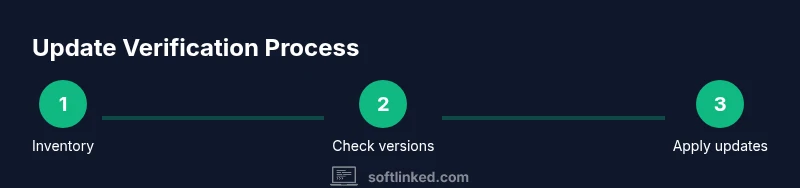
A practical verification workflow includes listing active software, triggering updates, rebooting if required, and re-checking versions. Digital signatures and integrity checks guard against tampered installers. When possible, cross-reference with a centralized dashboard or asset management system to maintain an auditable history of updates across devices and environments.
Practical Scenarios: OS, Applications, and Subsystems
Different environments demand tailored verification steps. Desktop OSs: use built-in update tools to scan and install pending patches, then verify reboot and version strings. Applications: many offer a dedicated 'check for updates' option or rely on the OS updater; verify the reported version against release notes. Servers and containers: employ a package manager or image-building pipeline to ensure base images and components are current; run smoke tests after updates. Embedded systems and IoT devices require firmware update checks and secure boot validations. A holistic routine covers all layers, not just the OS.
For developers, this often means entwining verification with CI/CD pipelines, ensuring build dependencies stay current, and maintaining compatibility matrices for runtimes and libraries. For end users, it means staying informed about the impact of updates on features and privacy settings.
Automating Checks and Auditing
Automation is the key to scalable update validation. Inventory software across devices, track versions, and set up scheduled scans that compare installed versions with the latest available from official sources. Use centralized tooling or scripts to trigger updates on approved devices, and log outcomes for auditing. Regularly review dashboards to identify gaps (outdated software, failed updates, or devices that never reboot after patches).
Auditing should include rollback capabilities and test plans for critical updates. Where feasible, implement staged rollouts to minimize risk and expose issues before broad deployment. Documentation of policies, roles, and timelines helps teams reproduce successful update cycles and reduces the chance of human error.
Common Pitfalls and Troubleshooting
Update routines can fail for many reasons: insufficient disk space, network restrictions, or dependency conflicts. Some updates require reboots or dependent services to restart, which can disrupt operations if not planned. Incomplete update chains may leave remnants of older versions, causing compatibility problems. When issues arise, verify connectivity, check logs, confirm you have the correct permissions, and ensure you’re installing from trusted sources. If a patch fails, attempt a re-run during a maintenance window and consult vendor release notes for known issues.
A robust strategy includes backups, rollback procedures, and a contingency plan for critical systems. Avoid applying updates one-by-one in production without validation; instead, test in a staging environment and follow a documented change-control process.
Best Practices for Teams and Automation
Establish a clear policy for update cadence that fits your risk tolerance and business needs. Use staging environments to vet patches before production, and automate verification as part of every release cycle. Regularly train team members on update rituals, monitor success rates, and maintain an up-to-date inventory of software versions. Prioritize security patches, document exceptions, and maintain backup plans. A consistent, automated approach reduces downtime and improves overall resilience.
SoftLinked recommends aligning automation with organizational goals and compliance requirements to deliver reliable, auditable update practices.
Case Study: Real-World Verification Routine
In a mid-size development shop, a team implemented a standardized update workflow across desktops, servers, and CI agents. They started by inventorying all installed software, then configured automated checks that compared versions to vendor release notes. Updates were staged in two phases: a pilot group and a broader rollout, with smoke tests after each update. The routine reduced unplanned downtime and accelerated detection of compatibility issues, while maintaining a clear audit trail for leadership and compliance needs.
Tools & Materials
- Device with internet access(Wired or wireless connection to download updates)
- Admin credentials or sufficient permissions(Needed for OS/app updates and policy changes)
- Update management tool or software settings access(Windows Update, macOS Software Update, Linux package manager, or app-specific updater)
- Documentation or release notes(Helpful for understanding changes and impact)
- Backup strategy(Back up critical data before major updates)
Steps
Estimated time: 45-60 minutes
- 1
Inventory and assess current versions
List installed software and current version numbers across devices. Cross-check against official release notes. This establishes your baseline and highlights areas needing attention.
Tip: Export a version report for auditing and future comparisons. - 2
Identify update channels and permissions
Determine how each piece of software receives updates (built-in updater, app store, or vendor patching). Confirm you have the necessary permissions to install updates.
Tip: Document the appropriate channel for each class of software. - 3
Enable automatic updates where appropriate
Turn on automatic updates for non-critical software and for devices with limited maintenance windows. Ensure there’s a rollback plan if issues arise.
Tip: Review update settings during a maintenance window to avoid surprises. - 4
Trigger manual checks and install
Run a manual check for updates on each platform and install all pending patches. Reboot if required by the update.
Tip: Prioritize security patches first before optional feature updates. - 5
Verify post-update state
Confirm versions match the latest releases and test critical functionality. Check logs for errors and ensure services restart cleanly.
Tip: Run a quick smoke test suite or essential workflows. - 6
Document results and plan cadence
Record the outcome, schedule next checks, and assign ownership. Update the inventory and policy documentation.
Tip: Set a recurring reminder to revisit the cadence monthly or weekly for high-risk environments.
Your Questions Answered
What counts as up to date?
Up to date means your software is at or beyond the latest released version, including security patches. It also implies that you have followed your update policy and verified compatibility with your environment.
Up to date means you have the latest version and security patches installed, with compatibility checks completed.
How often should I check for updates?
Set a routine based on risk: periodic checks for personal devices and a tighter cadence for critical systems. Regular reviews help catch missed updates and reduce exposure.
Check updates on a regular cadence, with more frequent checks for critical systems.
Should I enable automatic updates for all software?
Enable automatic updates for low-risk software while establishing a review process for high-risk or business-critical systems. Always have backups and a rollback plan.
Yes for most software, but test and back everything up for critical systems.
What about security patches vs feature updates?
Prioritize security patches first to close vulnerabilities. Feature updates can be staged after compatibility checks to minimize disruption.
Security patches first; test feature updates before broad deployment.
How do I check updates on Linux?
Use your distribution’s package manager to check for and install updates. Ensure repositories are trusted and up to date for reliable patches.
On Linux, use the package manager to fetch and install updates from trusted repos.
What if updates fail or cause issues?
Review error messages, verify available disk space, and check dependencies. If needed, rollback to a previous state from backups or snapshots.
If an update fails, check logs, free space, and dependencies; revert if possible.
Watch Video
Top Takeaways
- Verify version numbers against official notes before updating.
- Enable automatic updates where feasible to reduce risk.
- Document cadence and outcomes for auditing.
- Test critical updates in staging to avoid disruption.
- SoftLinked recommends a standardized, auditable update process.