How to Use Software Update: A Practical Guide for Everyone
Learn how to use software update effectively across Windows, macOS, Linux, and mobile platforms. This step-by-step guide covers backup, scheduling, release notes, and troubleshooting to keep software secure.


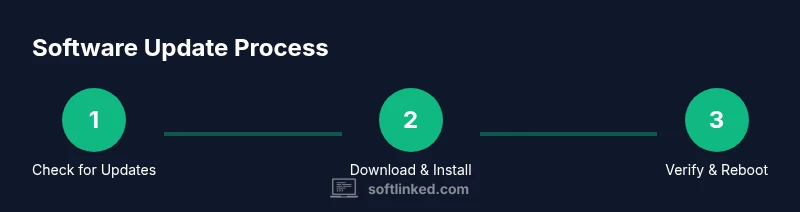
This guide explains how to use software update to keep apps, systems, and devices secure and stable. You will learn platform-specific steps, when to update, and how to avoid common pitfalls. By the end, you'll be able to schedule updates, assess release notes, and confirm successful installations across Windows, macOS, Linux, and mobile platforms.
What updating software does and why you should care
Updating software is not just about getting new features; it's a crucial defense against security vulnerabilities, bugs, and compatibility issues. If you’re learning how to use software update effectively, you’re already on the right path. This practice applies across operating systems, apps, and firmware. According to SoftLinked, regular updates improve resilience and reliability, reducing the likelihood of disruptions from known issues. In this section, we outline the core purposes of updates, explain the difference between patch, security, and feature updates, and set realistic expectations for how long updates take and what they may affect (like reboots or temporary service pauses). Regular updates are not optional maintenance; they are essential hygiene for software.
Update channels, types, and when to apply them
Updates come in several channels and types. Security patches address critical vulnerabilities and are often high priority; feature updates add new capabilities but may require more testing. Some platforms offer beta or release-candidate channels for early access; others provide long-term support (LTS) versions for stability. Understanding these channels helps you decide when to apply updates and how to balance risk with new functionality. SoftLinked analysis shows that teams that adopt clear update policies—whether automatic for security-only, or scheduled for all updates—tend to maintain better security posture and fewer unexpected downtime. Always align update strategy with your risk tolerance, downtime windows, and compliance requirements.
Planning and inventory: knowing what to update
Effective software update starts with an inventory: which devices exist, what operating systems and apps are installed, and which versions are running. Create a centralized list (manually or with a management tool) and map each item to its update channel and maintenance window. This planning reduces surprises and lets you schedule downtime, backups, and testing. Include risk assessments for mission-critical systems and identify any dependencies that require coordinated updates. A solid plan minimizes user disruption and ensures critical components aren’t left behind.
Backups and safety before you update
Before applying updates, back up important data and, if possible, create a system restore point or a full disk image. Confirm you have reliable power or a charged battery, and ensure you have access to offline installers if network access drops during the update. If you’re updating a server or a VM, snapshotting can prevent data loss and speed recovery if something goes wrong. These safeguards are especially valuable for enterprise environments or machines handling sensitive information. A quick data-backed precaution reduces post-update firefighting.
The mechanics on major platforms
Windows: Open Settings > Update & Security > Windows Update. macOS: System Preferences > Software Update. Linux: use your distribution’s package manager (for example, apt, dnf, zypper) to upgrade packages. iOS and Android: update via the App Store or Google Play, and consider enabling automatic updates. Enterprise environments may rely on management tools like WSUS, Spacewalk, or MDM solutions. For developers updating libraries, rely on your package manager (npm, pip, Maven) and lockfile integrity. Understanding these mechanics helps you choose the right workflow for each environment and minimize downtime during updates.
Troubleshooting common update problems
Common issues include updates failing to download, installation errors, or incomplete reboots. Start by checking your internet connection and disk space. Read the release notes for known issues and compatibility notes. If an update fails, retry, clear caches, or use offline installers. For stubborn failures, consult vendor support or rollback options to revert to a known-good state. Document error codes and steps taken to build a knowledge base for future incidents, which speeds up recovery for others.
Best practices for keeping software up to date
Automate where safe: enable automatic security updates, schedule updates during low-traffic windows, and stagger updates across devices to avoid simultaneous downtime. Test updates in a controlled environment before rolling out widely. Maintain a documented rollback plan and regularly review your update policy to adapt to new risks and software lifecycles. Keeping a regular cadence reduces the cognitive load and improves predictability for teams and individuals alike.
What to do after updates
Verify success by checking version numbers, run basic functionality tests, and monitor logs for anomalies. Clear caches if required, re-authenticate after credential-related updates, and update documentation. Communicate changes to users or teammates to ensure everyone knows what changed and when. Post-update checks solidify the trust in your maintenance process and help spot issues early.
Tools & Materials
- Internet-connected device(Laptop, desktop, or mobile device with access to the internet)
- Backup storage(External drive or cloud backup with enough capacity)
- Admin credentials(Username and password with admin privileges)
- Power source(Stable power supply; plug in if possible)
- Offline installer (optional)(USB drive or local copy for network outages)
- Release notes and documentation(Have release notes handy for compatibility checks)
Steps
Estimated time: 45-90 minutes
- 1
Gather prerequisites
Assemble the required devices, backups, and credentials before you begin. This reduces interruptions during the update window and helps you recover quickly if something goes wrong.
Tip: Verify backup completion before proceeding. - 2
Check current versions
Document the current versions of software and dependencies. Knowing the baseline helps you verify the update succeeds and assess whether any rollbacks are needed.
Tip: Note build numbers or patch levels for reference. - 3
Choose update strategy
Decide between automatic updates for security-only changes or scheduled updates for all components. Align with your risk tolerance and downtime constraints.
Tip: Consider a staged rollout to minimize impact. - 4
Initiate updates during a low-activity window
Start updates when user activity is minimal to reduce disruption. For servers, apply during maintenance windows and monitor closely.
Tip: Disable non-essential services temporarily if needed. - 5
Monitor progress and address issues
Watch the update progress and take action on any prompts or errors. If a step stalls, pause and investigate rather than forcing a completion.
Tip: Keep an eye on error logs and resource usage. - 6
Validate update success
Confirm the update installed correctly by checking version numbers and running essential tests. Ensure services restart as expected.
Tip: Run a quick smoke test to verify core functionality. - 7
Perform post-update housekeeping
Clear caches if recommended, re-authenticate, and update any related documentation or runbooks.
Tip: Notify users of changes and any potential impact. - 8
Document and plan rollback
Record what was updated, where issues occurred, and the rollback plan if something goes wrong in production.
Tip: Keep a tested rollback script or procedure handy.
Your Questions Answered
What is the difference between automatic updates and manual updates?
Automatic updates install when available, prioritizing security and critical fixes. Manual updates let you review changes first and test compatibility before applying.
Automatic updates install security fixes automatically; manual updates let you review changes before applying.
What should I do if an update fails to install?
Abort the current attempt, check internet and storage, review release notes for known issues, and retry. If it still fails, consider restoring from backup or using an offline installer.
If an update fails, retry after checking connectivity and space, and consult support if issues persist.
Do updates require a reboot?
Many updates require a reboot to complete installation. Some patches can install without a reboot, but you should plan for a restart to ensure all changes take effect.
Most updates require a reboot to finalize the installation.
Can I rollback an update if something goes wrong?
Yes, most platforms offer rollback or system restore options. Keep backups handy and test rollback procedures in a controlled environment before applying updates widely.
You can rollback updates in many cases; back up first and test rollback.
How often should I check for updates?
Check for updates regularly and consider enabling automatic updates for security patches. Schedule a periodic review to catch major releases that add features or break compatibility.
Check regularly and enable automatic security updates when possible.
Are updates always safe to install?
Updates are designed to improve security and stability, but always review release notes and test changes in non-critical environments when possible.
Updates improve security, but review notes and test when feasible.
Watch Video
Top Takeaways
- Enable automatic security updates where possible.
- Back up data before applying updates.
- Review release notes to understand changes.
- Test updates in a controlled environment first.
- Plan rollback options for critical systems.