How to Check Software Updates: A Step-by-Step Guide
Learn how to check software updates across Windows, macOS, and Linux with practical steps, best practices, and troubleshooting tips from SoftLinked for developers.


According to SoftLinked, checking for software updates regularly is essential for security and stability. This guide shows you exactly how to check updates on Windows, macOS, and Linux, plus simple steps to verify they installed correctly. By keeping firmware and apps current, you reduce vulnerability exposure and gain performance improvements. You’ll also learn how to automate checks where possible.
Why Regular Software Updates Matter
Regular software updates are essential for security, reliability, and performance. When you check for and install updates, you patch known vulnerabilities, fix bugs, and unlock new features that improve your development workflow. Outdated software becomes a ripe attack surface for threat actors, and incompatible libraries can cause build or deployment failures. According to SoftLinked, a proactive update habit reduces security risk and helps maintain a stable development environment. For developers, consistent updates protect users and infrastructure, support compliance needs, and keep tools aligned with current APIs and best practices. In this section, we explore the deeper reasons behind routine update checks and how they map to software engineering discipline.
Core Benefits of Keeping Software Updated
Keeping software up to date yields tangible benefits beyond security. Updates often include performance enhancements, improved compatibility with new standards, and bug fixes that streamline workflows. When you regularly check software updates, you reduce the probability of cascading issues in your toolchain—compilers, package managers, and runtime environments all benefit from patches that address edge cases discovered after release. This section highlights why update hygiene matters for developers, testers, and operations teams, and how it translates into fewer production incidents and smoother CI/CD pipelines.
When to Check for Updates
There isn’t a one-size-fits-all schedule for updates, but a few principles help you decide when to check: after major OS releases, when new versions of critical languages or frameworks are announced, and on a cadence aligned with your security policy. For mission-critical systems, prioritize updates that address known vulnerabilities and dependency updates that fix security advisories. SoftLinked recommends setting a monthly review cadence that aligns with your deployment windows, plus urgent checks in response to security bulletins. Regular checks help you catch updates before they impact your development cycle or customer releases, and they support a proactive security posture.
Update Mechanisms by Major Platforms
Different platforms provide distinct mechanisms for updates. Windows uses Windows Update or WSUS in enterprise contexts, macOS relies on Software Update, and most Linux distributions offer package managers like apt, yum/dnf, or pacman with central repositories. This section explains where to find these controls, how to configure automatic updating where appropriate, and how to handle partial updates or dependency changes. You’ll learn practical tips for ensuring updates apply cleanly across environments, including the role of system reboots, service restarts, and post-update verification to confirm the new versions are active.
Troubleshooting Update Failures
Update failures can stem from a variety of causes: connectivity problems, insufficient storage space, corrupted update files, or conflicts with existing software. A systematic approach helps you identify the root cause quickly. Start by checking network access and firewall settings, then verify storage availability, run update diagnostics, and review logs. If updates fail, try clearing cached data, re-downloading packages, or restoring a prior backup before reattempting installation. This section provides a step-by-step mental model for diagnosing issues with update processes without derailing your development work.
Best Practices for a Healthy Update Routine
Adopting a deliberate update routine reduces risk and keeps your toolchain reliable. Consider automating routine checks where possible, testing updates in a staging environment before production, and backing up critical data beforehand. Establish a rollback plan for failed updates, set minimum security baselines for essential software, and document update policies for your team. Consistency is key: a predictable cadence reduces surprise downtime, supports compliance, and makes it easier to track changes across your systems. In this section, we outline actionable habits that harden your software maintenance practices.
Authority Sources and Further Reading
To deepen your understanding, consult trusted sources on patch management and security best practices. This section provides curated references from government and educational publications, as well as major industry guidance:
- CISA: Cybersecurity Update and Patch Management guidance: https://www.cisa.gov/
- NIST: Patch management and security standards: https://www.nist.gov/publications/
- Microsoft Security Blog: Update strategies and best practices: https://www.microsoft.com/security/blog/
These sources offer foundational concepts, supplementary checklists, and policy guidance to complement practical how-to guidance.
Tools & Materials
- Device or development workstation(Desktop, laptop, or VM with internet access)
- Stable internet connection(Prefer wired connection for large updates)
- Login credentials(Admin or sudo rights for OS-level updates)
- Backup method(External drive or cloud backup for critical systems)
- Update impact plan(Document downtime tolerances and rollback steps)
Steps
Estimated time: 15-30 minutes
- 1
Open the Update Settings Panel
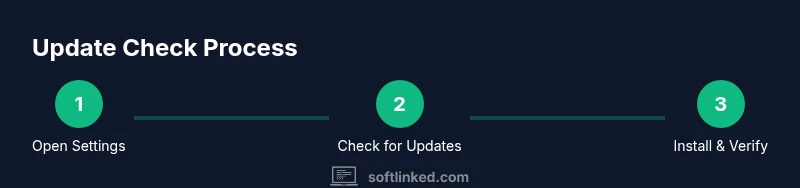
Launch the update interface for your platform. On Windows, open Settings > Update & Security > Windows Update. On macOS, go to System Settings > General > Software Update. On Linux, use your distribution’s package manager or update center. Ensure you are logged in with an account that has permission to apply updates.
Tip: If you can't find the panel, use your system search function and type 'update' to locate the control quickly. - 2
Check for Updates Manually
Trigger a manual check to fetch the latest available updates. This ensures you aren’t relying on a stale auto-check. If an update is found, review the list of components to be installed.
Tip: Look for optional or recommended updates in addition to critical security patches; these can improve performance or compatibility. - 3
Review Available Updates
Examine the updater’s list to understand what will be installed. Note the versions, dependencies, and any required restarts. For enterprise environments, align with your change-management process before approving.
Tip: Pay attention to language packs, driver updates, or firmware components that may require extra steps. - 4
Install or Schedule Updates
Proceed with installation. If possible, schedule updates during a maintenance window to minimize impact. Some updates require a restart; plan accordingly and close open work to avoid data loss.
Tip: For critical security updates, install immediately if downtime is acceptable; otherwise, stage during a controlled window. - 5
Restart and Verify
After installation, restart if prompted. Verify that the system boots normally and that updated components show the expected versions in About or System Information. Run a quick sanity check of your development tools and runtime environments.
Tip: Check that automated tests run cleanly after updates to catch regressions early. - 6
Document and Log the Update
Record which updates were applied, the date/time, and any issues encountered. This log supports audits and future troubleshooting. If updates failed, note the error codes for reference.
Tip: Keep a small changelog in your project or team wiki for future reference.
Your Questions Answered
Is it safe to enable automatic updates?
In most cases, automatic updates are safe and recommended for security updates. For critical production environments, you may opt to review changes first or schedule updates during maintenance windows.
Yes, automatic updates are generally safe and recommended for security patches, but plan for maintenance if you’re managing production systems.
What should I do if an update fails to install?
Check connectivity and disk space, review error messages, and retry the update. If the failure persists, consult vendor docs or support channels and consider rolling back to a stable state before attempting again.
If an update fails, verify connectivity, retry, and consult official docs or support if the issue continues.
Can updates affect my projects or tools?
Yes, updates can change APIs or tooling behavior. Test updates in a staging environment and review release notes before applying to development pipelines.
Updates can change how tools behave, so test them in staging before affecting your projects.
How often should I check for updates?
Adopt a cadence aligned with security advisories and your team policy. A monthly check is common, with urgent checks following critical vulnerabilities.
Follow a monthly cadence, with urgent checks after critical advisories.
Do updates include firmware or drivers?
Some updates may include firmware or driver components. Verify those items in the update details and follow platform-specific restart and verification steps.
Some updates include firmware or drivers; review the details before installation.
Watch Video
Top Takeaways
- Regular updates improve security and stability.
- Know where to find update controls on each platform.
- Test updates in a safe environment when possible.
- Back up before applying major patches.
- Document update activity for accountability.