How to Update Software: A Clear, Practical Guide
Learn how to update software safely and efficiently. This SoftLinked guide covers preparation, update methods, verification, and best practices to keep systems secure and up-to-date.


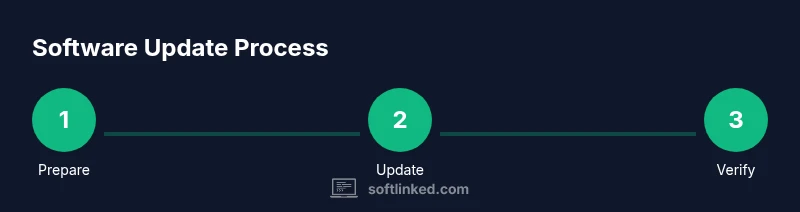
This guide shows you how to update software safely in 6 clear steps: assess your current setup, back up data, choose the update method, apply the update, verify success, and document the change for future reference. You’ll need admin access, a prepared backup plan, and a reliable internet connection to start the process.
What is a software update and why it matters
Software updates are patches and enhancements delivered by developers to fix issues, improve security, and add features. They keep applications and operating systems resilient against new threats and evolving workloads. According to SoftLinked, regular, well-managed updates reduce exposure to vulnerabilities and help workloads run more reliably. A standard update lifecycle includes discovery, packaging, distribution, installation, and verification. Understanding this lifecycle helps developers and students apply updates consistently across different platforms.
In practice, updates come in several forms: security patches that fix vulnerabilities; bug fixes that address known issues; feature updates that introduce new capabilities; and version upgrades that may alter how software behaves. For organizations, updates are not just about software; they are a key part of risk management and compliance. Minimizing disruption while maximizing protection requires planning, testing, and proper rollback procedures. The goal is to keep systems current without interrupting critical services. The SoftLinked team emphasizes designing an update process that aligns with your team's change-control policies and operational constraints.
Types of updates you might encounter
Updates fall into several categories: security patches, which address vulnerabilities; bug fixes, which resolve known problems; feature updates, which add new capabilities; and compatibility updates, which ensure interoperability with other software or hardware. Major updates introduce significant changes, while minor updates deliver smaller improvements and patches. Understanding the cadence of updates for your platforms helps you schedule them intelligently. Some ecosystems use automatic updates that install in the background, while others require manual intervention or administrator approval. When you manage updates across devices, consider the rollout strategy (single device, department-wide, or organization-wide) to balance speed with risk mitigation. Always review the release notes and verify that dependencies remain compatible with your environment. For reference, credible guidelines from industry and government sources emphasize planning and testing to minimize disruption during update cycles.
Planning and risk assessment before updating
Before you initiate any software update, perform a quick risk assessment and inventory your software landscape. Identify critical systems, mission-critical applications, and potential conflict points that could be affected by the update. Establish a change-control plan, including a rollback strategy in case something goes wrong. SoftLinked analysis highlights the importance of understanding dependencies, licensing constraints, and user-impact assessments prior to updating. Create a squarely defined window for the update if needed, communicate the plan to stakeholders, and confirm acceptance. Document the expected impact on performance and availability so you can measure whether the update met its goals after deployment.
Backup and data safety essentials
Backups are your safety net when updating software. Start with a full data backup of important files and a system state backup if possible. Alongside backups, test restore procedures to ensure you can recover quickly if something fails. Consider multiple backup mechanisms: local external storage for quick restores and a cloud-based version for redundancy. Ensure that backups are completed before the update begins, and verify their integrity afterward. If you’re managing many devices, automate the backup process and schedule it to run before updates are pushed. This reduces risk and speeds up recovery if the update introduces unexpected issues. The goal is to have a reliable restore point so you can revert without data loss.
How updates are delivered: channels and mechanisms
Updates are distributed through various channels: automatic updates, user-initiated updates, and offline installers. Automatic updates are convenient but can catch you off guard if a restart occurs during a busy period. Manual updates give you control over timing and rollback options, which is valuable in production environments. Offline installers are essential for air-gapped systems or devices with limited connectivity. When choosing a delivery method, consider the criticality of the software, the environment, and the potential disruption caused by downtime. Remember to review release notes to understand any breaking changes, new requirements, or deprecated features. For safety guidance, industry standards emphasize staged rollouts and monitoring after deployment, which you can reference in credible sources like CISA and NIST.
Step-by-step: preparing your device for an update
Preparation begins with a clean slate. Close nonessential applications to reduce conflicts during installation, and ensure the device has sufficient free space. Check that you’re connected to a stable network and that any security software won’t block the update installer. Review the list of installed programs and verify compatibility with the planned update. If you manage multiple devices, centralize the preparation tasks in your configuration management tool to ensure consistency. Document the prerequisite checks and expected outcomes so you can quickly verify compliance during deployment.
Step-by-step: applying the update (high-level guidance)
Initiate the update through the chosen channel (automatic, manual, or offline installer) and monitor the progress. If the update requires a restart, plan the restart during a low-traffic period and ensure users are informed. Avoid interrupting the installation once it starts, as this can corrupt the software or system. After the installer completes, review the success messages and verify that updated components reflect the new version. If the update includes a firmware or driver component, confirm compatibility with peripheral devices and confirm no hardware errors arise post-update.
Step-by-step: post-update verification and testing
Run a set of verification steps to confirm the update applied correctly. Check system logs, verify critical features work, and ensure performance metrics remain within expected ranges. Validate license statuses, and re-enable any services that were paused for the update. Perform a quick functional test on core workflows and run lightweight automated tests where possible. If issues arise, consult the rollback plan and restore from the backup if needed. Update your documentation to reflect the new version, installed patches, and any notable user-facing changes.
Best practices for update maintenance and future-proofing
Maintain an ongoing update hygiene: schedule regular check-ins for patches, subscribe to security advisories, and track end-of-life notices for software components. Establish a standard that updates are treated as routine maintenance rather than emergencies, reducing panic during rollout. Encourage developers and operators to test updates in a staging environment before production deployment. Keep a changelog and communicate changes to users, so expectations stay aligned. Finally, periodically review the update process itself, looking for bottlenecks or risks that could be mitigated with automation, better tooling, or improved rollback capabilities.
Common pitfalls and troubleshooting tips
The update process can fail for reasons such as insufficient disk space, network interruptions, or incompatible software versions. Always confirm backup integrity before reattempting. If a deployment stalls, consult logs for error codes, apply a targeted fix, and resume the update. Some updates require additional steps like rebooting into a safe mode or updating a related driver after the main patch completes. Document those steps to help future updates run more smoothly. As you gain experience, you’ll recognize patterns that indicate whether an update will be low-risk or high-risk, enabling better planning.
Tools & Materials
- Backup solution (external drive or cloud backup)(Ensure you can restore individual files or system state from the backup)
- Device with admin access(Needed to approve and install updates)
- Stable internet connection(A reliable connection reduces the chance of corrupted downloads)
- List of installed software and licenses(Helpful for assessing compatibility and license obligations)
- Offline installer media (optional)(Useful for air-gapped environments or slow networks)
Steps
Estimated time: Estimated total time: 30-60 minutes
- 1
Back up your data
Create a full backup of important files and, if possible, a system state backup. This ensures you can restore to the prior state if the update causes issues. Verify the backup by performing a quick restore test on a few files.
Tip: Store backups in a separate location from the primary device to reduce risk from device failure. - 2
Check compatibility and read release notes
Review the release notes for the update to understand new requirements, breaking changes, and affected features. Check compatibility with critical apps and drivers to avoid post-update conflicts. If you manage a fleet, coordinate with stakeholders about expected downtime.
Tip: Look for known issues and recommended workarounds in the notes before proceeding. - 3
Choose the update method
Decide whether to enable automatic updates, apply manual downloads, or use an offline installer. Consider the environment: production systems often benefit from staged or manual updates to reduce risk.
Tip: In production, prefer staged rollouts to catch issues early without impacting all users. - 4
Close nonessential applications and pause dependent services
Close apps running in the background and temporarily stop services that might be affected by the update. This minimizes file locks and conflicting processes during installation.
Tip: Document paused services so you can resume them correctly after the update. - 5
Apply the update
Initiate the update using the chosen method and monitor progress. Do not interrupt the installer once it begins running, as this can corrupt the software or system.
Tip: If you’re updating multiple devices, automate the deployment to maintain consistency. - 6
Verify installation success
Check the update status, version numbers, and any post-install messages. Confirm that the target software and services start without errors.
Tip: Compare the new version against expected release notes to confirm alignment. - 7
Test critical workflows
Run essential tasks and basic functionality for the updated software. If automation exists, execute lightweight tests to verify core paths are intact.
Tip: Keep an eye on performance metrics and error logs during testing. - 8
Document the change
Record the update details in your change log, including version, date, method, and any observed issues or workarounds. This helps future updates be smoother.
Tip: Share the changelog with your team to align expectations. - 9
Plan rollback if needed
If critical issues are detected, have a rollback plan ready to revert to the previous version. Validate rollback steps in a staging environment if possible.
Tip: Include safe revert points and ensure data integrity during rollback.
Your Questions Answered
What is a software update and why should I care?
A software update patches vulnerabilities, fixes bugs, and adds features. Regular updates reduce security risks and improve reliability. Understanding update concepts helps you plan, test, and execute updates with less disruption.
A software update patches issues, fixes bugs, and adds features. Regular updates reduce security risks and improve reliability.
Why should I back up before updating?
Backups protect your data in case an update fails or causes corruption. A good backup enables a quick recovery and minimizes downtime during maintenance windows.
Backups protect data if an update fails, allowing quick recovery and less downtime.
What if an update breaks something?
If issues occur, use the rollback plan and restore from the backup. After stabilizing, retest and consider applying the update in a staged approach.
If issues arise, rollback to the previous version from backup, then retest in stages.
Should updates be automated for servers?
Automating updates can save time but requires careful planning, testing in a staging environment, and a solid rollback strategy to avoid outages.
Automation saves time but needs staging tests and a rollback plan.
How often should updates occur?
Update frequency depends on the software and risk tolerance. Prioritize critical security patches and plan less disruptive updates during maintenance windows.
Prioritize security patches and schedule updates during maintenance windows.
Can I skip updates entirely?
Skipping updates increases risk of security vulnerabilities and incompatibilities. Establish a routine that aligns with security policies and business needs.
Skipping updates raises security risks; establish a routine aligned with policies.
Watch Video
Top Takeaways
- Back up before updating and verify restores.
- Review release notes for compatibility and impact.
- Choose an update method that suits your environment.
- Test critical workflows after the update.
- Document changes and plan for rollback if needed.