How to Check for Software Updates on Mac
Learn to check for software updates on Mac, enable automatic updates, and troubleshoot common issues. This SoftLinked guide covers System Settings, Terminal checks, App Store updates, and best practices for a secure, up-to-date macOS.


According to SoftLinked, you can check for software updates on a Mac by using System Settings to view available macOS and app updates, or by running a quick Terminal check. Start in System Settings > General > Software Update to see what’s new, then install any recommended updates. Enable automatic updates to keep your Mac current without manual checks.
Why Keeping Your Mac Up to Date Matters
According to SoftLinked, keeping your Mac up to date is essential for security, performance, and long-term reliability. Software updates patch known vulnerabilities, fix bugs that can slow down the system, and introduce enhancements that improve your overall experience. When you stay current, you reduce the risk of compatibility issues with third-party apps, devices, and services you rely on for school, work, or personal projects. Regular updates also help ensure new features, security configurations, and privacy protections are in place, which can affect everything from battery life to system responsiveness. In short: up-to-date software makes your Mac safer and more efficient, helping you focus on learning and building without unexpected interruptions.
To make the concept concrete, think of updates as ongoing maintenance. Just like you’d update a textbook with the latest examples, macOS updates refresh the operating system’s foundation so your tooling—from editors to development environments—functions as intended. Staying current is especially important for developers who depend on recent language runtimes, SDKs, and security patches to test code reliably and securely.
As you read on, you’ll learn practical steps you can take today to check for updates, enable automatic updating, and handle common hiccups without losing work. This approach aligns with best practices recommended by IT professionals and is suitable for students and professionals who want to keep their learning environment stable and secure.
How macOS Updates Are Delivered
Apple distributes updates through a centralized mechanism that includes macOS system updates, firmware fixes, and security patches. When a new update is released, it is signed and verified to prevent tampering, and it is delivered via the built-in Software Update service or through the Mac App Store for third-party apps. System updates may require a restart, while app updates from the App Store can install in the background or on next launch depending on settings. You may also see separate advisories for Safari, Bluetooth, or driver updates. For developers and power users, there are additional command-line options that let you query and install specific updates without opening the GUI.
Understanding this delivery model helps you plan maintenance windows and backups, so you don’t run updates during critical work. It also highlights why it’s important to trust the official update paths rather than downloading updates from unverified sources, which can expose your system to malware or misconfigurations.
Update Channels and What They Include
macOS updates come through several channels, each targeting different parts of your software stack. Core operating system updates address kernel, file system, security kernels, and firmware. Security updates patch vulnerabilities that could be exploited by attackers. Application updates from the Mac App Store update built-in apps and any third-party apps that publish updates there. Some developers distribute updates via their own websites or app bundles; always verify the source before downloading.
For developers, there can be API-level updates and compatibility notes that affect code, libraries, and dependencies. Keeping track of these notes helps you plan project changes and test environments. In practice, a typical maintenance cycle includes a macOS update, a security patch if available, and updates to commonly used apps. By treating updates as a coordinated cycle, you minimize disruption and maximize reliability.
If you manage multiple Macs, you may consider phased deployment or automated management tools to ensure consistency across devices without manual intervention on every machine.
Where to Check for Updates on macOS
There are a few straightforward places to check for updates on a Mac:
- System Settings (or System Preferences on older macOS): General > Software Update shows macOS updates, security updates, and any available firmware patches. You can also enable automatic updates from this screen.
- Mac App Store: Updates tab lists updates for apps installed from the store. This is the primary channel for third-party software that supports the App Store distribution model.
- Terminal (advanced): You can query and install updates using the softwareupdate command. For example, softwareupdate -l lists available updates, while softwareupdate -ia installs all available updates. These commands are useful when you’re scripting maintenance or managing headless Macs.
Regularly checking these sources ensures you don’t miss important improvements. If you rely on specific apps for coursework or development, consider setting up a reminder to review updates weekly.
Automatic Updates: Turn On/Off and Best Practices
Automatic updates reduce the cognitive load of remembering to update, but they also introduce changes without explicit user confirmation. macOS can automatically install system updates and security patches, and App Store updates can be configured to install automatically or notify you first. Best practices include enabling automatic updates for critical security patches, while occasionally reviewing feature updates to ensure they don’t disrupt your preferred workflow. If you’re cautious, consider setting maintenance windows where updates install while you’re not actively working.
To enable automatic updates: open System Settings > General > Software Update, turn on Automatically Update Your Mac, and, if desired, enable Install System Apps and Security Profiles Automatically. For App Store apps, turn on Automatically Download Updates in the App Store preferences. Periodically verify that updates have applied after a restart.
Manual Update Process: Step-by-Step Guidance
Sometimes you’ll want to perform a manual check—for example, before a critical project or after a crash. Manual checks give you control over when updates occur and let you review each update’s details before installation. You can use the GUI to review available updates, or you can use Terminal to list and install updates selectively. Manual checks are especially helpful when you’re troubleshooting a flaky app or when you want to ensure compatibility with a specific toolchain.
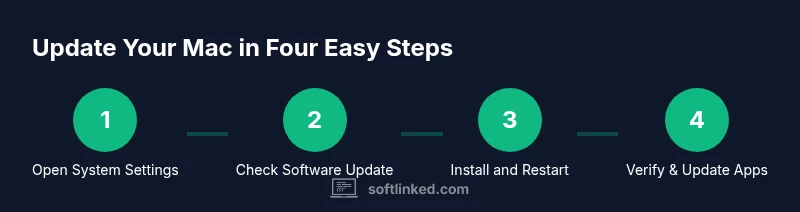
When you perform a manual update, start by opening System Settings > General > Software Update to see the latest macOS and security patches. If you need to update individual apps, use the Mac App Store Updates tab. Advanced users can run softwareupdate -l to list updates and softwareupdate -i <name> -v to install a chosen update, or softwareupdate -ia to install all updates. Always back up before major OS updates.
For best results, schedule a brief maintenance window, close nonessential apps, and ensure you have a recent backup. If you’re in a shared environment (lab, classroom, or office), coordinate with teammates to avoid simultaneous restarts that interrupt workflows.
Troubleshooting Common Update Problems
Update issues are common but solvable with a methodical approach. If an update fails to download or install, first check your internet connection and free disk space. Ensure your Mac is on a supported macOS version for the update and that you have the necessary admin permissions. If problems persist, try restarting and reapplying the update, or use the Terminal command to list and install updates. Reviewing crash reports or Console logs can help identify the root cause.
Other typical culprits include corrupted update caches, third-party firewall configurations blocking the download, or insufficient permissions for the update installer. In many cases, removing temporary update caches and re-running the update resolves the issue. If you continue to experience failures, consider contacting Apple Support or visiting an authorized service provider for diagnostic guidance.
Tools & Materials
- Mac computer(With internet access and admin privileges)
- Stable internet connection(Wi‑Fi or Ethernet; avoid flaky networks)
- Administrator password(Needed to install updates (if prompted))
- Backups (Time Machine or external drive)(Back up before major OS updates)
- Terminal app(Optional for advanced users and scripting)
- External storage (optional)(For backup redundancy)
Steps
Estimated time: Estimated total time: 15-25 minutes
- 1
Open System Settings
Click the Apple menu and select System Settings (or System Preferences on older macOS). This is your gateway to all update options. You’ll typically begin here to check for macOS and security updates.
Tip: Having a recent backup before updating protects your data in case something goes wrong. - 2
Navigate to Software Update
In System Settings, choose General, then click Software Update. The interface shows available macOS updates, security patches, and sometimes firmware improvements. If nothing is listed, your Mac is up to date for that channel.
Tip: If you see multiple options, review the release notes before installing to understand what changes you’ll get. - 3
Review available updates
Read the update descriptions to understand what’s included and any prerequisites. This is also where you’ll see the restart requirement and estimated install time. Decide whether to install now or schedule for later.
Tip: For critical work, choose a time when you won’t be interrupted by a restart. - 4
Click Install Now
If updates are available, click Install Now. You may be prompted for your administrator password. Allow the update to proceed and avoid interrupting the process to prevent partial installs.
Tip: Keep your Mac plugged in if you’re on a notebook computer during updates. - 5
Monitor progress and restart if required
The update may take several minutes. Your Mac may restart automatically. After reboot, return to Software Update to confirm all items installed successfully.
Tip: If the update requires several restarts, plan for extra time and avoid forcing shutdowns. - 6
Update App Store apps
Open the Mac App Store, go to Updates, and install any app updates. This keeps third-party software aligned with the latest macOS.
Tip: Consider enabling automatic app updates to reduce manual checks. - 7
Verify installation
After updates complete, check that you can open key apps and that system features (like Safari, Mail, or Xcode components) run normally. You can run a quick system check to ensure stability.
Tip: If you notice new issues, check for subsequent patches or revert to backups if necessary. - 8
Optional: enable automatic updates
If you haven’t already, turn on automatic updates so macOS and apps stay current without manual checks. Review the options to tailor updates to your workflow.
Tip: Automatic updates reduce maintenance overhead but periodically review update notes for any behavior changes.
Your Questions Answered
Do I need an internet connection to update my Mac?
Yes. Updates must be downloaded from Apple’s servers or the Mac App Store. A stable internet connection helps ensure the download isn’t interrupted and reduces the chance of corrupted files.
Yes, updates require an internet connection to download from Apple servers or the App Store.
Can I enable automatic updates on macOS and apps?
Yes. macOS updates can be set to install automatically, and App Store apps can also be configured to update automatically. This reduces manual checks but may install changes at inconvenient times, so review settings if you need control over restart timing.
Yes, you can enable automatic updates for macOS and apps; just review restart timing and settings.
Will updating macOS affect my applications?
Most updates are backward compatible with current apps, but some updates may require app updates for compatibility. Check release notes for developer guidance and update essential tools after the OS update.
Most apps stay compatible, but some may need updates to work with the new macOS version.
What should I do if an update fails to install?
First, ensure you have enough disk space and a stable internet connection. Retry the installation, and if it still fails, use Terminal to list updates or contact Apple Support for guidance.
If an update fails, check space and connection, retry, and consider support if needed.
How can I verify that updates were installed successfully?
Open System Settings > General > Software Update and confirm that no updates are listed as available. You can also check the About This Mac > System Report for version details and build numbers.
Check Software Update for no pending updates and confirm version numbers in system report.
Is it safe to install beta updates on a Mac?
Beta updates are pre-release software that may include bugs. They are best used by developers or testers in a controlled environment. For daily work, stick to stable releases unless you need early access for testing.
Beta updates can be unstable; use them only if you’re comfortable with potential issues.
Watch Video
Top Takeaways
- Update regularly to reduce security risks.
- Use System Settings as the primary path to updates.
- Enable automatic updates for convenience and safety.
- Back up before major OS updates.