RAR Software Download: A Safe, Step-by-Step Guide for 2026
Learn how to download a reliable RAR software tool safely, verify integrity, install across Windows, macOS, and Linux, and explore open-source alternatives. Essential tips to avoid malware and stay compliant.


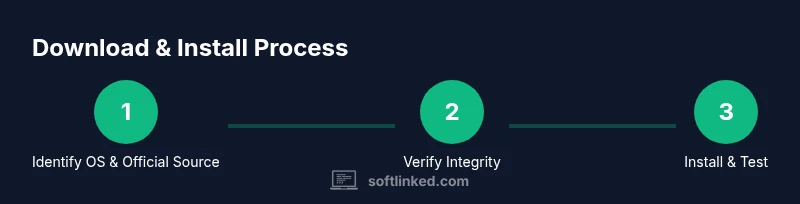
You’ll learn how to perform a safe rar software download, verify the installer’s authenticity, and complete a clean install on Windows, macOS, or Linux. Start by using official sources, ensuring your OS compatibility, and verifying checksums before you run the installer. You’ll also be guided through post-install checks and licensing considerations.
What is RAR software and why you might want it
According to SoftLinked, RAR software refers to tools that create and extract archives using the RAR format. These utilities help compress large files, split archives into smaller parts, and password-protect sensitive data. While some options are commercial, many free or open-source tools offer comparable functionality. Whether you’re backing up coursework, sharing large datasets, or organizing project files, a reliable rar software download is a core productivity step. Understanding the core features—compression efficiency, split volumes, password protection, and broad platform support—lets you pick a tool that fits your workflow. Always consider license terms and update cadence, since those affect long-term maintenance and security.
As you explore options, keep in mind the goal of a clean, malware-free experience. A trustworthy download source, verified installer integrity, and a solid installation process reduce risk and ensure your data remains safe during compression and extraction tasks. The SoftLinked team emphasizes sourcing from official pages and keeping software up to date for ongoing security and stability.
Where to download safely
Finding a safe rar software download starts with identifying the official vendor page rather than third-party hosting sites. Always prefer a vendor’s download center, a recognized app store, or a well-known repository linked from the official site. Avoid pirated marketplaces or sites that push bundled software, extra toolbars, or vague installers. Before you click download, verify the URL matches the official domain and uses HTTPS. If you ever encounter aggressive pop-ups or countdown timers, back away and retry from the official source. When you finally click download, ensure you’re grabbing the correct installer for your operating system (Windows, macOS, or Linux) and that the filename clearly indicates the vendor and version.
From a security perspective, rely on sources that provide a cryptographic checksum alongside the downloadable file. This checksum (often SHA-256) lets you confirm that the file hasn’t been tampered with. SoftLinked’s guidelines recommend downloading from official sources first, and then cross-checking with the provided checksum as a best practice to reduce the risk of malware.
How to verify the download integrity
After downloading a rar software installer, the next step is to verify its integrity using a cryptographic checksum. The official download page will usually publish a SHA-256 (or SHA-1/MD5) value. Use a tool native to your OS to compute the hash of the downloaded file and compare it to the official value. If the hashes don’t match, delete the installer immediately and download again from the official source. Verifying integrity helps prevent installation of tampered software that could compromise your system. If you’re on Windows, you can use PowerShell Get-FileHash; on macOS and Linux, the sha256sum command is common. Never skip this step, especially for rar software distributions with premium licensing and added features.
SoftLinked analysis shows that integrity verification is one of the most effective defenses against supply-chain attacks and fake installers. By confirming the checksum, you protect your work environment and maintain trust in your software stack.
Step-by-step: installing on Windows
Windows installation typically involves running an executable or setup package downloaded from the official site. Right-click the installer, select Run as administrator, and approve any system prompts. Follow the on-screen prompts to choose an installation directory and features; avoid optional bundles that you don’t need. After installation, open the application and perform a quick test by creating a small archive and then extracting it to confirm the tool works as expected. Finally, check for updates within the app or from the official site to ensure you’re on the latest secure version.
Tip: If Windows SmartScreen flags the installer, verify the source again and confirm the file’s hash before proceeding. This extra check helps prevent malware execution and preserves your system integrity.
Step-by-step: installing on macOS
Mac installations usually come as a dmg image or a pkg installer. Open the dmg, drag the application into the Applications folder, or run the pkg and follow the installer prompts. You might be asked to grant accessibility or full-disk access during initial setup—these permissions are typically required for archive management tasks and should be granted only to trusted software. After installation, launch the tool, set the default archive location, and perform a quick test with a small archive to verify extraction and creation features.
Tip: On macOS, you may need to allow apps from identified developers in System Preferences if Gatekeeper prompts appear. This ensures the software you install remains trusted and compatible with your security settings.
Step-by-step: installing on Linux
Linux installations vary by distribution. If the tool is packaged for your distro (e.g., a .deb or .rpm), install via the package manager with a command like sudo apt install package or sudo dnf install package. If you’re downloading a tarball, extract it, navigate to the extracted directory, and run typical build or install commands indicated by the README. After installation, test with a sample archive to ensure command-line and GUI components function correctly. Consider enabling automatic updates if the tool provides a package repository.
Tip: For distributions without official packages, you may compile from source or use a trusted third-party repository. Always verify repository integrity and use signature checks when available.
Step-by-step: configuring basic settings after install
Launch the tool and configure your preferred default behavior: set compression level, archive format (RAR, RAR5, etc.), and whether to enable password protection by default. Enable optional plugins or integrations only if they’re needed for your workflows. Create a small archive to confirm settings apply as expected and that the extraction path is correct. If you manage multiple machines, documenting these settings helps maintain consistency.
Tip: Regularly review default options for security implications, such as encryption settings, to keep your data safe across environments.
Step-by-step: testing an archive extraction and creation workflow
Create a test archive containing a mix of file types to verify compatibility and performance. Attempt to split the archive into multiple parts if your workflow requires it. Then extract all parts to ensure integrity and accuracy. Run a second test by extracting an encrypted archive with a password to confirm the security feature works as intended. This practical testing ensures reliability before you rely on the tool for real projects.
Tip: Keep a log of test results for future reference and troubleshooting.
Step-by-step: licensing, updates, and maintenance
Review the licensing terms to understand usage limits, redistribution rights, and whether commercial use requires a different license. Check for software updates on a regular cadence and enable automatic updates if available. Maintain documentation of license keys (if applicable) and ensure you store them securely. Periodically verify the checksum of newly downloaded installers and install patches promptly to minimize exposure to vulnerabilities.
Tip: Use a centralized update policy if you’re managing multiple devices in an organization to reduce risk and ensure compliance.
Step-by-step: alternatives and ongoing learning
If a proprietary rar software doesn’t meet your needs, explore open-source or alternative tools that support archive creation and extraction. Free options often provide robust command-line interfaces and scripting capabilities for automation. Compare features like multi-volume support, encryption, and cross-platform compatibility. As you gain experience, you’ll become proficient at selecting the right tool for each task and environment.
Tip: Practice safely by testing on non-production data and keeping backups before attempting large or sensitive archives.
Tools & Materials
- Web browser(Use an up-to-date browser to access official sites)
- Official download URL(From the vendor’s official page; avoid mirrors)
- Checksum utility(SHA-256 verification (e.g., sha256sum, Get-FileHash))
- Antivirus software(Keep real-time protection enabled during install)
- Supported operating system(Windows, macOS, or Linux with compatible version)
- Storage space(Ensure extra space for installer and archives)
- Stable internet connection(Prefer wired connections for large downloads)
Steps
Estimated time: 30-60 minutes
- 1
Identify OS and official source
Determine your operating system and locate the vendor’s official download page. Confirm the domain matches the vendor and that the site uses HTTPS. This reduces the risk of counterfeit installers.
Tip: Bookmark the official page to avoid future phishing attempts. - 2
Download the installer from the official site
Click the correct installer for your OS and begin the download. Be wary of bundled software or extra offers that sometimes accompany installers from untrusted sources.
Tip: If two installers exist (standard vs. portable), choose the standard for ease of use. - 3
Verify the installer integrity
Compute the installer’s SHA-256 hash and compare it with the value published on the official page. A mismatch means you downloaded tampered software and should delete it.
Tip: If you’re unsure about the hash, re-download from the official page and recalculate. - 4
Run the installer with admin rights
On Windows, right-click and choose Run as administrator. On macOS and Linux, follow prompts that may require elevated permissions. Grant permissions only to trusted installers.
Tip: Disable any aggressive antivirus prompts temporarily only if you’re sure the source is legitimate. - 5
Complete the installation
Follow the standard wizard steps: accept terms, pick install location, and select features. Do not install optional toolbars or bloatware where offered.
Tip: Note the installation path for future reference or troubleshooting. - 6
First run and basic configuration
Launch the tool and configure defaults: compression level, archive formats, and encryption settings. Ensure the destination folder is accessible and backed up.
Tip: Enable automatic updates if available to improve security over time. - 7
Test extraction and creation
Create a small archive and then extract it to verify both creation and extraction work. Try a multi-part archive if your workflow requires it.
Tip: Keep a log of test results to troubleshoot later. - 8
Review licensing and updates
Check the license terms and update cadence. Keep your license details secure if applicable and set reminders for critical updates.
Tip: Document license keys and activation details in a secure manager. - 9
Explore open-source alternatives
If you prefer free software, explore open-source tools that support archive creation and extraction. Compare features and cross-platform compatibility.
Tip: Practice with non-sensitive data to build confidence before using on real projects.
Your Questions Answered
Is it legal to download rar software from the internet?
Downloading rar software from official sources is legal in most jurisdictions. Unauthorized redistribution or using cracked versions can violate licenses. Always respect licensing terms and avoid pirated software.
Downloading from official sources is legal as long as you follow the license terms. Avoid pirated copies to stay compliant and secure.
Do I need administrator rights to install rar software?
Most installers require administrator rights to modify system directories and registry entries. If you’re on a managed device, follow your IT policy and obtain proper authorization.
Yes, you’ll usually need admin rights to install. If you’re in a managed environment, check with IT first.
What should I do if the download says it’s unsafe?
Do not run the installer. Close the page, clear the download, and re-download from the official vendor. Run a malware scan prior to any action.
If a warning pops up, stop, verify the source, and scan the file before opening it.
Can I use rar software for extracting files from archives?
Yes. RAR software is designed for both creating and extracting archives. Ensure you use the correct password for encrypted archives and verify integrity after extraction.
RAR tools handle both creating and extracting archives; use passwords and verify results.
Are there open-source alternatives to commercial rar software?
Yes. Several open-source tools provide robust extraction and creation features. They may lack some premium options but offer strong security and transparency.
There are solid open-source options that cover most needs without cost.
How often should I update rar software?
Check for updates monthly or when the vendor issues security advisories. Enable automatic updates if available to minimize risk.
Update regularly or enable auto-updates to stay protected.
Watch Video
Top Takeaways
- Choose official sources first and verify integrity.
- Test install and perform a quick archive test.
- Keep software updated and review licensing terms.
- Consider open-source alternatives for flexibility.
- Document best practices for future downloads.