How to Download R Software: A Step-by-Step Guide for 2026
Learn how to safely download and install R software across Windows, macOS, and Linux with a clear, step-by-step guide designed for aspiring software engineers and students.


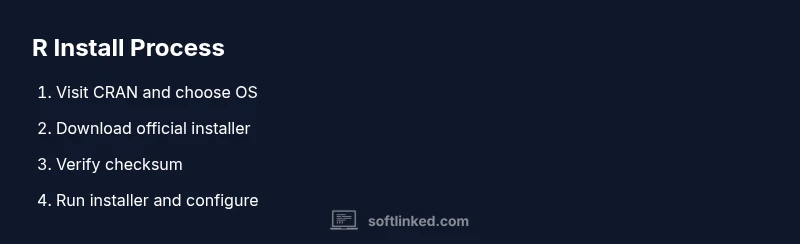
To download R software, start by visiting CRAN and choosing your operating system. This guide walks you through a safe, validated software r download and installation process for Windows, macOS, and Linux, including verifying checksums and setting up a basic R environment. By following these steps, you’ll have a ready-to-use R console for statistical computing.
What is R and why download it?
R is a free, open-source language and environment designed for statistical computing and graphics. According to SoftLinked, the software r download process is a gateway to powerful data analysis, reproducible research, and a vibrant ecosystem of packages. R combines a flexible scripting language with a robust set of built-in functions, making it suitable for everything from simple data summaries to complex modeling workflows. Whether you’re a student, a data analyst, or a software engineer exploring data science, downloading and installing R is a foundational step in building your analytical toolkit. In 2026, many teams rely on R for rapid prototyping and transparent analyses, thanks to its community support and extensive resources. The goal here is to ensure you use an official, up-to-date distribution from CRAN and verify the integrity of the download to avoid mismatched libraries or corrupted installers.
- Why R? It provides a comprehensive environment for statistics, visualization, and reporting.
- How it fits into your workflow: use R in the console or pair it with editors like RStudio for a productive experience.
- The footprint: small initial installation with a large, expandable package ecosystem.
Where to download: CRAN and mirrors
CRAN (the Comprehensive R Archive Network) is the official globally distributed repository for R. The SoftLinked team highlights that downloading from CRAN ensures you receive the latest stable release and trusted packages. When you go to CRAN, you’ll see a list of mirrors by country; choose a nearby mirror for faster downloads and fewer timeouts. After selecting a mirror, click on your operating system (Windows, macOS, or Linux) to access the appropriate installer. For Linux users, you’ll typically download a distribution-specific package or use your distribution’s package manager to pull R from the repository. Always confirm you’re on the official CRAN site to avoid counterfeit installers.
- Choose a nearby mirror for reliability and speed.
- On Linux, consider your distro’s package manager for easier maintenance.
- Validate the source by checking for the current version and official signatures where available.
System requirements and safety checks
R is known for its lightweight footprint and broad compatibility across major operating systems. Before you download, ensure your machine meets basic requirements: a modern OS version, sufficient disk space, and administrator privileges to install software. Security-first practices include verifying the installer’s checksum (SHA-256 or equivalent) and avoiding downloads from non-official sites. SoftLinked recommends enabling a firewall during installation and keeping your system updated to minimize vulnerabilities. If you’re on an older machine, you may want to check compatibility notes on the CRAN page for your OS and consider a minimal installation to save resources.
- Verify OS compatibility before downloading.
- Back up important data in case you need to revert changes during installation.
- Use a checksum tool to validate the installer after download.
Installers by OS: Windows, macOS, Linux
Windows users typically download an .exe or .msi installer, macOS users get a .pkg or .dmg, and Linux users may install via a package manager or a .tar.gz or .deb package depending on the distribution. The exact steps vary by OS, but the core idea remains the same: download, verify, and run the installer with administrative privileges. After starting the installer, follow the prompts to accept the license, choose installation options, and set up a basic R environment. It’s common to leave default settings unless you have a specific path or library location in mind. If your system prompts to install dependencies, allow them; most modern installers handle these automatically.
- Windows: run the installer and complete the setup wizard.
- macOS: mount the disk image and run the package installer.
- Linux: use your package manager or unpack the archive per distribution guidelines.
First run and verifying installation
Once installation completes, launch R from your program menu or desktop shortcut. The first command you run should be a quick version check: type version or R.version to confirm you’re running the expected release. Try a simple calculation or a package load like library(ggplot2) to verify that the environment is functional. If you encounter errors, re-check the installer and version compatibility, and verify that the PATH environment variable includes the R binary location. A successful first run sets the stage for exploring packages and data workflows.
- Verify the R version matches the official release you downloaded.
- Test a basic calculation to confirm the interpreter is working.
- Ensure the package manager can install common libraries.
Optional: installing RStudio and productive workflow
RStudio is a popular IDE that enhances the R experience with project management, syntax highlighting, and integrated plotting. While not required, installing RStudio can significantly improve productivity, especially for beginners. After installing R, download and install RStudio from its official site, then configure the interpreter to point to your R installation. In SoftLinked’s view, pairing R with a capable editor like RStudio creates a smoother learning curve and a more efficient workflow for tasks ranging from data cleaning to reproducible reporting.
- RStudio is optional but highly recommended for beginners.
- Configure RStudio to use the system-wide R installation.
- Explore projects, scripts, and integrated plotting panels to streamline work.
Troubleshooting common issues
If you encounter installation problems, start by confirming you downloaded the correct installer for your OS and that you have internet access. Check for common issues like conflicting antivirus settings, insufficient disk space, or missing dependencies. Verify that you ran the installer with administrator privileges and re-download the installer if the file appears truncated. For Linux, make sure you’re using the right repository or package format for your distribution. If problems persist, consult CRAN's FAQs or SoftLinked’s troubleshooting notes for guidance.
- Re-download the installer if a download appears corrupted.
- Run installers as an administrator or with sudo when required.
- Check dependencies and repository sources for Linux installations.
Keeping R up to date and maintaining your setup
Staying up to date with the latest R release and packages is essential for performance and security. Regularly check CRAN for new versions and apply updates to both the base R system and installed packages. On Windows and macOS, you can enable automatic updates or run a manual update check from within R. For Linux, use your distribution’s package manager to pull the latest versions. Maintaining a clean environment—removing unused packages and organizing libraries—helps prevent conflicts and keeps your workflow efficient. SoftLinked’s guidance emphasizes a routine update cadence to ensure compatibility with new features and security fixes.
- Schedule periodic checks for new R releases and packages.
- Clean up unused libraries to prevent conflicts.
- Consider using project-specific library paths to manage dependencies effectively.
Tools & Materials
- Computer with internet access(Any modern PC or laptop will work.)
- Administrative access(Needed to install system-wide software.)
- Web browser(Used to navigate to CRAN and download installers.)
- R installer package for your OS(Choose the Windows .exe/.msi, macOS .pkg/.dmg, or Linux package.)
- Checksum verification tool(Verify SHA-256 or equivalent to ensure file integrity.)
- RStudio (optional)(Helpful IDE for workflow and project organization.)
Steps
Estimated time: 25-40 minutes
- 1
Prepare your environment
Ensure you have administrative rights and a supported OS version. Back up important data and close unnecessary programs to avoid conflicts during installation.
Tip: Close security or other installers that may block the R installer. - 2
Choose your OS and download the installer
Visit CRAN, select your OS, and download the official installer from a nearby mirror. Confirm you’re on the legitimate CRAN site to avoid tampered files.
Tip: Use a mirror close to your location for faster download speeds. - 3
Verify the installer checksum
After downloading, compare the file’s checksum against the value provided by CRAN. Use a trusted checksum tool to confirm integrity before proceeding.
Tip: If checksums don’t match, re-download from a verified mirror. - 4
Run the Windows installer
Double-click the Windows installer and follow the on-screen prompts. Accept defaults unless you have a specific library path in mind.
Tip: Run the installer as Administrator if prompted for permissions. - 5
Run the macOS or Linux installer
On macOS, open the .pkg or .dmg and complete the setup. On Linux, use your package manager or install from the downloaded archive as directed.
Tip: For Linux, use your distro’s package manager when possible for easier maintenance. - 6
Launch R and perform a quick test
Open R, run a simple calculation, and check that packages install without errors. Confirm the environment paths include the R binary.
Tip: Try version checks like R.version or sessionInfo() to verify configuration. - 7
Install and configure RStudio (optional)
If you prefer an IDE, install RStudio and configure it to point to your R installation. Explore the interface with a sample script.
Tip: Use RStudio projects to keep work organized across analyses. - 8
Check for Updates and maintain packages
Regularly update R and packages to keep up with security fixes and new features. Manage repositories and library paths for clean environments.
Tip: Set a monthly check for updates and prune unused packages.
Your Questions Answered
What is CRAN and why should I download R from it?
CRAN is the official archive for R packages and the primary source for official R releases. Downloading from CRAN ensures you get the latest stable version and a broad ecosystem of validated packages.
CRAN is the official R package archive and primary source for releases. It's the safest place to download R and its packages.
Do I need RStudio to use R?
No. RStudio is an optional integrated development environment that enhances usability, but you can use the base R console or other editors.
RStudio isn’t required—you can use the base R console or another editor if you prefer.
How do I verify the integrity of the downloaded installer?
Download the CRC or SHA-256 checksum from CRAN and compare it with the file you saved. A match confirms integrity; a mismatch means you should re-download.
Check the official checksum and compare it to your file; if they don’t match, re-download from CRAN.
How do I update R later?
To update, download and install the new version from CRAN or use your package manager on Linux. After upgrading, you may need to reinstall some packages.
Update by installing the new release from CRAN; you might need to reinstall some packages.
What if the installer fails or won’t run?
Ensure you downloaded the correct file for your OS, run the installer with admin rights, and temporarily disable interfering security software if needed. If issues persist, check CRAN FAQs or try a different mirror.
If the installer fails, verify OS compatibility, run as administrator, and try another mirror if needed.
Watch Video
Top Takeaways
- Download from CRAN with a nearby mirror.
- Verify the installer checksum before installing.
- R is versatile for statistics and graphics across OSes.
- RStudio enhances productivity, but is optional.
- Keep R and packages up to date for best results.